
How to Self-Host Cognee with Dokploy or Docker Compose
Complete guide to self-hosting Cognee AI memory platform on your own infrastructure using Dokploy or Docker Compose with PostgreSQL, pgvector, and MCP integration.
Table of Contents
- What is Cognee?
- Prerequisites
- Understanding the Storage Architecture
- Option 1: Deploy with Dokploy (Easiest Method)
- Option 2: Deploy with Docker Compose Only
- Option 3: MCP Server Only (Without Full API)
- Configuration Options
- Using the Cognee API
- Using MCP with Self-Hosted Cognee
- Maintenance and Backups
- Security Best Practices
- Conclusion
- Frequently Asked Questions
Join BitBuddies
Level up your DevOps skills with hands-on courses on CloudPanel and Dockploy. Join our community of developers and get expert workshops to accelerate your online journey.
Start your journey to DevOps mastery today! 🚀
If you’re building AI applications that need persistent memory and knowledge graphs, Cognee is a powerful open-source platform worth exploring. It transforms your data into structured knowledge graphs with semantic search capabilities, making it perfect for RAG applications, chatbots, and AI assistants. While cloud solutions exist, self-hosting gives you complete control over your data, privacy, and costs.
In this comprehensive guide, I’ll show you how to self-host Cognee on your own infrastructure using either Dokploy (the easiest method) or Docker Compose for more control. We’ll set up a production-ready deployment with PostgreSQL and pgvector for both metadata and vector storage, using OpenAI for the embedding model, plus the MCP server for AI assistant integration.
What is Cognee?
Cognee is an AI memory platform that organizes your data into knowledge graphs. Unlike simple vector databases, Cognee builds semantic relationships between your data points, enabling more intelligent retrieval and reasoning for AI applications.
Key Features of Cognee
- Knowledge Graph Construction: Automatically extracts entities and relationships from your documents
- Vector Embeddings: Semantic search using configurable embedding providers (OpenAI, Gemini, Ollama, etc.)
- Multi-Provider LLM Support: Works with OpenAI, Anthropic, Google Gemini, Ollama, and more
- MCP Integration: Model Context Protocol support for AI coding assistants like Cursor, Claude, and VS Code
- REST API: Full-featured API for data ingestion, processing, and search
- Flexible Storage: Supports PostgreSQL, SQLite, Neo4j, and various vector stores
- Code Intelligence: Special pipelines for analyzing and understanding codebases
- Dataset Management: Organize data into separate datasets with permissions
- Session Memory: Maintain conversational context across interactions
Why Self-Host Cognee?
Benefits of Self-Hosting:
- Complete data privacy and ownership
- No usage limits or API costs (beyond LLM providers)
- Custom infrastructure and scaling options
- Integration with private networks and services
- Full control over model and embedding choices
Use Cases:
- Building AI assistants with long-term memory
- RAG (Retrieval Augmented Generation) applications
- Code analysis and documentation tools
- Knowledge management systems
- AI-powered search for internal documents
Prerequisites
Before you begin, make sure you have:
- A VPS or Server: Minimum 4GB RAM and 2 CPU cores recommended
- A Domain Name: For accessing your Cognee API (e.g.,
cognee.yourdomain.com) - Docker Installed: Docker and Docker Compose (Dokploy includes this)
- OpenAI API Key: For embeddings and LLM operations (or alternative provider)
- Basic Command Line Knowledge: For running deployment commands
Hosting Recommendations
For production use, we recommend a VPS with at least 4GB RAM. We use pgvector/pgvector:pg17 which is PostgreSQL with the pgvector extension - this single database handles both relational data (metadata, users, datasets) AND vector embeddings for semantic search. This simplifies deployment significantly. Providers like Hetzner, DigitalOcean, or AWS work well.
Understanding the Storage Architecture
Before diving into deployment, it’s helpful to understand how Cognee stores data:
Three Storage Layers
Cognee uses three storage layers, and our Docker Compose handles all of them:
- Relational Database (
DB_PROVIDER=postgres): Stores metadata, user accounts, datasets, document information, and pipeline state - Vector Database (
VECTOR_DB_PROVIDER=pgvector): Stores embeddings for semantic similarity search using the pgvector extension - Graph Database (
GRAPH_DATABASE_PROVIDER=kuzu): Stores knowledge graph data (entities and relationships) in a file-based directory
We use pgvector/pgvector:pg17 - PostgreSQL 17 with the pgvector extension - for both relational and vector storage. For the graph database, Kuzu stores data inside the container’s filesystem, so we need a volume to persist it across container restarts.
Option 1: Deploy with Dokploy (Easiest Method)
Dokploy is an open-source Platform as a Service that simplifies deploying Docker applications. If you haven’t set up Dokploy yet, check out our Dokploy Installation Guide.
Step 1: Install Dokploy
If not already installed:
curl -sSL https://dokploy.com/install.sh | shAccess Dokploy at http://your-vps-ip:3000 and complete the setup.
Step 2: Create a New Project
- Log in to Dokploy dashboard
- Click “Create Project” and name it (e.g., “Cognee”)
- Inside the project, click “Add Service” → “Compose”
- Select “Docker Compose” type (not Stack)
- Name it “cognee-stack”
Step 3: Add Docker Compose Configuration
Go to the General tab and paste the following Docker Compose configuration:
services:
  cognee:
    image: cognee/cognee:main
    networks:
      - dokploy-network
      - cognee-network
    volumes:
      - cognee-data:/app/.cognee_system
    environment:
      - HOST=0.0.0.0
      - ENVIRONMENT=production
      - LOG_LEVEL=INFO
      # Authentication (REQUIRED for public deployment)
      - REQUIRE_AUTHENTICATION=true
      # LLM Configuration
      - LLM_API_KEY=${LLM_API_KEY}
      - LLM_PROVIDER=${LLM_PROVIDER:-openai}
      - LLM_MODEL=${LLM_MODEL:-gpt-4o-mini}
      # Embedding Configuration (OpenAI)
      - EMBEDDING_PROVIDER=${EMBEDDING_PROVIDER:-openai}
      - EMBEDDING_MODEL=${EMBEDDING_MODEL:-openai/text-embedding-3-small}
      - EMBEDDING_DIMENSIONS=${EMBEDDING_DIMENSIONS:-1536}
      - EMBEDDING_API_KEY=${LLM_API_KEY}
      # Database Configuration (PostgreSQL for relational data)
      - DB_PROVIDER=postgres
      - DB_HOST=cognee-postgres
      - DB_PORT=5432
      - DB_NAME=cognee_db
      - DB_USERNAME=cognee
      - DB_PASSWORD=${DB_PASSWORD}
      # Vector Database (pgvector - uses SAME PostgreSQL instance)
      - VECTOR_DB_PROVIDER=pgvector
      # Graph Database (default Kuzu - file-based)
      - GRAPH_DATABASE_PROVIDER=${GRAPH_DATABASE_PROVIDER:-kuzu}
    depends_on:
      cognee-postgres:
        condition: service_healthy
    healthcheck:
      test: ["CMD", "curl", "-f", "http://localhost:8000/health"]
      interval: 30s
      timeout: 10s
      retries: 3
      start_period: 40s
    deploy:
      resources:
        limits:
          cpus: "2.0"
          memory: 4GB

  cognee-mcp:
    image: cognee/cognee-mcp:main
    networks:
      - dokploy-network
      - cognee-network
    environment:
      - TRANSPORT_MODE=http
      - API_URL=http://cognee:8000
      - LOG_LEVEL=INFO
    depends_on:
      cognee:
        condition: service_healthy
    restart: unless-stopped

  cognee-postgres:
    image: pgvector/pgvector:pg17
    networks:
      - cognee-network
    environment:
      - POSTGRES_USER=cognee
      - POSTGRES_PASSWORD=${DB_PASSWORD}
      - POSTGRES_DB=cognee_db
    volumes:
      - cognee-postgres-data:/var/lib/postgresql/data
    healthcheck:
      test: ["CMD-SHELL", "pg_isready -U cognee -d cognee_db"]
      interval: 5s
      timeout: 5s
      retries: 5
    restart: unless-stopped

networks:
  cognee-network:
    name: cognee-network
  dokploy-network:
    external: true

volumes:
  cognee-data:
  cognee-postgres-data:
Volume Explanation
cognee-data:/app/.cognee_system- Persists Kuzu graph database and system filescognee-postgres-data:/var/lib/postgresql/data- Persists PostgreSQL data (relational + vector)
Using named volumes ensures data persists across Dokploy deployments.
UI Not Available in Docker
The Cognee frontend Docker image (cognee-frontend) is experimental and currently not well-supported. For the Cognee UI, you need to run cognee-cli -ui locally with a Python installation, which launches both frontend and backend. For Docker deployments, use the Swagger UI at https://cognee.yourdomain.com/docs for full API access.
Configuring Domains in Dokploy
This Docker Compose configuration doesn’t include Traefik labels or exposed ports. Instead, configure domains through Dokploy’s Domain tab:
- After deploying, go to the Domains tab for your compose service
- Click Add Domain and configure:
- Domain:
cognee.yourdomain.com - Container: Select the
cogneeservice - Port:
8000 - Enable HTTPS for automatic SSL
- Domain:
- Repeat for the MCP service:
- Domain:
mcp.yourdomain.com - Container: Select the
cognee-mcpservice - Port:
8000
- Domain:
This approach is cleaner than inline Traefik labels and allows easy domain management through the Dokploy UI.
Important Notes
- The
dokploy-networkis required for Traefik routing - Don’t set
container_nameas it causes issues with Dokploy features - The same PostgreSQL instance (
cognee-postgres) is used for BOTH relational data AND vector storage via pgvector
Step 4: Configure Environment Variables
Go to the Environment tab and add these variables:
# OpenAI API Key (required for LLM and embeddings)
LLM_API_KEY=sk-your-openai-api-key-here

# Database Password (generate a strong password)
DB_PASSWORD=your-secure-database-password-here

# Optional: LLM Configuration
LLM_PROVIDER=openai
LLM_MODEL=gpt-4o-mini

# Optional: Embedding Configuration
EMBEDDING_PROVIDER=openai
EMBEDDING_MODEL=openai/text-embedding-3-small
EMBEDDING_DIMENSIONS=1536

# Optional: Graph Database (kuzu is default, can use neo4j or falkordb)
GRAPH_DATABASE_PROVIDER=kuzu
Generate a secure database password:
openssl rand -base64 32Step 5: Configure DNS
Before deploying, set up your DNS A records:
cognee.yourdomain.com→ Your VPS IPmcp.yourdomain.com→ Your VPS IP
Step 6: Deploy and Configure Domains
- Click “Deploy” and wait for the services to start
- Monitor the logs in the Deployments or Logs tab
- Go to the Domains tab and add domains for each service (see notes above)
- Wait about 30 seconds for Traefik to generate SSL certificates
Once deployed, verify:
# Check API health
curl https://cognee.yourdomain.com/health

# Check MCP health
curl https://mcp.yourdomain.com/health

# Access API documentation
open https://cognee.yourdomain.com/docs
Option 2: Deploy with Docker Compose Only
For more manual control or if you prefer not to use Dokploy, here’s how to deploy with Docker Compose directly.
Step 1: Prepare Your Server
Update system and install Docker:
# Update packages
sudo apt update && sudo apt upgrade -y

# Install Docker
curl -fsSL https://get.docker.com -o get-docker.sh
sudo sh get-docker.sh

# Install Docker Compose plugin
sudo apt install docker-compose-plugin -y
Step 2: Create Project Directory
mkdir -p ~/cognee
cd ~/cognee
Step 3: Create Docker Compose File
nano docker-compose.ymlPaste the following configuration:
services:
  cognee:
    image: cognee/cognee:main
    container_name: cognee
    networks:
      - cognee-network
    volumes:
      - cognee-data:/app/.cognee_system
    environment:
      - HOST=0.0.0.0
      - ENVIRONMENT=production
      - LOG_LEVEL=INFO
      # Authentication (REQUIRED for public deployment)
      - REQUIRE_AUTHENTICATION=true
      # LLM Configuration
      - LLM_API_KEY=${LLM_API_KEY}
      - LLM_PROVIDER=${LLM_PROVIDER:-openai}
      - LLM_MODEL=${LLM_MODEL:-gpt-4o-mini}
      # Embedding Configuration (OpenAI)
      - EMBEDDING_PROVIDER=${EMBEDDING_PROVIDER:-openai}
      - EMBEDDING_MODEL=${EMBEDDING_MODEL:-openai/text-embedding-3-small}
      - EMBEDDING_DIMENSIONS=${EMBEDDING_DIMENSIONS:-1536}
      - EMBEDDING_API_KEY=${LLM_API_KEY}
      # Database Configuration (PostgreSQL for relational data)
      - DB_PROVIDER=postgres
      - DB_HOST=postgres
      - DB_PORT=5432
      - DB_NAME=cognee_db
      - DB_USERNAME=cognee
      - DB_PASSWORD=${DB_PASSWORD}
      # Vector Database (pgvector - uses SAME PostgreSQL instance)
      - VECTOR_DB_PROVIDER=pgvector
      # Graph Database
      - GRAPH_DATABASE_PROVIDER=${GRAPH_DATABASE_PROVIDER:-kuzu}
    ports:
      - "8000:8000"
    depends_on:
      postgres:
        condition: service_healthy
    healthcheck:
      test: ["CMD", "curl", "-f", "http://localhost:8000/health"]
      interval: 30s
      timeout: 10s
      retries: 3
      start_period: 40s
    restart: unless-stopped
    deploy:
      resources:
        limits:
          cpus: "2.0"
          memory: 4GB

  cognee-mcp:
    image: cognee/cognee-mcp:main
    container_name: cognee-mcp
    networks:
      - cognee-network
    environment:
      - TRANSPORT_MODE=http
      - API_URL=http://cognee:8000
      - LOG_LEVEL=INFO
    ports:
      - "8001:8000"
    depends_on:
      cognee:
        condition: service_healthy
    restart: unless-stopped

  postgres:
    image: pgvector/pgvector:pg17
    container_name: cognee-postgres
    networks:
      - cognee-network
    environment:
      - POSTGRES_USER=cognee
      - POSTGRES_PASSWORD=${DB_PASSWORD}
      - POSTGRES_DB=cognee_db
    volumes:
      - cognee-postgres-data:/var/lib/postgresql/data
    healthcheck:
      test: ["CMD-SHELL", "pg_isready -U cognee -d cognee_db"]
      interval: 5s
      timeout: 5s
      retries: 5
    restart: unless-stopped

networks:
  cognee-network:
    name: cognee-network

volumes:
  cognee-postgres-data:
  cognee-data:
Volume Explanation
cognee-data:/app/.cognee_system- Persists Kuzu graph database and Cognee system filescognee-postgres-data:/var/lib/postgresql/data- Persists PostgreSQL data (relational + vector via pgvector)
The pgvector/pgvector:pg17 image is PostgreSQL 17 with the pgvector extension. When we set DB_PROVIDER=postgres and VECTOR_DB_PROVIDER=pgvector, Cognee uses the same PostgreSQL database for both relational and vector storage.
UI Not Available in Docker
The Cognee frontend Docker image is experimental and currently not well-supported. To access the Cognee UI, you need to run cognee-cli -ui locally with a Python installation. For Docker deployments, use the Swagger UI at http://localhost:8000/docs for full API access.
Step 4: Create Environment File
nano .envAdd your configuration:
# OpenAI API Key (required)
LLM_API_KEY=sk-your-openai-api-key-here

# LLM Configuration
LLM_PROVIDER=openai
LLM_MODEL=gpt-4o-mini

# Embedding Configuration
EMBEDDING_PROVIDER=openai
EMBEDDING_MODEL=openai/text-embedding-3-small
EMBEDDING_DIMENSIONS=1536

# Database Configuration
DB_PASSWORD=your-secure-database-password

# Graph Database Provider (kuzu, neo4j, or falkordb)
GRAPH_DATABASE_PROVIDER=kuzu
Step 5: Start Cognee
# Start services
docker compose up -d

# View logs
docker compose logs -f

# Check status
docker compose ps
Step 6: Set Up Reverse Proxy with Nginx
For production with custom domains and SSL:
sudo apt install nginx certbot python3-certbot-nginx -yCreate Nginx configuration:
sudo nano /etc/nginx/sites-available/cogneePaste:
# Cognee API
server {
    listen 80;
    server_name cognee.yourdomain.com;

    location / {
        proxy_pass http://localhost:8000;
        proxy_http_version 1.1;
        proxy_set_header Upgrade $http_upgrade;
        proxy_set_header Connection 'upgrade';
        proxy_set_header Host $host;
        proxy_cache_bypass $http_upgrade;
        proxy_set_header X-Real-IP $remote_addr;
        proxy_set_header X-Forwarded-For $proxy_add_x_forwarded_for;
        proxy_set_header X-Forwarded-Proto $scheme;
        proxy_read_timeout 300;
        proxy_connect_timeout 300;
        proxy_send_timeout 300;
    }
}

# MCP Server
server {
    listen 80;
    server_name mcp.yourdomain.com;

    location / {
        proxy_pass http://localhost:8001;
        proxy_http_version 1.1;
        proxy_set_header Upgrade $http_upgrade;
        proxy_set_header Connection 'upgrade';
        proxy_set_header Host $host;
        proxy_cache_bypass $http_upgrade;
        proxy_set_header X-Real-IP $remote_addr;
        proxy_set_header X-Forwarded-For $proxy_add_x_forwarded_for;
        proxy_set_header X-Forwarded-Proto $scheme;
        proxy_read_timeout 300;
        proxy_connect_timeout 300;
        proxy_send_timeout 300;
    }
}
Enable and get SSL:
# Enable site
sudo ln -s /etc/nginx/sites-available/cognee /etc/nginx/sites-enabled/

# Test configuration
sudo nginx -t

# Reload Nginx
sudo systemctl reload nginx

# Get SSL certificates
sudo certbot --nginx -d cognee.yourdomain.com -d mcp.yourdomain.com
Option 3: MCP Server Only (Without Full API)
If you only need the MCP server for AI coding assistants like Cursor or Claude Code, you can run the MCP server standalone without the full Cognee API stack. This is a lightweight option perfect for personal development environments.
When to Use MCP-Only Mode
The standalone MCP server is ideal when:
- You only need AI assistant memory features (not the full REST API)
- You want a minimal, single-container deployment
- You’re using it for personal development, not shared team knowledge graphs
- You want quick setup without managing PostgreSQL
Each MCP instance maintains its own separate data in this mode.
Quick Start with Docker
# Set your API key
export LLM_API_KEY=your_openai_api_key_here

# Create env file
echo "LLM_API_KEY=$LLM_API_KEY" > .env

# Start MCP server
docker run -e TRANSPORT_MODE=http --env-file ./.env -p 8000:8000 --rm -it cognee/cognee-mcp:main
Verify the Server
curl http://localhost:8000/healthConnect to AI Clients
Once running, connect your AI coding assistant:
Cursor IDE:
{
  "mcpServers": {
    "cognee": {
      "url": "http://localhost:8000/mcp"
    }
  }
}
Claude Code:
claude mcp add --transport http cognee http://localhost:8000/mcp -s projectDocker Compose for MCP-Only (with Persistence)
For persistent storage with the standalone MCP server:
services:
  cognee-mcp:
    image: cognee/cognee-mcp:main
    container_name: cognee-mcp
    environment:
      - TRANSPORT_MODE=http
      - LLM_API_KEY=${LLM_API_KEY}
      - LLM_PROVIDER=${LLM_PROVIDER:-openai}
      - LLM_MODEL=${LLM_MODEL:-gpt-4o-mini}
      - LOG_LEVEL=INFO
    volumes:
      - cognee-mcp-data:/app/.cognee_system
    ports:
      - "8000:8000"
    restart: unless-stopped

volumes:
  cognee-mcp-data:
Create .env file:
LLM_API_KEY=sk-your-openai-api-key-here
LLM_PROVIDER=openai
LLM_MODEL=gpt-4o-mini
Start with:
docker compose up -dStandalone vs API Mode
Standalone Mode (shown above): Each MCP instance has its own database. Data is not shared between instances.
API Mode (Options 1 & 2): Multiple MCP clients connect to a shared Cognee backend with centralized PostgreSQL storage. Use this for team collaboration or when you need the full REST API.
Configuration Options
Cognee is highly configurable. Here are the key options you can customize:
LLM Providers
Cognee supports multiple LLM providers. Update the environment variables accordingly:
OpenAI (Default):
LLM_PROVIDER=openai
LLM_MODEL=gpt-4o-mini
LLM_API_KEY=sk-your-key
Anthropic Claude:
LLM_PROVIDER=anthropic
LLM_MODEL=claude-3-5-sonnet-20241022
LLM_API_KEY=sk-ant-your-key
Google Gemini:
LLM_PROVIDER=gemini
LLM_MODEL=gemini/gemini-2.0-flash
LLM_API_KEY=AIza-your-key
Ollama (Local):
LLM_PROVIDER=ollama
LLM_MODEL=llama3.1:8b
LLM_ENDPOINT=http://host.docker.internal:11434/v1
LLM_API_KEY=ollama
Embedding Providers
Configure embedding models for vector search:
OpenAI (Default):
EMBEDDING_PROVIDER=openai
EMBEDDING_MODEL=openai/text-embedding-3-small
EMBEDDING_DIMENSIONS=1536
OpenAI Large (Better Quality):
EMBEDDING_PROVIDER=openai
EMBEDDING_MODEL=openai/text-embedding-3-large
EMBEDDING_DIMENSIONS=3072
Google Gemini:
EMBEDDING_PROVIDER=gemini
EMBEDDING_MODEL=gemini/text-embedding-004
EMBEDDING_DIMENSIONS=768
EMBEDDING_API_KEY=AIza-your-key
Dimension Consistency
If you change embedding dimensions, you must reset your vector database. The dimensions must match between your embedding provider and vector store configuration. Since we use pgvector (same PostgreSQL), resetting means dropping and recreating the vector tables.
Graph Database Options
Cognee supports different graph databases for knowledge graph storage:
Kuzu (Default - File-based):
GRAPH_DATABASE_PROVIDER=kuzuNeo4j (For production/multi-agent):
GRAPH_DATABASE_PROVIDER=neo4j
GRAPH_DATABASE_URL=bolt://neo4j:7687
GRAPH_DATABASE_USERNAME=neo4j
GRAPH_DATABASE_PASSWORD=your-password
To add Neo4j to your Docker Compose:
  neo4j:
    image: neo4j:latest
    container_name: cognee-neo4j
    networks:
      - cognee-network
    ports:
      - "7474:7474"
      - "7687:7687"
    environment:
      - NEO4J_AUTH=neo4j/your-password
      - NEO4J_PLUGINS=["apoc", "graph-data-science"]
    volumes:
      - neo4j-data:/data
Using the Cognee API
Once deployed, you can interact with Cognee via its REST API. Since authentication is enabled, you’ll need to register and login first.
Accessing Cognee
Cognee provides several ways to interact with it:
- Swagger UI - Interactive API documentation at
/docs(e.g.,https://cognee.yourdomain.com/docs) - Recommended for Docker deployments - REST API - All operations via HTTP endpoints
- MCP Integration - Through AI coding assistants like Cursor or Claude
- CLI with Web UI - Run
cognee-cli -uilocally to launch a full web interface (requires local Python installation)
Note: The Cognee Web UI is currently only available through the CLI (cognee-cli -ui), not via Docker. For Docker deployments, use the Swagger UI at /docs for complete API access.
Check Health
curl https://cognee.yourdomain.com/healthRegister a User
curl -X POST "https://cognee.yourdomain.com/api/v1/auth/register" \
  -H "Content-Type: application/json" \
  -d '{"email": "[email protected]", "password": "your-strong-password"}'
Login and Get Token
TOKEN=$(curl -s -X POST "https://cognee.yourdomain.com/api/v1/auth/login" \
  -H "Content-Type: application/x-www-form-urlencoded" \
  -d "[email protected]&password=your-strong-password" | jq -r .access_token)

echo $TOKEN
Create a Dataset
curl -X POST "https://cognee.yourdomain.com/api/v1/datasets" \
  -H "Content-Type: application/json" \
  -H "Authorization: Bearer $TOKEN" \
  -d '{"name": "my_documents"}'
Add Data
curl -X POST "https://cognee.yourdomain.com/api/v1/add" \
  -H "Authorization: Bearer $TOKEN" \
  -F "data=@/path/to/document.pdf" \
  -F "datasetName=my_documents"
Build Knowledge Graph (Cognify)
curl -X POST "https://cognee.yourdomain.com/api/v1/cognify" \
  -H "Content-Type: application/json" \
  -H "Authorization: Bearer $TOKEN" \
  -d '{"datasets": ["my_documents"]}'
Search
curl -X POST "https://cognee.yourdomain.com/api/v1/search" \
  -H "Content-Type: application/json" \
  -H "Authorization: Bearer $TOKEN" \
  -d '{"query": "What are the main topics?", "datasets": ["my_documents"], "top_k": 10}'
View API Documentation (Swagger UI)
The Swagger UI is your main interface for exploring and testing the API:
https://cognee.yourdomain.com/docsThis interactive documentation lets you:
- Browse all available endpoints
- Test API calls directly in the browser
- View request/response schemas
- Authenticate and manage your session
Using MCP with Self-Hosted Cognee
One of Cognee’s powerful features is its Model Context Protocol (MCP) integration. This allows AI coding assistants like Cursor, Claude Code, and VS Code extensions to use Cognee as persistent memory.
What is MCP?
MCP (Model Context Protocol) is a standard for connecting AI assistants to external tools and data sources. Cognee’s MCP server provides 11 tools including:
- add: Store documents and data in memory
- cognify: Transform data into knowledge graphs
- search: Semantic search across your knowledge
- codify: Analyze and index code repositories
- save_interaction: Store conversation context
- get_developer_rules: Retrieve coding patterns and rules
- list_datasets: View all stored datasets
- prune: Clear all memory for a fresh start
MCP is Already Included!
If you followed the Docker Compose configurations above, the MCP server is already running as part of your deployment:
- Dokploy: Available at
https://mcp.yourdomain.com - Docker Compose: Available at
http://localhost:8001(or your configured domain)
The MCP server connects to the Cognee backend internally via the Docker network (http://cognee:8000).
Connecting Cursor IDE
- Open Cursor Settings → Tools & MCP
- Click + Add MCP Server
- Add this configuration to
mcp.json:
For local development:
{
  "mcpServers": {
    "cognee": {
      "url": "http://localhost:8001/mcp"
    }
  }
}
For your public MCP server:
{
  "mcpServers": {
    "cognee": {
      "url": "https://mcp.yourdomain.com/mcp"
    }
  }
}- Refresh the MCP connection in Cursor
- Use Agent mode to access Cognee tools
Connecting Claude Code
# For local development
claude mcp add --transport http cognee http://localhost:8001/mcp -s project

# For remote server
claude mcp add --transport http cognee https://mcp.yourdomain.com/mcp -s project
Using MCP Tools
Once connected, you can ask your AI assistant to:
- “Add this file to Cognee memory”
- “Search Cognee for authentication patterns”
- “Codify this repository to build a knowledge graph”
- “Save our conversation as developer rules”
- “List all my Cognee datasets”
The AI will automatically use the appropriate Cognee MCP tools.
MCP Authentication
The MCP server connects to your Cognee backend internally. If you need to authenticate MCP requests to the Cognee API, you can add API_TOKEN environment variable to the MCP service configuration.
Maintenance and Backups
Regular Backups
For Dokploy deployments, configure automated backups through Dokploy’s interface or follow our Dokploy Backups Guide.
For Docker Compose with PostgreSQL:
# Manual backup (includes both relational data AND vector embeddings)
docker compose exec postgres pg_dump -U cognee cognee_db > backup-$(date +%Y%m%d).sql

# Restore backup
cat backup-20241127.sql | docker compose exec -T postgres psql -U cognee cognee_db
Automated backup script (backup.sh):
#!/bin/bash
BACKUP_DIR="/backups/cognee"
DATE=$(date +%Y%m%d-%H%M)
mkdir -p $BACKUP_DIR

# Backup PostgreSQL (contains both relational and vector data)
docker compose exec -T postgres pg_dump -U cognee cognee_db | gzip > $BACKUP_DIR/cognee-$DATE.sql.gz

# Keep only last 7 days
find $BACKUP_DIR -name "cognee-*.sql.gz" -mtime +7 -delete
Add to crontab:
chmod +x backup.sh
crontab -e
# Add: 0 2 * * * /path/to/backup.sh
Updating Cognee
With Dokploy:
- Go to your service
- Click “Redeploy”
- Dokploy pulls the latest image
With Docker Compose:
cd ~/cognee
docker compose pull
docker compose up -d
Version Pinning
For production stability, consider pinning to a specific version tag instead of :main:
image: cognee/cognee:v0.1.0
image: cognee/cognee-mcp:v0.1.0
Check the GitHub releases for versions.
Security Best Practices
- Authentication Enabled: We set
REQUIRE_AUTHENTICATION=true- never disable this for public deployments - Use HTTPS: Always use SSL/TLS in production (Traefik/Certbot handles this)
- Strong Passwords: Use complex passwords for database and user accounts
- Environment Variables: Never commit
.envfiles to version control - Firewall: Only expose necessary ports (80, 443)
- Regular Updates: Keep Cognee and Docker images updated
- Backup Encryption: Encrypt database backups at rest
- Network Isolation: Use Docker networks to isolate services
- Monitor Logs: Set up log monitoring for security events
- Rate Limiting: Consider adding rate limits via Nginx or Traefik
Conclusion
Self-hosting Cognee gives you a powerful AI memory platform with complete control over your data and infrastructure. The combination of PostgreSQL with pgvector efficiently handles both relational data and vector embeddings in a single database, while OpenAI provides high-quality embeddings for semantic search.
Key highlights of this setup:
- Single PostgreSQL instance with pgvector handles both metadata AND vector storage
- MCP server included for seamless AI assistant integration
- Authentication enabled for secure public deployment
- Production-ready with health checks, resource limits, and proper networking
Whether you choose the simplicity of Dokploy or the flexibility of Docker Compose, you can have Cognee running in minutes. The MCP integration makes it particularly powerful for AI-assisted development, allowing your coding assistants to maintain persistent memory across sessions.
Next Steps
- Explore the Cognee documentation for advanced features
- Set up automated backups with our Dokploy Backups Guide
- Try the MCP integration with Cursor or Claude Code
- Experiment with different LLM and embedding providers
- Build custom pipelines for your specific use cases
Have questions about self-hosting Cognee? Drop a comment below!
Frequently Asked Questions
While vector databases like Pinecone or Weaviate store embeddings for semantic search, Cognee goes further by building knowledge graphs that capture relationships between entities. This enables more intelligent retrieval that understands context and connections, not just similarity scores.
Cognee uses vector search as one component (via pgvector in our setup) but adds:
- Entity extraction and relationship mapping
- Graph-based reasoning
- Multi-hop queries across related data
- Automatic summarization and chunking
Using pgvector/pgvector:pg17 gives you PostgreSQL with the pgvector extension, which serves both purposes:
Advantages:
- Single database to manage, backup, and maintain
- ACID transactions across both relational and vector data
- Lower resource usage than running separate databases
- Simpler deployment and networking
When to consider alternatives:
- Very large vector datasets (billions of vectors)
- Need for specialized vector search features
- Already have Qdrant/Weaviate/Pinecone infrastructure
For most self-hosted deployments, pgvector is excellent and simplifies operations significantly.
OpenAI is the default and easiest option, but Cognee supports multiple providers:
LLM Providers:
- OpenAI (GPT-4, GPT-4o-mini)
- Anthropic (Claude)
- Google Gemini
- Ollama (local models)
- Any OpenAI-compatible endpoint
Embedding Providers:
- OpenAI (text-embedding-3-small/large)
- Google Gemini
- Ollama
- Fastembed (local, CPU-friendly)
You can mix providers - for example, use a local Ollama LLM with OpenAI embeddings.
Monthly costs (example):
- VPS with 4GB RAM (Hetzner): $8/month
- Domain: $1/month
- OpenAI API usage: Variable ($5-50/month depending on usage)
Total: $15-60/month depending on usage
The main variable cost is LLM/embedding API usage. Using local models with Ollama can reduce this to nearly zero.
Absolutely! The MCP server is optional. You can remove the cognee-mcp service from the Docker Compose and use Cognee purely as a REST API for:
- Building RAG applications
- Creating AI assistants with memory
- Document analysis and search
- Knowledge management systems
The MCP integration is specifically useful for AI coding assistants like Cursor and Claude Code.
Kuzu (default) works well for single-server deployments and is the easiest to set up (file-based, no additional services).
Neo4j is recommended for:
- Multi-agent deployments (concurrent access)
- Large-scale knowledge graphs
- When you need Neo4j’s visualization tools
- Enterprise features and support
FalkorDB is a good middle ground offering both graph and vector capabilities.
Start with Kuzu and migrate to Neo4j if you need more scalability.
To completely reset Cognee:
# Stop services
docker compose down

# Remove volumes (WARNING: deletes all data including vectors)
docker volume rm cognee_postgres-data

# Start fresh
docker compose up -d
For a soft reset (keep user data but clear knowledge graphs), use the Cognee API:
curl -X POST "https://cognee.yourdomain.com/api/v1/prune" \
-H "Authorization: Bearer $TOKEN"Cognee doesn’t directly import from other vector databases, but you can:
- Export your documents from the source system
- Re-ingest them into Cognee using the
/addendpoint - Run
cognifyto build the knowledge graph
The knowledge graph structure Cognee creates is different from raw vector embeddings, so re-processing is typically the best approach anyway.
Cognee provides several monitoring options:
- Health endpoint:
GET /healthfor basic liveness checks - Detailed health:
GET /health/detailedfor component status - Logs: Container logs show processing status and errors
- Dataset status:
GET /api/v1/datasets/{id}/statusfor processing state
For production monitoring:
- Set up uptime monitoring (UptimeRobot, Pingdom)
- Configure log aggregation (Loki, ELK)
- Monitor PostgreSQL metrics
- Track API response times
Related Posts

The Future of AI and Search: How Perplexity is Changing the Game
Perplexity.ai presentation with features it has and $10 discount code for your first month.
Convex Self-Hosted vs Cloud Free Tier: Performance Benchmarks
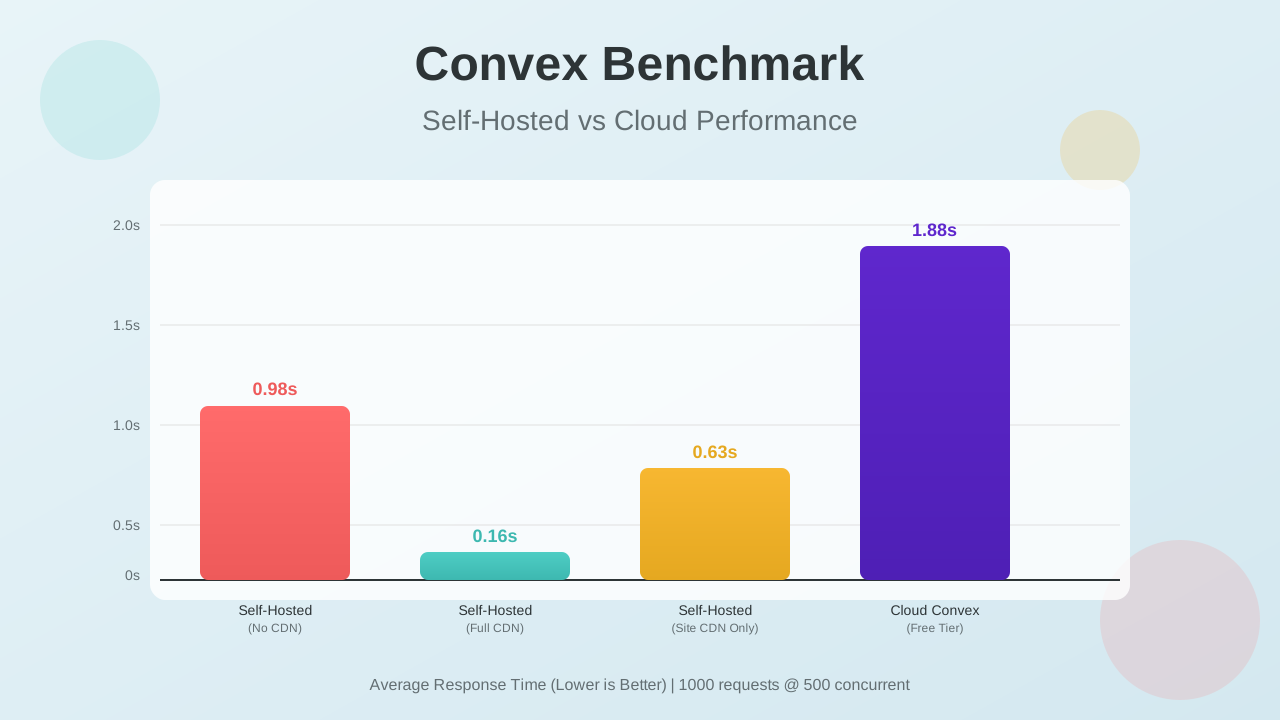
Real-world performance benchmarks comparing Convex self-hosted deployment vs cloud free tier. Test results with oha load testing tool showing response times, throughput, and CDN impact.

Self-Hosted Server Panels: A Comparison of the Best Options Available
Check out this best self-hosted server panel alternatives to host your project and keep control.