Manifest V3 Broke Your Ad Blocker? Block Ads Everywhere with NextDNS
Chrome 150 disables uBlock Origin and other Manifest V2 extensions. Here's how to keep ads blocked on every device using NextDNS, no browser extension required.
 Dragos8 min read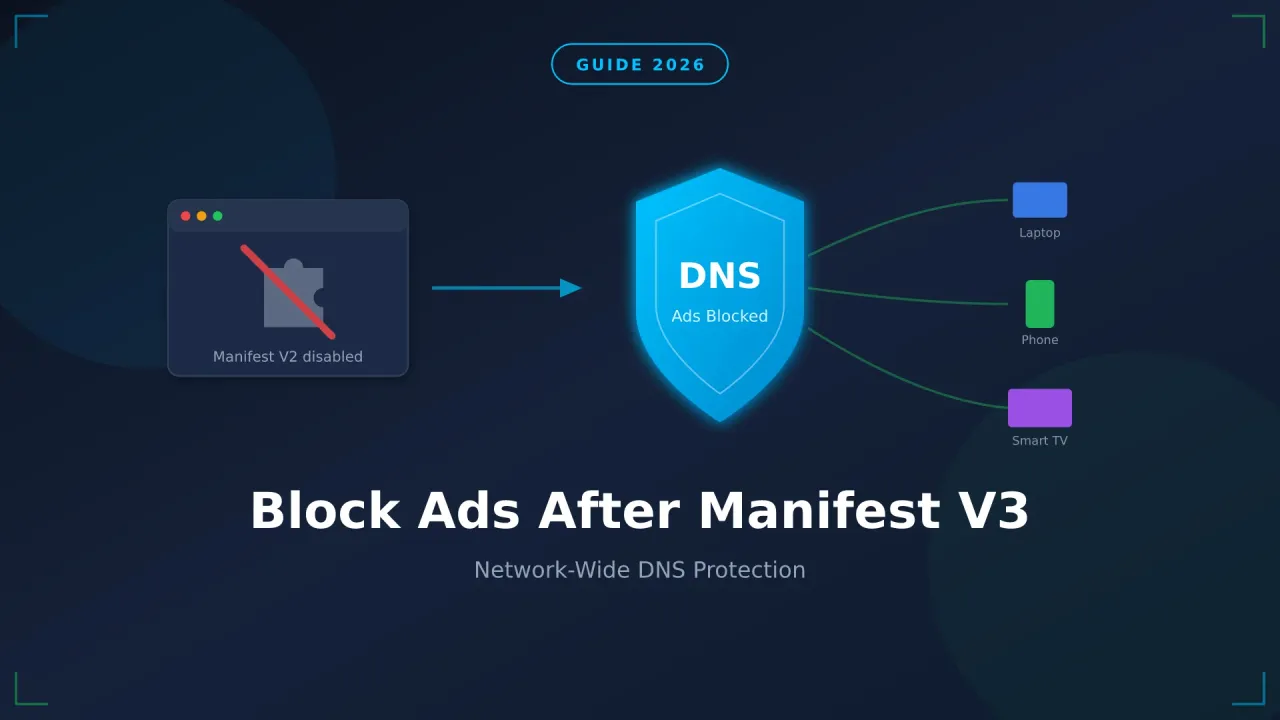
If you open Chrome one morning and find uBlock Origin greyed out with a message saying it has been turned off, you are not alone. Google’s switch to Manifest V3 is finally hitting users, and the classic ad blockers that millions of people relied on are being switched off for good. The fix that keeps working no matter which browser you use is DNS-level blocking, and that’s what I want to walk you through here.
Try NextDNS FreeWhat Actually Changed in Chrome
Every browser extension ships with a manifest file. It tells the browser what the extension is allowed to do. Manifest V2 (the old system) let an extension like uBlock Origin use the webRequest API to inspect and block network requests as they happened. When a page tried to pull in an ad script or a tracker, the extension caught it and stopped it before it loaded.
Manifest V3 replaces that with declarativeNetRequest. Instead of reacting to requests in real time, an extension now hands the browser a fixed set of rules and lets the browser do the filtering. That sounds harmless until you look at the limits:
- There’s a cap on rules (around 30,000 by default), while real filter lists carry hundreds of thousands.
- Filter updates are slower because the lists get processed differently.
- The clever, adaptive rules that fought sites trying to detect ad blockers no longer work the same way.
The timeline is already set. Chrome 150, landing at the end of June 2026, removes the internal flag that kept Manifest V2 extensions alive. Chrome 151 strips the leftover Manifest V2 code out of Chromium entirely. Once that happens, classic uBlock Origin has no way to run.
uBlock Origin Lite is not the same
The official Manifest V3 replacement, uBlock Origin Lite, works but it’s noticeably weaker than the original. Fewer rules, slower filter updates, and a harder time dealing with anti-adblock scripts. It’s “good enough” for casual browsing, but it is a step down.
Why DNS Blocking Is the Smarter Long-Term Fix
Browser extensions live and die by the rules of whatever browser you happen to use. DNS-level blocking sits one layer lower, between your device and the internet, so it doesn’t care about Manifest V3 at all.
Here’s the basic idea. Every time a device loads a page, it asks a DNS server “where do I find this domain?” A filtering DNS service like NextDNS checks that domain against blocklists first. If the domain belongs to an ad network or a tracker, it returns nothing and the ad never loads. This happens for ads, trackers, malware domains, and telemetry alike.
Because the filtering happens at the DNS level, it covers things a browser extension never could:
- Ads inside mobile apps and games, not just websites
- Smart TVs, streaming sticks, and game consoles
- Every browser on the machine at once, Chrome included
- IoT gadgets that phone home to tracking servers
- Devices where you cannot install an extension at all
I already wrote a full comparison of cloud and self-hosted DNS filtering if you want the deeper technical background:
Want the full DNS protection guide?
I covered DNS encryption protocols, NextDNS, and the self-hosted AdGuard Home route in a separate guide. It explains how each piece fits together.
Read the Complete DNS Protection GuideExtension vs DNS Blocking
| uBlock Origin (MV2) | uBlock Origin Lite (MV3) | NextDNS | |
|---|---|---|---|
| Still works in Chrome 150+ | No | Yes | Yes |
| Blocks ads in apps | No | No | Yes |
| Covers every device | No | No | Yes |
| Rule limit | Unlimited | ~30,000 | Provider lists |
| Per-element page hiding | Yes | Limited | No |
| Needs a browser | Yes | Yes | No |
DNS blocking can’t hide individual page elements the way a browser extension can, and it won’t touch YouTube ads served from the same domain as the video. For everything else, it keeps working long after Manifest V2 is gone. Pairing NextDNS with a lightweight extension covers both gaps, but the DNS layer is the part that survives the Chrome change.
How to Block Ads with NextDNS After Manifest V3
Step 1: Create a NextDNS Account
Head to NextDNS, sign up with your email, and you’ll get a configuration ID that looks something like abc123. That ID is your profile. Everything you turn on or off lives there.
Step 2: Add Your Blocklists
Open the Privacy tab and add a couple of well-maintained lists. I run these three:
- OISD covers most ads and trackers without breaking sites.
- AdGuard DNS filter is a solid, balanced list.
- Steven Black’s Unified Hosts rounds things out.
Two or three lists with good overlap beat ten lists that just slow down resolution. Under Native Tracking Protection, switch on the device types you own (Apple, Windows, Samsung, and so on) to cut off telemetry at the source.
Step 3: Turn On Security Filtering
In the Security tab, enable the protections that block dangerous domains:
- Threat Intelligence Feeds: ON
- Google Safe Browsing: ON
- Cryptojacking Protection: ON
- DNS Rebinding Protection: ON
- Typosquatting Protection: ON
These catch malware, phishing, and crypto-mining domains, which is something an ad blocker extension was never really built to do.
Step 4: Point Your Devices at NextDNS
This is where DNS blocking shows its strength. Set it once and it covers everything.
Whole network (router): Change your router’s DNS to NextDNS. If your router supports DNS-over-HTTPS, use https://dns.nextdns.io/YOUR_CONFIG_ID. Otherwise enter the linked IP addresses from your dashboard. Every device on the network is now filtered, Chrome included.
Single devices: Install the NextDNS app on Windows, Mac, Linux, iOS, or Android, then paste in your configuration ID. It runs as a system service and filters every app on the device.
Chrome itself: You can even set secure DNS inside Chrome. Go to Settings > Privacy and security > Security > Use secure DNS > Custom and enter https://dns.nextdns.io/YOUR_CONFIG_ID. Now Chrome blocks ads through DNS, no extension involved.
This is the part Manifest V3 can't take away
Because the filtering happens at the DNS layer, Chrome can disable every extension it wants and your ads stay blocked. The browser is just asking NextDNS for addresses, and NextDNS refuses to hand over the ad servers.
Step 5: Confirm It’s Working
Visit test.nextdns.io. You should see “All good! You are using NextDNS.” Your dashboard will start filling with queries, and you can watch in real time as ad and tracker domains get blocked.
Step 6: Tune It Over a Few Days
Check your logs after a few days of normal use:
- If a legitimate site breaks, add the domain to your allowlist.
- If something annoying slips through, drop it on your denylist.
- Adjust your blocklists if you see too many false positives.
What About YouTube and On-Page Ads?
Two honest limits. DNS blocking can’t remove YouTube ads, because they come from the same domains as the videos themselves, and it can’t hide individual elements on a page the way a full extension does.
For those cases, run a Manifest V3 extension or switch to a browser that still supports the classic ones. Firefox keeps full uBlock Origin support because it isn’t built on Chromium, and Brave ships a built-in blocker plus Manifest V2 support. NextDNS handles the network-wide blocking; one of those handles the page-level polish. Together they replace what a single Chrome extension used to do.
Why I’d Pick NextDNS for This
I have been running NextDNS across my devices for months, and the appeal during this Chrome transition is that there’s nothing to break. No extension to get disabled, no Manifest version to worry about. You set the DNS once and it keeps filtering on the phone, the laptop, the TV, and every app in between.
Setup takes about five minutes, the dashboard is clean, and the free tier (300,000 queries per month) is plenty for testing. A typical household will want the Pro plan, which removes the query cap and still costs under $2 a month, cheaper than most VPNs.
| Plan | Queries/Month | Price |
|---|---|---|
| Free | 300,000 | $0 |
| Pro | Unlimited | $1.99/month |
If you want my longer take on the service itself (features, privacy settings, what I run day to day), I covered it in detail here:
Read My Full NextDNS ReviewThe Bottom Line
Manifest V3 is real, the dates are set, and the classic ad blockers you knew in Chrome are on their way out. You don’t have to fight it. Move your blocking down to the DNS layer with NextDNS and you sidestep the whole problem: ads stay blocked on every device, in every browser, and inside apps that never had an ad blocker to begin with.
If you also want page-level control, keep a Manifest V3 extension or a privacy-friendly browser around. But the part that quietly works in the background, on everything you own, is DNS. Set it up once and forget about the next Chrome update.
Get Started with NextDNSRelated Articles: