Self-Host SearXNG: Private Search Engine With Docker
Self-host SearXNG for a private, tracking-free metasearch engine on your server. Step-by-step Docker, Traefik, Dockge and Dokploy setup with Valkey caching.

Updated Published 21 min read
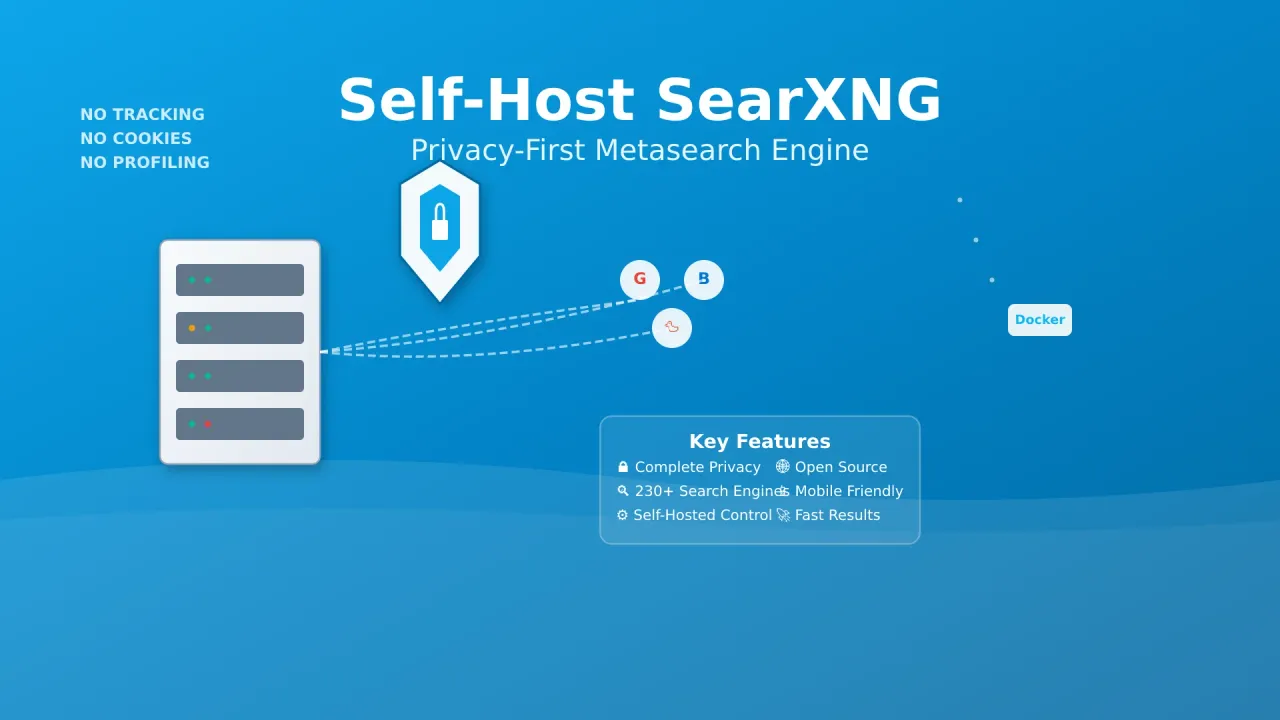
Self-host SearXNG and you get a private metasearch engine running on your own server. SearXNG aggregates results from Google, DuckDuckGo, Brave, Startpage, and up to 272 other search services without tracking your queries. It runs on a cheap VPS with Docker. No API keys, no subscriptions.
Three deployment paths are covered below: standalone Docker Compose, Traefik with Dockge, and Dokploy. Each one gets you a working instance in under 15 minutes.
What is SearXNG and how does the metasearch engine work?
SearXNG is an open-source metasearch engine, a fork of the original Searx project with active development and a larger community. Unlike search engines that track users, SearXNG queries multiple search engines at the same time while preserving anonymity. Your queries are anonymous to search engines: they see your VPS IP, not yours.
Check the GitHub repository (34k+ stars, AGPL-3.0) and the official documentation for the full picture.
Key benefits of SearXNG
- No tracking or profiling: No user profiling, no data sold to third parties
- Aggregated results: Combines results from up to 272 search services (245 engines, 88 enabled by default)
- Customizable: Choose which search engines to include, configure preferences per category
- Open source: Fully auditable code under AGPL-3.0 with active community development
- Multi-language support: Available in numerous languages with localized results
- JSON API for automation: Query programmatically for AI agents, RAG pipelines, and n8n workflows
How SearXNG works
SearXNG uses a metasearch architecture that acts as a privacy proxy between you and the search engines:
| Component | Function | Benefit |
|---|---|---|
| Query distribution | Sends your search to multiple engines simultaneously | Comprehensive results from diverse sources |
| Result aggregation | Combines and deduplicates responses | Unified, ranked result set |
| Privacy proxy layer | Acts as intermediary; engines see SearXNG, not you | Anonymous searching |
| Customization engine | Filters results based on your preferences | Personalized without profiling |
For more useful self-hosted applications, check out our guide on Docker containers for home servers.
Why self-host SearXNG? (Privacy, cost, control)
Public SearXNG instances exist: searx.space lists about 74 online right now. But they come with tradeoffs: rate limiting, JSON API disabled, someone else’s engine selection, and no guarantee the operator is not logging queries.
When you self-host:
- Privacy: You control the server, the config, and the logs (or lack thereof). No third party sees your search history.
- Cost: SearXNG + Valkey fits in 1-2 GB RAM. That is a $4-6/month VPS. No API keys, no per-query fees.
- Control: You pick the engines, enable the JSON API for your AI agents, set rate limits, and customize the UI.
Private vs. public instance
A private instance (limiter off, no public_instance flag) is fine for solo use. If you want to share it with others or make it public, you need the limiter enabled — see the public instance section below.
Prerequisites: what you need to self-host SearXNG
Hardware requirements
SearXNG + Valkey is lightweight. 2 CPU cores and 2 GB RAM is enough for personal use. Don’t over-provision.
- VPS or dedicated server: A reliable hosting platform. We recommend Hetzner for affordable European VPS hosting or Hostinger for budget KVM VPS with NVMe storage. Minimum: 2 CPU cores, 2 GB RAM, 20 GB storage. Alternative: a GMKtec M5 Ultra mini PC for local home-server hosting.
- Docker Engine and Docker Compose: Latest stable versions installed on your server
- Domain name: A domain or subdomain pointing to your server (e.g.,
search.yourdomain.com) - Reverse proxy (for HTTPS access):
- Option A: Traefik with Docker — follow the Traefik reverse proxy guide
- Option B: Traefik with Let’s Encrypt wildcard certificates — see the Traefik wildcard certificate setup
- Container management (optional): Dockge installation tutorial for simplified Docker management, or Dokploy for GUI-based deployment. See the best self-hosted server panels in 2026 for more options.
VPS prices jumped across the board in 2026 — if you’re rethinking a rented box, see what changed and when a mini PC wins.
Setup option 1: SearXNG Docker and Docker Compose (standalone)
This is the primary install path using the official compose template from the SearXNG repository.
Web server note
Container images from July 2025 onward (tag 2025.7.4-01be261 and later) run Granian instead of uWSGI. The old UWSGI_WORKERS and UWSGI_THREADS environment variables do nothing, so do not set them. The official docs say “it’s not advised to modify the amount of workers.” Scale out by adding replicas behind your reverse proxy if needed.
Step 1: create the project directory
mkdir -p ~/searxng && cd ~/searxngStep 2: fetch the official compose template and configure .env
Download the official compose file and environment template:
curl -fsSL -O https://raw.githubusercontent.com/searxng/searxng/master/container/docker-compose.yml \
     -O https://raw.githubusercontent.com/searxng/searxng/master/container/.env.example
Create your .env file from the example:
cp .env.example .envEdit .env and set your values:
SEARXNG_VERSION=latest
SEARXNG_HOST=0.0.0.0
SEARXNG_PORT=8080
Now add a healthcheck and the Valkey URL to the compose. The official template doesn’t include a healthcheck, so add one. Your final docker-compose.yml should look like this:
name: searxng
services:
  core:
    container_name: searxng-core
    image: docker.io/searxng/searxng:latest
    restart: always
    env_file: ./.env
    environment:
      - SEARXNG_BASE_URL=http://localhost:8080
      - SEARXNG_REDIS_URL=valkey://valkey:6379/0
    volumes:
      - ./core-config/:/etc/searxng/:Z
      - core-data:/var/cache/searxng/
    ports:
      - "${SEARXNG_PORT:-8080}:${SEARXNG_PORT:-8080}"
    depends_on:
      valkey:
        condition: service_healthy
    healthcheck:
      test: ["CMD", "python3", "-c", "import urllib.request,sys; sys.exit(0 if urllib.request.urlopen('http://localhost:8080/healthz', timeout=5).status==200 else 1)"]
      interval: 30s
      timeout: 5s
      retries: 3
      start_period: 40s

  valkey:
    container_name: searxng-valkey
    image: docker.io/valkey/valkey:9-alpine
    command: valkey-server --save 30 1 --loglevel warning
    restart: always
    volumes:
      - valkey-data:/data/
    healthcheck:
      test: ["CMD", "valkey-server", "--version"]
      interval: 10s
      timeout: 5s
      retries: 3
      start_period: 10s

volumes:
  core-data:
  valkey-data:
Docker Hub rate limits
If you hit Docker Hub’s unauthenticated pull rate limit, switch the image to the GitHub Container Registry mirror: ghcr.io/searxng/searxng:latest. Same image, different registry.
On first boot, the entrypoint auto-generates core-config/settings.yml from a template if the file does not exist. It sets use_default_settings: true, image_proxy: true, and a random secret_key. You do not need to create this file manually.
Step 3: launch and verify SearXNG
docker compose up -dVerify both containers are running:
docker compose psYou should see both searxng-core and searxng-valkey with status Up (or healthy).
Check the health endpoint:
curl -f http://localhost:8080/healthzExpected: HTTP 200 response. If you get a connection refused, check the logs:
docker compose logs -f coreLook for a line like SearXNG <version> in the startup output.
Installation complete
Your SearXNG instance is running at http://localhost:8080. You can start searching immediately. For HTTPS access, continue to option 2 or 3 below.
Failure modes:
- Port 8080 already in use: Change
SEARXNG_PORTin your.envfile. - Permission denied on
core-config/: The container runs as uid 977. The entrypoint setsFORCE_OWNERSHIP=trueand chowns on start, which usually fixes itself. If not, runchown -R 977:977 core-config/. - Container restart loop: Check
docker compose logs corefor YAML parse errors insettings.yml. Deletecore-config/settings.ymland restart. The entrypoint regenerates defaults.
Setup option 2: Traefik and Dockge integration
This setup integrates SearXNG with Traefik reverse proxy and Dockge container management. You get HTTPS encryption, automatic SSL certificates, and a web management interface.
Prerequisites for this method
Ensure you have Traefik and Dockge configured by following the Traefik wildcard certificate setup guide.
Step 1: prepare Traefik network
Verify your Traefik network exists and create if necessary:
docker network create traefik-netStep 2: Docker Compose with Traefik labels
Create a production-ready docker-compose.yml with Traefik integration:
name: searxng
networks:
  traefik-net:
    external: true

services:
  core:
    container_name: searxng-core
    image: docker.io/searxng/searxng:latest
    restart: always
    environment:
      - SEARXNG_PORT=8080
      - SEARXNG_BASE_URL=https://search.yourdomain.com
      - SEARXNG_REDIS_URL=valkey://valkey:6379/0
    volumes:
      - ./core-config/:/etc/searxng/:Z
      - core-data:/var/cache/searxng/
    networks:
      - traefik-net
    depends_on:
      valkey:
        condition: service_healthy
    healthcheck:
      test: ["CMD", "python3", "-c", "import urllib.request,sys; sys.exit(0 if urllib.request.urlopen('http://localhost:8080/healthz', timeout=5).status==200 else 1)"]
      interval: 30s
      timeout: 5s
      retries: 3
      start_period: 40s
    labels:
      - "traefik.enable=true"
      - "traefik.http.routers.searxng.rule=Host(`search.yourdomain.com`)"
      - "traefik.http.routers.searxng.entrypoints=https"
      - "traefik.http.routers.searxng.tls=true"
      - "traefik.http.routers.searxng.tls.certresolver=letsencrypt"
      - "traefik.http.services.searxng.loadbalancer.server.port=8080"

  valkey:
    container_name: searxng-valkey
    image: docker.io/valkey/valkey:9-alpine
    command: valkey-server --save 30 1 --loglevel warning
    restart: always
    networks:
      - traefik-net
    volumes:
      - valkey-data:/data/
    healthcheck:
      test: ["CMD", "valkey-server", "--version"]
      interval: 10s
      timeout: 5s
      retries: 3
      start_period: 10s

volumes:
  core-data:
  valkey-data:
X-Forwarded-For headers for the limiter
If you plan to enable the SearXNG limiter (public instance), Traefik must pass X-Forwarded-For correctly. Without it, the limiter sees all clients as the proxy IP and rate-limits everyone. Make sure your Traefik entrypoint has forwardedHeaders configured, or add the forwarded headers middleware to the router labels. See the Traefik reverse proxy guide for details.
Step 3: deploy through Dockge
- Access your Dockge interface (typically
https://dockge.yourdomain.com) - Create a new stack named “searxng”
- Paste the Docker Compose configuration above
- Customize the domain name in the Traefik labels
- Deploy the stack
Step 4: configure DNS and verify
Point your subdomain to your server’s IP address:
| Record type | Name | Value | TTL |
|---|---|---|---|
| A | search | your-server-ip | 300 |
DNS propagation
Allow 5-15 minutes for DNS changes to propagate before accessing your SearXNG instance.
Verify the deployment:
curl -f https://search.yourdomain.com/healthzExpected: HTTP 200 over HTTPS.
Setup option 3: Dokploy easy deployment
Dokploy is the fastest path if you prefer GUI-based management with minimal command-line interaction. It has built-in templates and handles configuration automatically.
Step 1: install Dokploy
If you haven’t already, set up Dokploy on your server following the Dokploy installation tutorial. See also the best self-hosted server panels in 2026 for a comparison.
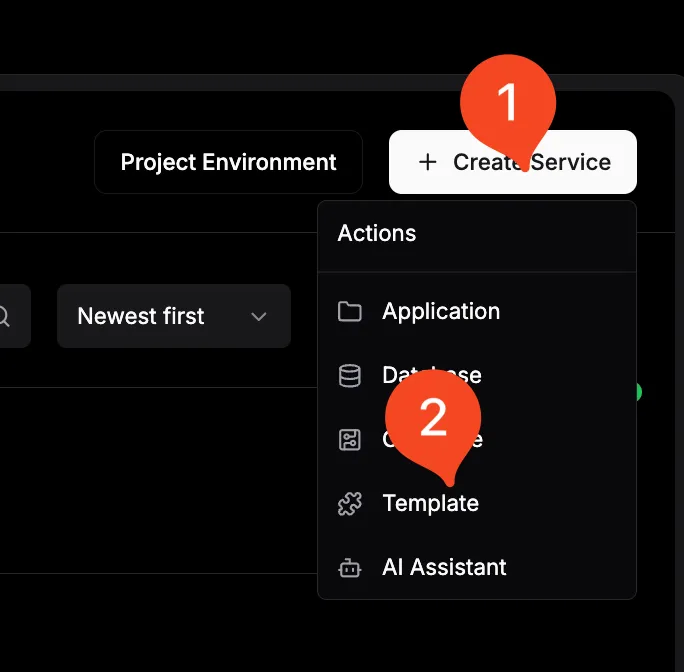
Step 2: create SearXNG application
- Access Dokploy dashboard: Navigate to your Dokploy interface
- Create new project: Click “New Project” and name it “searxng”
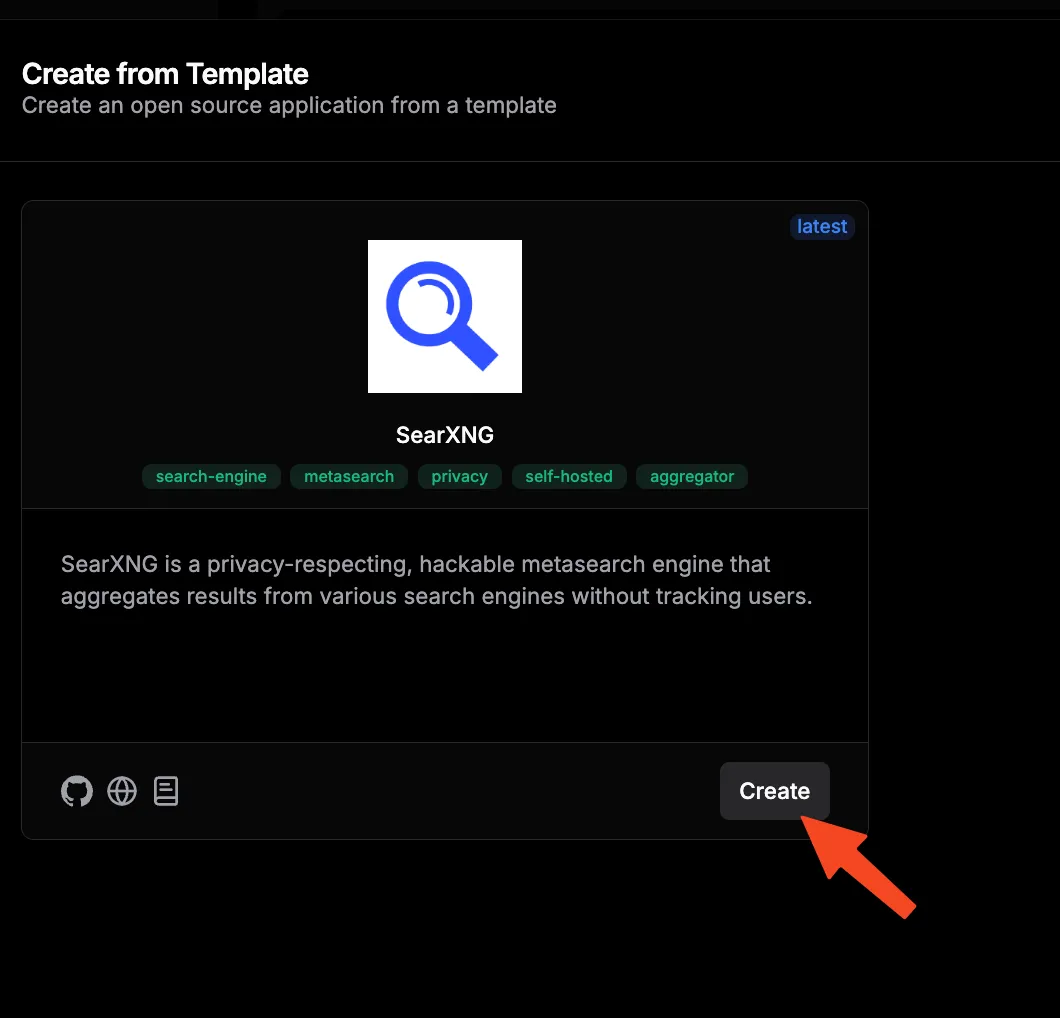
- Select template: Choose the “SearXNG” blueprint from the available templates. The official blueprint in Dokploy’s templates repo uses
searxng/searxng:latestwithvalkey/valkey:8-alpine, mounts/etc/searxngand/var/cache/searxng, and setslimiter: falseby default.
Step 3: configure environment variables
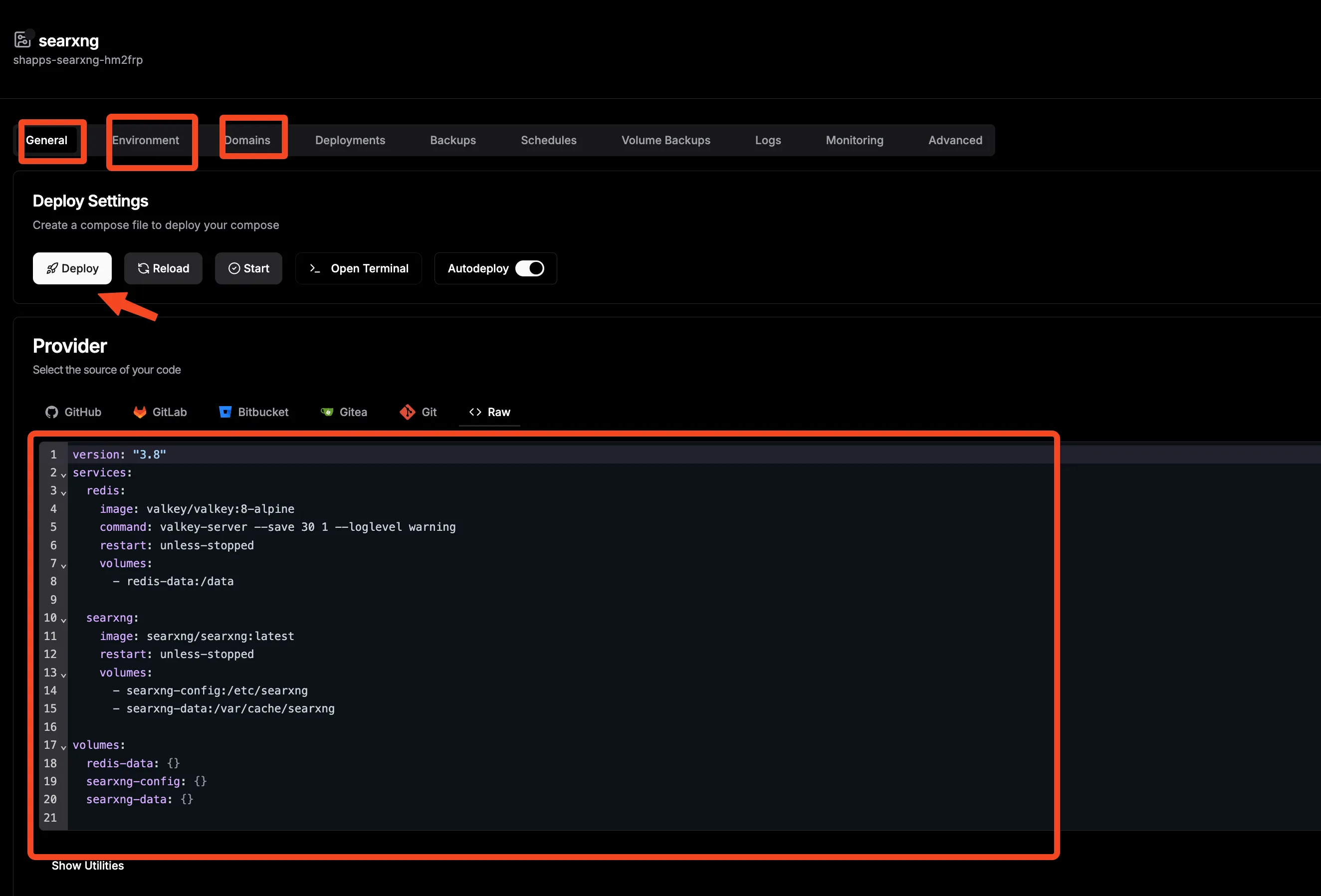
Set the following environment variables in Dokploy:
| Variable | Value | Description |
|---|---|---|
SEARXNG_BASE_URL |
https://search.yourdomain.com |
Your public URL (must be HTTPS in production) |
SEARXNG_REDIS_URL |
valkey://valkey:6379/0 |
Valkey connection for caching and limiter |
Dokploy blueprint notes
The Dokploy blueprint defaults to Valkey 8-alpine (not 9) — this works fine. The limiter is off by default. If you need bot protection, see the public instance section.
Step 4: domain configuration
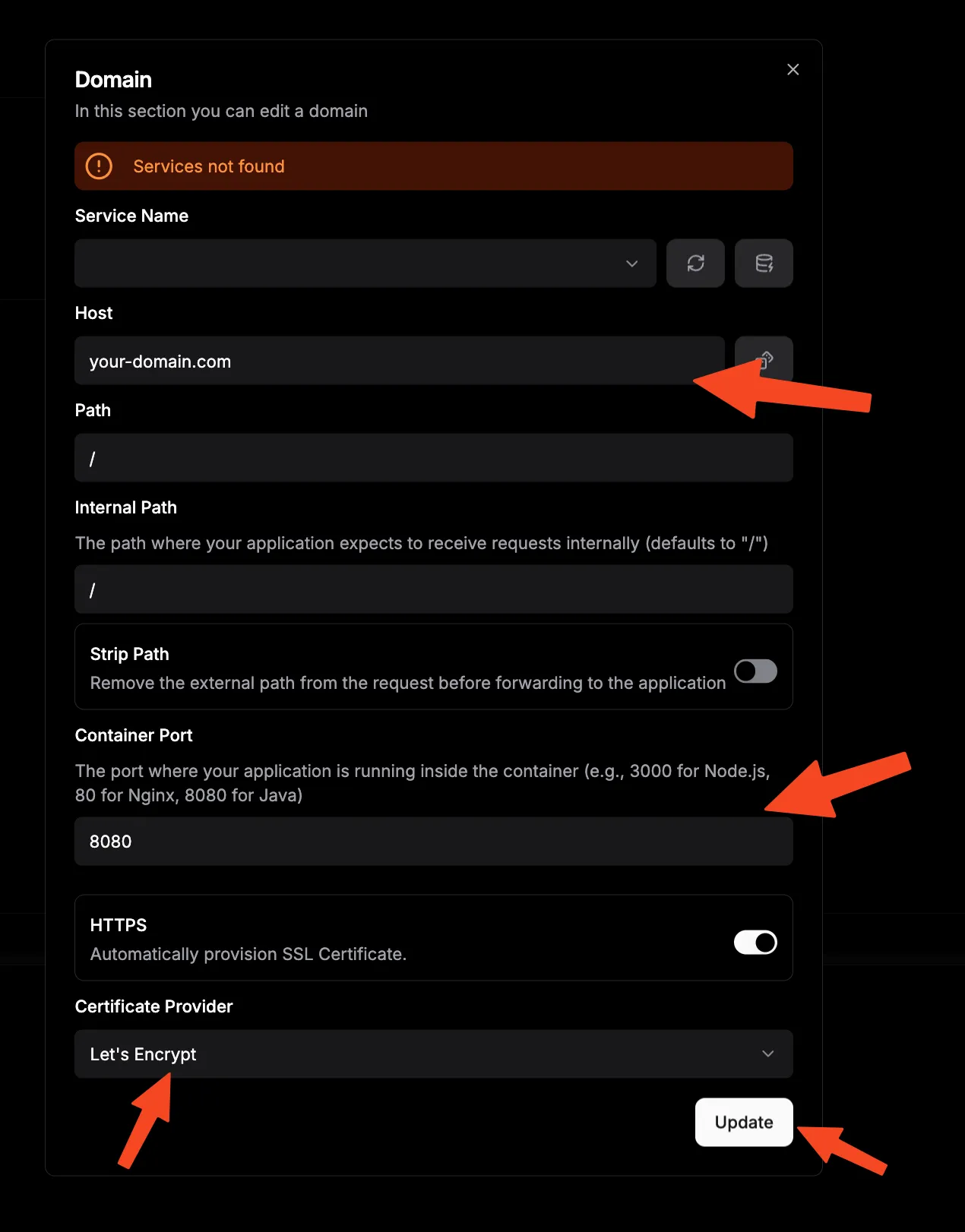
- Navigate to the “Domains” section in your Dokploy project
- Add your domain:
search.yourdomain.com - Set container port to 8080
- Enable SSL/TLS certificate generation
Step 5: deploy application
Click the “Deploy” button and monitor the deployment logs. Dokploy will automatically pull the Docker images, set up networking, generate SSL certificates, and configure reverse proxy rules.
Verify: access your deployed URL and check https://search.yourdomain.com/healthz returns HTTP 200.
From private to public SearXNG instance (limiter and bot protection)
By default, your SearXNG instance is private: no rate limiting, no bot detection, no public access controls. That is fine for personal use. But if you share the URL or make it public, bots will scrape it, and upstream engines will start returning 429 errors and CAPTCHAs.
Private instances skip this section
If you are the only user, you do not need the limiter. Valkey is still useful for caching, but the bot detection features are optional.
To enable the limiter and public instance mode, edit core-config/settings.yml:
use_default_settings: true
server:
  secret_key: "change-me-to-a-random-string"
  public_instance: true
  limiter: true
  image_proxy: true
valkey:
  url: valkey://valkey:6379/0
You can also create an optional core-config/limiter.toml for finer control:
[botdetection]
ipv4_prefix = 32
ipv6_prefix = 48
trusted_proxies = ['127.0.0.0/8', '::1']

[botdetection.ip_limit]
link_token = true

[botdetection.ip_lists]
pass_searxng_org = true
Secret key and environment handling
The auto-generated secret_key is random but stored in plain text in settings.yml. For production deployments, consider secure alternatives to plain-text environment variables in Docker Compose.
Requirements for the limiter to work:
- Valkey must be running and accessible (
valkey.urlconfigured) - Your reverse proxy must pass
X-Forwarded-FororX-Real-IPheaders — otherwise the limiter sees all traffic as coming from the proxy IP server.limiter: truemust be set insettings.yml
Using SearXNG’s JSON API for AI agents and automation
SearXNG exposes a search API at /search?q=...&format=json. You can use it for AI agents, RAG pipelines, n8n workflows, and Open WebUI integrations.
JSON is disabled on most public instances
Most public SearXNG instances disable the JSON API to prevent abuse. Self-hosting is the reliable way to get programmatic search access.
To enable JSON output, add this to core-config/settings.yml:
search:
  formats:
    - html
    - json
Then query it:
curl 'https://search.yourdomain.com/search?q=bitdoze&format=json'The API also supports csv and rss formats. Without the formats setting, requesting JSON returns a 403.
Use cases:
- Feed search results into LLM context windows for RAG
- Power n8n or Make.com automation workflows
- Build custom search dashboards
- Replace paid search APIs for your AI agents
Rate-limit your own agents — don’t hammer upstream engines. A few queries per minute is fine; hundreds per minute will get your VPS IP blocked.
For alternative approaches to web search in AI workflows, see DuckDuckGo search for AI agents without API keys or web scraping via MCP for AI agents. For a managed web search API alternative, TinyFish provides agent-friendly search infrastructure. If you need structured web data at scale alongside search, Bright Data offers AI-driven web data collection.
SearXNG configuration and customization
Search engine selection
Navigate to Preferences → Engines to customize your search sources. The default-enabled web engines are Google, DuckDuckGo, Brave, and Startpage. Bing, Yandex, and others are available but disabled by default.
- General search: Google, DuckDuckGo, Brave, Startpage (enabled); Bing, Yandex, Qwant, Mojeek (available, disabled by default)
- News sources: Reuters, Wikinews, plus regional sources like Tagesschau (DE) and Ansа (IT)
- Academic: Google Scholar, Semantic Scholar, arxiv, pubmed, OpenAlex (Microsoft Academic was retired in 2021)
- Media: YouTube, Vimeo, Flickr, Unsplash
- Shopping: Amazon, eBay, AliExpress
- Social: Lemmy, Mastodon, Stack Overflow (Reddit is disabled by default; Twitter/X engine was removed after the free API ended in 2023)
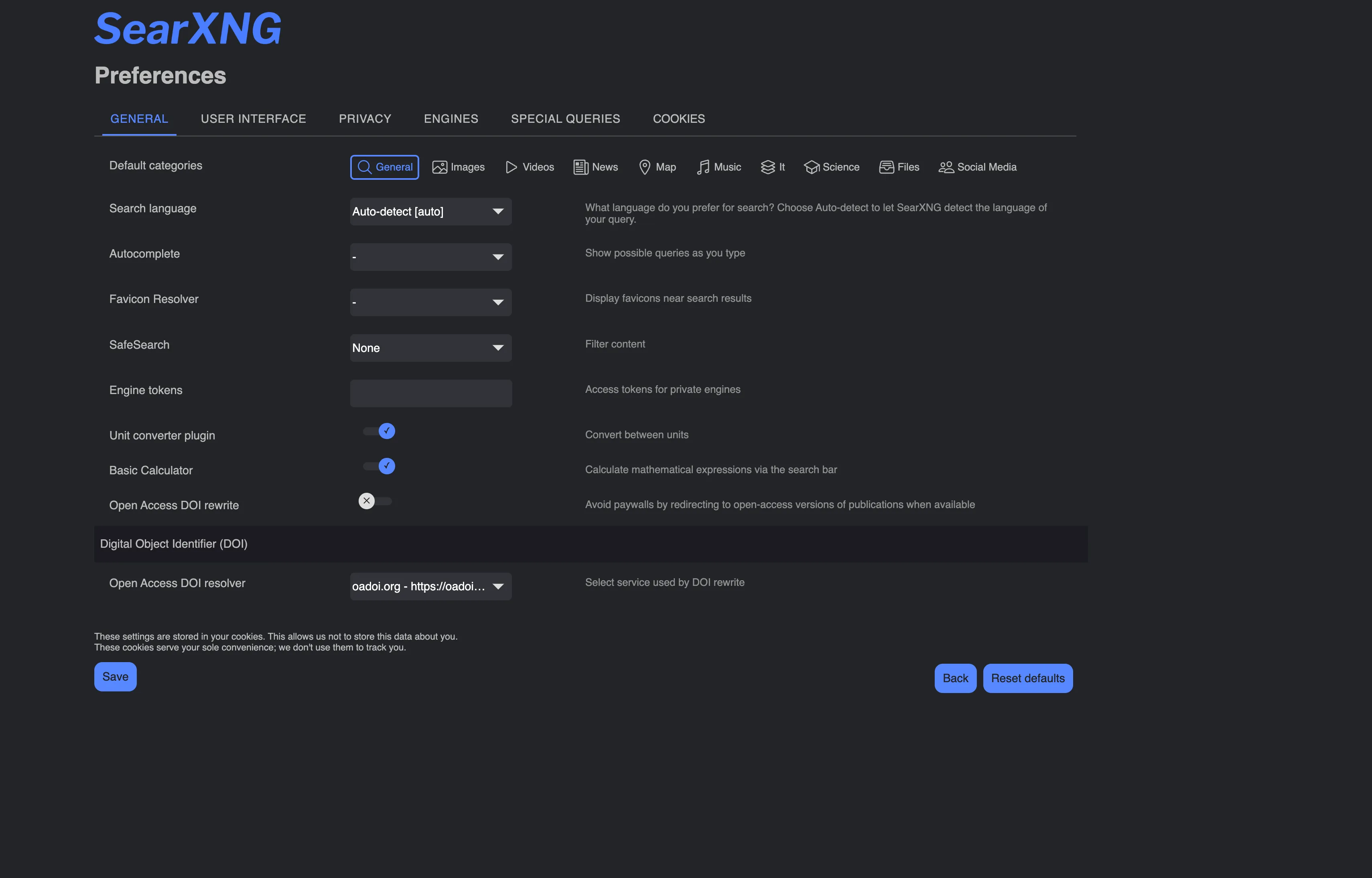
Use !bang syntax for quick engine-specific searches (e.g., !go docker compose searches only Google). You can customize which categories appear as tabs via the categories_as_tabs setting.
Privacy and security settings
Configure these options in Preferences or in settings.yml:
| Setting | Recommended value | Purpose |
|---|---|---|
| Safe search | Moderate | Filter inappropriate content |
| Image proxy | Enabled | Hide your IP from image sources (on by default in the template) |
| Method | GET | Default; POST hides queries from browser history but breaks the back button |
| Autocomplete | Disabled | Avoids external API calls to suggestion services |
Note: SearXNG stores UI preferences in browser cookies by design — these are local cookies for your settings, not remote tracking. This is different from “no cookies at all.”
Themes and appearance (Simple theme)
SearXNG ships with a single theme: simple. The Oscar and Pix-art themes were removed in May 2022. You can configure the style via simple_style in settings or the UI preferences:
auto— follows system preference (light/dark)lightdarkblack— true black for OLED screens
Browser integration
Setting SearXNG as default search engine
For Firefox/LibreWolf:
- Navigate to
about:preferences#search - Click “Add Search Engine”
- Enter details:
- Name: SearXNG Privacy Search
- URL:
https://search.yourdomain.com/search?q=%s
- Set as default search engine
For Chrome/Chromium:
- Go to Settings → Search engine → Manage search engines
- Click “Add” next to “Other search engines”
- Fill in:
- Search engine: SearXNG
- Keyword: searxng
- URL:
https://search.yourdomain.com/search?q=%s
Privacy enhancement
Setting SearXNG as your default search engine routes all searches through your self-hosted instance, eliminating tracking from commercial search engines entirely.
Monitoring and maintenance
Health monitoring
Use the /healthz endpoint for healthchecks — not a search query. The old approach of hitting /search?q=test&format=json is fragile and generates unnecessary load.
Correct healthcheck for your compose file:
healthcheck:
  test: ["CMD", "python3", "-c", "import urllib.request,sys; sys.exit(0 if urllib.request.urlopen('http://localhost:8080/healthz', timeout=5).status==200 else 1)"]
  interval: 30s
  timeout: 5s
  retries: 3
  start_period: 40s
SearXNG also exposes metrics endpoints:
/stats— engine performance statistics (enabled by default viageneral.enable_metrics)/stats/errors— per-engine error rates (useful for spotting broken engines after updates)/metrics— optional OpenMetrics endpoint for Prometheus (enable viaopen_metricssetting)
Consider adding a Uptime Kuma monitor for your /healthz endpoint to get alerts when SearXNG goes down.
Updating SearXNG
SearXNG is a rolling release — there are no major version numbers, just date-based tags like 2026.7.7-f69b22c45. To update:
docker compose pull
docker compose up -d
Check /stats/errors after updates — engine integrations can break between releases. See how to update containers with Docker Compose for a general workflow.
Backup strategies
The only mandatory state is your configuration directory. Valkey data is disposable cache — do not back it up.
# Config backup (the only critical state)
tar -czf searxng-backup-$(date +%Y%m%d).tar.gz core-config/

# Favicon/cache state (optional, small)
docker run --rm -v searxng_core-data:/from -v "$PWD":/to alpine sh -c 'cd /from && tar czf /to/searxng-cache-$(date +%Y%m%d).tar.gz .'
Valkey data is disposable
The Valkey volume stores rate-limit state and cache. If you lose it, SearXNG recreates it on next start. Don’t waste backup space on it.
If you lose core-config/settings.yml, the entrypoint regenerates a default on next boot — but your custom settings are gone. Back up core-config/ regularly.
Troubleshooting common issues
Search results not appearing or 429 CAPTCHA errors
Upstream engines rate-limit or return CAPTCHAs when they detect unusual traffic. This is the most common issue.
Solutions:
- Enable the limiter if your instance is public (see the public instance section)
- Disable problematic engines in Preferences → Engines
- Check engine error rates at
/stats/errors - Wait — some rate limits are temporary (minutes to hours)
See GitHub discussion #5651 for ongoing engine reliability reports.
Client IP shows as proxy IP (limiter misattribution)
The limiter reads client IP from X-Forwarded-For / X-Real-IP. If Traefik isn’t forwarding headers correctly, all clients appear as the proxy IP and rate limiting blocks everyone.
Fix: Ensure your Traefik entrypoint has forwardedHeaders configured. Check the Traefik reverse proxy guide for the correct label syntax.
Container restart loops or settings errors
Check docker compose logs core for YAML parse errors in settings.yml. Common causes: wrong indentation, invalid keys, or copy-paste artifacts.
Fix: Delete core-config/settings.yml and restart. The entrypoint regenerates defaults:
rm core-config/settings.yml
docker compose restart core
docker compose logs -f core
Look for the SearXNG <version> startup line to confirm it recovered.
SSL certificate problems
Symptoms: HTTPS errors or certificate warnings.
Solutions:
- Verify domain DNS configuration points to your server IP
- Check Traefik certificate generation logs:
docker compose logs traefik - Restart Traefik container
- Validate certificate resolver settings in Traefik config
Security best practices
Network security
- Firewall configuration: Block unnecessary ports, allow only HTTP/HTTPS traffic (ports 80, 443)
- VPN access: For private instances, consider restricting access through VPN instead of exposing to the internet
- Regular updates: Keep Docker images and host system updated — SearXNG is a rolling release with frequent fixes
- Don’t expose the JSON API to the public internet unless you specifically need it
- Keep
debug: falsein production settings
For comprehensive VPS hardening, see how to secure your VPS with CrowdSec.
Application security
- Change the auto-generated
secret_keyinsettings.ymlto a strong random value - Set
SEARXNG_BASE_URLto your final HTTPS URL — mismatched URLs cause redirect loops and broken image proxy - Use the GHCR mirror (
ghcr.io/searxng/searxng) if Docker Hub rate limits affect your pulls - For public instances: enable the limiter, set
public_instance: true, configurelimiter.tomlwith trusted proxies
Add a DNS firewall like NextDNS for an extra layer of privacy and ad blocking at the network level.
Data protection
| Component | Security measure | Implementation |
|---|---|---|
| Search queries | No logging | Default SearXNG behavior — nothing is written to disk |
| User preferences | Local cookies only | Stored in the browser, not on the server |
| Cache/rate-limit state | Valkey (optional) | Only needed for limiter; disposable data |
| SSL/TLS | Strong encryption | Let’s Encrypt certificates via Traefik |
Conclusion
Self-hosting SearXNG gives you a private metasearch engine aggregating results from up to 272 search services, running on a $4-6/month VPS with Docker. No tracking, no API keys, no subscriptions.
- Complete privacy: No tracking, profiling, or data collection
- Search diversity: Results from Google, DuckDuckGo, Brave, and 270+ other services
- JSON API: Programmatic search for AI agents, RAG pipelines, and automation
- Three deployment paths: Standalone Docker, Traefik + Dockge, or Dokploy
- Low cost: Runs comfortably on a 2 GB RAM VPS
Start with option 1 (standalone Docker Compose) to get running in minutes. Add Traefik for HTTPS when you’re ready to use it as your daily search engine. Enable the JSON API when you want to feed search results into your AI workflows.
Start Your SearXNG JourneyWant to expand your self-hosted stack? Check out our guides on Dockge for Docker container management, Traefik reverse proxy setup, and Dokploy platform deployment.
Verified against SearXNG 2026.x rolling release, docs version 2026.8.29.