Termix Self-Hosted SSH Manager and Server Hub
Self-host Termix to manage SSH, tunnels, files, stats, and Docker from one dashboard. Install with Docker Compose and keep full control.
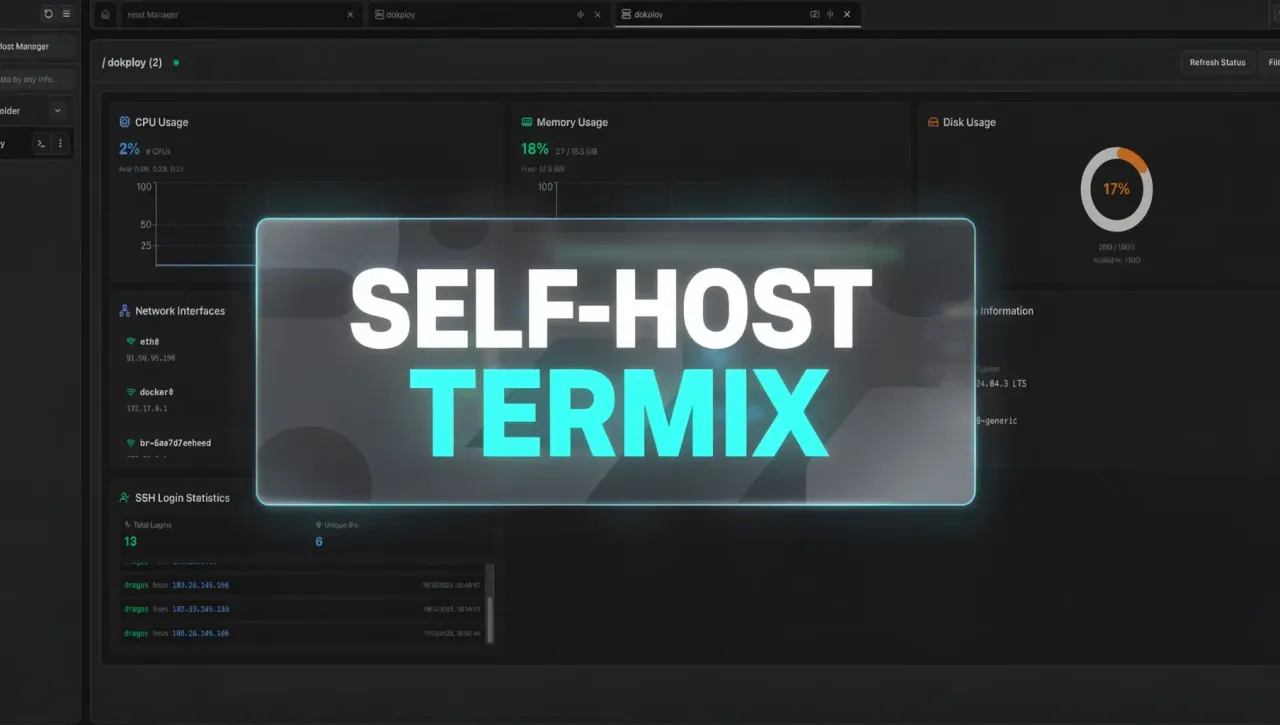
Self-hosting gives you freedom, but it also means you are responsible for access, security, and day-to-day operations. Termix is built for people who want that control without juggling five separate tools. It is open-source, forever free, and runs entirely on your infrastructure.
What is Termix?
Termix is a self-hosted platform that brings SSH access, file management, monitoring, and Docker control into one web interface. Instead of hopping between a terminal app, SFTP, and dashboards, you get a single place to manage your servers.
Termix core features
- SSH terminal with tabs and up to four split panels
- SSH tunnels with auto reconnect and health checks
- Remote file editor with syntax highlighting
- Host manager with tags and folders
- Real-time CPU, memory, and disk stats
- User access with admin controls, OIDC, and 2FA
- Modern UI built with React, Tailwind, and Shadcn
- Languages: English and Chinese support included
- Platform support: web app today, desktop app in progress, mobile planned
All data stays on your server
Termix is self-hosted with no external accounts or subscriptions. You control updates, access, and data retention.
App overview
Here is a quick tour of the main areas you will use daily, plus the actions to reach them.
Terminal workspace
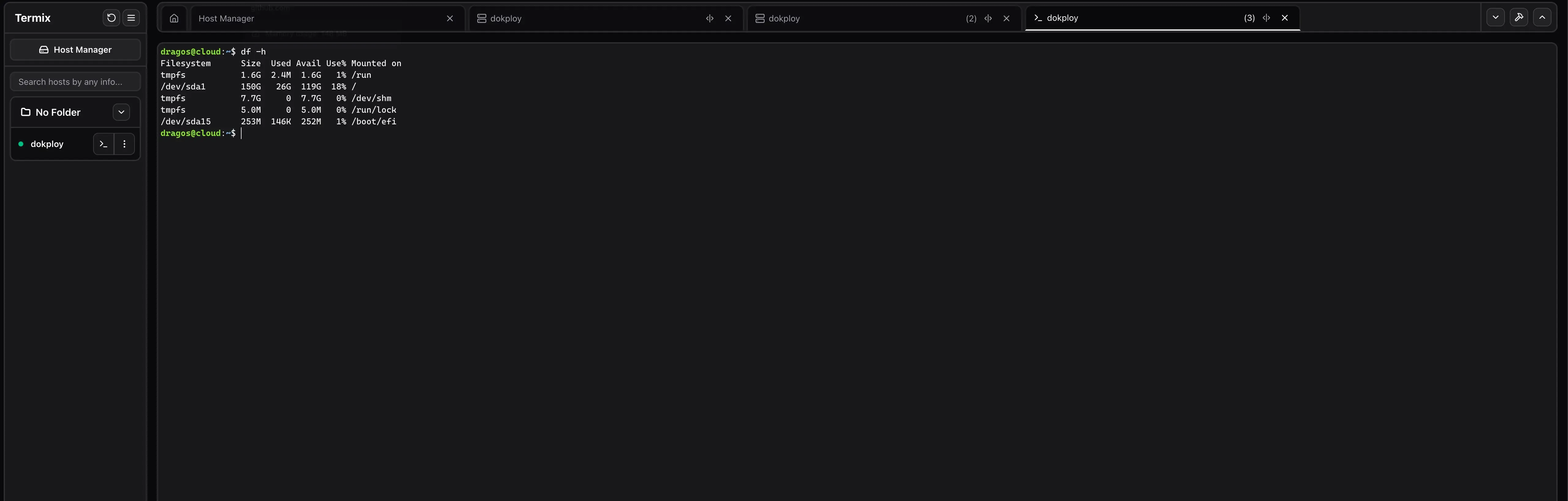
The browser terminal supports multiple tabs and split panels. Click the <|> icon on a tab (next to the close button) to open a split screen and the SSH tool sidebar for that session.
Tools, snippets, and command history
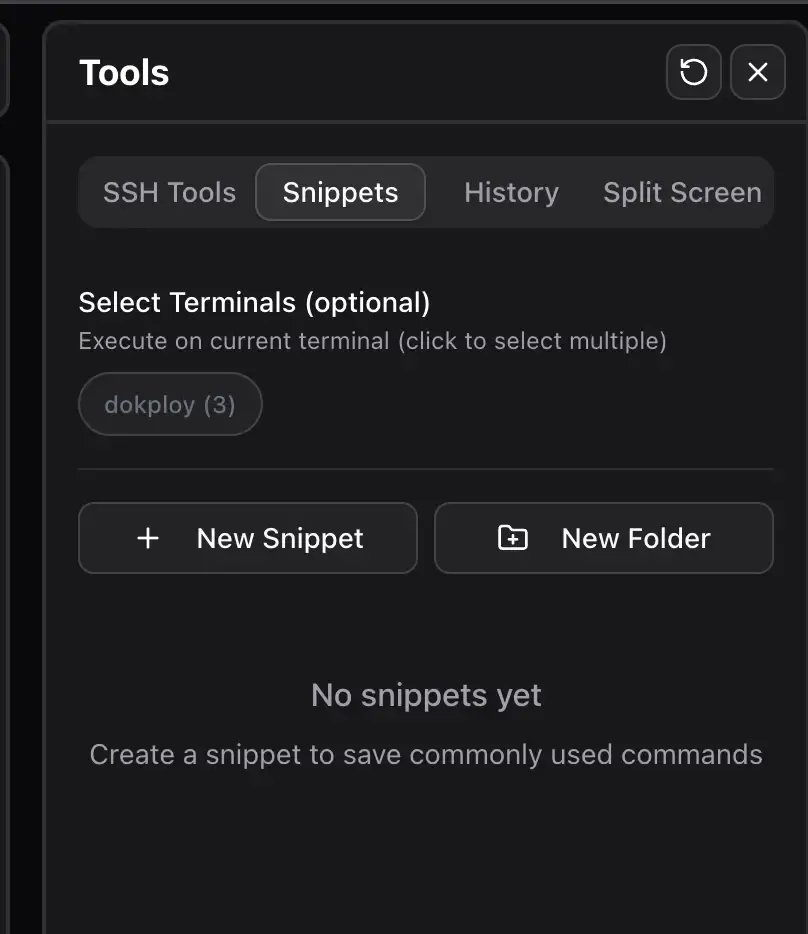
Click the hammer icon in the top right to open the tools sidebar. This is where you find SSH tools, command history, snippets, and split screen helpers.
Add and manage hosts
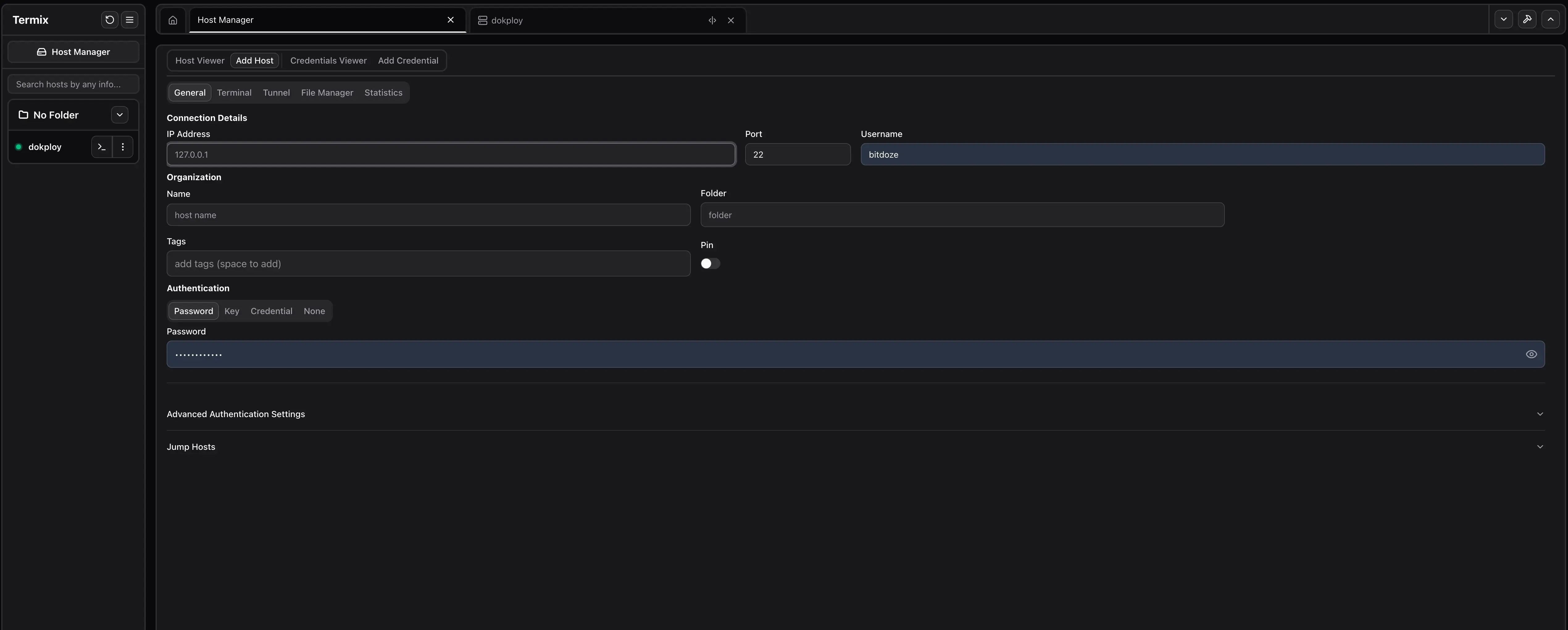
Open Host Manager from the top left to add SSH hosts, set tags, and enable features like terminal, file manager, server stats, and tunnels. To deploy credentials, add a key in Add Credential, then return to Credential Viewer and click the green arrow on the credential to follow the deployment steps.
Server details and tunnels
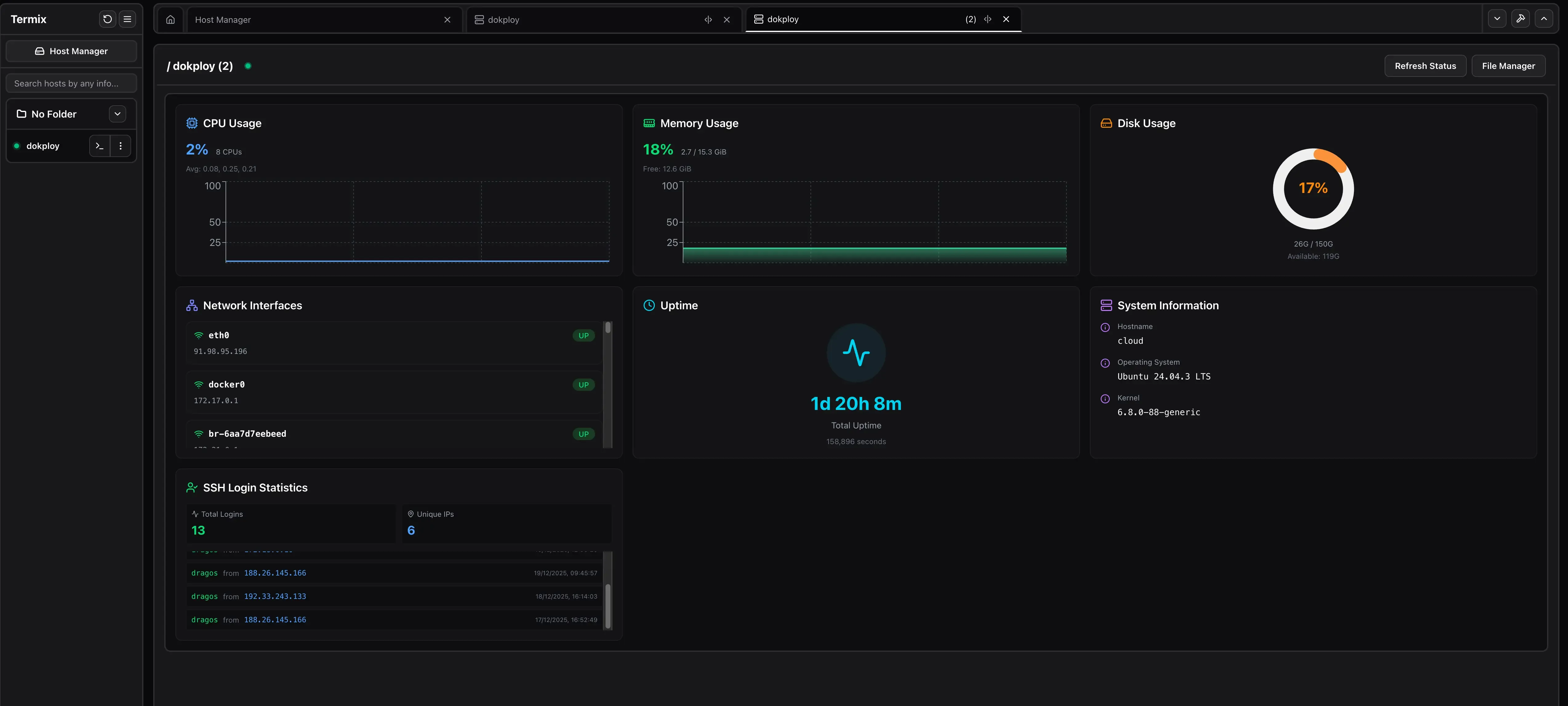
After connecting to a host from the left sidebar, open Server Details to view CPU, memory, disk, and tunnel status. Server stats and tunnels show up only if they are enabled for that host in Host Manager.
File manager and editor
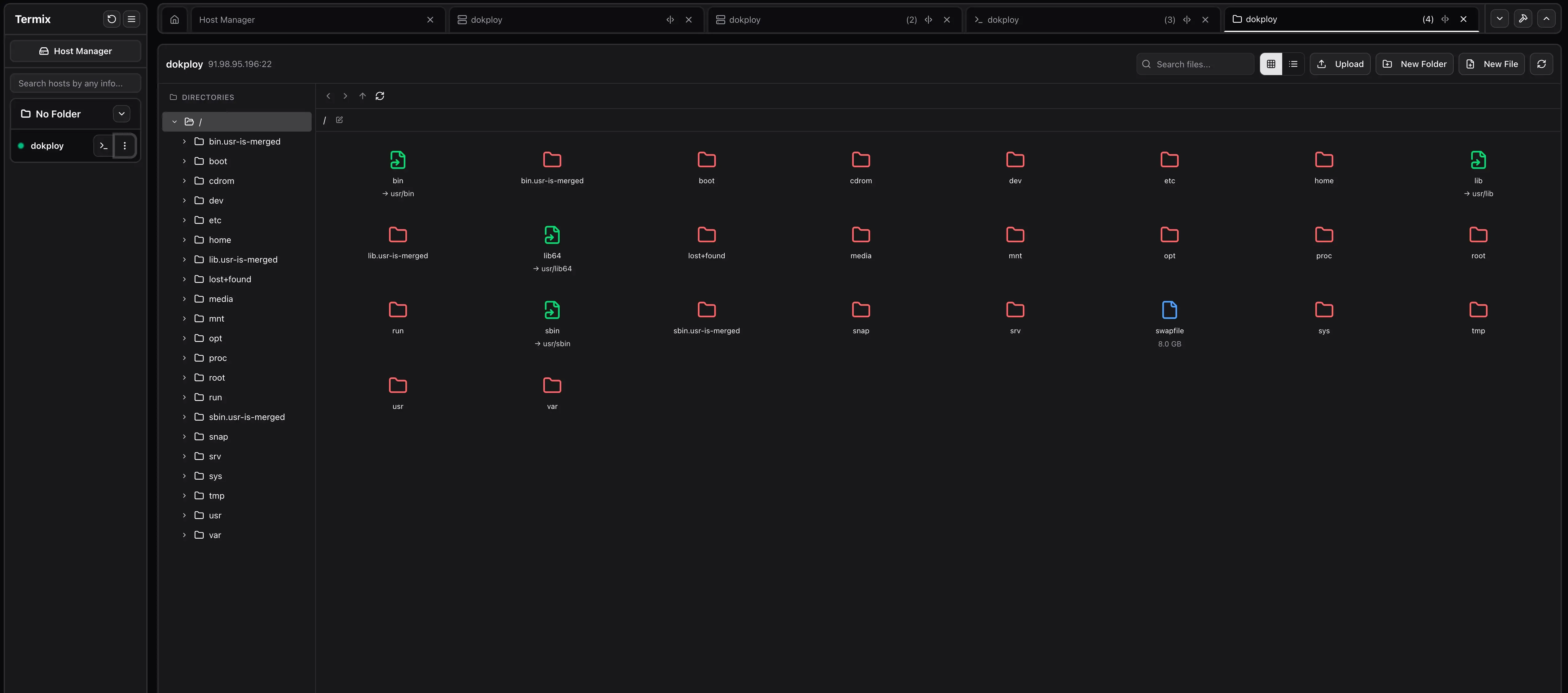
The file manager lets you browse and edit files on Linux hosts directly in the UI. Enable File Manager on the host, then open File Manager from the left sidebar after connecting.
Admin settings and identity
Admin users can open Admin Settings by clicking their username in the bottom left. This is where you configure:
- OIDC (must be created after a local account exists)
- Export/Import in the Database tab
- SSL certificate generation (see the SSL settings)
SSH tunnel access
If a host has Terminal enabled, click the >_ icon in the left sidebar to open a terminal session. If the host has tunnels configured, view them in Server Details.
Command palette
Double tap Left Shift to open the command palette for quick navigation.
Why Termix is useful in real life
The web interface is focused on daily ops: open a terminal in the browser, edit a config file, check CPU usage, and restart a container without leaving the dashboard. For small teams or solo operators, it removes friction without giving up ownership.
How Termix compares to a tool stack
| Task | Typical stack | Termix |
|---|---|---|
| SSH access | Terminal app | Built-in web terminal |
| File edits | SFTP + editor | Built-in file manager |
| Server stats | Separate monitor | Built-in stats |
| Tunnels | CLI or GUI tool | Built-in tunnels |
| Docker control | Portainer or CLI | Built-in Docker view |
Option 1: Deploy with Dokploy
If you already use Dokploy, this is the fastest way to get Termix online with automatic HTTPS. If you do not have Dokploy yet, start here: Dokploy install guide.
Step 1: Create the service
- Open your Dokploy project
- Click Add Service and choose Compose
- Name it
termix
Step 2: Paste the compose file
services:
  termix:
    image: ghcr.io/lukegus/termix:latest
    networks:
      - dokploy-network
    restart: unless-stopped
    environment:
      - PORT=8080
    volumes:
      - termix-data:/app/data

networks:
  dokploy-network:
    external: true

volumes:
  termix-data:
Step 3: Domain and port
Create a domain in Dokploy and map it to port 8080. After deploy, open https://your-domain.com and complete the first-time setup.
Notes about the compose file
termix-datastores users, SSH hosts, and settings. Keep it on local disk for best performance.- Termix listens on port
8080by default and Dokploy handles HTTPS for you. - You can change the internal port by updating
PORTand your domain mapping.
Private by design
Termix does not require external accounts or cloud services. Everything stays on your server.
Option 2: Docker Compose (standalone)
If you are new to Docker, start with our self-hosting guides to get Docker installed first.
services:
  termix:
    image: ghcr.io/lukegus/termix:latest
    container_name: termix
    restart: unless-stopped
    ports:
      - "8080:8080"
    volumes:
      - termix-data:/app/data
    environment:
      PORT: "8080"

volumes:
  termix-data:
    driver: local
Start it:
docker compose up -dOpen http://your-server-ip:8080 and finish the initial setup.
Back up your data volume
All Termix settings and credentials live in /app/data. Keep the termix-data volume backed up like any other critical service.
Post-deploy checklist
- Create your admin account and enable 2FA
- Add SSH hosts with tags and folders
- Verify you can open a terminal and edit files
- Configure tunnels you need for internal services
- Confirm Docker visibility and container actions
Security and access model
Termix focuses on access control. You can run local users or connect OIDC for centralized identity, then enforce 2FA for privileged accounts. It also supports encrypted storage for its database, which reduces risk if the data directory is ever copied.
FAQ
Does Termix replace SSH keys?
No. Termix uses standard SSH authentication under the hood. You still manage keys or credentials the same way you do today.
Where does Termix store its data?
All data is stored under /app/data inside the container. With Docker Compose, that maps to the termix-data volume.
Can I expose Termix with HTTPS?
Yes. Put it behind a reverse proxy like Nginx or Traefik, or use your platform’s managed HTTPS.
Final thoughts
Termix is a strong choice if you want a self-hosted alternative to tools like Termius, without giving up control of your infrastructure. It is actively developed and already covers the core tasks most server admins deal with every day.
View Termix on GitHub