How to Self-Host Stirling PDF (Docker, Traefik, Dokploy)
Self-host Stirling PDF with Docker to merge, split, convert, and secure PDFs privately. Step-by-step guide covering Traefik, Dokploy, API, and MCP setup.

Updated Published 25 min read
PDF documents are everywhere: contracts, invoices, reports, scanned forms. Manipulating them usually means paying for Acrobat Pro, uploading files to some third-party web tool, or cobbling together command-line utilities that half-work.
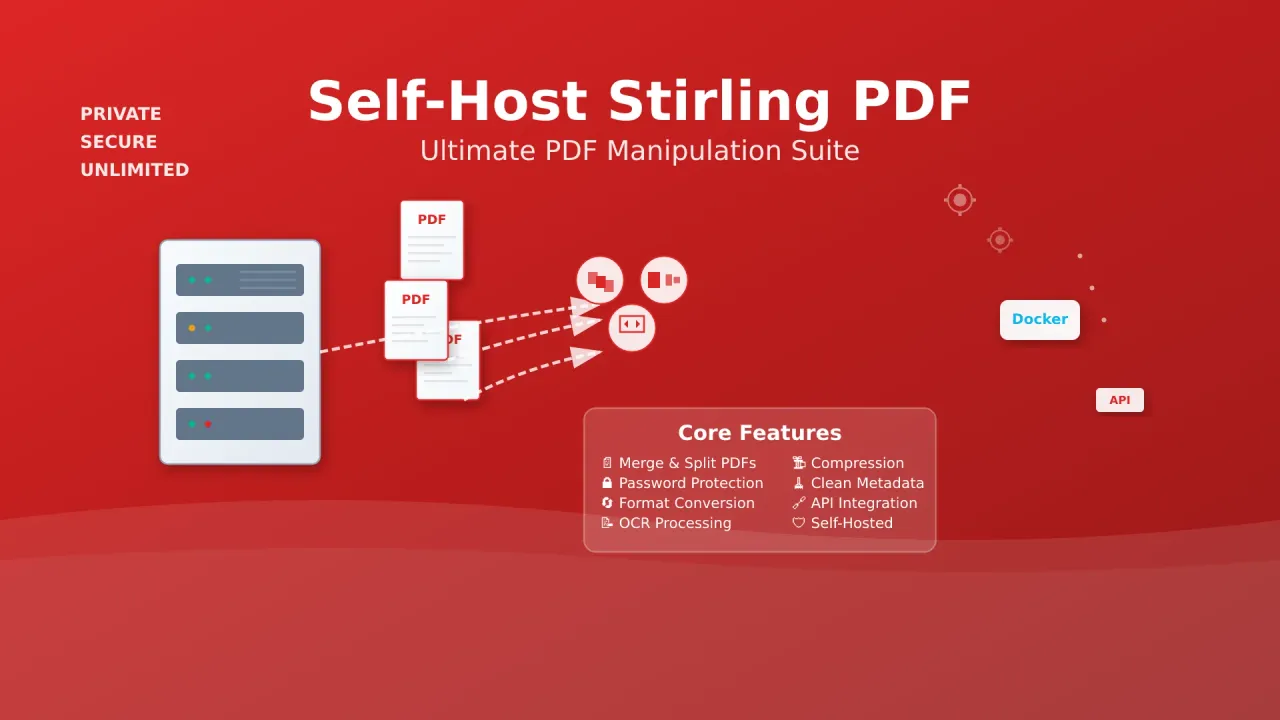
Stirling PDF is a self-hosted web application that handles merging, splitting, converting, compressing, OCR, signing, and dozens more PDF operations, all running on your own infrastructure. The project hit V2 in late 2025 with a full React frontend rewrite, stateful undo/redo, desktop apps, a built-in MCP server for AI agents, and Automate/Pipelines for chaining operations. It has over 91,000 GitHub stars and 30M+ downloads. The free self-hosted tier supports up to 5 users with no feature restrictions on operations.
This guide walks through three deployment paths: standalone Docker Compose, Traefik with Dockge, and Dokploy. Each one is copy-pasteable and includes verify steps.
For more useful self-hosted applications, check out our guide on Docker containers for home servers.
What is Stirling PDF?
Stirling PDF is an open-core, self-hosted PDF platform. The free tier gives you full access to 60+ tools, no credits, no watermarks, no artificial limits on the number of operations. It runs as a single Docker container with a Java processing backend, React frontend, and optional integrations for Tesseract OCR, LibreOffice, and PDFium.
Key capabilities of Stirling PDF
- Document management: merge, split, rotate, reorganize, and compare PDF pages
- Format conversion: PDFs to/from images, Word, Excel, HTML, Markdown, and more
- Security operations: add/remove passwords, digital signatures, encryption, redaction
- Compression and optimization: reduce file sizes while maintaining quality
- OCR integration: extract text from scanned documents using Tesseract
- Metadata management: clean, edit, or remove document metadata
- Batch processing: handle multiple documents simultaneously via the Automate/Pipeline UI
- API access: RESTful endpoints for automation workflows and scripting
- MCP server: expose PDF operations as tools for AI agents (Claude Desktop, etc.)
- File sharing and group signing: share documents for collaborative signing (alpha since v2.9.0)
- Desktop apps: Windows, macOS, and Linux native clients for local processing
How Stirling PDF works
| Component | Function | Details |
|---|---|---|
| Web interface | Browser-based GUI | React frontend, 38+ languages, dark mode |
| Processing engine | Java-based PDF core | JDK 25, JPDFium for memory-efficient merge/split |
| OCR engine | Tesseract integration | Language packs via tessdata directory |
| Office conversions | LibreOffice | DOCX, XLSX, PPTX to PDF and back |
| API layer | RESTful endpoints | Swagger UI at /swagger-ui.html |
| MCP server | AI agent integration | POST /mcp, off by default |
| Storage | Temporary + persistent | H2 DB, settings.yml, optional S3 backend |
Stirling PDF is an open-source project. View documentation and contribute at the GitHub repository and project website. Full docs are at docs.stirlingpdf.com.
Licensing: free, server, and enterprise
Stirling PDF moved to an open-core model. The breakdown for self-hosters:
Licensing tiers
Free (self-hosted): Up to 5 users, all 60+ operations, no credits or feature gating. This is what you get by default when you deploy with Docker. Genuinely free and unlimited in operations.
Server ($99/mo or $999/yr): 100 users (add blocks of 100), OAuth2 SSO, external PostgreSQL, support tickets, Google Drive integration.
Enterprise (custom pricing): SAML2, air-gapped certificate activation, Prometheus metrics, audit logs, SLAs.
Activation: Settings → Plan (in-app Stripe) or settings.yml → premium.key.
For a solo operator or small team, the free tier is all you need. The paid tiers matter when you need SSO or external database support.
Prerequisites
Before deploying Stirling PDF, make sure you have the following:
Resource requirements
Minimum: 2 CPU cores, 2GB RAM, 10GB disk
Recommended: 4+ CPU cores, 4GB+ RAM, SSD storage
Image size: The latest tag is approximately 1GB compressed. Budget for the download.
Heavy conversions (LibreOffice) and OCR operations need more RAM. The latest-ultra-lite variant is available for Raspberry Pi and low-end VPS but lacks compress, OCR, and office conversions.
Image variants:
| Variant | Tag | Best for | Missing features |
|---|---|---|---|
| Standard | :latest |
Most deployments | None |
| Fat | :latest-fat |
High-fidelity conversions, extra fonts | Larger image size |
| Ultra Lite | :latest-ultra-lite |
Raspberry Pi, low-end VPS | No compress, OCR, office conversions, repair, PDF/A |
Infrastructure requirements:
- Server: A VPS or dedicated server. Hetzner VPS or Hostinger VPS work well for this. For on-premise, see mini PCs for home servers.
- Docker Engine: Latest stable release with Docker Compose v2
- Reverse proxy (for HTTPS): Set up a Traefik reverse proxy in Docker or use Caddy. For SSL certificates, follow the Traefik wildcard certificate guide.
- Container management (optional): Dockge for stack management or Dokploy for a full platform
- Domain: A subdomain pointing to your server (e.g.,
pdf.yourdomain.com) - Firewall: Port 8080 for standalone, or 443 via reverse proxy
VPS prices jumped across the board in 2026 — if you’re rethinking a rented box, see what changed and when a mini PC wins.
Setup option 1: Docker and Docker Compose (standalone)
This is the simplest path. A single container, no reverse proxy, good for local network access or testing before adding HTTPS.
Step 1: Create project structure
mkdir -p ~/stirling-pdf && cd ~/stirling-pdfStep 2: Configure Docker Compose
Create a docker-compose.yml file:
services:
  stirling-pdf:
    image: docker.stirlingpdf.com/stirlingtools/stirling-pdf:latest
    container_name: stirling-pdf
    ports:
      - "8080:8080"
    volumes:
      - ./stirling-data/tessdata:/usr/share/tessdata    # OCR language files
      - ./stirling-data/configs:/configs                # settings.yml + H2 DB (back this up!)
      - ./stirling-data/logs:/logs
      - ./stirling-data/customFiles:/customFiles
      - ./stirling-data/pipeline:/pipeline              # Automate / folder-scan configs
    environment:
      - SECURITY_ENABLELOGIN=true                       # login is ON by default
      - SECURITY_INITIALLOGIN_USERNAME=admin            # optional, first boot only
      - SECURITY_INITIALLOGIN_PASSWORD=ChangeMeNow123!  # optional, first boot only
      - SYSTEM_DEFAULTLOCALE=en-US                      # UI language (hyphenated)
      - SYSTEM_GOOGLEVISIBILITY=false                   # block search engine indexing
      - SYSTEM_MAXFILESIZE=500                          # per-file MB (1-999)
      - SPRING_SERVLET_MULTIPART_MAX_FILE_SIZE=2000MB
      - SPRING_SERVLET_MULTIPART_MAX_REQUEST_SIZE=2000MB
    restart: unless-stopped
    healthcheck:
      test: ["CMD", "curl", "-f", "http://localhost:8080/api/v1/info/status"]
      interval: 30s
      timeout: 10s
      retries: 3
      start_period: 60s
Default login credentials
V2 ships with login enabled by default. The default account is admin / stirling. Change the password immediately after first login. Some builds force a password change on first login. You can preset initial credentials with SECURITY_INITIALLOGIN_USERNAME and SECURITY_INITIALLOGIN_PASSWORD (only honored on first boot).
For anonymous access (no login required), set SECURITY_ENABLELOGIN=false and DISABLE_ADDITIONAL_FEATURES=false.
Step 3: Initialize directories and deploy
mkdir -p stirling-data/{tessdata,configs,logs,customFiles,pipeline}
docker compose up -d
Watch the logs to confirm startup:
docker compose logs -fLook for Started StirlingPDF in the output. If you see unknown configuration key warnings, those are deprecated env vars. Harmless but noisy. Remove them from your compose file.
Step 4: Configure OCR support (optional)
Download Tesseract language packs for OCR:
# English is required. Do not delete eng.traineddata
wget -P stirling-data/tessdata/ https://github.com/tesseract-ocr/tessdata/raw/main/eng.traineddata
wget -P stirling-data/tessdata/ https://github.com/tesseract-ocr/tessdata/raw/main/fra.traineddata
wget -P stirling-data/tessdata/ https://github.com/tesseract-ocr/tessdata/raw/main/deu.traineddata
wget -P stirling-data/tessdata/ https://github.com/tesseract-ocr/tessdata/raw/main/spa.traineddata
wget -P stirling-data/tessdata/ https://github.com/tesseract-ocr/tessdata/raw/main/chi_sim.traineddata
Restart the container after adding language files:
docker compose restart stirling-pdfStep 5: Verify installation
- Web UI: Navigate to
http://localhost:8080 - Health check:
curl http://localhost:8080/api/v1/info/status - API docs: Browse to
http://localhost:8080/swagger-ui.html
Installation complete
Your Stirling PDF instance is running. Log in with your credentials (or admin/stirling if you didn’t preset them) and change the password immediately.
Common failure: Blank login page after startup. Check container logs with docker compose logs stirling-pdf, ensure volume directories have correct permissions (chmod -R 755 ./stirling-data).
Setup option 2: Traefik and Dockge integration
This setup puts Stirling PDF behind Traefik with automatic HTTPS via Let’s Encrypt. Dockge provides a web interface for managing the compose stack.
Prerequisites
This configuration requires a working Traefik and Dockge setup. Follow the Traefik wildcard certificate guide for SSL configuration.
Step 1: Verify network configuration
# Check for existing Traefik network
docker network ls | grep traefik-net

# Create if it doesn't exist
docker network create traefik-net
Step 2: Docker Compose configuration
Create a docker-compose.yml with Traefik labels:
services:
  stirling-pdf:
    image: docker.stirlingpdf.com/stirlingtools/stirling-pdf:latest
    container_name: stirling-pdf
    volumes:
      - ./stirling-data/tessdata:/usr/share/tessdata
      - ./stirling-data/configs:/configs
      - ./stirling-data/logs:/logs
      - ./stirling-data/customFiles:/customFiles
      - ./stirling-data/pipeline:/pipeline
    environment:
      - SECURITY_ENABLELOGIN=true
      - SECURITY_INITIALLOGIN_USERNAME=admin
      - SECURITY_INITIALLOGIN_PASSWORD=ChangeMeNow123!
      - SYSTEM_DEFAULTLOCALE=en-US
      - SYSTEM_GOOGLEVISIBILITY=false
      - SYSTEM_MAXFILESIZE=500
      - SYSTEM_ROOTURIPATH=/
      - SPRING_SERVLET_MULTIPART_MAX_FILE_SIZE=2000MB
      - SPRING_SERVLET_MULTIPART_MAX_REQUEST_SIZE=2000MB
    networks:
      - traefik-net
    restart: unless-stopped
    labels:
      - "traefik.enable=true"
      - "traefik.http.routers.stirling-pdf.rule=Host(`pdf.yourdomain.com`)"
      - "traefik.http.routers.stirling-pdf.entrypoints=https"
      - "traefik.http.routers.stirling-pdf.tls=true"
      - "traefik.http.routers.stirling-pdf.tls.certresolver=letsencrypt"
      - "traefik.http.services.stirling-pdf.loadbalancer.server.port=8080"
    healthcheck:
      test: ["CMD", "curl", "-f", "http://localhost:8080/api/v1/info/status"]
      interval: 30s
      timeout: 10s
      retries: 3
      start_period: 60s

networks:
  traefik-net:
    external: true
Note: App branding (name, description, logo) is now configured in-app via Settings → UI, not through environment variables. The old UI_APPNAME and UI_HOMEDESCRIPTION env vars are removed in V2.
Step 3: Deploy via Dockge
- Access your Dockge dashboard (typically
https://dockge.yourdomain.com) - Click “New Stack” and name it
stirling-pdf - Paste the Docker Compose configuration above
- Update
pdf.yourdomain.comin the Traefik labels to your actual domain - Click deploy and monitor the logs
Step 4: DNS configuration
Point your subdomain to the server:
| Record Type | Name | Value | TTL |
|---|---|---|---|
| A | your-server-ip | 300 |
Or use a CNAME if your domain already resolves:
| Record Type | Name | Value | TTL |
|---|---|---|---|
| CNAME | yourdomain.com | 300 |
DNS propagation
DNS changes may take 5-15 minutes to propagate. Wait before verifying HTTPS access.
Step 5: Verify HTTPS access
After DNS propagates:
- HTTPS: Navigate to
https://pdf.yourdomain.com - SSL certificate: Check that the Let’s Encrypt certificate is valid (click the lock icon in your browser)
- API docs: Browse to
https://pdf.yourdomain.com/swagger-ui.html
Setup option 3: Dokploy deployment
Dokploy provides a graphical interface with automated SSL certificate management. This works well if you prefer clicking over typing.
Step 1: Dokploy platform setup
If Dokploy isn’t installed yet, follow the Dokploy installation and configuration guide.
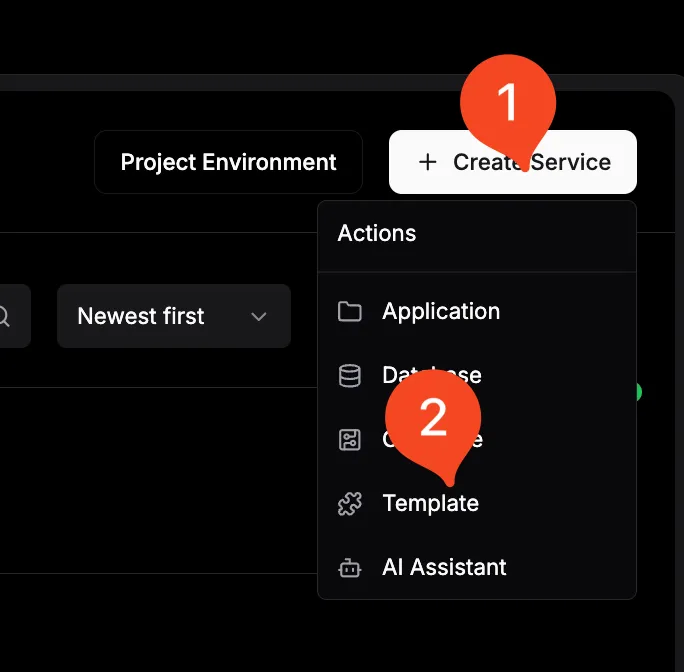
Step 2: Create Stirling PDF project
- Access your Dokploy dashboard
- Click “New Project” and name it
stirling-pdf - Select “Compose” as the application type. Do not use the built-in Stirling PDF template, which may be pinned to an old V1 version
Step 3: Environment variables configuration
Set these environment variables in Dokploy:
| Variable | Value | Description |
|---|---|---|
SECURITY_ENABLELOGIN |
true |
Enable login (default in V2) |
SECURITY_INITIALLOGIN_USERNAME |
admin |
Initial admin username (first boot only) |
SECURITY_INITIALLOGIN_PASSWORD |
ChangeMeNow123! |
Initial password (first boot only) |
SYSTEM_DEFAULTLOCALE |
en-US |
UI language |
SYSTEM_GOOGLEVISIBILITY |
false |
Block search engine indexing |
SYSTEM_MAXFILESIZE |
500 |
Max file size in MB |
Use this in the Dokploy compose configuration:
environment:
  - SECURITY_ENABLELOGIN=${SECURITY_ENABLELOGIN}
  - SECURITY_INITIALLOGIN_USERNAME=${SECURITY_INITIALLOGIN_USERNAME}
  - SECURITY_INITIALLOGIN_PASSWORD=${SECURITY_INITIALLOGIN_PASSWORD}
  - SYSTEM_DEFAULTLOCALE=${SYSTEM_DEFAULTLOCALE}
  - SYSTEM_GOOGLEVISIBILITY=${SYSTEM_GOOGLEVISIBILITY}
  - SYSTEM_MAXFILESIZE=${SYSTEM_MAXFILESIZE}
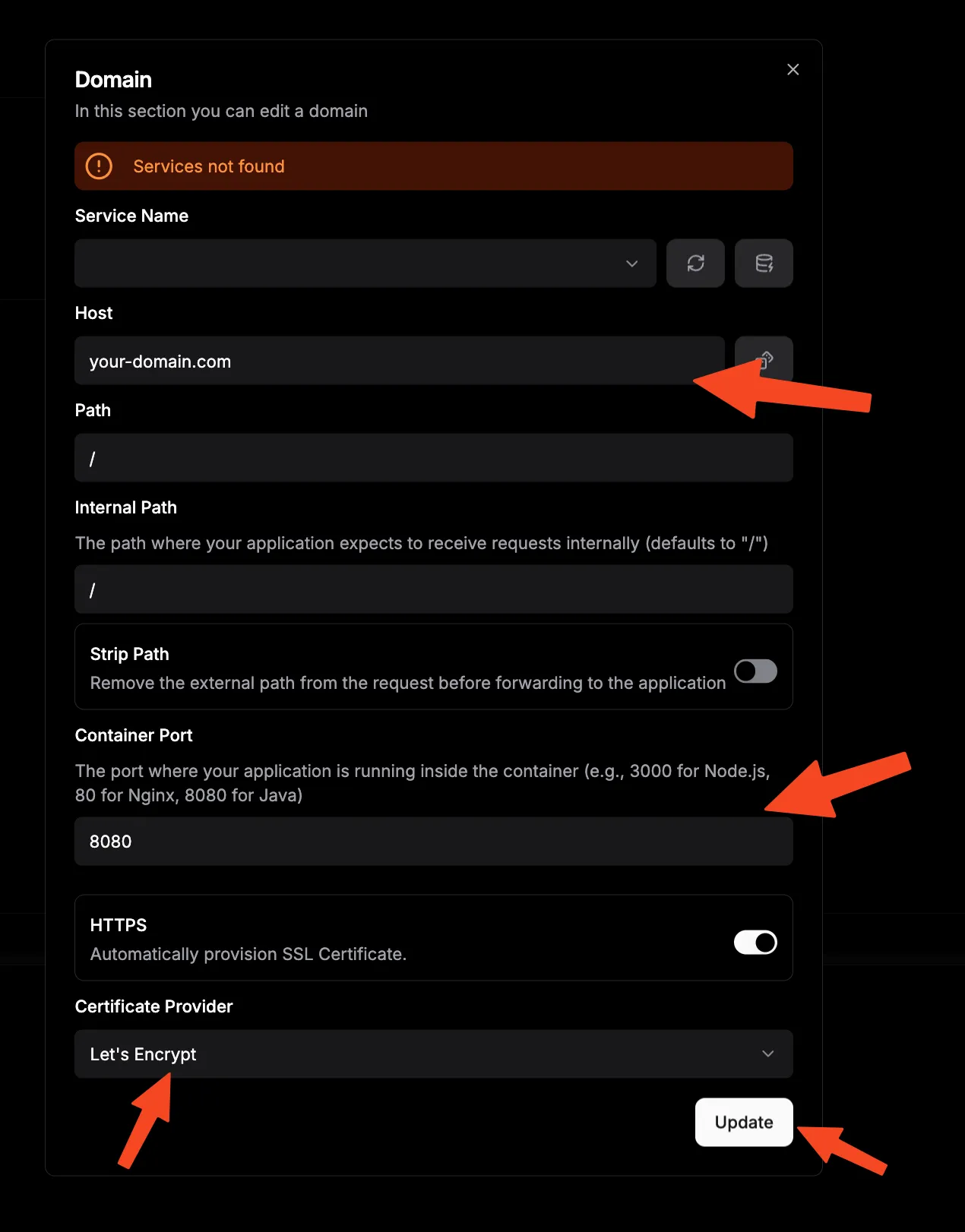
Step 4: Domain and SSL configuration
- Navigate to the “Domains” section in your Dokploy project
- Add your domain:
pdf.yourdomain.com - Enable SSL/TLS certificate generation
- Enable automatic certificate renewal
- Configure HTTP to HTTPS redirection
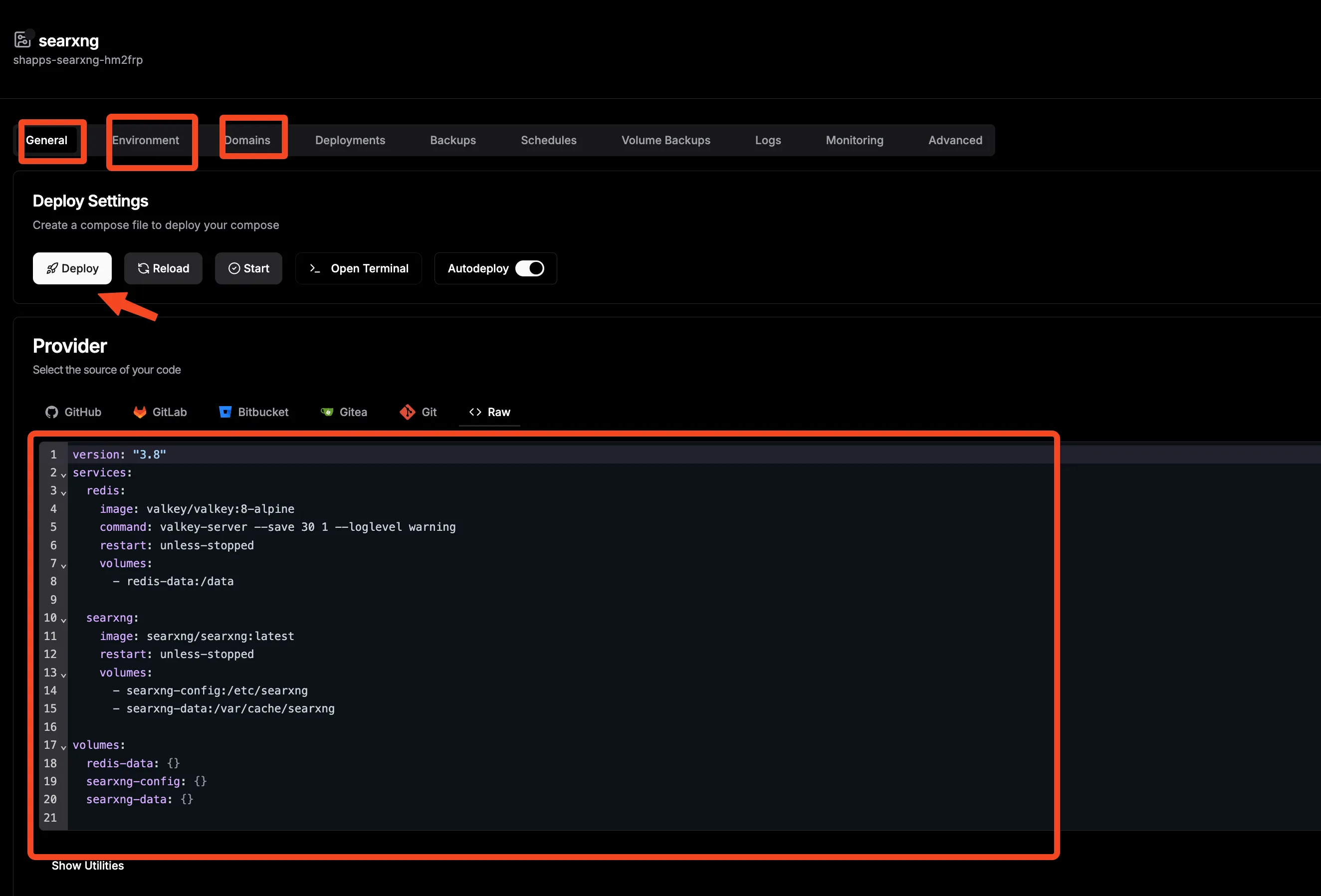
Step 5: Deploy and monitor
- Click the “Deploy” button in Dokploy
- Monitor the deployment logs for errors
- Verify the health indicator shows green
- Access your instance and test a PDF operation
Upgrading from V1 to V2
If you’re running an older V1 (0.4x) installation, here’s what to know before upgrading:
V1 to V2 migration
Back up first. Stop the container and tar your configs/ directory. It contains the H2 database file.
docker compose stop stirling-pdf
tar -czf stirling-v1-backup-$(date +%Y%m%d).tar.gz ./stirling-data/configs
What changes:
- Settings migrate automatically. The H2 DB schema upgrades on first start
- Users must re-login once (JWT format changed)
- Deprecated env vars (
DOCKER_ENABLE_SECURITY,LANGS,UI_APPNAME,UI_HOMEDESCRIPTION,INSTALL_BOOK_AND_ADVANCED_HTML_OPS) throwunknown configuration keywarnings. Harmless but noisy. Remove them. - Thymeleaf template customizations in
customFiles/templates/no longer work (React rewrite). Static overrides incustomFiles/static/still do. - The default image registry changed to
docker.stirlingpdf.com/stirlingtools/stirling-pdf
Update your image tag and compose file, then docker compose up -d. Check the logs for migration messages.
Authentication and user management
V2 has login enabled by default.
Default credentials: admin / stirling. Change immediately after first login.
Preset initial credentials (first boot only, via environment variables):
environment:
  - SECURITY_INITIALLOGIN_USERNAME=myadmin
  - SECURITY_INITIALLOGIN_PASSWORD=YourSecurePassword123!
These are only honored on the very first startup. After that, manage users through the admin UI.
Roles: Admin users can manage all settings and users. Regular users get access to PDF operations based on configuration.
API keys: Each user can generate a personal API key from Account → Settings. For automation, set a global API key:
environment:
  - SECURITY_CUSTOMGLOBALAPIKEY=your-long-random-key-here
Login lockout: By default, accounts lock after 5 failed attempts. Configure with:
environment:
  - SECURITY_LOGINATTEMPTCOUNT=5       # set -1 to disable lockout
  - SECURITY_LOGINRESETTIMEMINUTES=120  # lockout duration
SSO: OAuth2 is available on the Server tier ($99/mo). SAML2 requires Enterprise. For a solo operator on the free tier, stick with local accounts.
Anonymous mode (no login at all):
environment:
  - SECURITY_ENABLELOGIN=false
  - DISABLE_ADDITIONAL_FEATURES=false
For production deployments, read our guide on handling secrets in Docker Compose to avoid putting passwords in plain text.
API integration and automation
Stirling PDF exposes a REST API. With login enabled, all API calls require authentication.
API authentication
Get your API key from Account → Settings in the web UI, or set a global key via SECURITY_CUSTOMGLOBALAPIKEY. Pass it as a header:
X-API-KEY: your-api-keyAPI documentation is available at /swagger-ui.html (also accessible via Settings → API Documentation). The online Scalar registry is at registry.scalar.com/@stirlingpdf.
Example: PDF to images
curl -X POST "https://pdf.yourdomain.com/api/v1/convert/pdf-to-img" \
  -H "X-API-KEY: your-api-key" \
  -H "Content-Type: multipart/form-data" \
  -F "[email protected]" \
  -F "imageFormat=PNG" \
  -F "singleOrMultiple=multiple"
Example: Pipeline (OCR + compress in one call)
The Pipeline/Automate system lets you chain multiple operations in a single API call:
curl -X POST "https://pdf.yourdomain.com/api/v1/pipeline/handleData" \
  -H "X-API-KEY: your-api-key" \
  -F "[email protected]" \
  -F 'json={"name":"OCR-compress","pipeline":[
        {"operation":"/api/v1/misc/ocr-pdf","parameters":{"languages":["eng"],"ocrType":"skip-text"}},
        {"operation":"/api/v1/misc/compress-pdf","parameters":{"optimizeLevel":2}}]}' \
  --output result.pdf
Pipeline error handling
Pipeline errors currently collapse to HTTP 200 with an empty body. Always verify the output starts with %PDF- (or PK for ZIP-based formats). If you get an empty file, check the container logs for the actual error.
For async processing, add ?async=true to the pipeline URL and poll GET /api/v1/general/job/{id} for status.
n8n workflow integration
Connect Stirling PDF with self-hosted n8n for document processing workflows:
- Trigger: Email attachment received or file dropped in a watched folder
- Process: Single pipeline call to OCR + compress + convert
- Store: Save result to your document management system
A single pipeline call replaces what used to require 5+ chained API nodes. For simple merges without a UI, you can also use pdfunite from the Linux command line.
MCP server for AI agents
Stirling PDF ships with a built-in MCP (Model Context Protocol) server that exposes PDF operations as tools for AI agents. This is useful if you’re building AI workflows that need to process documents.
What is MCP?
MCP is a protocol that lets AI assistants like Claude use external tools. Stirling PDF’s MCP server lets an AI agent merge, split, convert, compress, and secure PDFs without writing API code. See our introduction to the Model Context Protocol for background.
Enable the MCP server in your compose file:
environment:
  - MCP_ENABLED=true
  - MCP_AUTH_MODE=apikey
  - MCP_ALLOWEDOPERATIONS=stirling_pages,stirling_convert,stirling_misc,stirling_security
Available tool groups: stirling_pages (merge/split/rotate), stirling_convert (format conversions), stirling_misc (compress/OCR/repair), stirling_security (passwords/signatures), stirling_upload, stirling_download.
Claude Desktop configuration: Add this to your claude_desktop_config.json:
{
  "mcpServers": {
    "stirling-pdf": {
      "command": "npx",
      "args": [
        "mcp-remote",
        "https://pdf.yourdomain.com/mcp",
        "--header",
        "X-API-KEY: your-api-key"
      ]
    }
  }
}
Request and response limits default to 10MB. The MCP server does not include an AI engine. It exposes PDF operations as tools that external AI agents can call.
Security best practices and data protection
Stirling PDF has had real security issues. Here’s what you need to know.
SSRF protection
URL-to-PDF conversion is disabled by default (system.enableUrlToPDF: false) because of SSRF risk. If you enable it, SSRF protection is on by default at MEDIUM level (blocks RFC1918, localhost, link-local, and cloud metadata endpoints). Set to MAX for allowlist-only mode:
# In settings.yml
system:
  enableUrlToPDF: true
  urlToPdfProtection: MAX
  allowedDomains:
    - "trusted-domain.com"
Security advisories
Stirling PDF has had several security advisories. Key ones:
| Date | Severity | Issue | CVE | Fixed in |
|---|---|---|---|---|
| Aug 2025 | High | SSRF via convert endpoints | CVE-2025-55150, CVE-2025-55151 | V1 v1.1.0 |
| Mar 2026 | High | Path traversal in markdown-to-PDF | GHSA-wccq-mg6x-2w22 | V2 |
| Mar 2026 | Moderate | Stored XSS via EML export | GHSA-xmhg-fv84-jgfc | V2 |
| Jul 2026 | High | Stored XSS in Info Summary | GHSA-qc47-qgh9-xj63 | V2.14.2 |
| Jul 2026 | High | API key disclosure via Pipeline | GHSA-3xxh-mm3g-c9w5 | V2.14.2 |
Always run the latest version
Security fixes only ship in the latest release. There are no backports to older versions. Pin to a specific tag in production (e.g., v2.14.3), but update promptly when security releases drop. Releases come out 2-4 times per week.
Network and access security
- Block search engine indexing:
SYSTEM_GOOGLEVISIBILITY=false(already set in the compose examples above) - Disable unused endpoints: Configure
endpoints.toRemoveinsettings.ymlto disable API endpoints you don’t use - HTTPS only: Always run behind a reverse proxy with TLS. Never expose port 8080 directly to the internet
- Rate limiting: Login-attempt lockout plus fail2ban integration for brute-force protection
Storage and backup
What to back up
Critical data lives in these locations (all under your mounted volumes):
| Path | Contents | Priority |
|---|---|---|
configs/stirling-pdf-DB-*.mv.db |
H2 database (users, settings, history) | Critical |
configs/settings.yml |
Application configuration | Critical |
customFiles/ |
Custom templates and static overrides | High |
tessdata/ |
OCR language packs | Medium (re-downloadable) |
pipeline/ |
Automate workflow configs | Medium |
Backup procedure
# Stop the container for a consistent snapshot
docker compose stop stirling-pdf

# Create a compressed backup
tar -czf stirling-backup-$(date +%Y%m%d-%H%M%S).tar.gz \
  -C ./stirling-data configs customFiles tessdata pipeline

# Restart
docker compose start stirling-pdf
Restore procedure
# Stop the container
docker compose stop stirling-pdf

# Extract backup (overwrites current data)
tar -xzf stirling-backup-YYYYMMDD-HHMMSS.tar.gz -C ./stirling-data

# Verify critical files exist
ls -la ./stirling-data/configs/stirling-pdf-DB-*.mv.db
ls -la ./stirling-data/configs/settings.yml

# Restart
docker compose start stirling-pdf
S3 storage (optional)
V2.12+ supports S3-compatible storage for uploads and artifacts. This is useful for multi-server setups or when you want durable storage separate from the container host. Configure in settings.yml under the storage section. The Server and Enterprise tiers also support external PostgreSQL instead of the embedded H2 database.
Performance and resource management
Sizing guidance
| Server specs | Max file size | Use case |
|---|---|---|
| 2 CPU / 2-4GB RAM | 200-500 MB | Personal use, occasional documents |
| 4 CPU / 8GB RAM | 1000 MB | Small team, regular processing |
| 8+ CPU / 16GB+ RAM | 2000 MB | Heavy batch processing, large scans |
V2.12.0 introduced JPDFium for merge and split operations, using up to 99% less memory than the previous engine. V2.14.3 fixed crashes when processing 2GB+ PDFs.
Docker resource limits
Set hard limits to prevent a runaway process from killing your server:
services:
  stirling-pdf:
    # ... other configuration
    deploy:
      resources:
        limits:
          cpus: '2.0'
          memory: 4G
        reservations:
          cpus: '1.0'
          memory: 2G
For memory tuning, set JAVA_TOOL_OPTIONS=-Xmx2g to cap the JVM heap.
Monitoring and health checks
The health endpoint /api/v1/info/status is always accessible without authentication. Use it with Uptime Kuma, Beszel, or any monitoring tool that supports HTTP health checks.
Usage statistics are available at /api/v1/info/requests/all (total requests) and /api/v1/info/requests/unique (unique requests).
Troubleshooting common issues
Blank login page after fresh install
This usually means the container started but the frontend couldn’t initialize. Check:
- Container logs:
docker compose logs stirling-pdf - Volume permissions:
chmod -R 755 ./stirling-data - Sufficient memory: the container needs at least 2GB. Check with
docker stats
Unknown configuration key warnings on startup
These are deprecated V1 environment variables. Common offenders:
DOCKER_ENABLE_SECURITY— removed in V2 (auth is built-in)LANGS— replaced bySYSTEM_DEFAULTLOCALEUI_APPNAME/UI_HOMEDESCRIPTION— now configured in-app (Settings → UI)INSTALL_BOOK_AND_ADVANCED_HTML_OPS— thelatestimage already includes LibreOffice
Remove these from your compose file. The warnings are harmless but clutter the logs.
Users logged out after upgrading
V2 changed the JWT token format. All users must re-login once after upgrading from V1. This is expected behavior, not a bug.
Custom templates not loading
V2 replaced the Thymeleaf template engine with React. Custom templates in customFiles/templates/ no longer work. Static file overrides in customFiles/static/ still function. Check the migration docs for details.
Pipeline returns empty response
Pipeline errors collapse to HTTP 200 with an empty body. Check that:
- Your output starts with
%PDF-(orPKfor ZIP formats) - The API key has sufficient permissions
- The input file isn’t corrupted
- Check container logs for the actual error message
HTTP 431 during SSO login
If you get HTTP 431 (Request Header Fields Too Large) during OAuth2/SSO login, increase the Jetty header size:
environment:
  - SERVER_JETTY_MAX_HTTP_REQUEST_HEADER_SIZE=16384
Debugging
Enable detailed logging by setting SYSTEM_LOGFILE=/logs/stirling.log in your environment variables. Check the log file for application-level errors.
Maintenance and updates
Update procedure
cd ~/stirling-pdf

# Pull the latest image
docker compose pull

# Recreate the container
docker compose up -d

# Clean up old images
docker image prune -f
Version pinning: In production, consider pinning to a specific tag (e.g., docker.stirlingpdf.com/stirlingtools/stirling-pdf:v2.14.3) instead of :latest. This prevents surprise breakage from automatic updates. When you’re ready to upgrade, update the tag and run docker compose pull && docker compose up -d.
Back up before major upgrades. The v2.12.0 release itself recommended backing up before upgrading. Releases come out 2-4 times per week and include security fixes — subscribe to the GitHub releases feed to stay informed.
For automated container updates, consider auto-updating Docker containers with Tugtainer.
Maintenance schedule
- Weekly: Monitor disk usage, check container health status
- Monthly: Update Docker image, review logs for errors or security warnings
- Quarterly: Review resource limits, audit user accounts and API keys
- Before major upgrades: Back up
configs/,customFiles/,tessdata/,pipeline/
Conclusion
Self-hosting Stirling PDF gives you a private, capable PDF processing platform that runs on your own infrastructure. The V2 rewrite brought a modern React frontend, memory-efficient PDFium processing, a built-in MCP server for AI agent integration, and Automate/Pipelines for chaining operations.
- Data control: Documents never leave your server — no third-party uploads, no privacy tradeoffs
- Cost-effective: The free self-hosted tier covers up to 5 users with all 60+ operations
- Configurable limits: File size limits, user counts, and features are all adjustable
- API and MCP automation: REST API for scripting, MCP for AI agents, Pipelines for chaining operations
- Multi-layered security: Login, API keys, SSRF protection, rate limiting, HTTPS
- Scalable: From a Raspberry Pi (ultra-lite image) to a beefy server handling 2GB PDFs
Start with Option 1 (standalone Docker Compose) to get running in 5 minutes. Add Traefik when you need HTTPS. Use Dokploy if you want a GUI. The desktop apps are a bonus for local processing on your own machines.
Start Your Stirling PDF JourneyExplore our guides on Docker container orchestration with Dockge, Traefik reverse proxy configuration, and Dokploy platform management.