How to Self-Host n8n in 2026 (Docker, Traefik & Dokploy)
Learn to self-host n8n in 2026: production-ready Docker Compose, Traefik & Dokploy setups, PostgreSQL queue mode, monitoring, backups, and n8n 2.x upgrade tips.
 Dragos34 min read
Zapier charges per task. Make charges per operation. If you run more than a handful of automations, the bill climbs fast. Self-hosting n8n gives you unlimited executions on your own hardware for the cost of a VPS.
n8n is an open-source workflow automation platform (fair-code, Sustainable Use License) at version 2.37.x stable, with 203k+ GitHub stars and 100M+ Docker pulls. You can self-host n8n on a cheap VPS with Docker Compose and get the same visual workflow builder, 1,000+ integrations, and webhook triggers that the cloud services charge for. n8n 3.0 is planned for October 2026 and will make Docker the only supported self-host method. If you’re still running npx n8n, now is the time to move.
This guide covers four production-ready setup options: standalone Docker Compose, Traefik reverse proxy, Dokploy GUI deployment, and PostgreSQL queue mode for scale.
What is n8n?
n8n (pronounced “nodemation”) is a visual workflow automation platform that connects services and automates tasks through a node-based editor. Think of it as a self-hosted alternative to Zapier or Make. You drag nodes onto a canvas, connect them, and data flows from one to the next. The difference is you own the infrastructure and the data never leaves your servers.
Key benefits of n8n
-
Visual workflow builder: Create automations using a drag-and-drop interface. No coding required for most tasks.
-
1,000+ built-in integrations: Connect to Google Workspace, Microsoft 365, Slack, GitHub, databases, and APIs (over 2,000 entries in n8n’s integration directory)
-
Custom JavaScript nodes: Write code when pre-built nodes don’t cover your use case
-
Webhook support: Trigger workflows from external events: HTTP requests, file changes, email arrivals
-
Advanced flow control: Conditional logic, loops, error handling, and parallel processing
-
Queue mode: Distribute work across multiple workers with PostgreSQL and Redis for high-volume operations
-
Credential management: Encrypted storage for API keys, tokens, and authentication details
-
Self-hosted privacy: Keep your data and automation logic on your own servers
-
Extensive API: Manage workflows and configurations through REST APIs
-
AI Assistant (Preview, 2.35+): Build workflows with an AI helper using your own API keys (Anthropic, OpenAI, OpenRouter)
A couple of features worth noting: Git version control integration and multi-environment support (dev/staging/production) require a paid license. The Community edition covers everything a solo operator needs: unlimited workflows, steps, executions, and users.
You can explore the codebase at the official GitHub repository or visit n8n.io for documentation.
How n8n works
n8n uses nodes. Each node represents a function or service integration. You create workflows by connecting nodes in sequence, and data flows from one node to the next.
| Component type | Purpose | Use cases |
|---|---|---|
| Trigger nodes | Initiate workflow execution | Webhook requests, scheduled tasks, file changes, email arrivals |
| Regular nodes | Perform actions | API calls, data processing, file operations |
| Control nodes | Manage workflow logic | Conditional branching, loops, error handling, data merging |
| Code nodes | Run custom scripts | Complex calculations, data transformations |
| Sub-workflow nodes | Reference other workflows | Reusable components, modular design |
This modular approach lets you build simple data sync tasks or complex multi-step business processes.
n8n 2.0 and 3.0: what changed for self-hosters
n8n 2.0 shipped in December 2025 and brought several breaking changes that affect self-hosted deployments:
- Secure by default: Code nodes can no longer access environment variables (
N8N_BLOCK_ENV_ACCESS_IN_NODE=true). File nodes are restricted to~/.n8n-files. - Publish/Save model: Workflows now have a draft vs published state, replacing the old active/inactive toggle.
- PostgreSQL recommended: MySQL/MariaDB support was removed entirely. PostgreSQL 17/18 is the recommended production database.
- Task runners on by default: Code node execution is sandboxed in separate runner processes.
- Migration Report: A built-in tool (Settings → Migration Report) that flags workflows affected by breaking changes before you upgrade.
n8n 3.0: Docker-only self-hosting coming October 2026
n8n 3.0 will remove support for npm and npx n8n installations. Docker Compose will be the only supported self-host method. If you’re running n8n via npm today, migrate to Docker now. The 3.0 release also removes legacy Function/Function Item nodes and the AI Agent node v1. Read the v3.0 breaking changes before upgrading.
Action items before upgrading:
- Run the Migration Report (Settings → Migration Report) to flag affected workflows
- Read the v2.0 breaking changes and v3.0 breaking changes
- Pin your Docker image tag. Don’t rely on
latestin production
n8n system requirements and prerequisites
n8n is lightweight, but RAM is the bottleneck. The Node.js process is single-threaded, and complex workflows with large JSON payloads consume memory, not CPU. Queue mode adds roughly 1 GB for workers.
Recommended specifications:
| Component | Minimum | Recommended | Queue mode |
|---|---|---|---|
| CPU | 2 vCPU | 4 vCPU | 4+ vCPU |
| RAM | 2 GB | 4 GB | 4 GB + 1 GB per worker |
| Storage | 20 GB SSD | 50 GB SSD | 100 GB NVMe |
| Network | 100 Mbps | 1 Gbps | 1 Gbps |
RAM is the bottleneck
n8n’s Node.js process is single-threaded. Complex workflows with large JSON payloads consume memory, not CPU. If you see OOM kills, increase RAM before adding cores.
Prerequisites:
- A Linux VPS: Ubuntu 22.04+ recommended. Hetzner Cloud (€4-8/mo) or Hostinger VPS work well, or use a Mini PC as a home server
- Docker and Docker Compose installed on your server
- A domain name with DNS pointing to your server (e.g.,
n8n.yourdomain.com) - A reverse proxy for HTTPS: Traefik (see Traefik Reverse Proxy in Docker: Complete Setup Guide) or let Dokploy handle it automatically
VPS prices jumped across the board in 2026 — if you’re rethinking a rented box, see what changed and when a mini PC wins.
Setup option 1: install n8n with Docker Compose (standalone)
This is the simplest setup. A single n8n container with SQLite. Good for getting started, development, or solo use with moderate workflow volume.
Why no Redis?
The previous version of this guide included Redis in the standalone compose file. Redis only helps in queue mode. Without EXECUTIONS_MODE=queue, it does nothing except consume ~100 MB of RAM. This setup keeps it simple.
Step 1: create project directory
mkdir -p ~/n8n-automation && cd ~/n8n-automationStep 2: create Docker Compose configuration
services:
  n8n:
    image: docker.io/n8nio/n8n:2.37.7
    container_name: n8n-app
    restart: unless-stopped
    ports:
      - '5678:5678'
    environment:
      - N8N_EDITOR_BASE_URL=http://localhost:5678
      - N8N_WEBHOOK_URL=http://localhost:5678
      - GENERIC_TIMEZONE=UTC
      - TZ=UTC
      - N8N_ENCRYPTION_KEY=${N8N_ENCRYPTION_KEY}
      - N8N_ENFORCE_SETTINGS_FILE_PERMISSIONS=true
      - N8N_DEFAULT_BINARY_DATA_MODE=filesystem
      - N8N_LOG_LEVEL=info
      - N8N_LOG_OUTPUT=console
      - EXECUTIONS_DATA_PRUNE=true
      - EXECUTIONS_DATA_MAX_AGE=336
    volumes:
      - ./data:/home/node/.n8n
      - ./files:/files
    cap_drop:
      - ALL
    cap_add:
      - SETUID
      - SETGID
      - CHOWN
      - DAC_OVERRIDE
    healthcheck:
      test: ['CMD', 'wget', '--no-verbose', '--tries=1', '--spider', 'http://localhost:5678/healthz']
      interval: 30s
      timeout: 10s
      retries: 3
      start_period: 40s
Key changes from the old compose: removed version: '3.8' (obsolete in Compose v2), removed VUE_APP_URL_BASE_API (no-op in Docker), replaced WEBHOOK_URL with N8N_WEBHOOK_URL, dropped Redis, pinned the image tag.
Step 3: initialize configuration
# Create required directories
mkdir -p {data,files}

# Generate a secure encryption key
echo "N8N_ENCRYPTION_KEY=$(openssl rand -base64 32)" > .env

# Set proper permissions
chmod 700 data
chmod 755 files
Encryption key
If you lose N8N_ENCRYPTION_KEY, all stored credentials become undecryptable. Back up the .env file alongside your data. If you use Docker secrets or a .env manager, n8n supports _FILE suffix variants (e.g., N8N_ENCRYPTION_KEY_FILE). See Docker Compose secrets and secure alternatives for options.
Step 4: launch and verify
# Launch the container
docker compose up -d

# Verify it's running
docker compose ps

# Check logs for issues (look for deprecation warnings)
docker compose logs -f n8n
Verify the health endpoint:
curl -s http://localhost:5678/healthzYou should get a 200 OK response. If the logs show a WEBHOOK_URL deprecation warning, you used the old variable name. Update it to N8N_WEBHOOK_URL.
Verify it works
/healthz returns 200 and logs show “Editor is now accessible”. You’re good. For production use, put this behind a reverse proxy (Option 2) or use Dokploy (Option 3).
Step 5: access n8n
Navigate to http://localhost:5678 in your browser. Create your admin account and start building workflows.
Setup option 2: n8n behind a Traefik reverse proxy
This is the production single-instance setup: automatic HTTPS via Let’s Encrypt, domain routing, and optional Dockge management.
Prerequisites
You need Traefik running with wildcard certificates. Follow Traefik Reverse Proxy in Docker: Complete Setup Guide and Traefik Free Let’s Encrypt Wildcard Certificate With Cloudflare to set this up first. You can manage the stack through Dockge – Docker Compose Manager for Self-Hosting.
Step 1: prepare Traefik network
# Create the Traefik network if it doesn't exist
docker network create traefik-net 2>/dev/null || echo "Network already exists"

# Verify
docker network ls | grep traefik-net
Step 2: Docker Compose with Traefik labels
services:
  n8n:
    image: docker.io/n8nio/n8n:2.37.7
    container_name: n8n-production
    restart: unless-stopped
    environment:
      - N8N_EDITOR_BASE_URL=https://n8n.yourdomain.com
      - N8N_WEBHOOK_URL=https://n8n.yourdomain.com
      - N8N_PROXY_HOPS=1
      - GENERIC_TIMEZONE=UTC
      - TZ=UTC
      - N8N_ENCRYPTION_KEY=${N8N_ENCRYPTION_KEY}
      - N8N_ENFORCE_SETTINGS_FILE_PERMISSIONS=true
      - N8N_DEFAULT_BINARY_DATA_MODE=filesystem
      - N8N_LOG_LEVEL=warn
      - N8N_LOG_OUTPUT=file
      - N8N_METRICS=true
      - EXECUTIONS_DATA_PRUNE=true
      - EXECUTIONS_DATA_MAX_AGE=336
    volumes:
      - ./data:/home/node/.n8n
      - ./files:/files
    networks:
      - traefik-net
    cap_drop:
      - ALL
    cap_add:
      - SETUID
      - SETGID
      - CHOWN
      - DAC_OVERRIDE
    healthcheck:
      test: ['CMD', 'wget', '--no-verbose', '--tries=1', '--spider', 'http://localhost:5678/healthz']
      interval: 30s
      timeout: 10s
      retries: 3
      start_period: 40s
    labels:
      - "traefik.enable=true"
      - "traefik.http.routers.n8n.rule=Host(`n8n.yourdomain.com`)"
      - "traefik.http.routers.n8n.entrypoints=https"
      - "traefik.http.routers.n8n.tls=true"
      - "traefik.http.routers.n8n.tls.certresolver=letsencrypt"
      - "traefik.http.services.n8n.loadbalancer.server.port=5678"
      - "traefik.http.routers.n8n.middlewares=security-headers@file"

networks:
  traefik-net:
    external: true
Changes from the old version: removed Redis (not needed without queue mode), removed VUE_APP_URL_BASE_API, replaced WEBHOOK_URL with N8N_WEBHOOK_URL, added N8N_PROXY_HOPS=1 for Cloudflare, removed version: key, pinned image tag.
Step 3: deploy through Dockge
If you’re using Dockge for container management:
- Access Dockge: Navigate to your Dockge installation
- Create new stack: Click “Create Stack” and name it “n8n-production”
- Paste configuration: Copy the Docker Compose content above
- Configure environment: Add your encryption key and domain in the
.envfile - Deploy stack: Click deploy and monitor the logs
Step 4: configure DNS and verify
Update your DNS records:
| Record type | Name | Value | TTL |
|---|---|---|---|
| A | n8n | YOUR_SERVER_IP | 300 |
| AAAA | n8n | YOUR_IPv6_ADDRESS | 300 |
DNS propagation
DNS changes may take up to 24 hours to propagate globally. Use nslookup n8n.yourdomain.com or an online DNS checker to verify.
Once DNS propagates, verify:
curl -I https://n8n.yourdomain.com/healthzShould return 200 OK. Check the Traefik dashboard to confirm the route is active.
Setup option 3: deploy n8n with Dokploy
Dokploy offers the simplest deployment with a GUI that handles reverse proxy, SSL, and environment configuration. It now ships both an “n8n” template and an “n8n Queue Mode” template (with PostgreSQL).
Step 1: install Dokploy
Follow the Dokploy installation guide to set up the platform on your server.
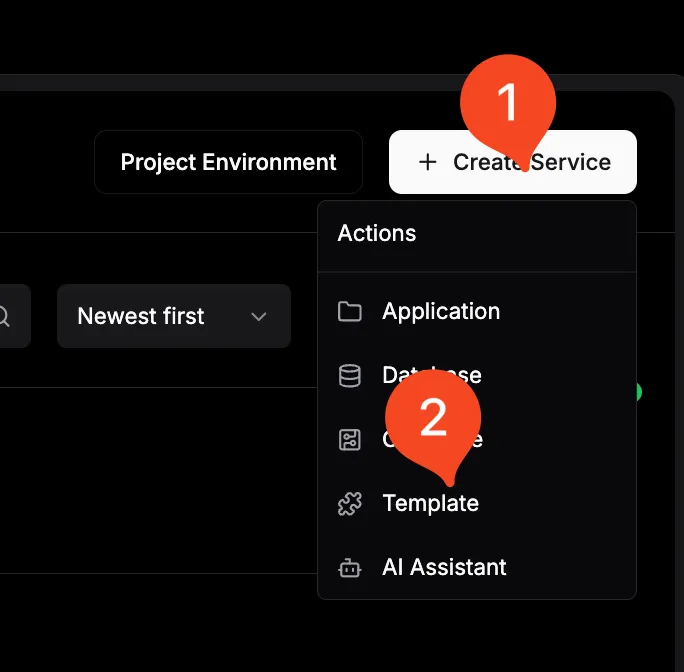
Step 2: create n8n application
- Access Dokploy dashboard: Log into your Dokploy instance
- Create new project: Click “New Project” and name it “n8n-automation”
- Select template: Choose “n8n” from the available templates (or “n8n Queue Mode” for production with PostgreSQL)
- Configure basic settings: Set your application name and description
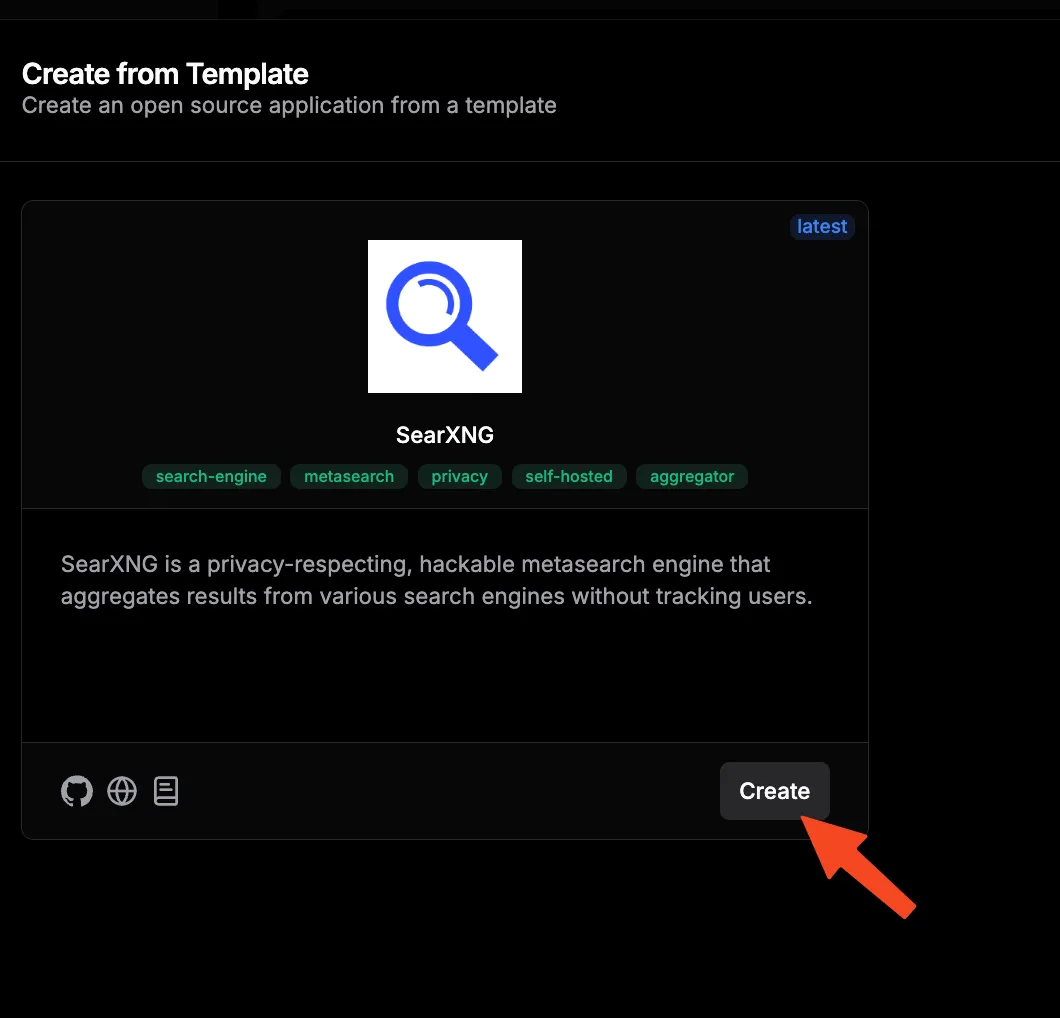
Step 3: configure environment variables
Set up the essential environment variables:
| Variable | Value | Description |
|---|---|---|
N8N_EDITOR_BASE_URL |
https://n8n.yourdomain.com |
Editor interface URL |
N8N_WEBHOOK_URL |
https://n8n.yourdomain.com |
Webhook endpoint base |
GENERIC_TIMEZONE |
UTC |
Server timezone |
TZ |
UTC |
Container timezone |
N8N_ENCRYPTION_KEY |
your_generated_key |
Encryption key for credentials |
N8N_DEFAULT_BINARY_DATA_MODE |
filesystem |
Binary data storage mode |
N8N_LOG_LEVEL |
info |
Logging verbosity |
EXECUTIONS_DATA_PRUNE |
true |
Enable execution cleanup |
EXECUTIONS_DATA_MAX_AGE |
336 |
Keep executions for 14 days (hours) |
Environment security
Never reuse encryption keys across instances. n8n supports _FILE suffix variants for secrets (e.g., N8N_ENCRYPTION_KEY_FILE, DB_POSTGRESDB_PASSWORD_FILE) which work with Docker secrets and .env managers.
Step 4: domain and deploy
- Add domain: In Dokploy, navigate to your n8n application settings
- Configure SSL: Enable automatic SSL certificate generation
- Set domain: Enter your subdomain (e.g.,
n8n.yourdomain.com) - Deploy: Click the deploy button and monitor the process
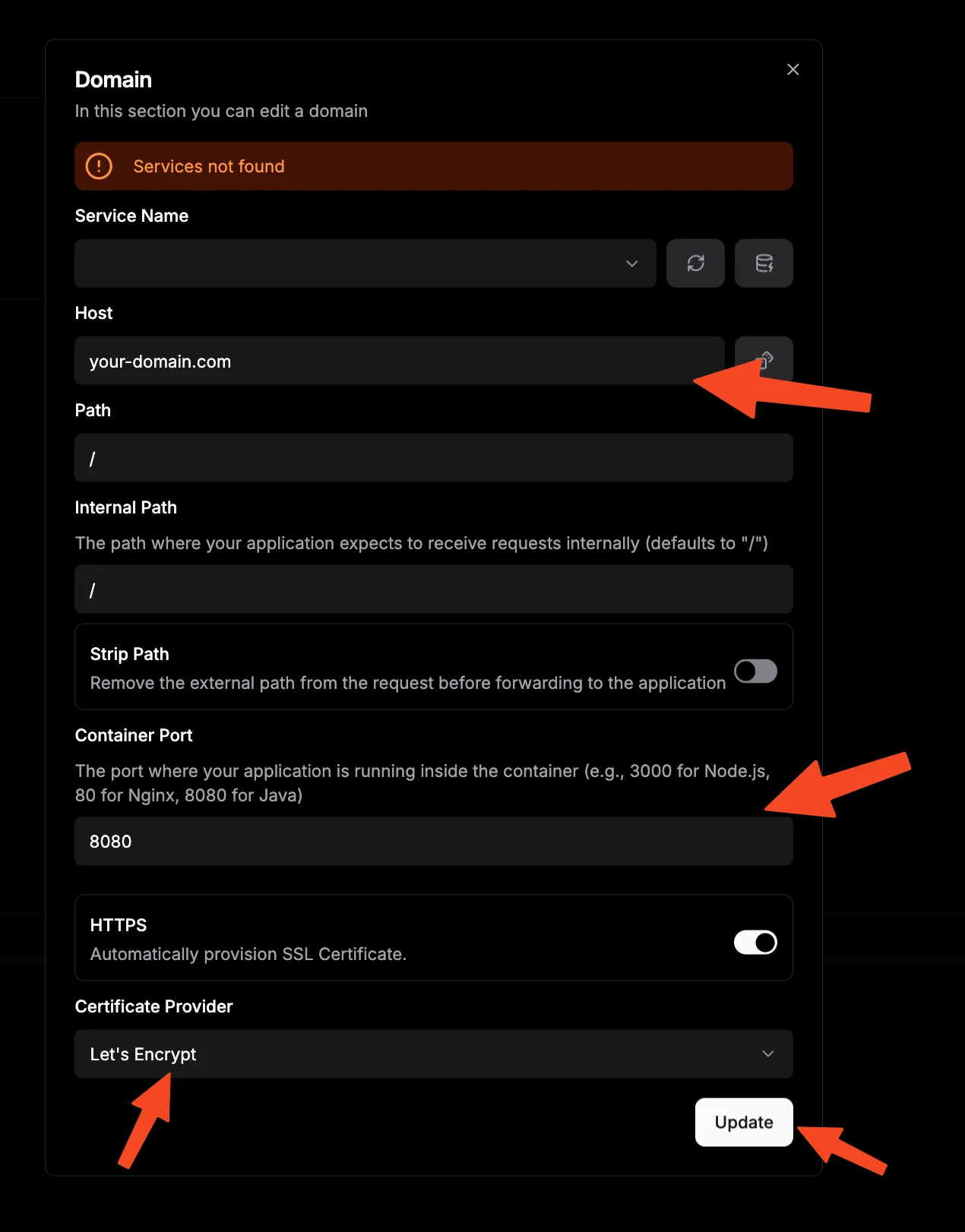
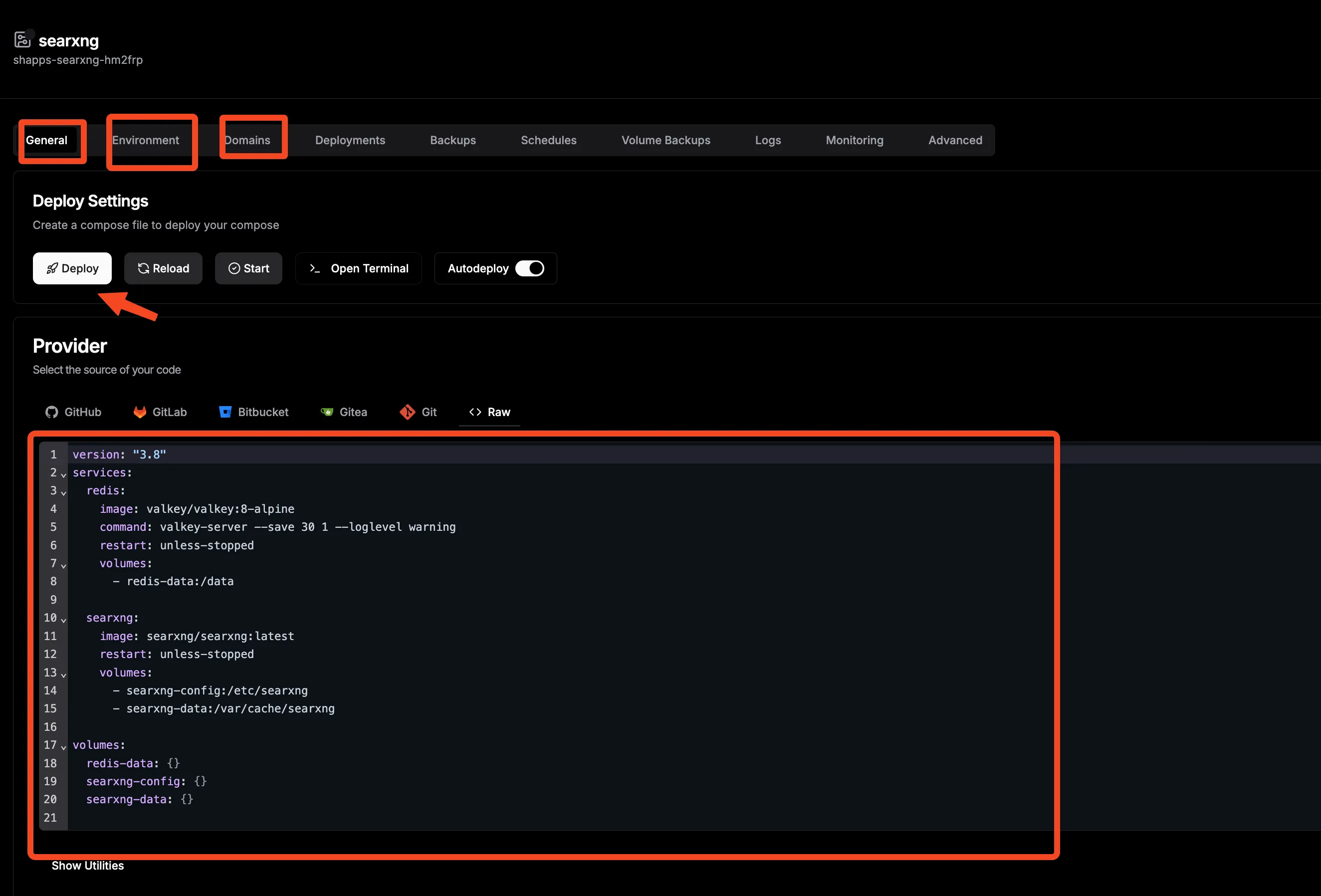
Once deployed, access your n8n instance via the configured domain and create your admin account.
Setup option 4: n8n queue mode with PostgreSQL
Queue mode is for scale. If you’re running more than ~50 concurrent executions, need horizontal scaling, or want the robustness of PostgreSQL, this is the setup.
When do you need queue mode?
If you’re a solo operator with fewer than 50 workflows, Options 1-3 are fine. Queue mode adds complexity (PostgreSQL, Redis, separate worker and runner containers) but lets you distribute work across multiple processes. Queue mode works on the Community edition. The worker monitoring tab is Enterprise-only, but workers themselves run fine.
Architecture overview
In queue mode, the n8n main instance handles the editor, webhooks, and triggers. Workers process executions from a Redis-backed queue. Runners handle Code node sandboxing. PostgreSQL stores all data.
Internet → Traefik → n8n (main) ↔ PostgreSQL
                         ↓
                       Redis (queue)
                         ↓
                    n8n-worker ↔ n8n-runner
Docker Compose for queue mode
services:
  postgres:
    image: postgres:18
    restart: always
    environment:
      - POSTGRES_USER=${POSTGRES_USER}
      - POSTGRES_PASSWORD=${POSTGRES_PASSWORD}
      - POSTGRES_DB=${POSTGRES_DB}
    volumes:
      - pg-data:/var/lib/postgresql/data
    healthcheck:
      test: ['CMD-SHELL', 'pg_isready -U ${POSTGRES_USER} -d ${POSTGRES_DB}']
      interval: 5s
      timeout: 5s
      retries: 10

  redis:
    image: redis:7-alpine
    restart: always
    command: redis-server --appendonly yes --maxmemory 512mb --maxmemory-policy allkeys-lru
    volumes:
      - redis-data:/data
    healthcheck:
      test: ['CMD', 'redis-cli', 'ping']
      interval: 15s
      timeout: 5s
      retries: 3

  n8n:
    image: docker.io/n8nio/n8n:2.37.7
    restart: always
    ports:
      - '5678:5678'
    environment:
      - DB_TYPE=postgresdb
      - DB_POSTGRESDB_HOST=postgres
      - DB_POSTGRESDB_PORT=5432
      - DB_POSTGRESDB_DATABASE=${POSTGRES_DB}
      - DB_POSTGRESDB_USER=${POSTGRES_USER}
      - DB_POSTGRESDB_PASSWORD=${POSTGRES_PASSWORD}
      - EXECUTIONS_MODE=queue
      - QUEUE_BULL_REDIS_HOST=redis
      - QUEUE_BULL_REDIS_PORT=6379
      - N8N_EDITOR_BASE_URL=https://n8n.yourdomain.com
      - N8N_WEBHOOK_URL=https://n8n.yourdomain.com
      - N8N_ENCRYPTION_KEY=${N8N_ENCRYPTION_KEY}
      - N8N_DEFAULT_BINARY_DATA_MODE=database
      - N8N_METRICS=true
      - GENERIC_TIMEZONE=UTC
      - TZ=UTC
    volumes:
      - n8n-data:/home/node/.n8n
    depends_on:
      postgres:
        condition: service_healthy
      redis:
        condition: service_healthy
    healthcheck:
      test: ['CMD', 'wget', '--no-verbose', '--tries=1', '--spider', 'http://localhost:5678/healthz']
      interval: 30s
      timeout: 10s
      retries: 3
      start_period: 40s

  n8n-worker:
    image: docker.io/n8nio/n8n:2.37.7
    restart: always
    command: worker
    environment:
      - DB_TYPE=postgresdb
      - DB_POSTGRESDB_HOST=postgres
      - DB_POSTGRESDB_PORT=5432
      - DB_POSTGRESDB_DATABASE=${POSTGRES_DB}
      - DB_POSTGRESDB_USER=${POSTGRES_USER}
      - DB_POSTGRESDB_PASSWORD=${POSTGRES_PASSWORD}
      - EXECUTIONS_MODE=queue
      - QUEUE_BULL_REDIS_HOST=redis
      - QUEUE_BULL_REDIS_PORT=6379
      - N8N_ENCRYPTION_KEY=${N8N_ENCRYPTION_KEY}
      - N8N_DEFAULT_BINARY_DATA_MODE=database
      - N8N_RUNNERS_MODE=external
      - N8N_RUNNERS_AUTH_TOKEN=${RUNNERS_AUTH_TOKEN}
      - N8N_RUNNERS_BROKER_LISTEN_ADDRESS=0.0.0.0
      - GENERIC_TIMEZONE=UTC
      - TZ=UTC
    volumes:
      - n8n-data:/home/node/.n8n
    depends_on:
      postgres:
        condition: service_healthy
      redis:
        condition: service_healthy

  n8n-runner:
    image: docker.io/n8nio/runners:2.37.7
    restart: always
    environment:
      - N8N_RUNNERS_AUTH_TOKEN=${RUNNERS_AUTH_TOKEN}
      - N8N_RUNNERS_TASK_BROKER_URI=http://n8n:5679

volumes:
  pg-data:
  redis-data:
  n8n-data:
Runners image location
The n8nio/runners image is only available on Docker Hub — it is NOT on docker.n8n.io. Use docker.io/n8nio/runners:2.37.7. The main n8n and worker images can use either registry.
Create the .env file:
cat > .env << 'EOF'
POSTGRES_USER=n8n
POSTGRES_PASSWORD=change_me_to_a_strong_password
POSTGRES_DB=n8n
N8N_ENCRYPTION_KEY=$(openssl rand -base64 32)
RUNNERS_AUTH_TOKEN=$(openssl rand -base64 32)
EOF
Launch and verify queue mode
docker compose up -d

# Verify all 5 containers are running
docker compose ps

# Check the health endpoint
curl -s http://localhost:5678/healthz

# Check worker logs for queue connection
docker compose logs n8n-worker
All five containers should show as healthy. The worker logs should show it connected to Redis and ready to process jobs. Note: the worker monitoring tab in the n8n UI is Enterprise-only, but workers process executions fine on Community.
Monitoring, backups, and maintenance
Once n8n is running, keep it healthy. This section covers health checks, metrics, backups, and a maintenance schedule.
Health monitoring
n8n exposes a /healthz endpoint by default (configurable via N8N_ENDPOINT_HEALTH). For deeper monitoring:
Metrics endpoint: Set N8N_METRICS=true to expose /metrics in Prometheus format. Scrape it with Prometheus and build dashboards in Grafana.
Metrics endpoint
N8N_METRICS=true exposes /metrics in Prometheus format. Combine with Beszel & Uptime Kuma monitoring setup on Dokploy for a complete monitoring stack.
OpenTelemetry tracing: Available since n8n 2.19 for workflow execution tracing. UI-configurable from 2.27. Custom span tags are an Enterprise feature (2.22+).
Structured logging: Set N8N_LOG_OUTPUT=json for machine-parseable logs that work with log aggregation tools.
Execution pruning: EXECUTIONS_DATA_PRUNE=true with EXECUTIONS_DATA_MAX_AGE=336 (14 days) is a good default. Add EXECUTIONS_DATA_PRUNE_MAX_COUNT=10000 to cap the total number of stored executions.
Key metrics to watch:
| Metric | Description | Alert threshold |
|---|---|---|
| Response time | /healthz latency |
> 5 seconds |
| Memory usage | Container memory | > 80% |
| Disk space | Data volume usage | > 90% |
| Failed executions | Workflow failure rate | > 10% |
| Queue length | Pending executions (queue mode) | > 100 items |
Backup strategies
Two paths depending on your database:
SQLite (Options 1–3):
#!/bin/bash
# n8n SQLite Backup Script
BACKUP_DIR="/backups/n8n"
DATE=$(date +%Y%m%d_%H%M%S)

mkdir -p "$BACKUP_DIR"

# Stop n8n briefly for a consistent snapshot
docker compose stop n8n

# Back up data dir (includes SQLite DB + WAL + encryption key)
tar -czf "$BACKUP_DIR/n8n_data_$DATE.tar.gz" ./data

# Back up config
cp docker-compose.yml "$BACKUP_DIR/docker-compose_$DATE.yml"
cp .env "$BACKUP_DIR/env_$DATE.backup"

# Restart
docker compose start n8n

# Clean old backups (keep last 30 days)
find "$BACKUP_DIR" -name "*.tar.gz" -mtime +30 -delete

echo "Backup completed: n8n_data_$DATE.tar.gz"
PostgreSQL (Option 4):
#!/bin/bash
# n8n PostgreSQL Backup Script
BACKUP_DIR="/backups/n8n"
DATE=$(date +%Y%m%d_%H%M%S)

mkdir -p "$BACKUP_DIR"

# Dump the database
docker compose exec -T postgres pg_dump -U ${POSTGRES_USER} ${POSTGRES_DB} | gzip > "$BACKUP_DIR/n8n_pg_$DATE.sql.gz"

# Back up .n8n volume (encryption key, logs)
tar -czf "$BACKUP_DIR/n8n_home_$DATE.tar.gz" ./n8n-data

# Back up config
cp docker-compose.yml "$BACKUP_DIR/docker-compose_$DATE.yml"
cp .env "$BACKUP_DIR/env_$DATE.backup"

# Clean old backups
find "$BACKUP_DIR" -name "*.gz" -mtime +30 -delete

echo "Backup completed: n8n_pg_$DATE.sql.gz"
Test your restores
A backup you haven’t tested is not a backup. After restoring, verify that N8N_ENCRYPTION_KEY matches what was used when credentials were stored — if it doesn’t match, all saved credentials are unreadable. Push encrypted copies offsite to S3, Backblaze B2, or Cloudflare R2. See Pluton: Self-Hosted Backups with Restic and Rclone for an automated offsite backup setup.
Workflow packages: n8n 2.27 introduced .n8np packages (Preview) — portable workflow bundles you can export and import between instances. Useful for migrating individual workflows without a full database restore.
Regular maintenance tasks
Weekly:
- Review execution logs for errors
- Check disk usage on the data volume
- Verify backup integrity
Monthly:
- Update n8n to the latest pinned stable version (
docker compose pull && docker compose up -d) - Review execution prune settings
- Audit user access and credentials
Quarterly:
- Test a full restore from backup
- Review resource usage and scale if needed
- Check for breaking changes in the n8n changelog before upgrading
n8n pricing: Community vs Cloud
The Community edition is free and genuinely feature-complete for solo use: unlimited workflows, steps, executions, and users. Queue mode works on Community — only the worker monitoring tab requires an Enterprise license.
n8n Cloud pricing (2026):
| Plan | Price | Executions/month | Notes |
|---|---|---|---|
| Starter | 20€/mo | 2,500 | Cloud-hosted |
| Pro | 50€/mo | 10,000 | Cloud-hosted |
| Business | 667€/mo | 40,000 | Self-hosted with license key |
| Enterprise | Contact sales | Custom | SSO, Insights, Git environments, multi-main |
No active-workflow limits on any plan — pricing is execution-based.
The solo-operator math: Community edition + a Hetzner Cloud VPS at €4–8/month beats Cloud Starter by a wide margin. The paid license buys SSO, Insights dashboards, Git-based environments, external secrets management, and multi-main high availability. For most solo operators, Community is enough.
Fair-code license
n8n uses the Sustainable Use License, not a traditional OSI open-source license. Internal use is free, but the license restricts offering n8n itself as a competing commercial service. It’s free for your own automation — just don’t try to sell it as your own SaaS.
Troubleshooting common n8n issues
These are the failure modes I see most often with self-hosted n8n. Each one has burned someone.
Docker image pull rate limits
The n8n Docker image has 100M+ pulls on Docker Hub. Anonymous pull limits can hit you, especially during automated deployments. In February 2026, users reported toomanyrequests errors even on docker.n8n.io (n8n’s own registry mirror).
Fix: Use docker.io/n8nio/n8n (Docker Hub) as your default registry. Pin image tags to avoid unnecessary pulls. For CI/CD, authenticate your Docker Hub puller. Note that n8nio/runners is only on Docker Hub — it’s not available on docker.n8n.io.
Encryption key mismatch after restore
After migrating or restoring from backup, all saved credentials appear blank or throw decryption errors. This happens when N8N_ENCRYPTION_KEY doesn’t match the key that was in use when credentials were stored.
Fix: Always back up .env alongside your data directory. In queue mode, ensure the same encryption key is set on the main instance and all workers. After a restore, verify that you can open a saved credential in the n8n editor before going live.
Deprecation warnings in logs
If your logs show a deprecation warning for WEBHOOK_URL on startup, you’re using the old variable name. It was deprecated in n8n 2.35.0 and replaced by N8N_WEBHOOK_URL. The old name still works but will be removed in a future version.
Fix: Replace WEBHOOK_URL with N8N_WEBHOOK_URL in your compose file or environment variables. Also remove VUE_APP_URL_BASE_API if present — it’s a no-op in Docker (only used when building the editor UI package manually).
Code node errors after upgrading to 2.x
n8n 2.0 blocks environment variable access inside Code nodes by default (N8N_BLOCK_ENV_ACCESS_IN_NODE=true). If your workflows use process.env or $evaluateExpression() returns null in Code nodes, this is why.
Fix: Check the v2.0 breaking changes for documented workarounds. If you need env access in Code nodes, set N8N_BLOCK_ENV_ACCESS_IN_NODE=false — but understand this reduces security.
OAuth callbacks failing after 2.0 upgrade
The OAuth callback authentication default flipped in n8n 2.0. If OAuth-connected nodes (Google, Microsoft, etc.) start failing after an upgrade, this is likely the cause.
Fix: Set N8N_SKIP_AUTH_ON_OAUTH_CALLBACK=false and re-test your OAuth connections before going live.
Healthcheck fails in 2.x minimal image
The n8n 2.x Docker image is minimal (Alpine-based, non-root node user). Tools like wget or curl may not be present, which breaks healthchecks that depend on them.
Fix: Verify tool availability first:
docker run --rm --entrypoint sh n8nio/n8n:2.37.7 -c "which wget"If wget is missing, switch to a Node-based healthcheck:
healthcheck:
  test: ['CMD', 'node', '-e', "fetch('http://localhost:5678/healthz').then(r=>process.exit(r.ok?0:1)).catch(()=>process.exit(1))"]
  interval: 30s
  timeout: 10s
  retries: 3
  start_period: 40s
Conclusion
Self-hosting n8n gives you unlimited workflow automation for the cost of a VPS. The four options in this guide cover different needs:
- Docker Compose standalone — quickest way to get started, SQLite, single container
- Traefik reverse proxy — production single instance with automatic HTTPS and domain routing
- Dokploy — GUI-based deployment with built-in reverse proxy and SSL management
- Queue mode with PostgreSQL — horizontal scaling with workers, Redis queue, and external runners
The Community edition is free and covers everything a solo operator needs. A Hetzner Cloud VPS at €4–8/month is all the infrastructure most people need. With n8n 3.0 making Docker the only supported self-host method from October 2026, now is a good time to get your Docker Compose setup in place.
- Complete data control: Workflows and data stay on your servers
- No per-execution costs: Run as many workflows as your hardware can handle
- Production-ready: PostgreSQL, queue mode, monitoring, and backups covered
- Future-proof: Docker Compose is the officially recommended and soon-only supported method
- Active development: 203k+ GitHub stars, weekly releases, 1,000+ integrations
Next steps:
- Pick a setup option and get n8n running tonight
- Build a simple workflow — a webhook trigger with an HTTP response is a good start
- Explore the integration directory for your most-used services
- Set up backups before you have anything worth losing
- Scale to queue mode when you outgrow a single container
For more self-hosting guides, check out our self-hosting guides and Docker container recommendations. If you’re interested in AI-powered search for your n8n AI Assistant workflows, see our guide on self-hosted SearXNG search.