
Upload vCard (VCF) Files to WordPress: 2 Easy Methods
Upload vCard (VCF) files to WordPress without the "file type not permitted" error. Two methods, MIME-type fixes, download link code, and troubleshooting.
Updated Published 15 min read
Disclosure: this guide contains referral links. If you buy through them, I may earn a commission at no extra cost to you.
Updated: November 2026.
You can’t upload vCard (.vcf) files to WordPress without a small fix. WordPress blocks the extension in the media library, and the upload dies with “Sorry, this file type is not permitted for security reasons”.
There is one catch that bites people on current WordPress: the fix is two small filters, not one. Core validates the file’s real MIME type with PHP’s fileinfo, and plenty of servers report something other than text/vcard for a perfectly good .vcf file. The old one-filter snippet fails silently in that case. Both filters are in Method 2.
My default for a single file type is the code snippet. It’s about 20 lines, has no dependency to babysit, and won’t break when a plugin author moves on. Take the plugin if you’d rather not touch code.
Security note
A vCard is plain text (RFC 6350) and doesn’t execute anything by itself. The real risks: a malicious payload renamed to .vcf (exactly what core’s real-MIME check catches, and what the fallback allowlist in the snippet below slightly relaxes), hostile fields or links aimed at bugs in contact apps, and low-privilege users hosting files on your trusted domain. Only enable uploads from trusted sources and watch who holds upload rights.
What you need
- WordPress admin access, or a user with the
upload_filescapability (Author role and up by default) - A test .vcf file to upload
- Permission to install a plugin or add a code snippet (child theme
functions.phpor a snippets plugin) - Optional: SSH access to the web server, for the download MIME-type fix in the nginx/Apache section
- Cost: everything here is free. Plugin, snippet, and server config are $0/month
This works the same on managed hosting or a self-managed stack like WordPress installed with Docker Compose.
The video walks through the basics. One heads-up: the snippet in Method 2 below is the updated version for newer WordPress MIME validation, so copy the code from this page, not from the video.
Why WordPress blocks vCard (VCF) uploads
WordPress keeps a hardcoded list of allowed types in wp_get_mime_types(), and vCard isn’t in it. I checked the list against the current stable release (7.1.4, November 2026): zero vcf or vcard entries. The extension fails the first check and the file never reaches storage.
For non-image types there is a second gate. wp_check_filetype_and_ext() runs PHP’s finfo_file() on the real file and compares the reported MIME type against the expected one. When core’s comparison rules reject the pair, WordPress nulls the type and you get the same “not permitted” error even with upload_mimes patched. That second gate is why half the snippets floating around don’t work.
Check what your server reports for .vcf files (finfo/file diagnosis)
Before picking a fix, find out what your server thinks a .vcf file is. Run these on the web server, or on any machine with the same PHP and libmagic versions:
file --mime-type contact.vcf
php -r '$f = new finfo(FILEINFO_MIME_TYPE); echo $f->file("contact.vcf"), "\n";'
Then match the output:
| finfo reports | What works |
|---|---|
text/vcard (current Debian/Ubuntu) |
the upload_mimes filter alone |
text/x-vcard (older libmagic, some shared hosts) |
two-filter snippet or plugin |
text/plain (stripped-down MIME databases) |
two-filter snippet or plugin |
application/octet-stream (minimal containers, some Windows PHP builds) |
two-filter snippet or plugin |
Modern Debian-family systems report text/vcard and map text/vcard vcf vcard in /etc/mime.types. Anything else in that table and you should skip the one-filter version and go straight to Method 2.
Method 1: allow vCard uploads with a plugin
Install Enable virtual card upload (vcf,vcard) (free, v2.3.1, 7,000+ active installs, tested up to WordPress 6.9.1). After activating it, Media → Add New accepts .vcf and .vcard files, single or bulk.
Get the plugin (free)The plugin wires up the same two filters this article ships in Method 2. The 2.3.1 changelog entry says “Fixed upload compatibility with modern WordPress MIME validation for vcf/vcard files”, which is the wp_check_filetype_and_ext problem exactly. The one-star review from 2023 predates that fix.
One honest caveat: it’s a one-maintainer plugin, and its “tested up to” (6.9.1) trails current core (7.1.4). The two core APIs it hooks have been stable for years, so I’d rate the risk low, but it is a dependency you accept.
| Option | Stats (November 2026) | Notes |
|---|---|---|
| Enable virtual card upload (vcf,vcard) | v2.3.1, 7,000+ installs, tested to 6.9.1 | Handles the real-MIME check. One maintainer. |
| File Upload Types by WPForms | v1.5.0, 40,000+ installs, tested to 7.0.8 | General-purpose UI. Real-MIME handling for .vcf not verified. |
| WP Add Mime Types | v3.2.0, 50,000+ installs, tested to 7.0.8 | Same caveat: not verified for the vcf real-MIME cases. |
| Code snippet (Method 2) | Free, no dependency | Two filters, ~20 lines. The durable choice for one file type. |
Method 2: allow vCard uploads with a code snippet
Before editing functions.php, back up your site with a free WordPress backup plugin. Then add this to your child theme’s functions.php, or manage it without editing theme files with FluentSnippets (WPManageNinja, 50,000+ installs, tested up to 7.1.4):
// 1) Allow the extensions (as before)
add_filter('upload_mimes', function ($m) {
    $m['vcf']   = 'text/vcard';
    $m['vcard'] = 'text/vcard';
    return $m;
});

// 2) Pass WordPress real-MIME validation for vCard variants
add_filter('wp_check_filetype_and_ext', function ($data, $file, $filename, $mimes, $real_mime = false) {
    $ext = strtolower(pathinfo($filename, PATHINFO_EXTENSION));
    if (!in_array($ext, ['vcf', 'vcard'], true)) return $data;
    if (!empty($data['ext']) && !empty($data['type'])) return $data; // already validated
    $allowed = ['text/vcard', 'text/x-vcard', 'text/plain', 'application/octet-stream'];
    if (!empty($real_mime) && !in_array(strtolower($real_mime), $allowed, true)) return $data;
    $data['ext']  = $ext;
    $data['type'] = 'text/vcard';
    $data['proper_filename'] = $data['proper_filename'] ?? false;
    return $data;
}, 10, 5);
If you use FluentSnippets, set the snippet to run in the admin area only. That’s where WordPress checks MIME types during upload. Same plugin family if you need outbound mail later: send WordPress emails with FluentSMTP.
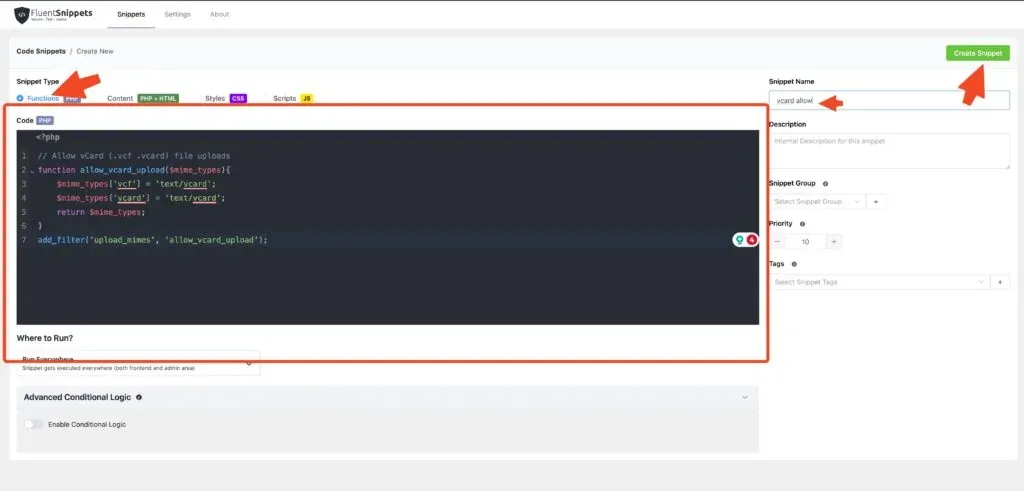
Go to Media → Add New and upload the .vcf file. Success looks like the file sitting in the media library with a normal attachment URL. Failure is still “Sorry, this file type is not permitted for security reasons”, which means your server reports a real MIME type the second filter doesn’t allowlist. Run the finfo one-liner above and check.
Why the snippet needs a second filter (wp_check_filetype_and_ext)
Here’s what core does in wp_check_filetype_and_ext() (same logic in the 6.6 tag and current trunk, so this isn’t new behavior):
- Map extension to MIME with
wp_check_filetype(). This is where theupload_mimesfilter helps. - For non-image files, run
finfo_file()on the real content. - Compare under three rules: most types must match exactly, so
text/x-vcardfails against expectedtext/vcard.text/plainpasses only when the expected type is on a short allowlist that does not includetext/vcard. Nonspecific types likeapplication/octet-streampass only forapplication/*,video/*, oraudio/*expectations, and atext/*expectation rejects them.
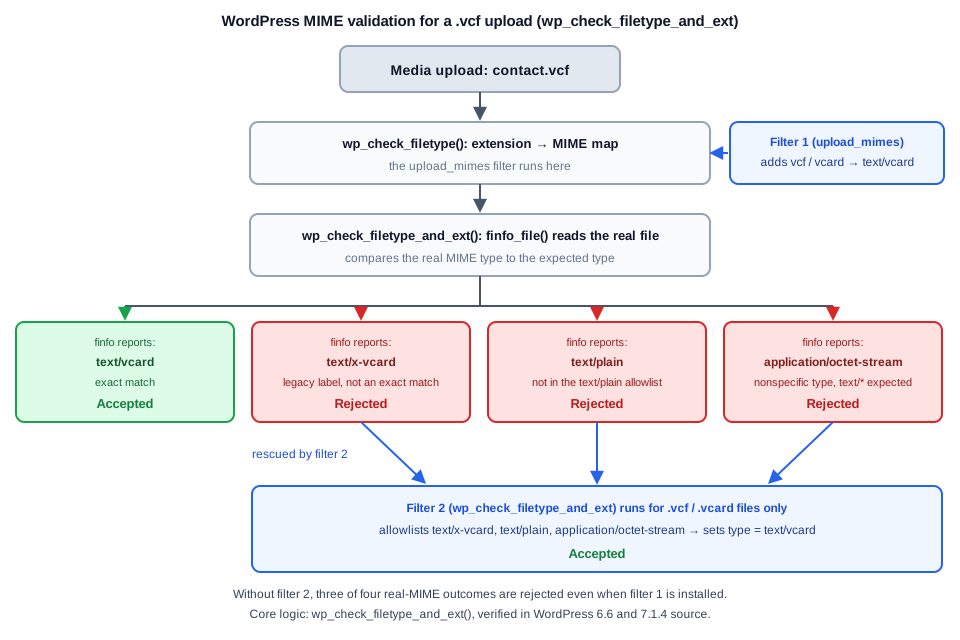
With only the first filter installed, three of the four finfo outcomes land in “rejected”. The second filter runs after core’s check, sees a .vcf or .vcard extension, and when the real MIME is one of text/vcard, text/x-vcard, text/plain, or application/octet-stream, stamps the file as text/vcard. It is scoped to those two extensions, so it doesn’t weaken validation for anything else. The plugin does the same job in its main file.
Serve .vcf files with the right MIME type (nginx & Apache)
Uploading is half the job. The web server decides the Content-Type of the download URL, and that header is what tells a phone whether to open Contacts or just save a generic file. This section needs server access, so it applies if you self-host WordPress on a VPS (for example a Hetzner Cloud VPS) or you install WordPress on Ubuntu with CloudPanel. On a managed host without SSH you may not be able to change this; skip ahead to troubleshooting in that case.
nginx ships no .vcf mapping in its stock conf/mime.types, so the files go out as application/octet-stream. Apache on modern Debian/Ubuntu gets it right out of the box (text/vcard vcf vcard in /etc/mime.types), but an explicit line doesn’t hurt.
nginx
Add this inside your server { } block, or in the vhost config of your reverse proxy if you run WordPress installed with Docker Compose:
location ~* \.(vcf|vcard)$ {
    default_type text/vcard;
    # optional: force download instead of inline handling
    # add_header Content-Disposition 'attachment; filename="contact.vcf"' always;
}
Test and reload:
nginx -t && systemctl reload nginxApache
Add this to .htaccess or the vhost config:
AddType text/vcard .vcf .vcardTest and reload:
apachectl configtest && systemctl reload apache2nginx footgun
Do not drop a types { } block into a server or location context to add one type. In nginx that replaces the entire MIME map, and every other file type starts serving wrong Content-Types. Use default_type in a location block instead.
Verify from your machine:
curl -sI https://example.com/wp-content/uploads/2026/11/contact.vcf | grep -i content-type
# want: text/vcard  (application/octet-stream is tolerable; text/html is a red flag)
Display the vCard download link in WordPress
Get the file URL from the media library: click the file and copy the File URL field. The simplest download link:
<a href="https://example.com/wp-content/uploads/2026/11/contact.vcf" download="contact.vcf">Download contact card</a>The download attribute works because uploads are same-origin. If you need a button element instead:
<button onclick="window.location.href='https://example.com/wp-content/uploads/2026/11/contact.vcf'">Download vCard</button>Or skip the HTML entirely. In the block editor, drop in the File block and it generates a download button for you, which is handy when you work with Gutenberg blocks and want the card inline with the content.
Verify the upload and download work (curl + device import)
Run this checklist before calling it done:
- The .vcf file appears in Media → Library with a working URL
curl -sIon the URL returnsContent-Type: text/vcard(or at least nottext/html)- The file downloads in a browser without a 404 or a forced
.htmlextension - The card imports into at least one contact app on a real device (Apple Contacts, Google Contacts, Outlook, whatever your audience uses)
Device import is the test that matters. Header checks tell you the server is configured; only a phone confirms the card handoff works end to end. Test it on the platforms your visitors use.
Undoing the changes (rollback)
Each piece rolls back independently:
- Snippet: delete the two filters from FluentSnippets or
functions.php. New vCard uploads get blocked again, which is expected and fine. - Plugin: deactivate the Enable virtual card upload plugin.
- nginx: remove the
locationblock and runnginx -t && systemctl reload nginx. - Apache: remove the
AddTypeline and runapachectl configtest && systemctl reload apache2. ALLOW_UNFILTERED_UPLOADS: if you ever defined it inwp-config.php, remove it now.
Verify the rollback: curl -sI on an existing file still returns 200 (removing the MIME mapping only changes the Content-Type), and a fresh upload is rejected with the usual “not permitted” error.
Troubleshooting vCard upload errors
If you still see “This file type is not permitted for security reasons”, work the table top to bottom. Row one is the case that catches most people.
| Symptom | Likely cause | Fix |
|---|---|---|
| Snippet or plugin active, still “This file type is not permitted for security reasons” | Real MIME mismatch (see the second-filter section) | Run the finfo one-liner; use the two-filter snippet or the v2.3.1+ plugin |
| Works on single site, blocked on a subsite | Multisite network setting | See the multisite section below |
| Blocked only while a security plugin is active | Upload rules inside the security plugin | Check its file upload settings; allow .vcf if it keeps an extension list |
| Rejected on a managed host, works elsewhere | Some managed hosts override MIME settings at the server level | Ask support to allow text/vcard. If they won’t, PHP cloud hosting providers that give you server access are the cleaner fix |
file --mime-type reports nothing sensible |
Stripped-down MIME database | The two-filter snippet handles it; that’s what the allowlist is for |
| Upload works, link 404s | CDN caching of wp-content/uploads |
See the next section |
Last resort only
define('ALLOW_UNFILTERED_UPLOADS', true); in wp-config.php disables every file-type check for anyone holding the capability. An admin could upload a .php payload with it in place, and on multisite it only helps super admins anyway. Order of operations: (1) the two-filter fix, (2) host support and security plugin settings, (3) only then this constant. If you use it, define it, upload your file, and remove it immediately. Never leave it defined.
Upload succeeds but the link 404s (CDN/permalinks)
Upload fine, download broken: usually a CDN or page rule caching wp-content/uploads and serving a stale 404, or a permalink structure that needs a flush. If you serve uploads through a CDN like Bunny.net CDN or Cloudflare, purge the cache for that path or exclude wp-content/uploads from aggressive page rules (details in this Cloudflare and Varnish caching setup). Then re-save Settings → Permalinks once. Verify with curl -sI on the exact URL: you want a 200 after the purge.
Multisite: add vcf to upload_filetypes
On multisite, the network admin controls allowed file types under Network Admin → Settings → Upload file types (stored in the upload_filetypes network option). Add vcf to the comma-separated list and save. Note the capability nuance: ALLOW_UNFILTERED_UPLOADS on multisite grants unfiltered_upload to super admins only, so the constant is not a workaround for regular site admins.
Security considerations
Who can upload matters more than what they upload. Uploads are gated by the upload_files capability, Author and up by default. If the point of the vCard is that visitors download it, only Editors and Admins need upload rights. While you’re tightening logins, secure WordPress logins with free two-factor authentication.
One trade-off to be aware of: the second filter’s allowlist of text/plain and application/octet-stream relaxes core’s renamed-payload detection slightly for .vcf-named files. For most sites that’s an acceptable price for uploads that work on every server. Don’t hand upload rights to roles you don’t trust.
FAQ
Why does WordPress block .vcf files in the first place?
WordPress ships a hardcoded allowlist of MIME types in wp_get_mime_types(), and vCard isn’t on it (still true in 7.1.4). Default-deny for uploads is deliberate: anything missing from the list fails the extension check, so arbitrary file types can’t land in the uploads directory without an explicit opt-in like this one.
Is text/x-vcard the same as text/vcard?
Same format family, different label. RFC 6350 defines text/vcard as the official type; text/x-vcard is the legacy spelling that older libmagic versions report. WordPress compares strings exactly, so the mismatch alone triggers rejection. That’s why the second filter and the plugin allowlist both spellings.
Can front-end visitors upload vCards?
Not with this guide. Media library uploads require the upload_files capability (Author role and up by default), so this is a logged-in workflow. A public upload form is a different problem: front-end validation, storage, and abuse controls are all on you. Don’t use ALLOW_UNFILTERED_UPLOADS to make a public form work.
Do I need both filters?
Not always. If the finfo one-liner reports exactly text/vcard, the upload_mimes filter alone passes core’s validation. The second filter is a no-op when core already accepted the file, so installing both is the safe default when you don’t want to run the diagnostic.
Diagnose with the finfo one-liner first, then pick the path: the plugin for zero code, the two-filter snippet for a dependency-free fix. For a single file type I still default to the snippet. If the upload still misbehaves after all this, the troubleshooting table and the FAQ cover the server quirks worth checking.
Related Posts



Did this guide work for you?

Written by Dragos
Dragos is the author of Bitdoze — practical DevOps, programming, and self-hosting guides.
More guides from Dragos →Need help with Astro, VPS, or a self-hosted app? View services →