HyperFrames Studio Review: Free AI Agent Video Editor Tested
Hands-on HyperFrames Studio review: build Shorts and videos with Antigravity, Claude Code, Codex, or OpenCode. UI tour, Fish Audio skill, and Free vs $25 Pro.
10 min read
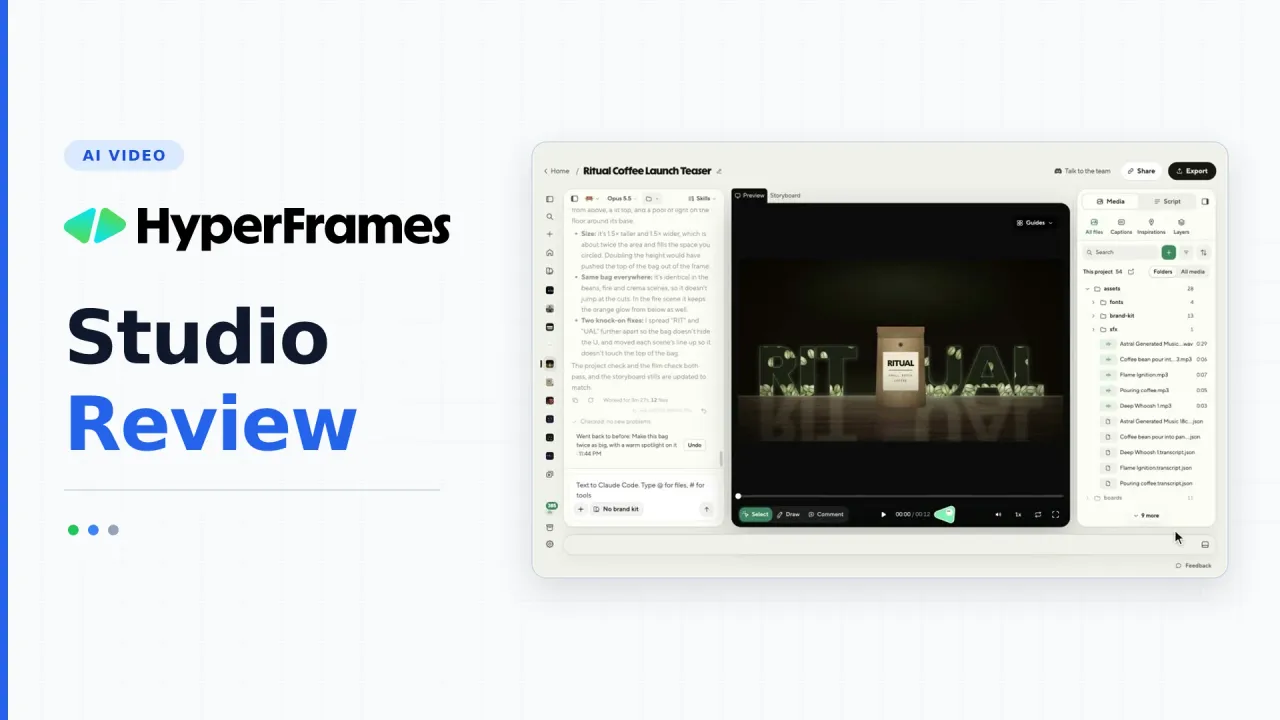
I normally generate YouTube Shorts with custom Python scripts and a Fish Audio voice clone. That setup works, but maintaining scripts and tweaking animations by hand gets old fast.
When HeyGen released HyperFrames Studio, a free desktop app built around the open-source HyperFrames agent skills, I installed it to see if an AI coding agent inside a visual editor could beat my Python pipeline on the first pass. It ships for macOS, Windows, and Linux, connects directly to the coding agents you already pay for (or free ones like OpenCode), and lets you draw on the video preview when something looks wrong.
Download HyperFrames StudioWhat HyperFrames Studio actually is
Before the desktop app existed, HyperFrames was a CLI and a set of SKILL.md skills that taught coding agents how to write HTML, CSS, and GSAP animations and render them frame-by-frame into deterministic MP4s. If you have read our guide on the best AI skills for web design, it uses the exact same portable skill pattern, just aimed at video instead of landing pages.
HyperFrames Studio wraps that workflow in a native desktop editor for macOS (Apple Silicon and Intel), Windows (64-bit), and Linux (.deb and AppImage). You sign in with a free HeyGen account, pick an agent, and describe the video you want.
What makes it different from browser-based AI video generators is that the project lives on your disk as real HTML, CSS, JS, and media files. You are not stuck waiting for a black-box cloud render to guess what you meant.
My real test: turning a blog post into a Short
To give it a fair test against my usual Python scripts, I gave HyperFrames Studio a real job instead of a toy demo.
I connected Antigravity running Gemini 4 Hydrogen, pointed it at my HolyArrs Docker guide (a Go app that replaces six containers for Jellyfin, Plex, and Emby), and asked it to read the post, grab screenshots, and produce a vertical Short with animations, sound effects, background music, and my voice.
Instead of paying for HeyGen’s built-in voice tier, I hooked in my own Fish Audio voice-cloning skill so the agent generated the narration in my cloned voice for free.
The first-iteration result surprised me:
- It analyzed the article, pulled screenshots, structured the pacing, and styled the animations in my brand colors.
- It layered background music, UI click effects, and voiceover onto the timeline automatically.
- On disk, that finished Short project totaled 726 files and 41 MB. That is big enough to notice if you create dozens of videos, though still easy to manage locally.
It was not flawless on try one. The caption spacing tightened up slightly whenever the spoken cadence bumped two words close together, which is a quick fix in a follow-up prompt or the captions panel. Even with that quirk, getting a watchable Short with synced SFX and brand styling from one prompt beat hacking on my Python video intro scripts from scratch.
Why the 726-file project size matters
Because HyperFrames builds compositions out of HTML, scripts, fonts, audio transcripts, and storyboard frames, each project folder holds hundreds of small files. Keep an eye on disk space if you generate daily Shorts, and clean up old project folders inside ~/.hyperframes-studio once you export the final MP4.
Inside the HyperFrames Studio UI
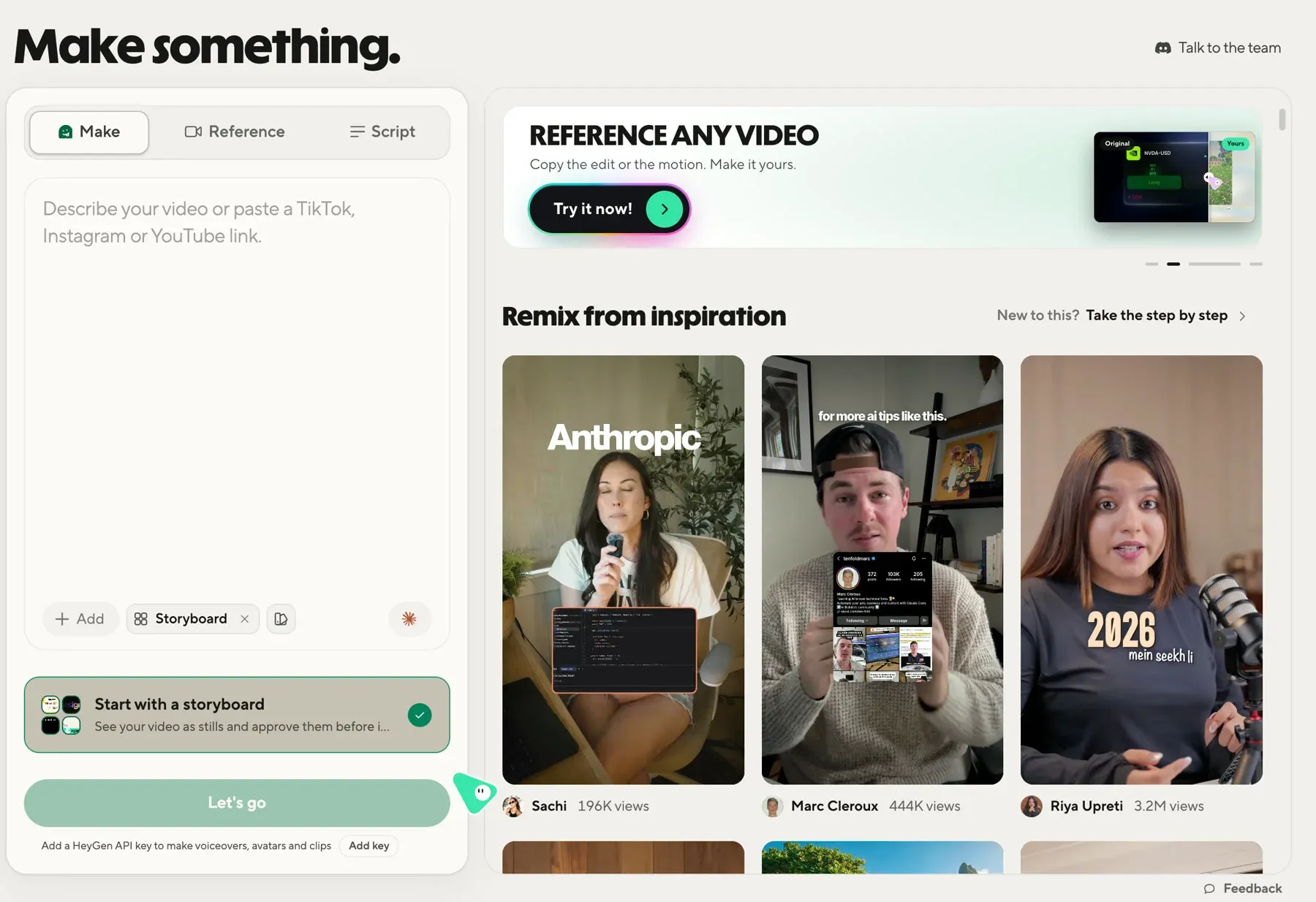
Opening a project drops you into a three-column layout: agent chat on the left, live video preview in the center, and asset/layer panels on the right, with a collapsible timeline tucked underneath.
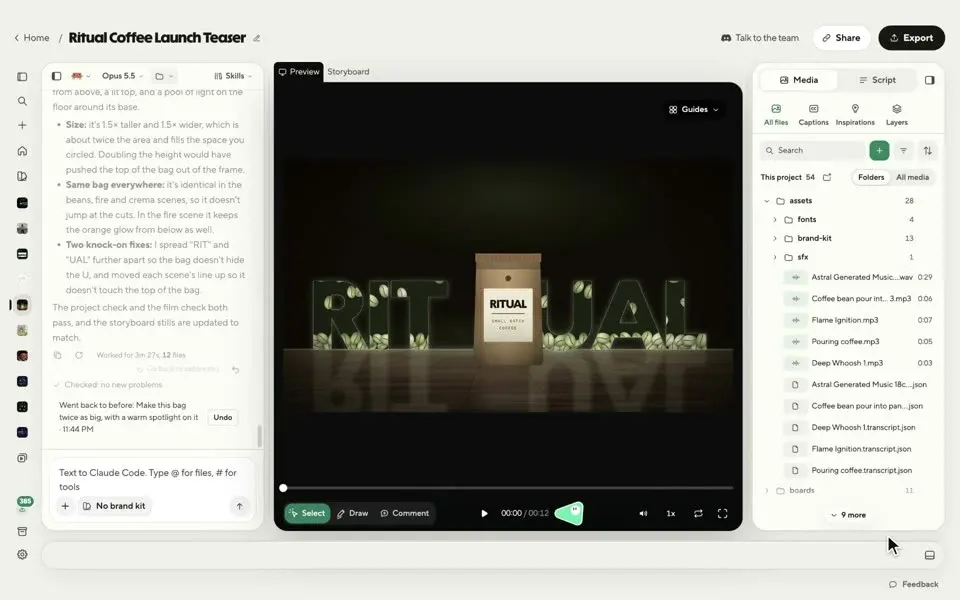
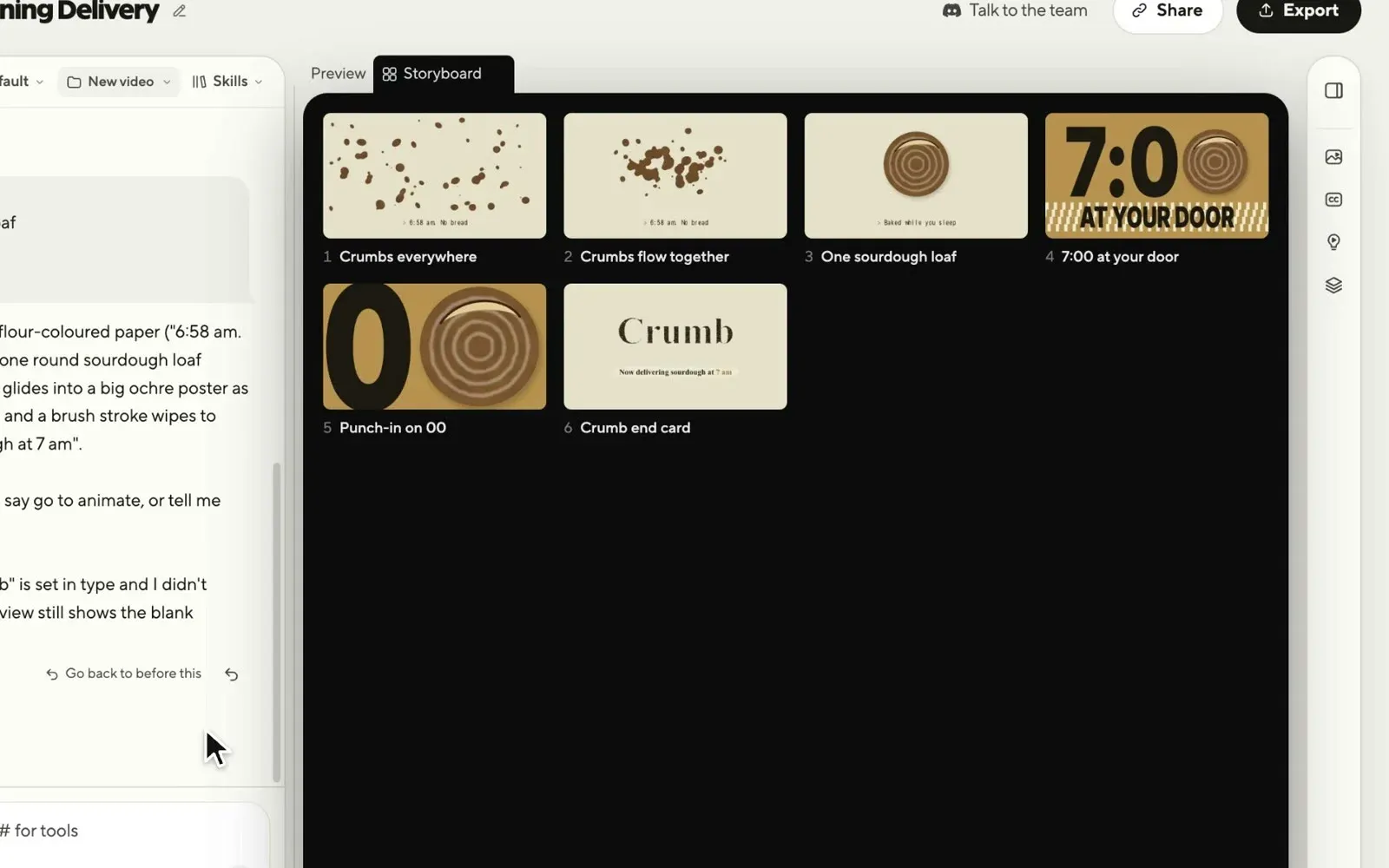
Storyboard before full render
When Start with a storyboard is enabled, the agent does not jump straight into rendering everything blindly. It shows every shot as a still card with timing first, so you can catch pacing mistakes or weak visuals before waiting on the full build.
Timeline, layers, captions, and inspirations
Below the preview, clicking Show timeline reveals the audio and visual tracks. You can see every voice line, sound effect, and music bed the agent placed, trim or split clips, adjust speed and volume, or close gaps directly without writing a prompt.
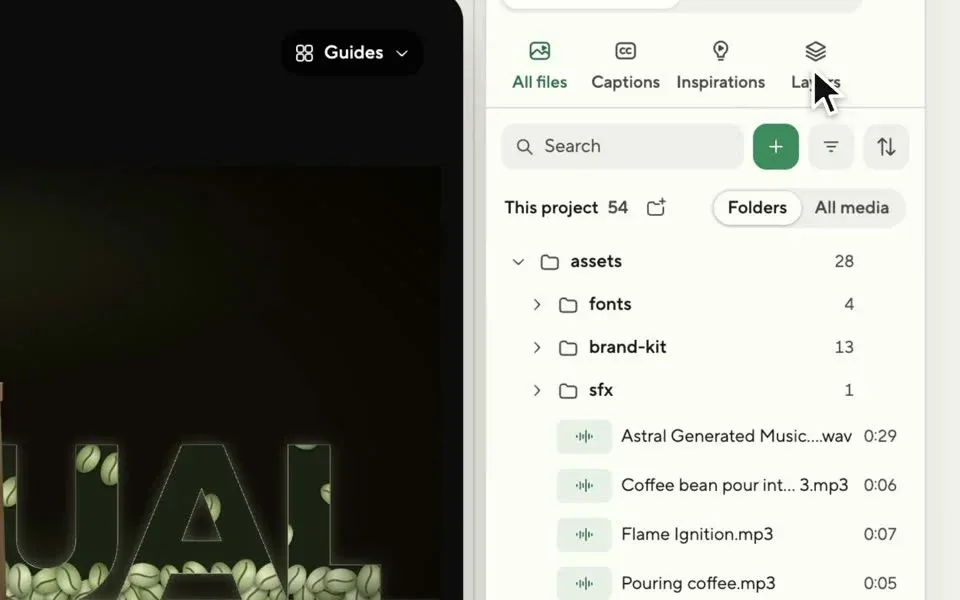
On the right sidebar, four tabs keep everything organized:
- All files (Media): Every image, font, brand asset, voiceover, and SFX clip in the project.
- Captions: Adjust subtitle styling and timing when spacing or line breaks need cleanup.
- Inspirations: Ready-made templates and motion examples to remix into your cut (some free, the full 918+ library unlocked on Pro).
- Layers: Inspect and resize or reposition individual visual elements on the canvas directly.
Draw and comment directly on the frame
Typing “make the box on the left slightly smaller” into a chat box gets vague fast. Under the preview canvas, HyperFrames Studio puts three visual tools: Select, Draw, and Comment.
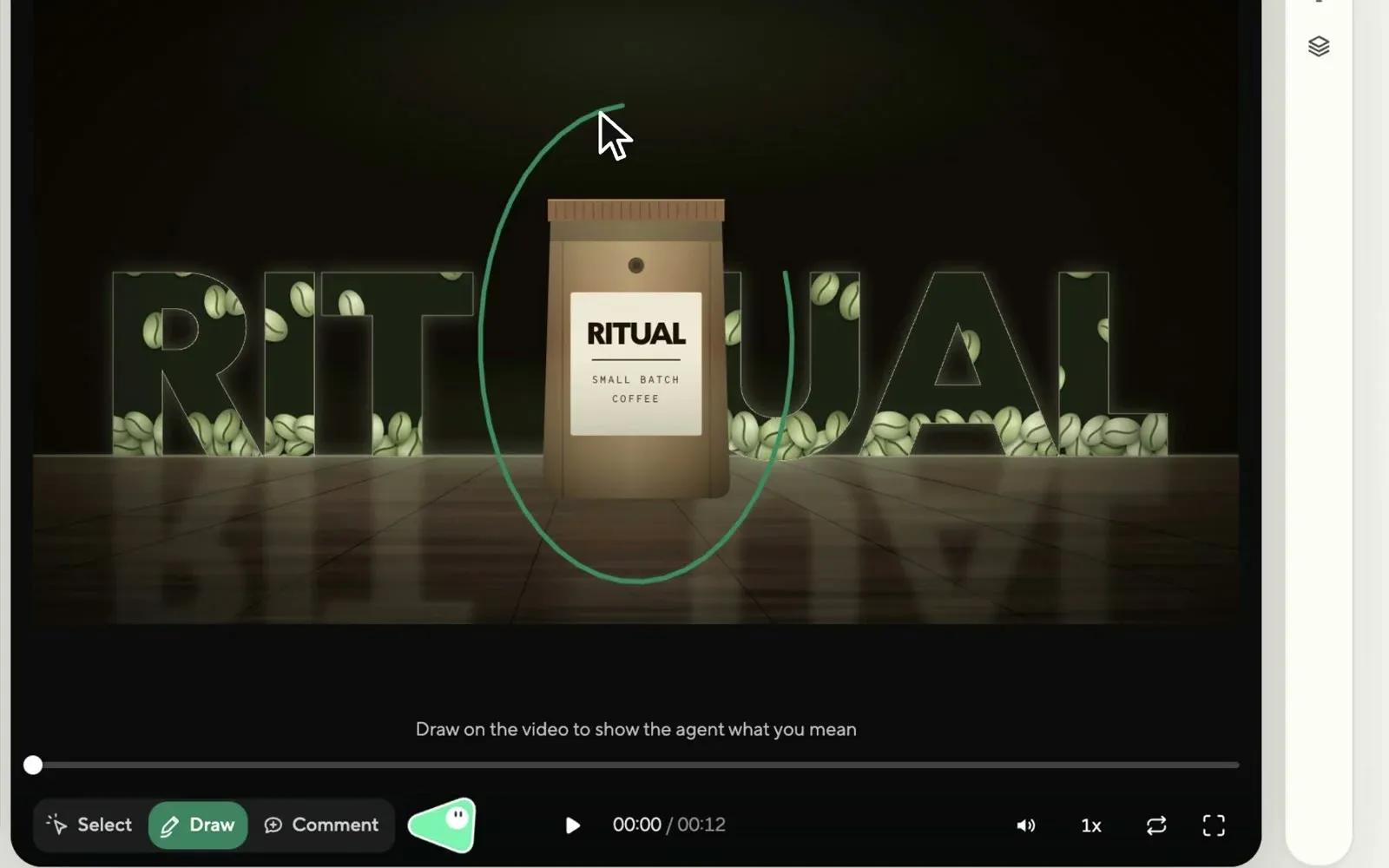
You can circle an element with Draw or pin a note at a specific timestamp with Comment, type what needs to change, and stage multiple visual notes under Pending video edits. Sending them together lets the agent fix several shots in one pass. You can also roll back any agent run with its built-in Undo button.
Brand kits keep every video consistent
One reason the HolyArrs Short looked cohesive right away is Brand kits in the left sidebar.
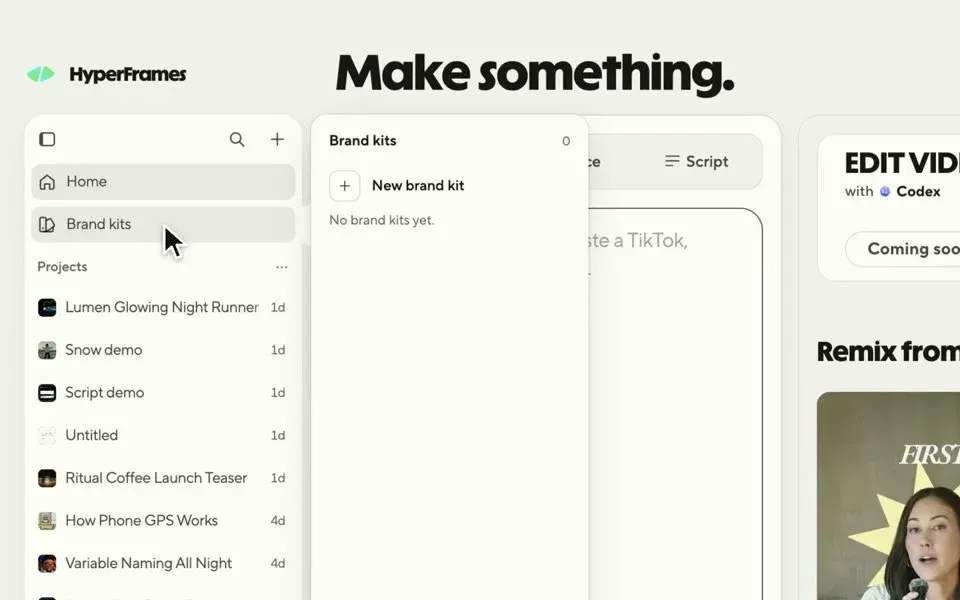
You can point the brand kit builder at your website URL (which is what I did for my channel) or upload your files manually. It extracts and stores:
- Brand colors and typography rules
- Logos and end-card assets
- Format rules and layout guidelines the agent reads before building shots
Once selected on a project, the agent stops guessing random palettes and builds titles, callouts, and backgrounds using your actual brand tokens.
Bring your own coding agent (and free models)
You do not have to pay HeyGen for AI tokens to build videos in HyperFrames Studio. From the chat header, you can switch between agents and thinking levels using the subscriptions or API keys you already own.
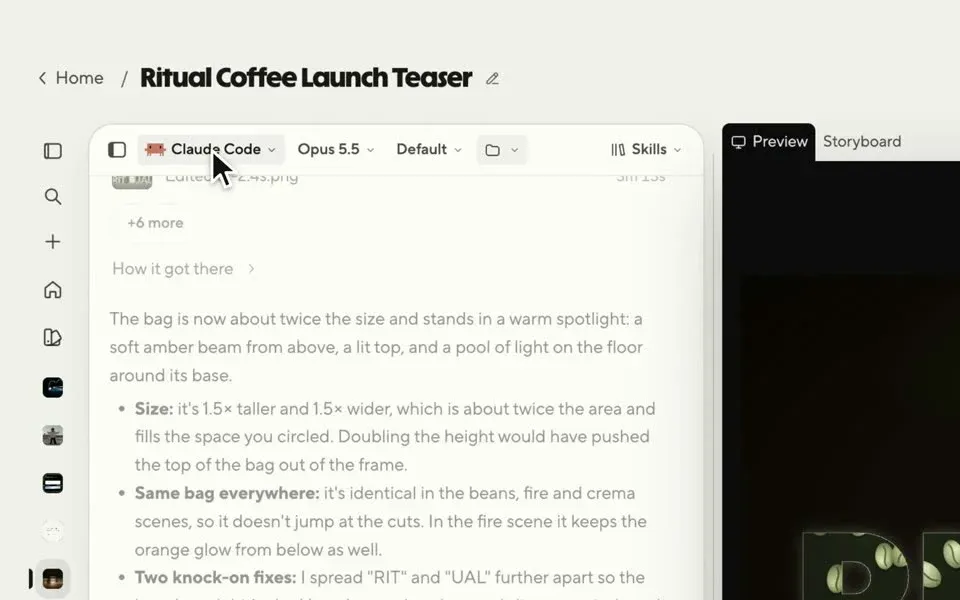
Supported agents include:
- Google Antigravity (used in my test with Gemini 4 Hydrogen)
- Claude Code
- OpenAI Codex
- Grok
- GitHub Copilot
- OpenCode (great if you want free daily models like DeepSeek, GLM, MiniMax, or LongCat without another paid plan)
For a deeper look at how those coding agents compare on pricing and daily limits, see our AI coding tools comparison and our free AI workflow stack.
You can also wire external skills into your agent, such as a Fish Audio TTS skill for voiceovers or a custom image-generation skill powered by your Google or OpenAI plan (or an API aggregator like Kie.ai). That keeps you from getting locked into HyperFrames’ paid media credits.
Importing real footage and talking-head clips
HyperFrames Studio is not limited to pure motion graphics. You can drop existing MP4 files into a project using the Import / + button and let the agent dress up raw footage.
If you film yourself talking to a phone camera, you can ask the agent to pull screenshots, animate callout cards over your speech, add click sound effects, and sync captions to the transcript. I have not stress-tested a full talking-head vlog edit in it yet, so keep expectations realistic until you try a short test clip, but the timeline and Script editor (where cutting text cuts the video) are clearly built with that workflow in mind.
Screen recording vs. agent composition
If your goal is quick macOS screen recordings with automatic mouse zooms, Screen.Studio is still faster out of the box. HyperFrames Studio wins when you want an agent to assemble scripted Shorts, animated explainers, data callouts, or multi-scene edits across Mac, Windows, and Linux.
Exporting locally vs. cloud rendering
When your edit looks right, click Export in the top-right corner. You can choose 1080p, Project size, or 4K, export as MP4, WebM, or MOV, and pick your frame rate (24, 25, 30, 50, 60 fps, or custom).
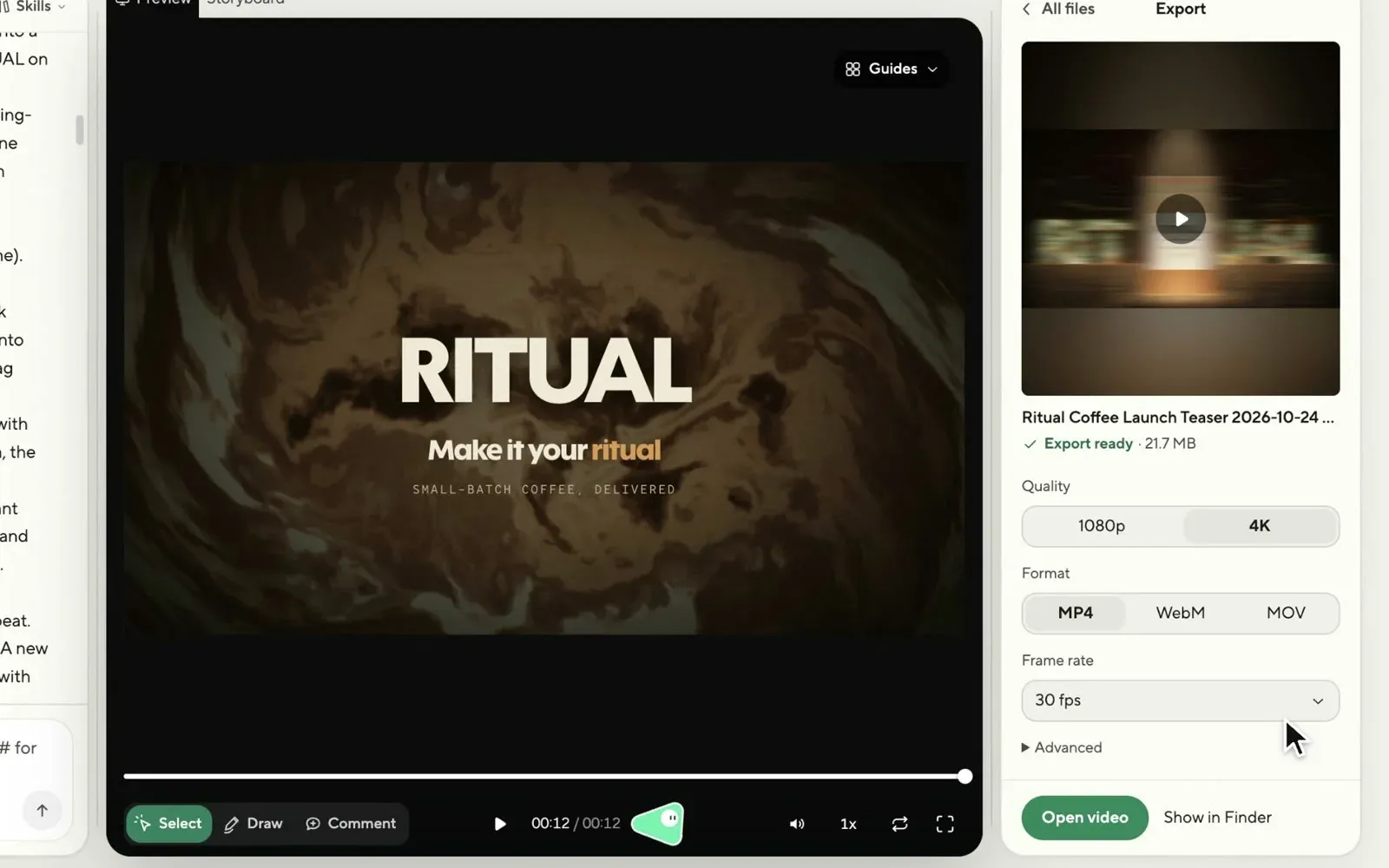
Rendering on your own machine is free and unlimited. Cloud rendering keeps your computer free while it encodes, with 5 cloud exports/month on Free and unlimited cloud exports on Pro (with a 200 MB project upload cap). Finished MP4s save straight to your Downloads folder.
HyperFrames Studio pricing: Free vs. Pro ($25/month)
| Feature | Free ($0) | Pro ($25/month) |
|---|---|---|
| Desktop app (Mac, Windows, Linux) | Included | Included |
| Bring your own coding agent (Antigravity, Claude Code, Codex, OpenCode) | Included | Included |
| Built-in HyperFrames Agent | Limited starter credits (5,000) | 25,000 credits/month |
| Local MP4 / 4K rendering | Unlimited | Unlimited |
| Cloud exports | 5 / month | Unlimited |
| AI video clips (HeyGen Video 1, Seedance, MiniMax) | 3 / month | Credit-based |
| Built-in AI voiceovers, image gen, music & SFX | Limited / Pro gated | Included (with credits) |
| Background removal | Not included | Unlimited |
| Inspiration library | 15 templates | Full 918+ library |
| Reference any video & Reverse any video | Not included | Included |
Do you need the $25/month Pro plan? If you already have a coding plan (Antigravity, Claude Code, Codex) or run OpenCode with free models, and you bring your own voice/image skills like Fish Audio, the Free tier covers almost everything. Pro only makes sense if you produce high-volume client videos and want HeyGen’s built-in voice, image, background removal, and “Reference any video” cloning in one subscription.
What works well and where it still has rough edges
- Zero-cost entry: Free desktop app on Mac, Windows, and Linux with unlimited local exports.
- Works with your existing agents: Plug in Antigravity, Claude Code, Codex, Grok, Copilot, or OpenCode.
- Draw-to-edit feedback loop: Circling an element on the video beats writing paragraphs describing coordinates.
- Brand kits + skills: Consistent channel styling plus custom skills (like Fish Audio voice cloning) remove the need for Pro credits.
- Editable timeline & layers: Quick trims, volume tweaks, and layer resizing do not require waiting on an agent turn.
On the downside:
- First-pass caption spacing can drift: Fast narration occasionally crowds word spacing until you adjust the caption style.
- Large project folders: 700+ files per Short means you will want to prune old projects periodically.
- Pro gates built-in media tools: Built-in voiceovers, image generation, background removal, and the full inspiration catalog require the $25/month plan unless you supply your own skills.
FAQ
Is HyperFrames Studio really free?
Yes. Downloading the app for macOS, Windows, or Linux, connecting your own coding agent (including OpenCode’s free models), and rendering videos locally on your computer are all free. You only hit paywalls if you use HeyGen’s hosted Pro features like unlimited cloud exports, built-in voice/image generation, background removal, or the 918+ inspiration library.
Which AI coding agents work inside HyperFrames Studio?
HyperFrames Studio supports Claude Code, OpenAI Codex, Google Antigravity, Grok, GitHub Copilot, and OpenCode. You can switch agents and thinking effort directly from the chat header.
Can I use my own cloned voice without paying for Pro?
Yes. If you install or create an agent skill for a service like Fish Audio, you can instruct the agent to generate voiceover audio using your cloned voice and place it on the timeline, bypassing HyperFrames’ Pro voice tier.
Where does HyperFrames Studio save projects and exports?
Projects are stored locally in the hidden .hyperframes-studio folder inside your home directory (or wherever you import an existing HyperFrames project from). Exported MP4 files land in your Downloads folder.
Verdict
HyperFrames Studio puts a visual timeline and canvas on top of agent-driven video scripts. If you already rely on coding agents like Antigravity, Claude Code, Codex, or OpenCode, you get a free cross-platform studio where agents do the heavy HTML and animation work while you keep timeline, layer, and draw-to-edit control.
Start on the free tier, connect a brand kit and your preferred coding agent, and add a Fish Audio voice-cloning skill before deciding if you ever need the $25/month Pro upgrade.
Get HyperFrames StudioRelated articles
- HolyArrs Docker guide — the exact self-hosting guide I turned into a Short during my HyperFrames test
- Clone your voice with Fish Audio in 2 minutes — free voice cloning to pair with your video agent skills
- Python video intro editor with Silero VAD and MoviePy — the script-based alternative if you prefer pure Python
- OpenCode setup guide — connect free and low-cost coding models to HyperFrames Studio
- Best AI skills for web design — how
SKILL.mdskills control agent output quality
Related Posts
Did this guide work for you?

Written by Dragos
Dragos is the author of Bitdoze — practical DevOps, programming, and self-hosting guides.
More guides from Dragos →Need help with Astro, VPS, or a self-hosted app? View services →