
Hermes Agent Dashboard Setup: SSH, Caddy, Docker & Security (2026)
Run the Hermes Agent dashboard on a VPS: SSH tunnel, the built-in sign-in gate, Caddy reverse proxy, Docker, systemd, and the gateway Webapp on port 9120.
Updated Published 39 min read
hermes dashboard is Hermes Agent’s built-in admin panel on port 9119. On loopback it opens with no login, and it refuses to bind to any other address without a sign-in provider. As of v0.23.4 (November 2026) it is a machine-level panel: one server covers every profile on the host. The sign-in requirement came with the June 2026 hardening, and the old --insecure bypass is now a no-op. This guide covers running it locally, reaching it over an SSH tunnel (my default), putting Caddy in front of it with the built-in username and password or a Nous Portal login, the Webapp, Docker, systemd, and what to do with a hand-made hermes dashboard service.
What this guide covers
- Starting the Hermes dashboard locally and on a remote server
- Remote access via SSH port forwarding (simplest and safest)
- The sign-in gate: a username and password for a trusted network, Nous Portal for the internet
- Caddy in front, with the public URL and trusted proxy settings
- The Webapp and how it differs from the dashboard
- Moving an old
hermes dashboardorhermes serveservice onto the gateway - Running it permanently with systemd or Docker
- Security risks you should know about
What the Hermes dashboard does
The dashboard gives you a browser interface for managing your Hermes Agent installation. From it you can:
- Browse and resume chat sessions, or open a full TUI chat in the browser
- Edit
config.yamlthrough forms or raw YAML - Set, replace, and remove API keys and OAuth logins in
~/.hermes/.env - Track token usage and cost per day and per model
- Toggle skills and toolsets, add MCP servers, and create cron jobs
- Connect messaging platforms and approve the users who may talk to your bot
- Start, stop, and restart the gateway, and run doctor checks, backups, and updates
It is a separate server process that reads and writes the same ~/.hermes as the gateway. A chat started in its Chat tab runs in the dashboard’s own process, not in the gateway. That second copy of Hermes is why v0.23.4 can move the backend onto the gateway (see Moving an old dashboard service onto the gateway).
Dashboard tour
The dashboard manages the whole machine: one server covers every profile on the host. A profile switcher in the sidebar (shown when more than one profile exists) picks the profile the management pages read and write. While another profile is selected, an amber banner names the one being managed. The selection lives in the URL as ?profile=<name>, so a link like http://127.0.0.1:9119/skills?profile=worker lands with the switcher preset.
The pages are Status, Chat, Config, API Keys, Sessions, Logs, Analytics, Cron, Profiles, Skills, MCP, Webhooks, Pairing, Channels, and System. The screenshots below are from the April 2026 build and the layout has moved since.
Status
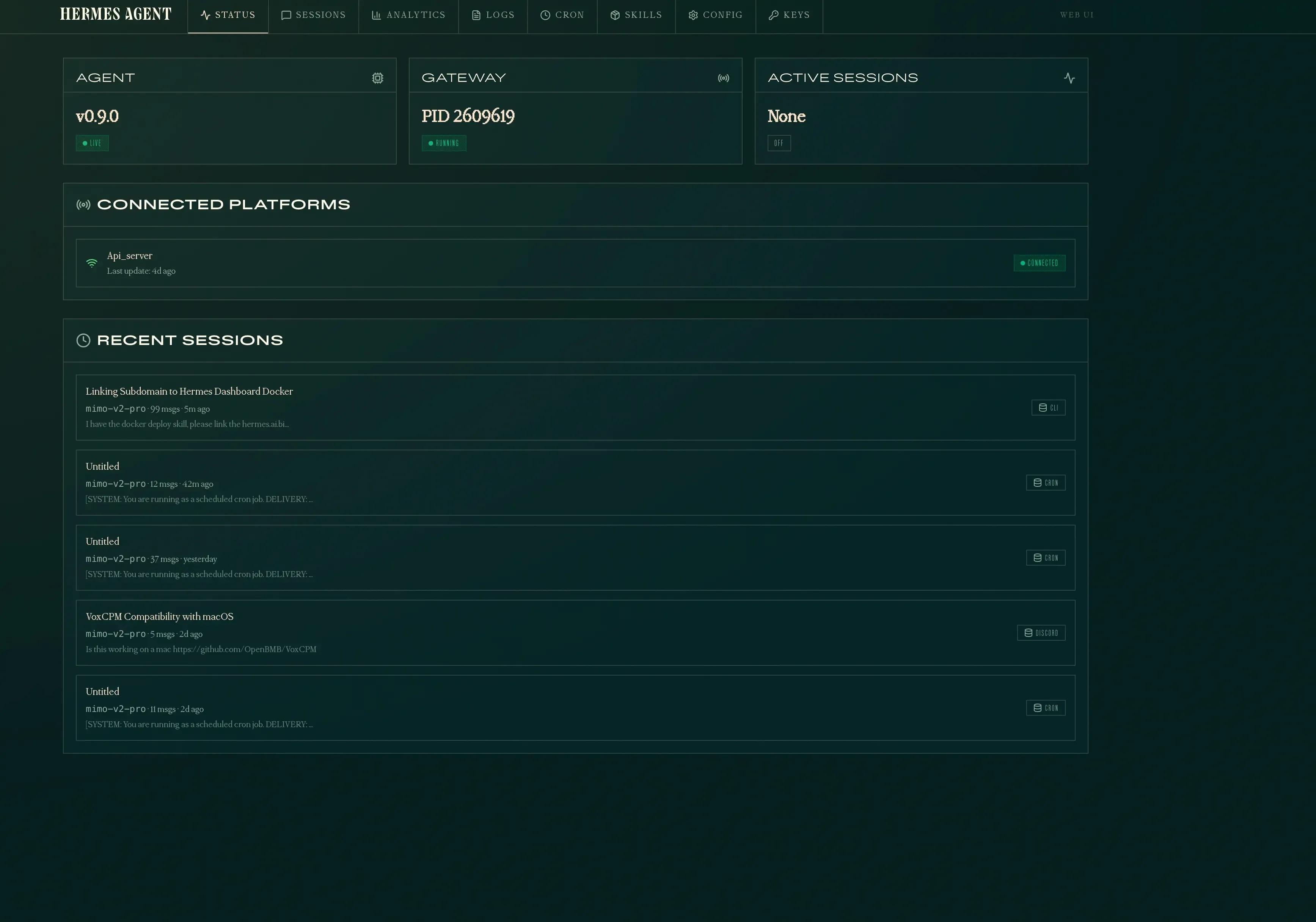
The Status page is the landing page. It shows the agent version and release date, the gateway state (running or stopped, PID, connected platforms), the number of sessions active in the last 5 minutes, and the 20 most recent sessions with model, message count, token usage, and a preview. It refreshes every 5 seconds. When the host runs low on memory or disk, or the agent probably died of an OOM kill, a banner at the top says so.
Chat
The Chat tab is for talking to the agent from the browser. It embeds the full Hermes TUI (the one you get from hermes --tui) over a WebSocket to a pseudo-terminal on the server. Slash commands, the model picker, tool-call cards, and approval prompts work as they do in the terminal. A right rail lists recent sessions and picks the workspace a new chat starts in. It needs a POSIX host (Linux, macOS, or WSL2). On native Windows the rest of the dashboard works but this tab does not.
Sessions
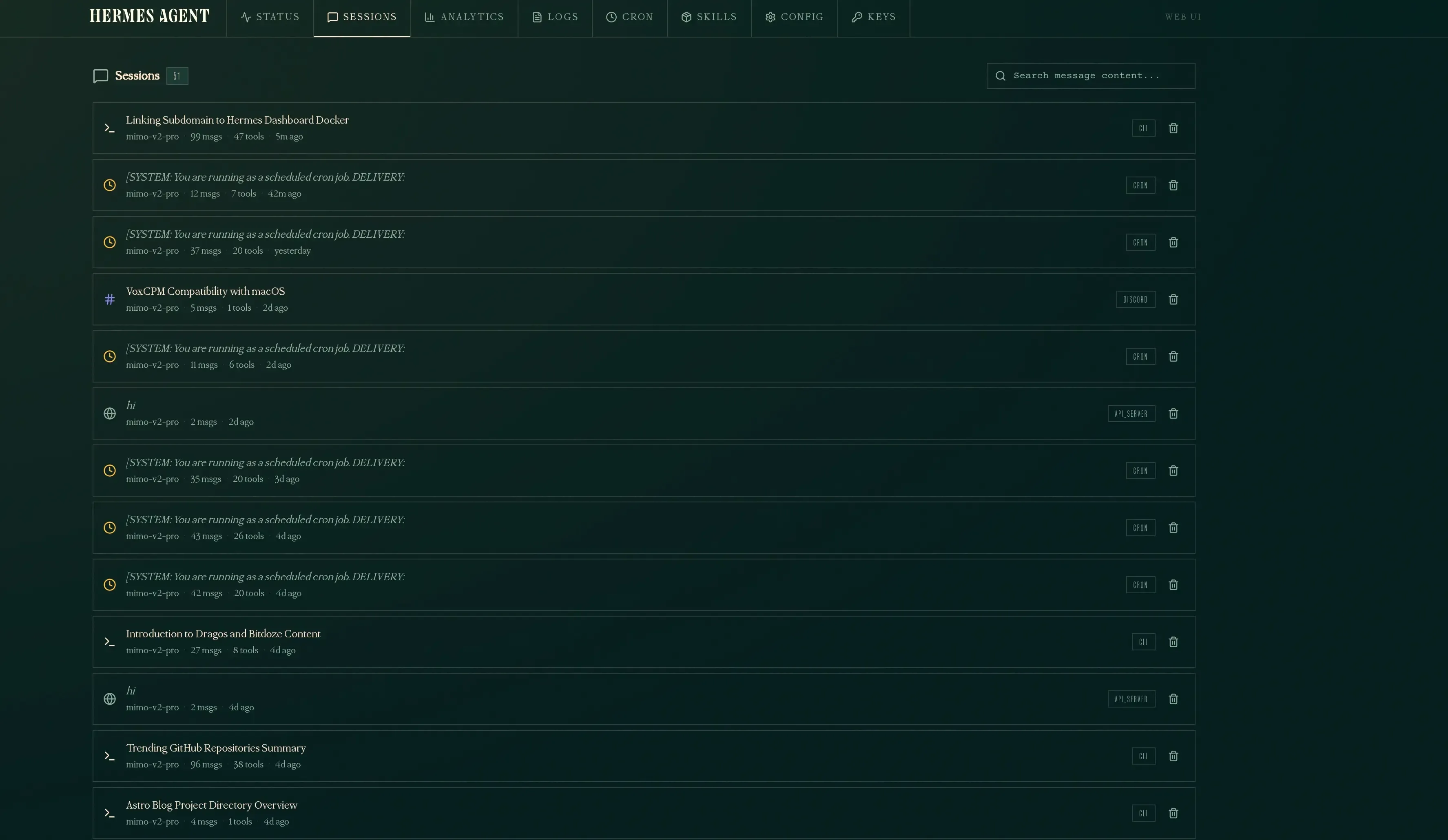
The Sessions page lists past and active sessions. Each row shows the source platform (CLI, Telegram, Discord, cron, and so on), the model, message and tool-call counts, and when it was last active. The Chats, Automation, and All filters hide cron and tool runs when you only want conversations. Search is full-text across message content. From here you can rename a session, export it as JSON, prune old ones, or delete it.
Analytics
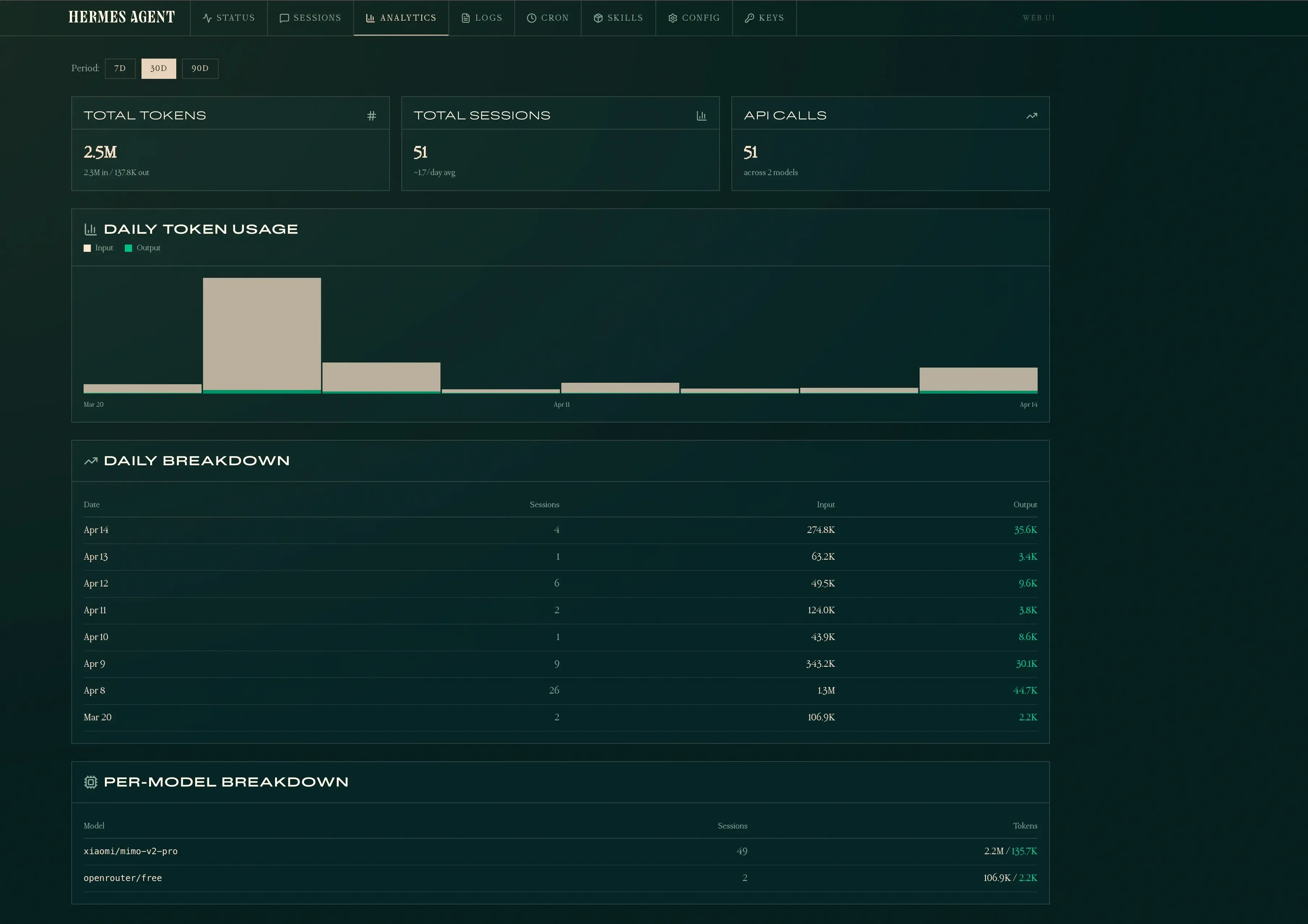
The Analytics page totals tokens and cost from session history for a 7, 30, or 90 day window: input and output tokens, cache hit rate, session count, a daily chart, and a per-model table.
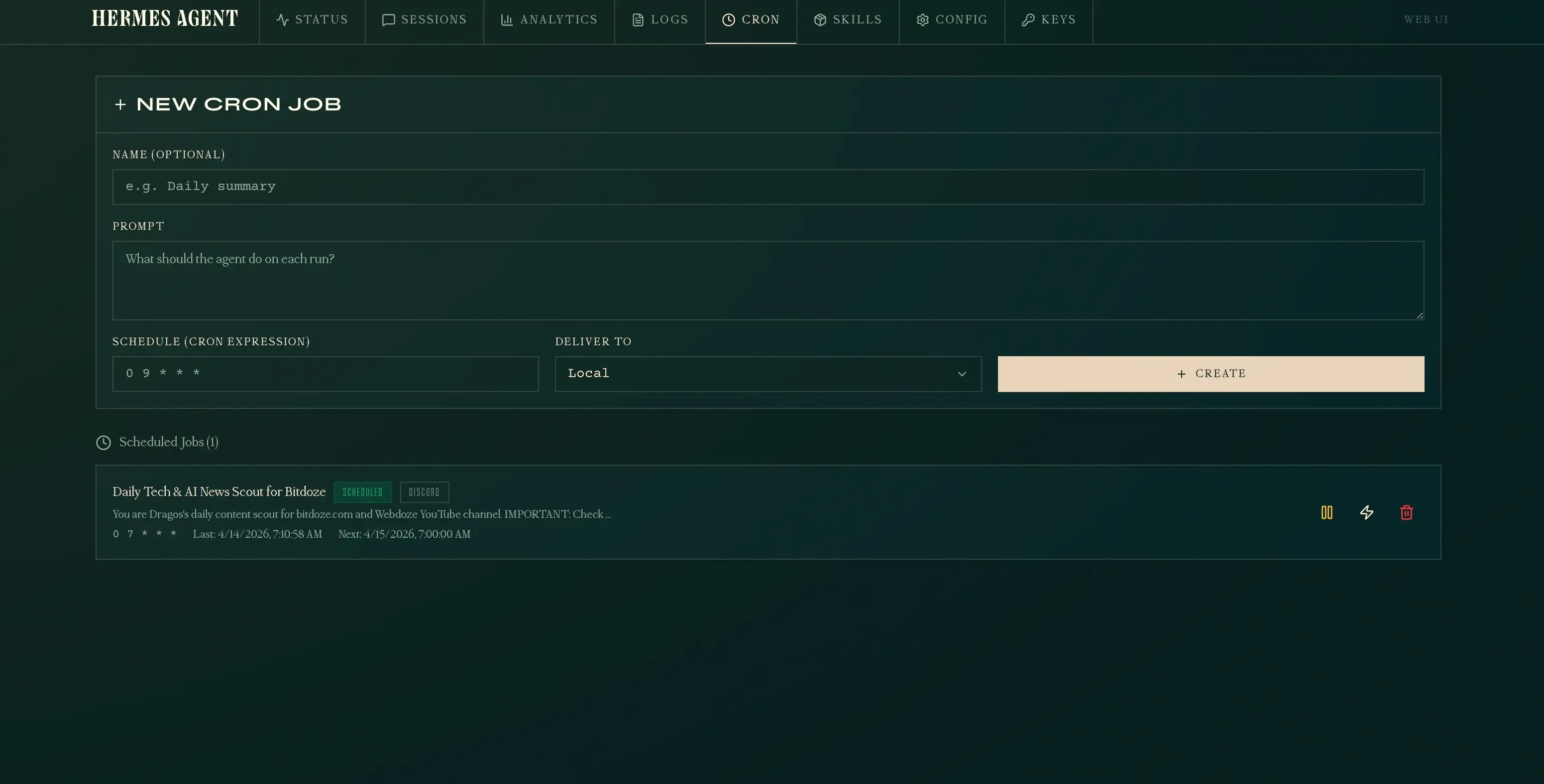
Cron
The Cron page creates and edits scheduled jobs. You give a prompt, a cron expression, and a delivery target (local, Telegram, Discord, Slack, or email), then pause, resume, edit, trigger, or delete them. With more than one profile the page aggregates every profile’s jobs and has its own filter. Bot Mode routines show up here too, named [bot:<name>] <routine>.
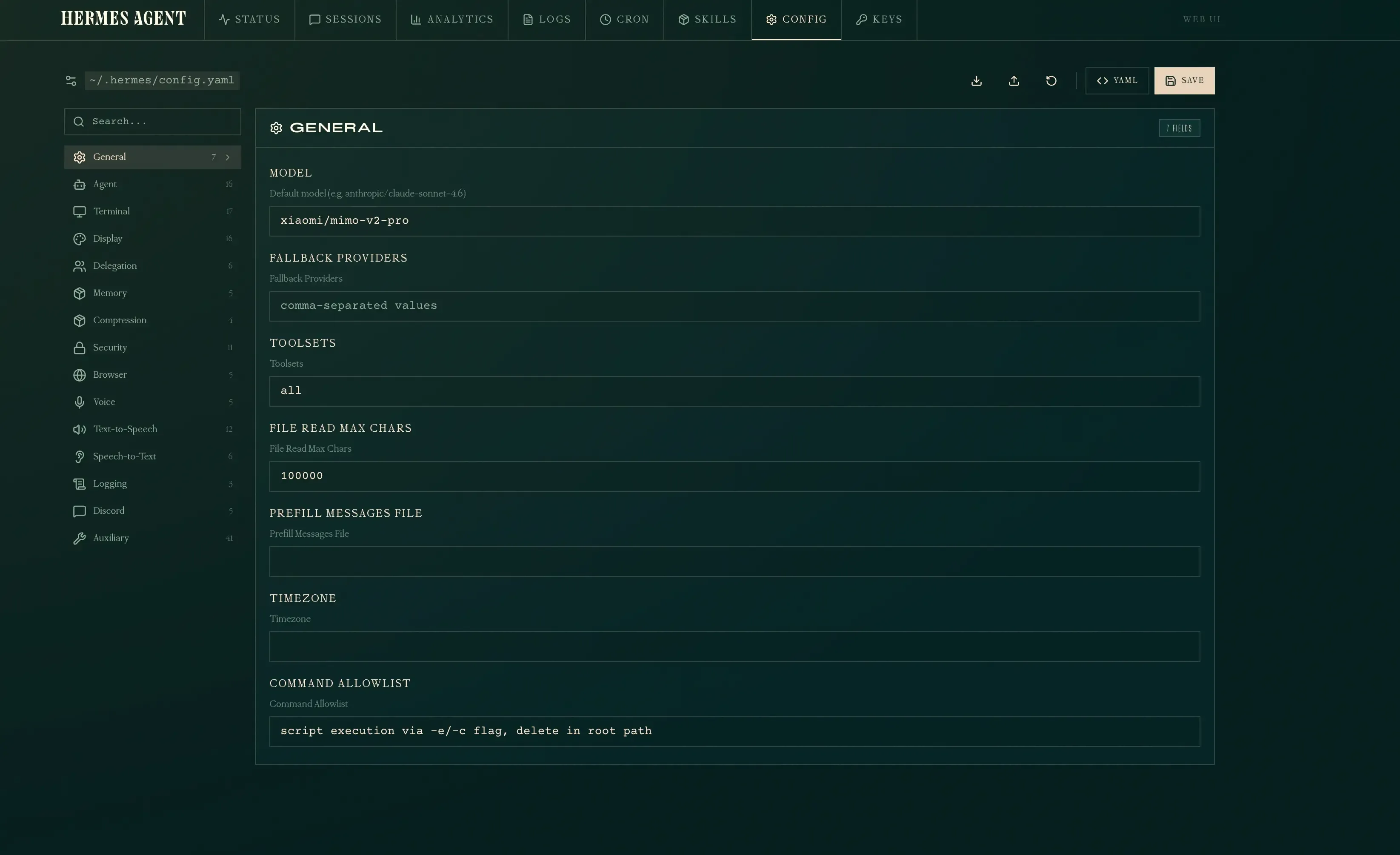
Config
The Config page is a form editor for ~/.hermes/config.yaml. The fields are discovered from the default config and grouped into categories such as model, terminal, display, agent, delegation, memory, and approvals. Known values render as dropdowns and booleans as toggles. Save writes the file at once, and the change applies on the next agent session or gateway restart. There are also reset to defaults and import or export as JSON.
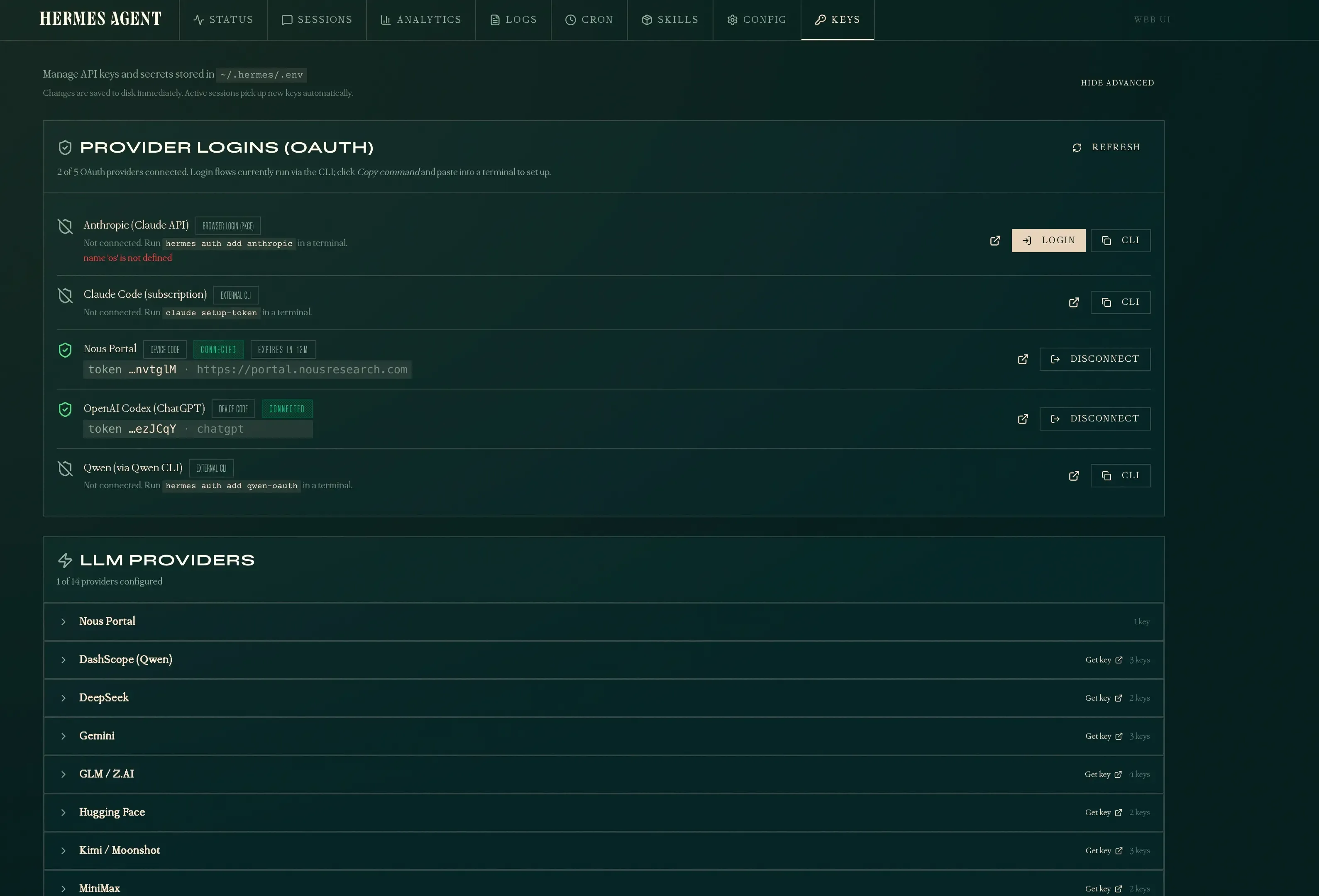
API Keys
The API Keys page manages ~/.hermes/.env, grouped into LLM providers, tool API keys, messaging platform tokens, and agent settings. Each entry shows whether it is set (with a redacted preview), what it is for, a link to the provider, and a field to set or replace it. Rarely used keys sit behind a toggle.
Logs
The Logs page shows the agent’s log files live. It tails the agent, errors, and gateway log files with level and component filters, 50 to 500 lines, and an auto-refresh every 5 seconds.
Profiles
The Profiles page lists every profile with its model, skill count, gateway state, and badges. You can create one (cloned or without the bundled skills), edit its model, description, and SOUL.md, rename or delete it, and set which profile future CLI and gateway runs use. That last button changes the CLI default, not what the dashboard manages. The sidebar switcher does that.
Skills
The Skills page toggles installed skills and toolsets, and searches the skill hub (the same search as hermes skills search) with a one-click install and an “Update all” button. Changes apply on the next session.
MCP
The MCP page edits the mcp_servers block of config.yaml: add an HTTP, SSE, or stdio server with environment variables, enable or disable it, test the connection and list its tools, or install from the Nous-approved catalog. Changes apply on the next gateway restart.
Webhooks, Pairing, and Channels
Webhooks creates dynamic subscriptions (name, event filter, delivery target, agent prompt) and shows the route URL and a one-time HMAC secret. The gateway reloads the subscriptions file without a restart. Pairing approves and revokes messaging users without the CLI, with the same result as hermes pairing. Channels configures every messaging platform from the browser, tests the connection, and restarts the gateway. On a system-scope install (hermes gateway install --system) that restart runs under sudo -n, so the dashboard user needs passwordless sudo for it.
System
The System page is the admin panel for the whole installation:
- Host: OS, kernel, CPU, memory, disk, and uptime, plus the Hermes version with an update badge. On a git install an “Update now” button runs
hermes updatein the background. Docker and Nix installs get the out-of-band command instead. - Gateway: start, stop, and restart the messaging gateway, with live status and PID.
- Credential pool: add or remove the rotating API keys the agent cycles through per provider. The list redacts the keys.
- Memory: pick the external memory provider, or reset the built-in
MEMORY.mdandUSER.mdstores. - Nous Portal and Skill curator: read-only status of the Portal login and the background skill maintenance job, with pause and run-now.
- Operations: run
hermes doctor, a security audit (hermes security audit, a supply-chain check of the venv, plugin requirements, and pinned MCP servers), create a backup, restore from a backup archive, update skills, or generate a support dump. Each runs in the background and streams its log into the page. - Checkpoints and Shell hooks: the size of the
/rollbackstore, and the list of configured hooks. Hooks run arbitrary commands, so a new one fires only after you grant consent. - Move to a single Hermes: appears when an older
hermes dashboardorhermes serveserver still serves this home, or when the last move needs reporting. It runs the same move ashermes gateway migrate --backends --apply, after a confirmation that lists the blockers.
Starting the dashboard
The simplest way to start:
hermes dashboardThis builds the web UI on the first run, then serves it at http://127.0.0.1:9119 and opens a browser tab. On loopback there is no login. The first build is the slow part on a small VPS: it is CPU and memory heavy, Hermes caps its heap and threads by default, and HERMES_WEB_BUILD_LIGHT=1 tightens the caps to one thread and a 1 GB heap.
hermes serve is the same server, headless: it never opens a browser UI. The desktop app launches its own hermes serve backend. Use the command directly when you want a headless backend on a remote host.
Available flags
| Flag | Default | Description |
|---|---|---|
--host |
127.0.0.1 |
Bind address. Anything other than 127.0.0.1, ::1, or localhost turns on the sign-in gate |
--port |
9119 |
Port to listen on |
--no-open |
off | Skip the browser launch |
--skip-build |
off | Serve the existing build instead of rebuilding |
--isolated |
off | Run a dedicated server for one profile instead of the machine dashboard |
--stop |
n/a | Stop the running hermes dashboard or hermes serve of this Hermes home |
--status |
n/a | List running hermes dashboard and hermes serve processes |
--insecure |
off | Deprecated and ignored since the June 2026 hardening |
The default 127.0.0.1 binding means only your machine can reach the dashboard. That is the safe default. If you need remote access, keep reading.
--isolated is a routing convenience, not a security boundary. Every profile under one OS user can read the other profiles’ files. To keep people’s data apart, run each tenant as a separate OS user or in a separate container.
If the port is taken, hermes dashboard prints BACKEND_PORT_IN_USE port=9119 and exits with code 75. hermes dashboard --status shows which process holds it. Exit 78 is different: another dashboard already serves this host, and the message names its PID and port. Stop that one, or give the service its own server with --isolated.
Remote access via SSH port forwarding
If you just want to open the dashboard from your laptop while it runs on a VPS, SSH port forwarding is the simplest option. No reverse proxy, no DNS, no open ports on the server. Everything goes through your existing SSH connection.
ssh -L 9119:127.0.0.1:9119 user@your-vps-ipThen open http://127.0.0.1:9119 in your browser on your laptop. The -L flag forwards your local port 9119 to the VPS’s localhost:9119 through the SSH tunnel. The dashboard sees a loopback connection, so the gate stays off and there is no login.
This is the safest way to access the dashboard remotely because:
- The dashboard stays bound to
127.0.0.1, so nothing else can reach it - Traffic is encrypted inside SSH, with no TLS setup
- You already have SSH access, so there is nothing new to secure
- No open ports on the VPS beyond SSH
When to use SSH forwarding
Use this if you are the only person accessing the dashboard and you always connect from a machine with SSH access. Skip the Caddy and systemd sections entirely and keep hermes dashboard running in a tmux or screen session.
The site’s SSH tunneling guide has the other forwarding options, and the ProxyJump guide covers hosts behind a bastion.
Background SSH tunnel
If you want the tunnel to stay open in the background:
ssh -f -N -L 9119:127.0.0.1:9119 user@your-vps-ip-fforks to background after authentication-Nruns no remote command, only the tunnel
To kill it later:
# Find the process
ps aux | grep "ssh -f -N -L 9119"

# Kill it
kill <PID>
Keep the dashboard running on the VPS
With SSH forwarding, the dashboard still needs to be running on the VPS. Use tmux or screen so it survives SSH disconnections:
# On the VPS
tmux new -s hermes
hermes dashboard --no-open
# Ctrl+B then D to detach

# Later, reattach with
tmux attach -t hermes
--no-open stops a headless VPS from trying to launch a browser. If you want it running permanently even without SSH, use the systemd service described below.
Why does hermes dashboard refuse to start on 0.0.0.0?
hermes dashboard refuses to start on 0.0.0.0 because a non-loopback bind turns on the sign-in gate, and with no provider registered the server fails closed and prints which setting is missing. Set one first with hermes dashboard password --username admin or hermes dashboard register. Since the June 2026 hardening, any bind other than 127.0.0.1, ::1, or localhost requires an auth provider, and every request must carry a verified session cookie or it is sent to /login. There is no unauthenticated public bind any more. --insecure is still accepted, logs a warning, and does nothing.
The Docker docs give the reason: in a June 2026 campaign, internet scanners reached unauthenticated public dashboards and OpenAI API servers and drove the agent into planting an SSH-key backdoor.
| Bind | Gate | Typical use |
|---|---|---|
Default, 127.0.0.1 |
off | Local work, SSH tunnel |
--host 0.0.0.0, a LAN address, or a Tailscale IP |
on | Username and password on a trusted network |
--host 0.0.0.0 on a public host |
on | Nous Portal or your own OIDC |
127.0.0.1 with a non-loopback dashboard.public_url |
on | Behind Caddy or another reverse proxy |
Three providers ship with Hermes:
| Provider | Where it is configured | Use it when |
|---|---|---|
Username and password (basic) |
dashboard.basic_auth in config.yaml, or the HERMES_DASHBOARD_BASIC_AUTH_* variables |
The host is on a trusted LAN or reached over a VPN. One shared credential, no second factor, no per-user accounts |
Nous Portal OAuth (nous) |
HERMES_DASHBOARD_OAUTH_CLIENT_ID in ~/.hermes/.env, written by hermes dashboard register |
The dashboard faces the internet, or Hermes Desktop connects from anywhere |
Self-hosted OIDC (self-hosted) |
dashboard.oauth.self_hosted in config.yaml |
You already run Keycloak, Authelia, Authentik, or another OIDC provider |
When you run hermes dashboard --host 0.0.0.0 interactively with no provider configured, it offers to set one up on the spot. A non-interactive start (systemd, Docker, CI) skips the prompt and fails closed, so set the provider before you create the service.
Exposing the dashboard with a username and password
Use this path when the dashboard should open on your phone, on another laptop, or for a teammate, and every device that can reach the host is one you trust. For the public internet, add the Nous Portal login from the next section.
Step 1: Set the username and password
hermes dashboard password --username adminIt asks for the password twice on the terminal. It writes three things under dashboard.basic_auth in ~/.hermes/config.yaml: the username, a scrypt hash of the password, and a signing secret if there is none yet. The password itself is never stored, never printed, and never accepted as an argument, so it stays out of the shell history and the process list.
On a host without a terminal, read it from a file (new in v0.23.4):
hermes dashboard password --username admin --password-stdin < /run/secrets/dashboard_passwordOnly the first line counts, at most 1024 bytes. Standard input has to be a pipe or a file: on a terminal the command exits with code 2, because typed text would show.
Run it as the user the dashboard will run as. The credentials belong to the Hermes home they were written in, and a service running as another user will not see them.
The block in config.yaml ends up like this:
dashboard:
  basic_auth:
    username: admin
    password_hash: "scrypt$16384$8$1$<salt>$<hash>"
    secret: "<32 or more random bytes, base64 or hex>"
    session_ttl_seconds: 43200
A few things to know about it:
password_hashis the setting to keep. A plaintextpasswordkey also works but is less safe at rest.session_ttl_secondsdefaults to 43200, so a login lasts 12 hours.- Changing the username or the password ends every session.
- The variables
HERMES_DASHBOARD_BASIC_AUTH_USERNAME,_PASSWORD_HASH,_PASSWORD,_SECRET, and_TTL_SECONDSoverrideconfig.yaml. If you set the password with the command while those lines sit in~/.hermes/.env, the command removes them and names the keys it removed, never their values. - The login route is rate limited per client IP: 10 attempts a minute, then HTTP 429. An unknown user and a wrong password get the same generic 401.
- With named profiles,
-p <profile>sets that profile’s own sign-in, used by its--isolatedserver. The machine dashboard and a gateway that serves several profiles use the credentials of the home they were started from, so for those runhermes -p default dashboard password.
Step 2: Bind to a reachable address
hermes dashboard --host 0.0.0.0 --port 9119 --no-openThe server now listens on every interface and the gate is on. If the provider is missing, the command refuses to start and names the missing setting. Every device that can route to the host sees the login page, so pair this with the firewall rules from Block direct access to port 9119 unless the host sits on a network you fully control.
On a tailnet, bind to the machine’s Tailscale IP instead of 0.0.0.0. Only your devices can reach that address:
hermes dashboard --host <tailscale-ip> --port 9119 --no-openThe bind is still not loopback, so the gate stays on and the password from step 1 is needed here too. The Tailscale setup guide covers the install.
Step 3: Check the gate
From any machine that can reach the dashboard:
curl -s http://127.0.0.1:9119/api/status | jq '.auth_required, .auth_providers'
# true
# ["basic"]
auth_required: true with basic in the list means the gate is on. false means the bind is loopback, or the gate did not engage. true without basic means the dashboard process did not load the credentials: confirm they are in the home it runs from, then restart it. In a browser, http://<host>:9119/ now opens a login form instead of the dashboard.
Step 4: Reverse proxy with Caddy
If you already run Caddy as a reverse proxy on your server, add a block like this to your Caddyfile:
hermes.yourdomain.com {
    reverse_proxy your-server-ip:9119
    encode gzip
    header {
        Strict-Transport-Security "max-age=31536000; includeSubDomains; preload"
        X-Content-Type-Options nosniff
        X-Frame-Options SAMEORIGIN
        X-XSS-Protection "1; mode=block"
    }
}
If your Caddy instance runs inside Docker and the dashboard runs on the host, use host.docker.internal instead of the IP address:
hermes.yourdomain.com {
    reverse_proxy host.docker.internal:9119
}
A dashboard bound to 127.0.0.1 cannot be reached from a Docker container through host.docker.internal. Either keep the 0.0.0.0 bind from step 2 and the firewall rules below, or run Caddy on the host directly.
Caddy passes the browser’s Host header through, so Hermes has to know its public name. Add this to ~/.hermes/config.yaml (or set the same key with hermes config set dashboard.public_url https://hermes.yourdomain.com):
dashboard:
  public_url: "https://hermes.yourdomain.com"
  trusted_proxies:
    - "172.20.0.5"
Replace the proxy IP. With Caddy on the host, leave trusted_proxies out: loopback proxies are trusted automatically. With Caddy in a container, use the address Caddy connects from, as the host sees it (Caddy’s IP on its Docker network; docker network inspect lists it), or a bounded CIDR for a network only the proxy uses. Hermes rejects *, 0.0.0.0/0, and ::/0.
What the two settings do:
public_urlis the complete address the dashboard is reached at. Its hostname is accepted as the exact HTTPHostand WebSocketOriginvalue, which is what the DNS-rebinding guard checks. Wildcards and suffixes are not allowed, sohermes.yourdomain.com.evil.teststays rejected.- Declaring a non-loopback
public_urlalways engages the gate, even when the backend binds to loopback. Configure a provider first or Hermes fails closed at startup. The docs explain why: a loopback dashboard puts a session token in every page it serves, and without the gate the proxy would turn that token into a remote login. trusted_proxieslists the peers allowed to setX-Forwarded-ProtoandX-Forwarded-For. That is what makes the session cookieSecurebehind TLS. Without an entry, everyone behind the proxy shares its password-login rate limit, and the auth log records the proxy’s address instead of the client’s.
If you prefer the dashboard never to leave loopback, that works too. Run hermes dashboard --host 127.0.0.1 --port 9119 --no-open, run Caddy on the host, point it at http://127.0.0.1:9119, and set the same public_url. Tailscale Serve is the same shape: it terminates tailnet-only HTTPS at https://<machine>.<tailnet>.ts.net and proxies to the loopback dashboard. Use that exact origin as public_url. A provider is still required, though nothing is exposed to the public internet.
Then reload Caddy:
sudo docker exec caddy caddy reload --config /etc/caddy/CaddyfileOr if Caddy runs on the host:
sudo systemctl reload caddyOpen https://hermes.yourdomain.com/ and you get the login form, then the dashboard. The Chat tab sends a small keepalive every 20 seconds, so Caddy’s idle timeout does not drop a chat that is only waiting.
Nous Portal login for an internet-facing host
The username and password protect one shared credential, with no second factor and no per-user accounts. The docs are clear that this provider is for a trusted network or a VPN. On a public host, register the install with your Nous Portal account instead:
hermes setup    # only if this install is not logged in to Nous Portal yet
hermes dashboard register \
  --name vps-dashboard \
  --redirect-uri https://hermes.yourdomain.com/auth/callback
That creates an OAuth client and writes HERMES_DASHBOARD_OAUTH_CLIENT_ID to ~/.hermes/.env. With dashboard.public_url set to the same origin, start the dashboard as before. /api/status then reports ["nous"], and /login shows a “Continue with Nous Research” button. You can also register, name, and revoke self-hosted dashboards from the Portal’s Local Dashboards page.
Portal access tokens last 15 minutes and the current contract has no refresh token. When one expires, the page sends you back to /login to sign in again. Every login start, success, and failure is a JSON line in ~/.hermes/logs/dashboard-auth.log, with tokens and codes redacted.
If you run your own identity provider, the self-hosted OIDC provider works the same way with an issuer and a public PKCE client under dashboard.oauth.self_hosted. Every account that can sign in acts as you, so restrict the app to your own account in the provider.
A second lock in Caddy (optional)
Hermes handles the login now, so Caddy’s basic_auth is no longer required. I still put it on internet-facing hosts: scanners get a 401 before they reach the Hermes login route, and a stolen Hermes password is not enough on its own.
Generate a bcrypt hash. Without --plaintext, Caddy reads the password from the terminal without echoing it, which keeps it out of your shell history:
caddy hash-passwordOr inside a Dockerized Caddy:
sudo docker exec -it caddy caddy hash-passwordCaddy’s default is bcrypt at cost 14, so the hash starts with $2a$14$. Add it inside the site block:
hermes.yourdomain.com {
    basic_auth {
        yourusername $2a$14$...your-hash-here...
    }
    reverse_proxy host.docker.internal:9119
    encode gzip
    header {
        Strict-Transport-Security "max-age=31536000; includeSubDomains; preload"
        X-Content-Type-Options nosniff
        X-Frame-Options SAMEORIGIN
        X-XSS-Protection "1; mode=block"
    }
}
Replace yourusername and the hash with your own. You can add several username and hash pairs.
To check the first lock:
# No Caddy credentials: Caddy answers 401
curl -sk -o /dev/null -w "%{http_code}" https://hermes.yourdomain.com/
With the Caddy credentials the request reaches Hermes, which hands it to its own login. In a browser you get two prompts in a row: Caddy’s, then the Hermes login form.
Block direct access to port 9119
With the 0.0.0.0 bind, anyone who finds your server’s IP can skip Caddy and reach port 9119 directly. The gate stops them from getting in, but they can hammer the login route, and Caddy’s TLS and second lock are out of the picture. Block it with iptables:
# Allow Docker/Caddy internal traffic first
sudo iptables -A INPUT -p tcp --dport 9119 -s 172.16.0.0/12 -j ACCEPT

# Block everything else
sudo iptables -A INPUT -p tcp --dport 9119 -j DROP
The Docker allow rule comes first
If you only block 9119 without allowing Docker traffic first, Caddy is blocked too. Caddy connects to the dashboard through Docker’s internal network (the 172.16.0.0/12 range), and iptables processes rules in order, so the ACCEPT rule has to sit above the DROP rule.
Verify the rules are in place:
sudo iptables -L INPUT -n | grep 9119You want two lines: the ACCEPT for 172.16.0.0/12 first, the DROP second.
Persist the rule across reboots
iptables rules are lost on reboot by default. Save them with sudo iptables-save | sudo tee /etc/iptables/rules.v4. If the file does not exist, install iptables-persistent first: sudo apt install iptables-persistent.
If you use ufw instead of raw iptables:
sudo ufw deny 9119/tcpThese rules apply to a dashboard that runs on the host, as in the systemd path. A port published by Docker walks past ufw and the INPUT chain. The site’s guide on Docker bypassing the firewall has the fix.
Running permanently with systemd
The hermes dashboard command runs in the foreground. If you close your terminal, it stops. To keep it running permanently, create a systemd service. This unit is a system unit with a 0.0.0.0 bind, so set the username and password first, as the user the unit will run as.
Create the service file
sudo tee /etc/systemd/system/hermes-dashboard.service << 'EOF'
[Unit]
Description=Hermes Agent Dashboard
After=network.target

[Service]
Type=simple
User=dragos
Environment=HOME=/home/dragos
ExecStart=/home/dragos/.hermes/hermes-agent/venv/bin/python -m hermes_cli.main dashboard --host 0.0.0.0 --port 9119 --no-open
Restart=on-failure
RestartSec=5
RestartPreventExitStatus=78

[Install]
WantedBy=multi-user.target
EOF
One line matters more than the rest: RestartPreventExitStatus=78. Exit 78 is a deliberate refusal (another dashboard already serves this host on another port), and parking on it beats a restart loop with nothing listening. A taken port is different: the command prints BACKEND_PORT_IN_USE port=9119 and exits 75, which Restart=on-failure retries every 5 seconds until the port frees up.
Adjust User, HOME, and the Python path to match your setup. To find the exact path, run:
which hermes
# or
readlink -f $(which hermes)
If you set the credentials through the HERMES_DASHBOARD_BASIC_AUTH_* variables in ~/.hermes/.env instead of config.yaml, add EnvironmentFile=%h/.hermes/.env under [Service] so the unit loads them. For a tailnet-only service, replace 0.0.0.0 with the machine’s Tailscale IP.
Hermes never installs a unit like this one. If it exists on your host, someone wrote it by hand, and hermes update will not restart it. The gateway service is the one Hermes maintains itself, so read Moving an old dashboard service onto the gateway before you decide which of the two to keep.
Enable and start
hermes dashboard --status    # anything already running on 9119?
hermes dashboard --stop      # stop it, then:
sudo systemctl daemon-reload
sudo systemctl enable hermes-dashboard
sudo systemctl start hermes-dashboard
sudo systemctl status hermes-dashboard
Check logs
sudo journalctl -u hermes-dashboard -fRunning in Docker
The official image already contains the dashboard, so there is no Dockerfile to write. It runs as a supervised s6 service next to the gateway in the same container and restarts on its own if it crashes. The shape to copy is the repo’s own Compose file: host networking, so the dashboard can sit on the host’s loopback and nothing is published.
services:
  hermes:
    image: nousresearch/hermes-agent:stable
    container_name: hermes
    restart: unless-stopped
    network_mode: host
    command: gateway run
    volumes:
      - ~/.hermes:/opt/data
    environment:
      - HERMES_DASHBOARD=1
      - HERMES_DASHBOARD_HOST=127.0.0.1
With HERMES_DASHBOARD_HOST=127.0.0.1 the dashboard is on the host’s loopback at http://127.0.0.1:9119. The gate is off, the SSH tunnel from above works unchanged, and no login is needed.
To reach it from other machines, drop that line. Inside the container the dashboard then binds 0.0.0.0 by default (HERMES_DASHBOARD_PORT sets the port, 9119 unless changed). That is a non-loopback bind, so the gate is on, and without a provider the dashboard fails closed at startup. Set the password inside the container, then restart it so the dashboard reads the new credentials:
docker exec -it hermes hermes dashboard password --username admin
docker restart hermes
The credentials land in /opt/data/config.yaml, which is your mounted ~/.hermes. The docs also show the quick path, HERMES_DASHBOARD_BASIC_AUTH_USERNAME and HERMES_DASHBOARD_BASIC_AUTH_PASSWORD as container variables. It works, but the password is then visible in docker inspect, so I use the hash. HERMES_DASHBOARD_INSECURE is a no-op here as well.
With Caddy in another container
Caddy in Docker cannot reach a dashboard on the host’s loopback. Keep the 0.0.0.0 bind inside the container and point Caddy at host.docker.internal:9119, then add dashboard.public_url and dashboard.trusted_proxies to ~/.hermes/config.yaml exactly as in the systemd path. Since the dashboard is a host-network process, the iptables rules from that section apply to it as well.
Check it is running
docker exec hermes hermes dashboard --status
curl -s http://127.0.0.1:9119/api/status | jq '.auth_required, .auth_providers'
Dashboard output goes to docker logs hermes.
Host networking and security
network_mode: host shares the host’s network stack with the container. Keep HERMES_DASHBOARD_HOST=127.0.0.1 unless other machines must reach the dashboard, and when they must, put the sign-in and the firewall rules, or Caddy, in front of it.
A published port is a different story. The -p 9119:9119 in the docs’ bridge-network example opens 9119 on every host interface, and Docker walks past ufw and the INPUT chain, so read the guide on Docker bypassing the firewall before you publish anything.
The Webapp: the Desktop workspace in a browser
Current builds ship a second browser app, and the docs say it is not the Web Dashboard. hermes webapp serves the Hermes Desktop workspace from the gateway: sessions, profiles, skills, scheduled jobs, messaging setup, the host file tree, Git review, previews, and a terminal rail. Settings covers providers, models, tools, and MCP servers. It is off until you turn it on:
hermes config set webapp.enabled true
hermes gateway restart
hermes webapp
The gateway serves it at http://127.0.0.1:9120. hermes webapp builds the bundle when it is out of date, starts the gateway if it is not running, and opens a one-use sign-in link that works once, within 60 seconds. A bare http://127.0.0.1:9120 in a fresh tab shows instructions instead of the app; run hermes webapp again for a new link. On a headless VPS, hermes webapp --no-open prints the link, and an SSH tunnel on port 9120 opens it from your laptop.
hermes dashboard |
hermes webapp |
|
|---|---|---|
| What it is | Admin panel for the installation | The Desktop workspace in a browser |
| Served by | Its own hermes dashboard or hermes serve process |
The gateway |
| Default port | 9119 | 9120 |
| Where a chat runs | In the dashboard’s own process | In the gateway, with the CLI, Desktop, and messaging |
| Loopback access | No login | One-use link from hermes webapp |
| Sign-in gate | Non-loopback bind, or a non-loopback dashboard.public_url |
Non-loopback webapp.host, or webapp.public_url |
| Pages the docs list | Status, Chat, Config, API Keys, Sessions, Logs, Analytics, Cron, Profiles, Skills, MCP, Webhooks, Pairing, Channels, System | Sessions, profiles, Capabilities, Messaging, Artifacts, scheduled jobs, file tree, Git review, Settings |
Both use the same sign-in settings: hermes dashboard password and hermes dashboard register work for the Webapp too.
Treat Webapp access like access to Hermes on the host. The docs say a signed-in Webapp user can run arbitrary commands as the OS account running Hermes. Behind a reverse proxy on the same machine, keep webapp.host on loopback and set webapp.public_url to the address the proxy serves; that requires the same sign-in. Plain HTTP on another machine also costs the secure-context features (microphone, clipboard, notifications), which come back over HTTPS or through an SSH tunnel. hermes webapp --status shows whether the gateway serves the Webapp and at which address.
Moving an old dashboard service onto the gateway
Hermes never installs a service for hermes dashboard or hermes serve. If one runs in the background on your host, it was set up by hand: a systemd unit like the one above, a Docker dashboard slot or Compose sidecar, or a Desktop SSH backend. v0.23.4 adds a command that finds them and moves them onto the gateway.
The reason is in the Docker docs: the dashboard is a second copy of Hermes beside the gateway, and chats started in it run in its own process. After the move the gateway’s Webapp serves the old address (same bind, same port), and every chat runs in the gateway, the same process the CLI, Desktop, and messaging use. You also stop maintaining a unit by hand.
# Report: supervisor, HERMES_HOME and ownership of every old backend. Changes nothing
hermes gateway migrate --backends --dry-run

# The plan and every blocker. Changes nothing
hermes gateway migrate --backends --apply --dry-run

# Do the move (asks on a terminal unless you pass --yes)
hermes gateway migrate --backends --apply

# State of the last or ongoing run
hermes gateway migrate --backends --status

# Undo a finished move
hermes gateway migrate --backends --restore
According to the docs, --apply first records the current state in backend_migration.json in the Hermes home, with mode-600 backups of config.yaml and .env. It then builds the Webapp bundle if it is missing and copies HERMES_DASHBOARD_* sign-in settings that exist only in the old unit’s environment into .env. It installs the gateway as a user service and tries to enable lingering. Then it stops and disables the old unit (the unit file is kept), starts the gateway, and checks every address within 300 seconds. Any failure puts back what the run had changed.
| Exit code | Meaning |
|---|---|
| 0 | Done, or nothing to migrate |
| 2 | Invalid invocation |
| 3 | Blocked: a running turn, a second backend for this home, a bind or public URL the gateway would refuse. Nothing changed and no steps are printed |
| 4 | Failed and rolled back |
| 5 | Rollback incomplete; numbered manual steps are printed |
| 6 | This kind of backend cannot be migrated automatically: Nix, s6 or another container, a systemd system unit, Windows. The by-hand steps are printed |
The unit above is a system unit (/etc/systemd/system, with User=), so on v0.23.4 it exits 6. The printed steps stop the old backend first. For a system unit, only sudo systemctl disable --now hermes-dashboard needs root. The steps then install, start, or restart the gateway as the hermes gateway status line quotes, and end with hermes webapp --status. A gateway that has just started takes a few seconds to serve the address, so if that last command says the gateway is not running, wait and run it again.
The dashboard’s System page offers the same move as a “Move to a single Hermes” card. hermes update also names an old backend after an update and prints the dry-run command.
What changes for clients after a move:
- An address that asked for sign-in: every browser and app signs in once more, with the same username and password or provider.
- A loopback address: no session token in the page any more. Open the Webapp with
hermes webapp, which hands the browser a one-use link. - A dashboard tab left open through the move still runs the old page. Reload it.
- The old
hermes dashboardorhermes servecommand refuses its old port with exit 78 from then on. A free port starts as before.
Systemd unit or gateway move?
For a fresh v0.23.4 install I would skip the hand-made unit. Install the gateway service (hermes gateway install, then hermes gateway start), open the Webapp with hermes webapp, or point Hermes Desktop at it. That gives one process for every chat, a service Hermes maintains across updates, and sign-in built in. The updater does not restart hand-made backends either: they keep running the old code until someone does.
Keep a standalone hermes dashboard only if you need its admin pages: the Config form editor, Logs, Analytics, Webhooks, Pairing, and the System operations. The Webapp is the Desktop workspace, the docs say it is not the Web Dashboard, and a move replaces the dashboard at that address with the Webapp. If that is you, run the dashboard on loopback and reach it over the SSH tunnel.
If you already run the unit above, run the dry run, read the plan, and move. --restore undoes a finished move. It refuses when config.yaml or .env changed after the migration, since restoring would lose those edits.
In Docker the move is manual. hermes gateway migrate --backends --apply exits 6 in a container because the slot and the sidecar are declared by the image and the Compose file, which the command does not edit. The Docker docs list the steps: point the Webapp at the dashboard’s address (hermes config set webapp.enabled true, then webapp.host and webapp.port 9119), copy the dashboard’s public address into webapp.public_url, recreate the container without HERMES_DASHBOARD, then check with hermes webapp --status.
Desktop as the remote client
Hermes Desktop can drive a backend on another machine: your VPS, a home server, or a Mini behind Tailscale. In the app it is Settings, Gateways, Remote gateway. You enter the remote URL and sign in, and the desktop shell switches onto that backend. There is no remote-only download; install the package on your laptop and connect from Settings.
The remote backend is a running hermes serve process (default port 9119), the same server as hermes dashboard without the browser UI:
hermes serve --host 0.0.0.0 --port 9119A non-loopback bind engages the same gate, so set a provider first (the username and password from step 1 above). Desktop detects which provider the backend advertises: a Sign in button with a credential form for username and password, or Sign in with Nous Research for OAuth. After sign-in the session is reused for the chat socket, and it survives restarts when a signing secret is set. The gateway’s Webapp fills the same role after a move, and the Add flow on that page also offers SSH and Hermes Cloud connections.
The docs recommend OAuth (Nous Portal) for any backend reachable beyond your own machine, and username and password for a trusted LAN or VPN. Tailscale is the clean option for a trusted network: bind to the machine’s Tailscale IP and use that address as the Remote URL.
hermes serve --host <tailscale-ip> --port 9119Only devices on your tailnet can reach it, and the password is the second lock.
If Desktop says the backend is ready but chat never works, check three things, in this order:
curl -s http://<host>:9119/api/status | jq '.auth_required, .auth_providers'must printtrueand include the provider you set.falsemeans the backend is on loopback.- The URL you typed has to reach the dashboard by the same host it is bound to. The DNS-rebinding guard requires the
Hostheader to match. - A chat socket that closes with 4403 hit the request guard (Host or peer mismatch). 4401 means the WebSocket ticket did not authenticate. The logs are under Settings, Gateways, Open logs.
The messaging gateway (Telegram, Discord, and the rest) is a separate process from hermes serve. Start it on its own if you use messaging channels.
Security risks
Exposing an AI agent dashboard is not the same as exposing a static website.
The dashboard is a control plane
Anyone with access to the dashboard can read sessions, modify API keys, and change configuration. The Chat tab runs the real agent with its terminal tools, and the System page can start and stop the gateway and create shell hooks that run arbitrary commands. It is full administrative access to the user account that runs Hermes, not a status page. The gate fails closed for a reason.
There is no unauthenticated public bind
Since the June 2026 hardening --insecure does nothing. A non-loopback bind without a provider refuses to start, and a non-loopback dashboard.public_url engages the gate even on a loopback bind. According to the Docker docs, unauthenticated public dashboards were the entry point for a June 2026 campaign in which internet scanners drove exposed agents into planting an SSH-key backdoor. If your install predates v0.23.2 (November 16, 2026), update first: that release fixed a High-severity issue, CVE-2026-130164, in Bot Desktop’s docker and ssh terminal backends.
Username and password is for trusted networks
The basic provider protects one shared credential, with no second factor and no per-user accounts. The login route is rate limited per client IP (10 attempts a minute, then 429) and gives unknown users and wrong passwords the same generic 401. That discourages guessing. It is not a defense for a public host, which is why the docs point internet-facing installs at Nous Portal or self-hosted OIDC.
Sessions
A login lasts 12 hours by default (dashboard.basic_auth.session_ttl_seconds, 43200). Changing the username or the password ends every session. Set an explicit signing secret, which hermes dashboard password does for you: without one a random key is generated per process and every restart logs everybody out. Every login start, success, and failure is a JSON line in ~/.hermes/logs/dashboard-auth.log, with tokens and codes redacted. Watch that file on a public host.
Do not serve the login over plain HTTP
The password travels in the request that posts to /auth/password-login. Over plain HTTP, anyone who can read that traffic reads the password. Caddy’s automatic HTTPS needs a real domain name; a raw IP address gets no public certificate. Otherwise stay on loopback and tunnel.
A trusted proxy is part of the security setup
Behind Caddy, two settings decide whether the session cookie is marked Secure and whether each client gets its own rate-limit bucket: dashboard.public_url (the one hostname accepted as Host and WebSocket Origin) and dashboard.trusted_proxies (the peers allowed to set X-Forwarded-Proto and X-Forwarded-For). Hermes rejects *, 0.0.0.0/0, and ::/0, and trusting a network means every container on it can supply those headers. List the proxy’s exact IP, or a CIDR for a network only the proxy uses.
A hand-made service runs old code after updates
hermes update rewrites and restarts the gateway’s own service definition. The updater leaves manually launched hermes serve and hermes dashboard backends running and asks their owner to restart them. Until someone does, the backend serves the previous version. Either restart it after every update or move it onto the gateway.
IP allowlisting helps
If you always access the dashboard from the same IP (office, home), add firewall rules to restrict access:
# Allow only your IP
sudo ufw allow from YOUR_IP_ADDRESS to any port 443
sudo ufw deny 443
Or in Caddy, use a @blocked matcher:
hermes.yourdomain.com {
    @blocked not remote_ip YOUR_IP_ADDRESS/32
    respond @blocked "Forbidden" 403

    reverse_proxy host.docker.internal:9119
}
Summary of risks
| Risk | Severity | Mitigation |
|---|---|---|
| Dashboard exposed without HTTPS | Critical | Caddy with TLS on a real domain, or an SSH tunnel |
| Username and password on the public internet | High | Nous Portal or self-hosted OIDC |
| Port 9119 open to the internet | High | Block it with iptables or ufw; the gate is not a firewall |
| Dashboard gives agent and shell access | High | Firewall, strong sign-in, and watch logs/dashboard-auth.log |
| No signing secret set | Medium | hermes dashboard password writes one |
Old backend still running after hermes update |
Medium | Restart it, or move it onto the gateway |
| Shared machine with a live session | Medium | Log out from the sidebar; lower session_ttl_seconds |
| One rate-limit bucket behind a proxy | Low | Add the proxy to dashboard.trusted_proxies |
Quick reference
# Local only (safe default)
hermes dashboard

# SSH tunnel (remote access, safest)
ssh -L 9119:127.0.0.1:9119 user@your-vps-ip
# Then open http://127.0.0.1:9119 on your laptop

# Set the sign-in before any non-loopback bind
hermes dashboard password --username admin

# Trusted network: bind, then check the gate
hermes dashboard --host 0.0.0.0 --port 9119 --no-open
curl -s http://127.0.0.1:9119/api/status | jq '.auth_required, .auth_providers'

# Public host: Nous Portal login
hermes dashboard register --redirect-uri https://hermes.yourdomain.com/auth/callback

# Which dashboard or serve process is running
hermes dashboard --status

# Webapp (Desktop workspace, port 9120)
hermes config set webapp.enabled true
hermes gateway restart
hermes webapp

# Old dashboard or serve service: report, plan, move
hermes gateway migrate --backends --dry-run
hermes gateway migrate --backends --apply --dry-run
hermes gateway migrate --backends --apply

# Headless backend for Hermes Desktop
hermes serve --host 0.0.0.0 --port 9119

# With systemd (permanent)
sudo systemctl start hermes-dashboard

# Check it is running
curl -sk -o /dev/null -w "%{http_code}" https://hermes.yourdomain.com/
For Hermes Agent setup, messaging, skills, and Bot Mode, see the Hermes Agent setup guide. For third-party dashboards, web UIs, desktop apps, and mobile apps beyond the built-in one, see the best Hermes dashboards roundup. For affordable model recommendations, see the best cheap models for Hermes Agent guide, and for the free models on Nous Portal, the Nous Portal guide. For structured multi-agent task management, the Hermes Kanban setup guide covers Kanban task boards, dependencies, and coordination patterns.
More AI tool guidesFAQ
Why does hermes dashboard refuse to start on 0.0.0.0?
Since the June 2026 hardening, any bind other than 127.0.0.1, ::1, or localhost turns on the sign-in gate, and the server fails closed when no provider is registered. --insecure is a deprecated no-op. Run hermes dashboard password --username admin first, or register Nous Portal with hermes dashboard register. To keep it local, leave the default bind and open it through an SSH tunnel.
How do I set the dashboard password without a terminal?
Pipe it in: hermes dashboard password --username admin --password-stdin < /run/secrets/dashboard_password. Only the first line counts, at most 1024 bytes, and standard input has to be a pipe or a file; on a terminal the command exits 2. This arrived in v0.23.4. Each listener reads the credentials when it starts, so restart the dashboard or the gateway afterwards.
Does dashboard.public_url turn on sign-in even on 127.0.0.1?
Yes. A non-loopback dashboard.public_url always engages the gate, even when the backend binds to loopback. That is deliberate: a loopback dashboard puts a session token in every page it serves, and without the gate the proxy would turn that token into a remote login. The hostname in public_url is also the value accepted as Host and WebSocket Origin, and dashboard.trusted_proxies lists who may set X-Forwarded-Proto and X-Forwarded-For.
What is the difference between hermes webapp and hermes dashboard?
hermes dashboard is the admin panel: Config forms, API Keys, Logs, Analytics, MCP, and System. It runs as its own process on port 9119, and a chat started there runs in that process. hermes webapp is the Hermes Desktop workspace served by the gateway on port 9120, entered through a one-use link, and its chats run in the gateway. The docs say it plainly: the Webapp is not the Web Dashboard.
How do I migrate an old hermes dashboard or hermes serve service?
Run hermes gateway migrate --backends --dry-run for a report, then hermes gateway migrate --backends --apply --dry-run for the plan, then hermes gateway migrate --backends --apply to move. The old address is served by the gateway’s Webapp afterwards, and hermes gateway migrate --backends --restore undoes it. Exit 6 means the backend cannot be moved automatically, which includes a systemd system unit; the command prints the by-hand steps.
Can I use Bot Mode against a VPS?
Yes, through Hermes Desktop. Bot Mode is built into the desktop app, so run it on your laptop and add the VPS under Settings, Gateways, Remote gateway (a hermes serve backend with a sign-in provider) or over SSH. Bots are profiles on the VPS, group chats owned by its gateway keep running when you close Desktop, and routines are cron jobs that show in hermes cron list and on the dashboard’s Cron page. The Hermes Agent setup guide has the full walkthrough.
Did this guide work for you?
Related Posts

Written by Dragos
DevOps engineer with 10+ years in IT. I write these guides while doing the installs in my Proxmox home lab and on real VPSes.
Need help with Astro, VPS, or a self-hosted app? View services →