
PicoClaw Setup Guide: Go Binary AI Assistant on $10 Hardware
PicoClaw setup guide for v0.3.1: install the single Go binary, configure GLM-5.3 and MiniMax M3.1 models, Discord, web search, and run it on $10 hardware.
Updated Published 34 min read
Disclosure: this guide contains referral links. If you buy through them, I may earn a commission at no extra cost to you.
This PicoClaw setup guide covers v0.3.1, the current release of Sipeed’s single-binary AI assistant. PicoClaw is a Go binary with no runtime dependencies, boots in under a second on slow hardware, and sits in 10-20MB of RAM. As of late 2026 it ships 18+ chat channels (Discord, Telegram, Slack, WhatsApp and more), 30+ LLM providers, a browser WebUI, native MCP support, and an Android APK. The repo is past 30,000 stars. If you want a self-hosted AI assistant on hardware that would choke on Python, this is the one I’d pick.
The project describes itself as inspired by NanoBot and rebuilt in Go from scratch, not a fork of OpenClaw, NanoBot, or any other project. Around 95% of the migration was reportedly written by the AI agent itself with human review. I ran it next to my nanobot and ZeroClaw setups back at v0.1.x in February 2026 and the resource numbers were real. This guide walks through installing PicoClaw on a VPS or single-board computer, configuring GLM-5.3 and MiniMax M3.1 models with fallbacks, wiring up Discord and web search, and hardening the deployment. Daily cost lands at a few dollars per month on Flash-tier models. The math is in the FAQ.
PicoClaw GitHub Download PicoClawOfficial channels only
picoclaw.io, docs.picoclaw.io, and github.com/sipeed/picoclaw are the only official PicoClaw properties. Third-party .ai/.org/.com lookalike domains exist and are not affiliated with the project. There is no PicoClaw crypto token. Any pump.fun listing, airdrop, or “buy $PICOCLAW” post is a scam.
Pre-v1.0 software
The README is blunt about it: PicoClaw is in early rapid development, and you should not deploy it to production before v1.0. Fine for a personal bot on a VPS or a $10 board. Not fine as the only pager for your on-call rotation. Keep the systemd Restart=always advice in this guide in mind and expect breaking changes between releases.
What this guide covers
- Installing PicoClaw from tarball, .deb/.rpm, Docker, the WebUI launcher, or the Android APK
- Configuring GLM-5.3 and MiniMax M3.1 models with fallback chains
- Discord setup plus the other 17 channels
- Web search including self-hosted SearXNG
- MCP, skills, memory, heartbeat, and scheduled tasks
- Hardened systemd deployment, backups, and troubleshooting
If you’re comparing self-hosted bot options, our OpenClaw alternatives roundup includes PicoClaw alongside nanobot, NanoClaw, memU, IronClaw, and ZeroClaw.
What is PicoClaw?
PicoClaw is an open-source AI assistant from Sipeed, the RISC-V hardware company behind NanoKVM and MaixCAM. It compiles to a single Go binary for x86_64, ARM64, ARMv6/7, RISC-V, MIPS, LoongArch, and s390x, plus an Android build. No Python, no Node, no runtime to install. The design target is Sipeed’s own $10 LicheeRV-Nano board, so anything with 128MB of RAM is luxurious by comparison.
The message flow is the same shape as nanobot: messages arrive from a chat app, the gateway routes them to whichever LLM you configured, and the model can call built-in tools to run shell commands, read and write files, search the web, and manage memory. Everything except the LLM API calls stays on your machine.
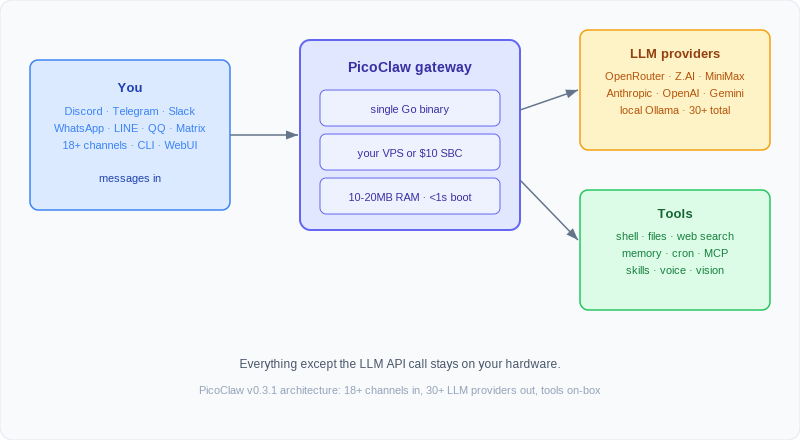
The v0.3.x line added the surface area that matters for 2026: a browser WebUI launcher, native MCP support, installable skills from ClawHub, per-model fallbacks and key rotation, and an Android APK that needs no Termux. The core is still the same single binary.
PicoClaw vs OpenClaw vs NanoBot vs ZeroClaw
Four self-hosted assistants, four different bets. Numbers below are project-claimed (README figures, late 2026), not a benchmark I ran.
| Aspect | PicoClaw | NanoBot | ZeroClaw | OpenClaw |
|---|---|---|---|---|
| Language | Go | Python | Rust | TypeScript |
| RAM | 10-20MB* | ~100MB | < 5MB | > 1GB |
| Startup (weak single core) | < 1s | > 30s | < 10ms | > 500s |
| Binary | Single Go binary | N/A (scripts) | ~3.4MB Rust binary | ~28MB (dist) |
| Min hardware cost | $10 board | ~$50 SBC | ~$10-50 SBC | $599 Mac Mini |
| Channels | 18+ | 9 | ~8 | 4 |
| Providers | 30+ | 13+ | 22+ | Several |
| Memory | File-based workspace | File-based | SQLite hybrid search | File + semantic |
| Security | Workspace sandbox | Allowlists | Pairing + sandbox | Allowlists + sandbox |
| Install | tarball / .deb / Docker | pip | cargo / binary | npm / Node toolchain |
* Recent PicoClaw builds run 10-20MB rather than the original under-10MB figure. Optimization is planned after feature stabilization. Still tiny.
Takeaways from the comparison: PicoClaw is the cheapest to deploy, nanobot has the biggest community and channel coverage, ZeroClaw has the strongest memory system (now positioning itself as an “agent runtime” at v0.8.6 with WASM plugins and OIDC), and OpenClaw is the heavyweight you run when you want the full desktop-agent experience and can pay what OpenClaw needs to run well. For the others, see the nanobot setup guide and the ZeroClaw setup guide. If you want the original OpenClaw path, there’s an OpenClaw setup guide too.
PicoClaw models in late 2026: GLM-5.3 + a Flash model
The model pairing I’d default to for an always-on personal bot: a Flash-tier model for daily traffic and a flagship as a fallback for hard tasks. Flash-tier input runs about $0.15 per million tokens, so a bot that answers a few dozen messages a day stays in the single-digit dollars per month. When the cheap model stalls, fallbacks cascades to GLM-5.3 or MiniMax M3. That chain is where the money is saved. Live pricing moves fast, so check our current GLM-5.3 and MiniMax M3.1-Flash pricing before you commit.
Migrating a February config?
MiniMax M2.5 and M2.7 closed to new users on 2026-10-19 and stop working entirely on 2026-11-18. GLM-5 and the glm-4.7 config examples are superseded by GLM-5.3 (shipped 2026-08-18). If your config.json still says MiniMax-M2.5 or glm-4.7, migrate now: swap the entries to the model_list format in this guide and run picoclaw migrate if you’re on an old config version. A dead model ID on a 24/7 bot is a silent outage until you notice nobody’s answering.
Z.AI plans and key types changed
Z.AI Coding Plans are points-based (from $18/month; off-peak including weekends burns 50% of quota; GLM-5.3-Flash burns one third). Since 2026-10-16, coding-plan keys and standard API keys are billed separately. Using a coding-plan key on the standard API endpoint (or the reverse) fails with an auth error that looks like a bad key. Use PicoClaw’s zai-coding provider prefix for plan keys and zhipu for standard keys.
GLM-5.3 and GLM-5.3-Flash (Z.AI)
GLM-5.3 is the flagship, GLM-5.3-Flash is the volume model. Both have a 1M token context window, which means a chatty Discord bot will not hit context limits for a long time.
| Spec | GLM-5.3 | GLM-5.3-Flash |
|---|---|---|
| Price (in/out per M) | $1.40 / $4.40 | $0.15 / $0.50 |
| Context window | 1M tokens | 1M tokens |
| Architecture | 744B-class MoE | 320B MoE, 18B active |
| Benchmarks | DeepSWE v1.1 66.9%, TB3.0 28.3 | multimodal (preview) |
| Coding plan quota | 1x | 3x efficiency |
One gotcha: GLM-5.3 rejects thinking.type: "disabled" calls. If you set thinking controls through extra_body, don’t try to hard-disable thinking on this model.
Endpoints: general API at https://api.z.ai/api/paas/v4, coding-plan API at https://api.z.ai/api/coding/paas/v4, Anthropic-compatible at https://api.z.ai/api/anthropic. The mainland path under open.bigmodel.cn still works, but the api.z.ai endpoints are the global default. Exact model IDs on each PicoClaw provider prefix (glm-5.3 vs glm5.3) should be checked against your provider dashboard before you lock a config; if PicoClaw reports the model isn’t found, the ID is the first thing to fix.
Z.AI GLM coding plan (10% off)
Z.AI offers GLM coding plans sized for continuous developer workloads. Use that link for 10% off. The models themselves (GLM-5.3 and GLM-5.3-Flash) are also on Z.AI GLM models if you want the general API instead of a plan.
MiniMax M3.1-Flash and MiniMax M3
MiniMax retired the M2.x generation and replaced it with the M3 line. For an always-on bot, M3.1-Flash is the cheap pick and M3 is the hard-task fallback.
| Spec | MiniMax M3.1-Flash | MiniMax M3 |
|---|---|---|
| Price (in/out per M) | $0.15 / $0.60 | $0.30 / $1.20 (≤512K input) |
| Cache read | $0.015/M | n/a |
| Context window | 1M tokens | 1M tokens |
| Extras | Tunable thinking, image input | SWE-Bench Pro 59.0%, TB 2.1 66.0% |
Watch the M3 pricing cliff: input above 512K tokens doubles the input rate. A long-context Discord bot with big workspaces can drift past 512K without noticing. M3.1-Flash has no such cliff, which is another reason to lead with it.
MiniMax coding plan (10% off)
MiniMax prices its API for developer workloads. Get 10% off with our referral link when you sign up for the MiniMax API.
How to install PicoClaw (v0.3.1)
Here’s how to install PicoClaw in under five minutes. v0.3.1 ships tarballs, .deb/.rpm packages, zips, an Android bundle, and a picoclaw_<version>_checksums.txt file. The old bare picoclaw-linux-amd64 filenames from early guides no longer exist on the releases page. Every command below uses the releases/latest/download/ pattern, so it keeps working on the next release.
What you need before you start:
- A Linux box (VPS, SBC, Raspberry Pi), macOS, Windows, or a Termux-capable Android device
- About 5 minutes
- An LLM API key (OpenRouter, Z.AI, MiniMax) or a local model endpoint
- Optionally a Discord or Telegram account for the chat channel
Install from prebuilt tarball
Default path. For x86_64 Linux:
wget https://github.com/sipeed/picoclaw/releases/latest/download/picoclaw_Linux_x86_64.tar.gz
tar xzf picoclaw_Linux_x86_64.tar.gz
sudo mv picoclaw /usr/local/bin/
For ARM64 (Raspberry Pi 4/5, most modern SBCs, Termux):
wget https://github.com/sipeed/picoclaw/releases/latest/download/picoclaw_Linux_arm64.tar.gz
tar xzf picoclaw_Linux_arm64.tar.gz
sudo mv picoclaw /usr/local/bin/
Other architectures use the same pattern: picoclaw_Linux_armv7.tar.gz, picoclaw_Linux_riscv64.tar.gz, picoclaw_Linux_mipsle.tar.gz, picoclaw_Linux_loong64.tar.gz, picoclaw_Linux_s390x.tar.gz. If uname -m prints something that doesn’t match the asset name, you grabbed the wrong file.
Optionally verify the checksum. Each release ships a picoclaw_<version>_checksums.txt file. Unlike the tarballs, that filename includes the version, so grab the current one from the releases page rather than hardcoding it forever:
# example for v0.3.1, use the checksums filename from the release you downloaded
wget https://github.com/sipeed/picoclaw/releases/latest/download/picoclaw_0.3.1_checksums.txt
sha256sum picoclaw_Linux_x86_64.tar.gz
# compare against the matching line in the checksums file
Then initialize and check:
picoclaw version
picoclaw onboard
picoclaw status
picoclaw version should print 0.3.1 (or newer). picoclaw onboard creates ~/.picoclaw/ with a default config.json and a workspace/ directory. If picoclaw isn’t found after install, /usr/local/bin isn’t on your PATH or you forgot the sudo mv.
Install via .deb or .rpm
v0.3.1 ships native packages for x86_64, aarch64, armv6/armv7, riscv64, loong64, and s390x. Grab the right one from picoclaw.io/download or the releases page, then:
# Debian / Ubuntu
sudo dpkg -i picoclaw_*_amd64.deb

# RHEL / Fedora / Alma
sudo rpm -i picoclaw-*.x86_64.rpm
Verify with picoclaw version, then run picoclaw onboard. Package installs put the binary on PATH for you.
PicoClaw WebUI launcher
If you’d rather not edit JSON by hand first, v0.3.x ships picoclaw-launcher, a browser UI for config and chat:
picoclaw-launcher
# opens http://localhost:18800
From a remote box, Docker, or a VM, add -public and access it over your own tunnel or reverse proxy. On macOS, Gatekeeper blocks unsigned binaries: right-click the launcher in Finder, choose Open, then Open Anyway. The binaries aren’t notarized. That’s the failure mode, not malware.
WebUI token
The dashboard token is random on every restart unless you set PICOCLAW_LAUNCHER_TOKEN in the environment. A random token means your bookmarks break after a reboot. Worse, exposing port 18800 publicly without a fixed token means anyone who guesses or logs the token gets your config, including paths to your API keys. Set the token and keep 18800 behind a reverse proxy or an SSH tunnel. Never port-forward it raw to the internet.
Build from source (Go 1.25+)
The Go requirement moved from 1.21 to 1.25 for current main. If you’re developing or want a custom build:
git clone https://github.com/sipeed/picoclaw.git
cd picoclaw
make deps
make build
make install        # build + install to /usr/local/bin
Useful Makefile targets: make build-all (cross-compile), make build-launcher (WebUI), make build-pi-zero (Pi Zero 2W, 32-bit and 64-bit), make build-android-bundle. Verify with picoclaw version.
Run PicoClaw with Docker
Two details changed since early guides: the compose file moved to docker/docker-compose.yml (so every command needs the -f flag) and the workspace is a bind mount ./data:/root/.picoclaw, not a named volume. Your config and memory land in docker/data/ on the host, which makes backups trivial.
git clone https://github.com/sipeed/picoclaw.git
cd picoclaw

# First run generates docker/data/config.json and exits.
# Edit it, then start the gateway:
docker compose -f docker/docker-compose.yml --profile gateway up -d

# Watch startup
docker compose -f docker/docker-compose.yml logs -f picoclaw-gateway

# One-shot query without the gateway
docker compose -f docker/docker-compose.yml run --rm picoclaw-agent -m "What is 2+2?"
The new launcher profile runs the WebUI on port 18800 with the gateway on 18790 and PICOCLAW_GATEWAY_HOST=0.0.0.0 set inside the container:
docker compose -f docker/docker-compose.yml --profile launcher up -d
# http://localhost:18800
Images are docker.io/sipeed/picoclaw:latest and docker.io/sipeed/picoclaw:launcher. To confirm the deployment, logs -f picoclaw-gateway should show a clean start and the one-shot picoclaw-agent -m call should return an answer. If the gateway is unreachable from outside the container, that’s the host bind problem covered in Troubleshooting.
Rebuild after version updates and tear down cleanly when you’re done:
docker compose -f docker/docker-compose.yml --profile gateway build --no-cache
docker compose -f docker/docker-compose.yml --profile gateway up -d

# teardown
docker compose -f docker/docker-compose.yml --profile gateway down
Android APK and Termux
Since 2026-03-31 there’s a real Android build: picoclaw-android-universal.zip on the releases page contains an APK. No Termux required.
If you prefer Termux anyway (say, you want a shared Linux userspace), use the arm64 tarball and proot:
wget https://github.com/sipeed/picoclaw/releases/latest/download/picoclaw_Linux_arm64.tar.gz
tar xzf picoclaw_Linux_arm64.tar.gz
pkg install proot
termux-chroot ./picoclaw onboard
Verify with picoclaw version inside Termux or in the APK’s info screen. Raspberry Pi and other SBCs use the same arm64 tarball from the install section above.
Commands you’ll use
| Command | What it does |
|---|---|
picoclaw onboard |
Initialize config and workspace |
picoclaw version |
Show installed version |
picoclaw status |
Show current status |
picoclaw agent -m "..." |
Send a single message |
picoclaw agent |
Interactive chat mode |
picoclaw gateway |
Start the gateway (chat channels) |
picoclaw model |
View or switch the default model |
picoclaw mcp add/list/test |
Manage MCP servers |
picoclaw skills list/install |
Manage skills |
picoclaw cron add/list/disable/remove |
Scheduled jobs |
picoclaw migrate |
Migrate an old config format |
picoclaw auth login |
Account login helpers |
In interactive mode, type exit, quit, or press Ctrl+D to leave.
PicoClaw config: model_list and channel_list (v3 schema)
Two facts break every config snippet written before mid-2026:
- Config
"version": 3usesmodel_listandchannel_list. The oldprovidersandchannelsblocks are legacy. - API keys and channel tokens don’t live in
config.jsonanymore. They go to~/.picoclaw/.security.yml.
Here’s a complete v3 config with a GLM-5.3 flagship, a Flash fallback, Discord, web search, heartbeat, and the gateway block:
{
  "version": 3,
  "agents": {
    "defaults": {
      "workspace": "~/.picoclaw/workspace",
      "model_name": "glm53",
      "max_tokens": 8192,
      "temperature": 0.7,
      "max_tool_iterations": 20,
      "context_window": 131072,
      "summarize_message_threshold": 20,
      "summarize_token_percent": 75,
      "max_llm_retries": 2,
      "llm_retry_backoff_secs": 2,
      "restrict_to_workspace": true
    }
  },
  "model_list": [
    {
      "model_name": "glm53",
      "provider": "zhipu",
      "model": "glm-5.3",
      "api_keys": ["YOUR_ZAI_API_KEY"],
      "api_base": "https://api.z.ai/api/paas/v4",
      "fallbacks": ["flash"]
    },
    {
      "model_name": "flash",
      "provider": "zhipu",
      "model": "glm-5.3-flash",
      "api_keys": ["YOUR_ZAI_API_KEY"],
      "api_base": "https://api.z.ai/api/paas/v4"
    }
  ],
  "channel_list": {
    "discord": {
      "enabled": true,
      "type": "discord",
      "allow_from": ["YOUR_USER_ID"],
      "settings": { "token": "YOUR_DISCORD_BOT_TOKEN" }
    }
  },
  "tools": {
    "web": {
      "provider": "auto",
      "duckduckgo": { "enabled": true, "max_results": 5 },
      "brave": { "enabled": true, "api_keys": ["YOUR_BRAVE_KEY"], "max_results": 5 }
    },
    "cron": {
      "exec_timeout_minutes": 5
    }
  },
  "heartbeat": {
    "enabled": true,
    "interval": 30
  },
  "gateway": {
    "host": "127.0.0.1",
    "port": 18790,
    "log_level": "warn"
  }
}
Config v3
Version-0 configs (the old providers/channels style) auto-migrate on first run and secrets get extracted to .security.yml. Configs at versions 1 and 2 need picoclaw migrate run manually. After any migration, confirm "version": 3 at the top of config.json and that your keys appear in .security.yml.
Settings worth knowing:
| Setting | Default | What it does |
|---|---|---|
agents.defaults.model_name |
none | Alias pointing at a model_list entry |
agents.defaults.max_tokens |
8192 |
Max tokens per LLM response |
agents.defaults.temperature |
0.7 |
Randomness (lower = more deterministic) |
agents.defaults.context_window |
131072 |
Context budget PicoClaw manages toward |
agents.defaults.summarize_message_threshold |
20 |
Summarize after this many messages |
agents.defaults.summarize_token_percent |
75 |
Summarize when context is this full |
agents.defaults.max_llm_retries |
2 |
Retry count on LLM errors |
agents.defaults.llm_retry_backoff_secs |
2 |
Backoff between retries |
agents.defaults.max_tool_iterations |
20 |
Tool calls per turn before stopping |
agents.defaults.restrict_to_workspace |
true |
Sandbox file/shell access to workspace |
heartbeat.interval |
30 |
Minutes between periodic task checks |
tools.cron.exec_timeout_minutes |
5 |
Timeout for scheduled task execution |
gateway.host / gateway.port |
127.0.0.1:18790 |
Webhook HTTP server |
gateway.log_level |
warn |
debug/info/warn/error/fatal; env PICOCLAW_LOG_LEVEL |
To confirm the config parses: picoclaw status should read it without errors, and picoclaw agent -m "What's 42 * 17?" should get a reply. A model ... not found in model_list error means the alias or model ID is wrong (Troubleshooting below).
model_list: models, API keys, fallbacks
model_list is where every model lives. The fields that matter:
model_nameis your alias.agents.defaults.model_namereferences it. It is not the provider’s model ID.modelis the native ID the provider expects (glm-5.3,z-ai/glm-5.3,MiniMax-M3.1-Flash).api_keysis an array. PicoClaw rotates keys per request. One entry is fine; several spread rate limits.providerpins the provider prefix. Omit it and the first/segment ofmodelinfers the provider.fallbackslists othermodel_namealiases to try when this one fails.- Duplicate
model_nameentries turn into load balancing across the entries.
Optional per-model knobs: thinking_level (off|low|medium|high|xhigh|adaptive), streaming.enabled (opt-in per model and channel), rpm (rate cap), api_base, proxy, extra_body, custom_headers, tool_schema_transform, enabled.
The recommended setup (flagship with a Flash fallback):
{
  "agents": { "defaults": { "model_name": "glm53" } },
  "model_list": [
    {
      "model_name": "glm53",
      "provider": "zhipu",
      "model": "glm-5.3",
      "api_keys": ["YOUR_KEY"],
      "api_base": "https://api.z.ai/api/paas/v4",
      "fallbacks": ["flash"]
    },
    {
      "model_name": "flash",
      "provider": "zhipu",
      "model": "glm-5.3-flash",
      "api_keys": ["YOUR_KEY"],
      "api_base": "https://api.z.ai/api/paas/v4"
    }
  ]
}
Three ways to reach a model, depending on what account you have:
OpenRouter (easiest)
One key, hundreds of models, 200K free tokens/month to start. Best if you want to swap models weekly.
{
  "agents": { "defaults": { "model_name": "openrouter-glm53" } },
  "model_list": [
    {
      "model_name": "openrouter-glm53",
      "provider": "openrouter",
      "model": "z-ai/glm-5.3",
      "api_keys": ["sk-or-your-key"],
      "api_base": "https://openrouter.ai/api/v1",
      "fallbacks": ["openrouter-flash"]
    },
    {
      "model_name": "openrouter-flash",
      "provider": "openrouter",
      "model": "z-ai/glm-5.3-flash",
      "api_keys": ["sk-or-your-key"],
      "api_base": "https://openrouter.ai/api/v1"
    }
  ]
}
Z.AI direct (zhipu prefix)
Standard Z.AI API keys, billed per token. Use the zhipu prefix and the general endpoint.
{
  "agents": { "defaults": { "model_name": "glm53" } },
  "model_list": [
    {
      "model_name": "glm53",
      "provider": "zhipu",
      "model": "glm-5.3",
      "api_keys": ["YOUR_ZAI_API_KEY"],
      "api_base": "https://api.z.ai/api/paas/v4"
    }
  ]
}
Z.AI Coding Plan (zai-coding prefix)
Coding-plan keys are billed separately from standard API keys (since 2026-10-16) and use the coding endpoint. PicoClaw has a dedicated zai-coding prefix for them.
{
  "agents": { "defaults": { "model_name": "glm53-plan" } },
  "model_list": [
    {
      "model_name": "glm53-plan",
      "provider": "zai-coding",
      "model": "glm-5.3",
      "api_keys": ["YOUR_CODING_PLAN_KEY"],
      "api_base": "https://api.z.ai/api/coding/paas/v4"
    }
  ]
}
Putting a coding-plan key on the general endpoint (or the reverse) returns an auth error that looks like a bad key. If auth fails and the key is definitely right, check which key type you have.
Provider prefixes PicoClaw resolves directly (22+ of them, 30+ providers reachable total):
| Prefix | Provider | Notes |
|---|---|---|
openrouter |
OpenRouter | Recommended gateway; 200K free tokens/mo |
zhipu |
Z.AI general API | GLM models |
zai-coding |
Z.AI Coding Plan | Plan keys only |
minimax |
MiniMax | M3.1-Flash, M3 |
anthropic, openai, gemini, deepseek, qwen, groq, moonshot, cerebras, nvidia, mistral, volcengine, venice, nearai, avian, vivgrid, longcat, modelscope, mimo |
direct APIs | plus Azure OpenAI, AWS Bedrock, LiteLLM |
| (none) | Ollama / LM Studio / vLLM | Any OpenAI-compatible endpoint; no api_keys needed |
Local models are a no-key model_list entry pointed at your Ollama base URL. If you don’t have one running yet, installing Ollama with Docker takes a few minutes. For hardware that can serve local models, see the best mini PCs for local LLMs. Cost-wise the split is simple: Flash-tier is $0.15/M in versus $1.40/M in for the flagship. The fallback chain is where the money is saved.
channel_list: Discord, Telegram and 18+ channels
Each channel is an entry in channel_list with a type, an allow_from list, and a settings object that holds the token:
"channel_list": {
  "discord": {
    "enabled": true,
    "type": "discord",
    "allow_from": ["YOUR_USER_ID"],
    "settings": { "token": "YOUR_DISCORD_BOT_TOKEN" }
  }
}
Fields per channel: enabled, type, allow_from, group_trigger.mention_only (bots reply in groups only when mentioned), reasoning_channel_id, and settings. The roster: Telegram, Discord, WhatsApp (QR or bridge), Weixin (QR), QQ, Slack (Socket Mode), Matrix, Delta Chat, DingTalk, Feishu/Lark, LINE, WeCom, VK, IRC, OneBot, MQTT, MaixCam, Pico, Pico Client.
Webhook-style channels (LINE and friends) share one HTTP server at gateway.host:gateway.port, default 127.0.0.1:18790. Feishu uses WebSocket instead. If you run webhook channels, you need a reverse proxy in front of 18790, covered in the VPS section. A silent bot after config usually means intents, allow_from, or permissions (Troubleshooting below).
Secrets in .security.yml
On migration or onboard, sensitive values move out of config.json into ~/.picoclaw/.security.yml. That’s the API keys and channel tokens.
Back up .security.yml
Old backups restore without secrets. If your backup job predates the .security.yml split, a restore gives you a config with no keys and a bot that can’t reach any model. Back up all three of these together:
~/.picoclaw/workspace/(memory, sessions, cron, skills)~/.picoclaw/config.json~/.picoclaw/.security.yml(chmod 600, owner-only)
Include the file in whatever backup job you already run (Rclone to S3, restic, a cron tarball). Keep permissions tight: chmod 600 ~/.picoclaw/.security.yml. If a key leaks, rotate it at the provider and re-run picoclaw onboard or edit the file.
Migrate an old config with picoclaw migrate
Defensive move for anyone carrying a config from February:
- Version-0 configs (the original
providers/channelsformat) auto-migrate on first run. - Versions 1 and 2 need a manual run:
picoclaw migrate
picoclaw status
After migration, check three things: "version": 3 at the top of config.json, model_list/channel_list present, and your keys in .security.yml. If secrets are missing, re-enter them via picoclaw onboard or the WebUI.
PicoClaw Discord setup
Discord is the most common channel for personal bots. The steps are the same as the v0.1 guide; the config shape changed.
Create a Discord bot
- Go to discord.com/developers/applications
- Click New Application, give it a name
- Go to Bot in the left sidebar, click Add Bot
- Copy the bot token
Enable intents
Still in the Bot settings page:
- Scroll to Privileged Gateway Intents
- Enable MESSAGE CONTENT INTENT (required)
- Optionally enable SERVER MEMBERS INTENT if you’ll use member-based allow lists
MESSAGE CONTENT INTENT
Without this intent the bot connects, stays online, and reads nothing. It’s the single most common “my bot is silent” cause. Enable it before you debug anything else.
Get your user ID
- Discord Settings → Advanced → enable Developer Mode
- Right-click your avatar anywhere
- Click Copy User ID
Configure PicoClaw
Add the Discord entry to channel_list in ~/.picoclaw/config.json:
"channel_list": {
  "discord": {
    "enabled": true,
    "type": "discord",
    "allow_from": ["YOUR_USER_ID"],
    "settings": { "token": "YOUR_DISCORD_BOT_TOKEN" }
  }
}
Lock allow_from to your user ID for a personal bot. An empty list lets anyone in the server drive your agent, which includes driving its shell tool. Don’t.
Invite the bot to your server
- In the developer portal: OAuth2 → URL Generator
- Scopes: check
bot - Bot Permissions:
Send MessagesandRead Message History - Open the generated URL and pick your server
Start the gateway
picoclaw gatewaySend a message in Discord. The bot should reply within a few seconds. If not: picoclaw status, then the gateway logs (journalctl -u picoclaw -f under systemd, docker compose -f docker/docker-compose.yml logs -f picoclaw-gateway in Docker). Inline fixes: the intent is off, your user ID isn’t in allow_from, or the bot lacks Send Messages in that channel.
Web search: Brave, DuckDuckGo and SearXNG
PicoClaw now supports around ten search engines. The old two-engine (Brave + DuckDuckGo) setup still works, but the interesting change is that two of the best options need no API key at all.
- DuckDuckGo, Sogou (enabled in the example config), self-hosted SearXNG, and GLM Search (with a Z.AI model) all run with no API key.
- Brave gives 2,000 queries/mo free with a key, Tavily gives 1,000/mo, and Baidu gives 1,500/mo.
- Kagi, Perplexity, and Gemini Google Search grounding are paid.
| Engine | Key needed | Free tier | Notes |
|---|---|---|---|
| DuckDuckGo | No | n/a | Works out of the box |
| Sogou | No | n/a | On by default in the example config |
| SearXNG | No | n/a | Self-hosted, no limits, no telemetry |
| GLM Search | Z.AI key | n/a | Native grounding for GLM models |
| Brave | Yes | 2,000/mo | Good result quality |
| Tavily | Yes | 1,000/mo | Agent-oriented snippets |
| Baidu | Yes | 1,500/mo | Strong for Chinese-language queries |
| Gemini grounding | Yes | n/a | Native Gemini search tool |
| Kagi | Yes | Paid | High-quality, no-tracking |
| Perplexity | Yes | Paid | Perplexity API for answer-engine results |
Config for a sensible no-key default plus Brave as the quality upgrade:
"tools": {
  "web": {
    "provider": "auto",
    "prefer_native": true,
    "format": "plaintext",
    "duckduckgo": { "enabled": true, "max_results": 5 },
    "searxng": { "enabled": true, "api_base": "http://your-searxng:8080", "max_results": 5 },
    "brave": { "enabled": true, "api_keys": ["YOUR_BRAVE_KEY"], "max_results": 5 }
  }
}
provider: auto picks the best available engine; prefer_native uses a model’s built-in search when it has one (Gemini grounding, GLM Search); format: plaintext keeps results token-cheap. Brave now takes an api_keys array for rotation like model_list does. Keep DuckDuckGo enabled as a fallback when Brave rate-limits. For the SearXNG endpoint, self-host SearXNG with Docker and point api_base at it. That combination (SearXNG + DuckDuckGo) is a completely free search stack.
MCP, skills and evolution
Three feature areas landed after v0.2 that change what PicoClaw can do.
MCP (Model Context Protocol) has been native since v0.2.1. There’s a CLI manager:
picoclaw mcp add filesystem -- npx -y @modelcontextprotocol/server-filesystem /tmp
picoclaw mcp list
picoclaw mcp test filesystem
Servers are declared under tools.mcp.servers in the config. One caveat: picoclaw mcp edits config and runs tests; it does not keep MCP servers running. They launch per use. If you’re new to the protocol, the MCP introduction for beginners explains what servers buy you.
Skills are installable capability packs:
picoclaw skills search flight-tracker
picoclaw skills install flight-tracker
picoclaw skills list
Registries configure under tools.skills.registries.clawhub and tools.skills.registries.github (the older tools.skills.github.* fields are deprecated). ClawHub is the default registry.
Third-party skills are code
A skill can steer the agent’s behavior and tool usage. Treat skill installs like package installs: know where they came from before you run them against a workspace that holds real data. For the failure modes this creates in the wild, see the AI agent security hardening notes on malicious skills.
Evolution is the self-learning piece. The evolution config block (default: observe) records completed turns and can draft or apply skills from recurring task patterns. Leave it in observe mode until you trust the patterns it’s extracting.
Other v0.3.x features worth knowing:
- Hooks: observe, intercept, or approve tool calls, with a respond action
- Steering: inject messages into a running loop
- SubTurn subagents with concurrency control
- Async task spawn for long jobs
- Vision pipeline: base64 images to multimodal models
- Voice: Groq Whisper transcription plus
send_ttsreplies - Streaming, opt-in per model and channel
Memory, workspace files and heartbeat
Everything the agent knows about you lives in ~/.picoclaw/workspace/:
~/.picoclaw/workspace/
├── sessions/          # Conversation sessions and history
├── memory/            # Long-term memory (MEMORY.md)
├── state/             # Persistent state (last channel, etc.)
├── cron/              # Scheduled jobs database
├── skills/            # Installed skills
├── AGENT.md           # Agent behavior guide (was AGENTS.md)
├── HEARTBEAT.md       # Periodic task prompts
├── IDENTITY.md        # Agent identity
├── SOUL.md            # Agent personality
└── USER.md            # Your info and preferences
The rename from AGENTS.md to AGENT.md happened in the repo template; old workspaces may still carry the old name. TOOLS.md is no longer part of the template, so don’t build workflows around it. Tell the bot to remember something and it writes to memory/MEMORY.md. Sessions are stored per conversation.
nano ~/.picoclaw/workspace/USER.mdPut whatever context the bot should always have: projects, preferences, technical background. Same model as nanobot’s workspace files. Hot-reload is now official behavior: edits to AGENT.md, SOUL.md, USER.md, and MEMORY.md are picked up via file mtime with no gateway restart. Edit the file, send a message, the new context is in play.
Heartbeat runs HEARTBEAT.md on a timer (default every 30 minutes):
# Periodic Tasks

- Check the weather forecast
- Search the web for AI news and summarize"heartbeat": {
"enabled": true,
"interval": 30
}Long tasks spawn a non-blocking subagent that works in the background and replies through the message tool, so the heartbeat loop never jams. One-off and recurring jobs work from the CLI:
picoclaw cron add --name "morning" --message "Good morning! What's in the news?" --cron "0 9 * * *"
picoclaw cron list
picoclaw cron disable morning
picoclaw cron remove morning
Jobs live in ~/.picoclaw/workspace/cron/. Verify: picoclaw cron list shows the job, and editing USER.md changes behavior without a restart.
Security sandbox
PicoClaw sandboxes by default. With restrict_to_workspace: true, the agent can only touch files and run commands inside the workspace.
| Tool | Function | Restriction |
|---|---|---|
read_file |
Read files | Workspace only |
write_file |
Write files | Workspace only |
list_dir |
List directories | Workspace only |
edit_file |
Edit files | Workspace only |
append_file |
Append to files | Workspace only |
exec |
Execute commands | Paths must be within workspace |
The sandbox inheritance is the important property: the main agent, subagents, and heartbeat tasks all share restrict_to_workspace, and the docs state there is no way to bypass the boundary through subagents or scheduled jobs. Older documentation also listed a dangerous-command blocklist (rm -rf, mkfs, dd, direct disk writes, shutdown, fork bombs) that applied even with restrictions off. I have not re-verified that list against v0.3.1 docs, so don’t treat a blocklist as your security boundary. The sandbox is the boundary.
To let the agent reach outside the workspace:
{
  "agents": {
    "defaults": {
      "restrict_to_workspace": false
    }
  }
}
Security risk
Disabling workspace restriction lets the agent read and write any path the process user can. Combined with a shell tool and a prompt-injection vector (a web page, a Discord message, a third-party skill), that’s full user-level access to the box. Only do this in controlled environments where you trust every input. For the wider threat model, including CVEs and malicious skills in this class of agent, see the AI agent security hardening write-up.
Running PicoClaw on a VPS (hardened systemd)
PicoClaw fits on a $10 board, but a VPS gives you stable networking for Discord and webhooks. A Hetzner CX22 (2 vCPU, 4GB RAM) at around €4.35/month is overkill for PicoClaw alone, but it leaves room for SearXNG, Ollama, or whatever else you’re hosting.
Hetzner discount
Get €20 free credit at Hetzner when you sign up through our link. That covers around 4 months of a CX22. Prefer a different provider? Hostinger VPS is the other budget option I keep on the list.
VPS prices moved across the board in 2026. If you’re deciding between a rented box and owned hardware, see what changed and when a mini PC wins.
Fresh Ubuntu 24.04 flow, using the tarball install:
ssh root@YOUR_SERVER_IP
apt update && apt upgrade -y

# dedicated non-root user
useradd -m -s /bin/bash picoclaw

# install binary
wget https://github.com/sipeed/picoclaw/releases/latest/download/picoclaw_Linux_x86_64.tar.gz
tar xzf picoclaw_Linux_x86_64.tar.gz
sudo mv picoclaw /usr/local/bin/

# initialize as the service user
sudo -u picoclaw -H picoclaw onboard
sudo -u picoclaw -H nano /home/picoclaw/.picoclaw/config.json
Before you expose anything, secure your SSH server: keys only, no password auth. Then the hardened systemd unit at /etc/systemd/system/picoclaw.service:
[Unit]
Description=PicoClaw gateway
After=network-online.target
Wants=network-online.target

[Service]
Type=simple
User=picoclaw
Environment=HOME=/home/picoclaw
Environment=PICOCLAW_LOG_LEVEL=warn
ExecStart=/usr/local/bin/picoclaw gateway
Restart=always
RestartSec=10
# optional hardening:
# ProtectSystem=strict
# ReadWritePaths=/home/picoclaw/.picoclaw

[Install]
WantedBy=multi-user.targetsystemctl daemon-reload
systemctl enable --now picoclaw
systemctl status picoclaw
journalctl -u picoclaw -fVerify: systemctl status picoclaw shows active (running), and journalctl -u picoclaw -f streams gateway startup without errors.
For webhook channels (LINE, DingTalk-style), the gateway serves HTTP on 127.0.0.1:18790 by default. Put TLS in front of it:
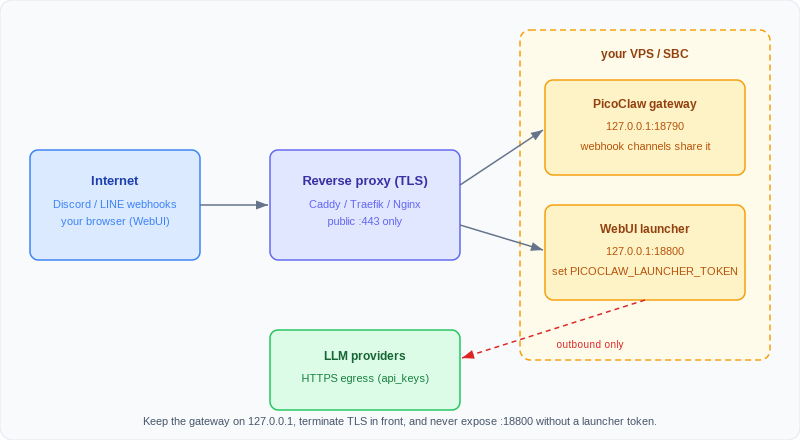
Caddy, Traefik, or Nginx terminate TLS and proxy to 18790. Keep 18800 (WebUI) off the public interface or behind the same proxy with PICOCLAW_LAUNCHER_TOKEN set. The gateway’s log_level (debug|info|warn|error|fatal, env PICOCLAW_LOG_LEVEL) is your first debugging knob; debug is chatty but useful when a channel won’t connect.
- Run as a dedicated non-root user with
User=andEnvironment=HOME= chmod 600on.security.yml- SSH keys only, password auth off
- Firewall: open 22 and 443 only; 18790/18800 stay on localhost
- Backups covering
workspace/,config.json, and.security.yml Restart=alwaysand a sanePICOCLAW_LOG_LEVEL
Backups and teardown. Back up ~/.picoclaw/workspace/, config.json, and .security.yml together (see the secrets section). To remove PicoClaw completely:
systemctl disable --now picoclaw
sudo rm /etc/systemd/system/picoclaw.service /usr/local/bin/picoclaw
rm -rf /home/picoclaw/.picoclaw    # deletes memory and sessions. back up first.
Docker teardown is docker compose -f docker/docker-compose.yml --profile gateway down. The bind-mounted docker/data/ directory survives; delete it manually if you want a clean slate.
Raspberry Pi, Android and $10 hardware
This is the hardware PicoClaw was designed for. The hardware-compatibility doc covers the range from $5 RISC-V boards to Raspberry Pis to Android phones.
- The LicheeRV-Nano ($10) is the design target: Ethernet or WiFi6, runs the RISC-V build, fits a personal assistant with headroom.
- The LicheeRV-Claw has been on AliExpress since 2026-05-11 as the follow-up board if you want more I/O.
- The NanoKVM ($30-50) does automated server maintenance next to the machine it is babysitting.
- The MaixCAM covers smart monitoring use cases with the camera pipeline.
- Any Raspberry Pi with networking runs the arm64 tarball. Even a Pi Zero 2W handles it at 10-20MB RAM (
make build-pi-zeroif you want to build locally). That is the answer to “does PicoClaw work on a Raspberry Pi”: yes, trivially. - Old Android phones run the APK with no Termux. Termux + proot works too (install section above).
For local models alongside PicoClaw, installing Ollama with Docker gives you an OpenAI-compatible endpoint on the same box, and pointing PicoClaw at it is a one-line api_base change. If you want more headroom than an SBC without a full tower, a compact mini PC like the ASUS DC510 mini PC doubles as a home server. Cost-wise: $10 one-time for the SBC path, ~$50 for a nicer board, or €4-5/month rented.
PicoClaw troubleshooting
Seven failure modes people hit, each with the fix.
model ... not found in model_list
Symptom: picoclaw agent errors with model ... not found in model_list, or OpenRouter returns “free is not a valid model ID”.
Cause: agents.defaults.model_name doesn’t match any model_name alias in model_list, or model holds your alias instead of the provider’s native ID.
Fix: Check the alias chain first (model_name: "glm53" must exist in model_list). Then check the native ID. For OpenRouter free models, set the provider explicitly:
{ "model_name": "or-free", "provider": "openrouter", "model": "free",
  "api_keys": ["sk-or-your-key"], "api_base": "https://openrouter.ai/api/v1" }
Without provider, a / in model infers the provider from the first segment; when in doubt, set provider explicitly.
Restored a backup and the keys are gone
Symptom: After restoring config.json from backup, every provider returns auth errors.
Cause: Secrets live in .security.yml since the config v3 split. Backups made before that, or backups that only include config.json, restore without keys.
Fix: Re-enter keys with picoclaw onboard or the WebUI, then chmod 600 ~/.picoclaw/.security.yml and add the file to your backup job going forward.
MiniMax M2.5 config hard-fails after 2026-11-18
Symptom: A config that worked all year suddenly returns 404/model-not-found from MiniMax.
Cause: MiniMax M2.5 and M2.7 retired on 2026-11-18. Any model: "MiniMax-M2.5" entry is dead after that date.
Fix: Swap to the M3 line in model_list:
{ "model_name": "flash", "provider": "minimax", "model": "MiniMax-M3.1-Flash",
  "api_keys": ["YOUR_MINIMAX_KEY"] }
GLM-5 / glm-4.7 configs should move to glm-5.3 the same way. Run picoclaw migrate if the config is still on an old version.
Z.AI returns a bad-key auth error
Symptom: 401/403 from Z.AI with a key that’s definitely valid.
Cause: Since 2026-10-16, coding-plan keys and standard API keys are billed separately and accepted by different endpoints. A coding-plan key on the general API (or the reverse) looks exactly like a bad key.
Fix: Coding-plan keys use the zai-coding prefix with https://api.z.ai/api/coding/paas/v4. Standard keys use the zhipu prefix with https://api.z.ai/api/paas/v4. Check which key type you generated before changing anything else.
Docker gateway unreachable
Symptom: docker compose ... --profile gateway up -d runs, but nothing can reach the gateway.
Cause: The gateway listens on 127.0.0.1:18790 inside the container by default. Also, commands must reference docker/docker-compose.yml and the workspace bind mount is ./data.
Fix: Set PICOCLAW_GATEWAY_HOST=0.0.0.0 in the container environment, and always pass -f docker/docker-compose.yml. Confirm your config landed in docker/data/config.json (first run generates it and exits). Verify with docker compose -f docker/docker-compose.yml logs -f picoclaw-gateway.
macOS blocks the launcher
Symptom: “picoclaw-launcher cannot be opened because the developer cannot be verified.”
Cause: Binaries aren’t notarized. Gatekeeper blocks unsigned downloads.
Fix: Right-click the binary in Finder → Open → Open Anyway in System Settings → Privacy & Security. This is expected behavior, not a sign of tampering; verify the checksum if you want certainty.
Discord bot is online but silent
Symptom: The bot shows as online in Discord but never replies.
Cause: Three candidates, in order of frequency: MESSAGE CONTENT INTENT disabled, your user ID missing from allow_from, or the bot lacks Send Messages permission in that channel.
Fix: Enable the intent in the developer portal (Bot → Privileged Gateway Intents). Check allow_from contains the exact ID you copied (Developer Mode → right-click → Copy User ID). Re-run the OAuth2 invite with Send Messages and Read Message History checked. Restart with picoclaw gateway and watch the logs while you send a test message.
Still stuck
Run picoclaw status, then journalctl -u picoclaw -f (or the Docker logs). Set PICOCLAW_LOG_LEVEL=debug for full verbosity. The project had 31 open issues as of 2026-10-30; check GitHub issues before assuming you’re the only one.
Clean teardown / rollback. To undo everything: systemctl disable --now picoclaw, docker compose -f docker/docker-compose.yml --profile gateway down, sudo rm /usr/local/bin/picoclaw, and rm -rf ~/.picoclaw. That last one deletes memory and sessions, so back up workspace/, config.json, and .security.yml first if any of it matters.
FAQ
How much does it cost to run PicoClaw?
The software is free. The costs are the model API and the box.
On Flash-tier models: GLM-5.3-Flash and MiniMax M3.1-Flash run $0.15/M input and $0.50-0.60/M output. A personal bot answering a few dozen messages a day lands at a few dollars per month, less with cache hits (M3.1-Flash cache reads are $0.015/M). Flagship fallback calls cost more ($1.40/M in for GLM-5.3), but the fallback chain only triggers on hard questions.
The old “MiniMax M2.5 Lightning at ~$1/hour of continuous use” math died with the model. Don’t budget on it.
For the box: ~€4-5/month for a VPS like the Hetzner CX22, or $10 one-time if you run it on an SBC. Free tiers to start: OpenRouter 200K tokens/month, Zhipu 200K/month, Brave 2,000 searches/month. For the cheapest options across providers, see the cheapest AI models under $1 per million tokens.
Can I use PicoClaw without any API costs?
Partially. DuckDuckGo, Sogou, and self-hosted SearXNG search need no key. For the LLM itself you need a local model: point a model_list entry at an Ollama, LM Studio, or vLLM OpenAI-compatible endpoint and api_keys can be omitted. Installing Ollama with Docker is the quick path. You trade quality and speed for a zero API bill.
Does PicoClaw work on a Raspberry Pi?
Yes. Grab picoclaw_Linux_arm64.tar.gz and it runs on any Pi with networking. 10-20MB RAM means even a Pi Zero 2W handles it; there’s a dedicated make build-pi-zero target for that board. See the hardware section for the full list.
Can multiple people use one PicoClaw instance?
Yes. Add multiple user IDs to allow_from in the channel config. Each person gets their own conversation context through the session system. Keep the list tight; an empty allow_from opens the bot to everyone in the server.
What's the difference between agent and gateway?
picoclaw agent is direct CLI chat: one-shot (-m "...") or interactive. picoclaw gateway is the long-running service that connects to Discord, Telegram, and the other channels. For 24/7 use, run the gateway under systemd (or the Docker gateway profile).
Can I add Telegram alongside Discord?
Yes. Add a telegram entry to channel_list next to discord and the gateway handles both at once. You need a bot token from @BotFather. The nanobot setup guide has the BotFather walkthrough; the steps are identical.
Does PicoClaw support voice messages?
Yes. With a Groq API key configured, incoming voice messages (Telegram, for example) get transcribed through Groq’s Whisper integration, and the agent can reply with send_tts. Voice is one of the v0.3.x feature areas rather than a core channel, so expect rough edges.
Is there a PicoClaw crypto token?
No. There is no token, no airdrop, no pump.fun listing. PicoClaw is open-source software under the MIT license from Sipeed. Anyone selling a $PICOCLAW token or running a “presale” is running a scam. picoclaw.io is the only official domain.
Why does my bot use 15-20MB of RAM now?
Recent builds run 10-20MB rather than the original under-10MB figure. The README attributes it to rapid PR merges and says resource optimization is planned after feature stabilization. It’s still one to two orders of magnitude below the Python and Node alternatives. If you measured 8MB on v0.1.x and 18MB on v0.3.1, that’s expected, not a leak.
What happened to MiniMax M2.5 and GLM-5?
Both moved on. MiniMax M2.5/M2.7 stopped accepting new users on 2026-10-19 and retire on 2026-11-18; plan users auto-route to M3.1-Flash. GLM-5 was superseded by GLM-5.2 and then GLM-5.3 (2026-08-18). Update any config that references the old IDs, move to model_list, and run picoclaw migrate if you’re on an old config version. The models roundup tracks the current lineup and pricing.
If you want to explore other AI coding tools, our AI coding tools comparison covers the current options. For a self-improving assistant with voice mode and OpenClaw migration, see the Hermes Agent setup guide. For MCP basics that work across these assistants, check the MCP introduction for beginners.
Re-check the releases page before you install. This is pre-v1.0 software with active nightlies, and the config format has already moved once this year.
PicoClaw on GitHubDid this guide work for you?
Related Posts


Written by Dragos
DevOps engineer with 10+ years in IT. I write these guides while doing the installs in my Proxmox home lab and on real VPSes.
Need help with Astro, VPS, or a self-hosted app? View services →