PM2 Process Manager: Complete Guide to Managing Apps
Learn how to use the PM2 process manager to run Node.js, Python & Bun apps in production. Covers setup, clustering, log management, auto-restarts, and more.

Updated Published 29 min read

PM2 is a production process manager for Node.js, Python, and Bun applications. It runs your apps as background daemons, handles auto-restarts on crashes, provides clustering with load balancing, and gives you a terminal dashboard to monitor everything. If you’re deploying apps on a VPS, whether it’s a Hetzner Cloud box or a Hostinger VPS, PM2 is one of the fastest ways to get production-grade process management without the overhead of containers or orchestration.
VPS prices jumped across the board in 2026 — if you’re rethinking a rented box, see what changed and when a mini PC wins.
I use PM2 on VPS instances where I run multiple Node.js or Python apps and need them to survive crashes and reboots. It’s not a replacement for Docker or Kubernetes, but for a single-server setup it covers the basics well: process supervision, clustering, log management, and boot persistence. The v7.x release added Bun support, OpenTelemetry tracing, and improved the CLI layout. All worth knowing about if you haven’t updated in a while.
Updated for PM2 7.x
This guide was originally published in January 2024 and has been updated for PM2 7.x (latest: 7.0.3). Key changes include Bun runtime support, Node.js 18+ requirement, OpenTelemetry tracing, and an improved CLI with adaptive layout.
What is the PM2 process manager?
PM2 is an open-source process manager for Node.js/Bun applications that also manages Python, Ruby, PHP, and other runtimes. It has over 600 million downloads on npm and 43,000+ GitHub stars. Companies like Microsoft, Netflix, NASA, and IBM use it in production.
PM2 runs your applications as daemon processes, so they don’t block your terminal. It supports cluster mode for load balancing across CPU cores, automatic restarts when processes crash or exceed memory limits, centralized log management, and a monitoring dashboard. It’s licensed under AGPL 3.0.
The key thing PM2 solves is process supervision. Without a process manager, if your Node.js app crashes at 3 AM, it stays down until you manually restart it. PM2 watches for crashes and brings the process back automatically. It also handles the plumbing of running multiple instances across CPU cores. Without PM2, you’d need to write cluster code yourself or configure systemd with multiple service units.
- Run apps as background daemons (no terminal required)
- Cluster mode with load balancing across CPU cores
- Automatic restarts on crash, memory limit, or cron schedule
- Centralized log viewing and rotation
- Terminal monitoring dashboard (CPU, memory, event loop)
- Multi-runtime: Node.js, Python, Bun, Deno, Ruby, PHP
How to install PM2
PM2 is a Node.js module, so you need Node.js and npm on your system first. PM2 v7.x requires Node.js >= 18.0.0 (it dropped Node 16 support). If you don’t have Node.js yet, you can install Node.js using NVM. NVM is the recommended way to install Node.js on a server because it lets you switch versions without affecting the system.
Install PM2 globally:
npm install -g pm2Verify the installation:
pm2 --versionExpected output:
[PM2] PM2 Successfully daemonized
7.0.3
command not found?
If you get command not found, your global npm bin directory is not in $PATH. Run npm config get prefix and add the /bin directory to your PATH.
Upgrading from an older version
If you already have PM2 installed, use pm2 update instead of just reinstalling. It saves the process list, kills the old daemon, and restores everything under the new version with no dropped processes.
Managing applications with PM2
This section covers running apps via the command line and config files, with best practices for each runtime.
Quick start: running apps from the command line
The fastest way to start an app with PM2:
# Node.js
pm2 start app.js --name my-node-app

# Python
pm2 start app.py --name my-python-app --interpreter python3

# Streamlit
pm2 start 'streamlit run app.py' --name my-streamlit-app
Terminal output:
[PM2] Starting /usr/bin/bash in fork_mode (1 instance)
[PM2] Done.
┌────┬─────────────────────┬─────────────┬─────────┬─────────┬──────────┬────────┬──────┬───────────┬──────────┬──────────┬──────────┬──────────┐
│ id │ name                │ namespace   │ version │ mode    │ pid      │ uptime │ ↺    │ status    │ cpu      │ mem      │ user     │ watching │
├────┼─────────────────────┼─────────────┼─────────┼─────────┼──────────┼────────┼──────┼───────────┼──────────┼──────────┼──────────┼──────────┤
│ 0  │ my-streamlit-app    │ default     │ N/A     │ fork    │ 9484     │ 0s     │ 0    │ online    │ 0%       │ 10.3mb   │ root     │ disabled │
└────┴─────────────────────┴─────────────┴─────────┴─────────┴──────────┴────────┴──────┴───────────┴──────────┴──────────┴──────────┴──────────┘
For more on deploying Streamlit apps this way, see deploying Streamlit on a VPS with PM2.
Best practices for Node.js apps
Node.js is the native runtime for PM2. Here’s what to keep in mind:
- Cluster mode is opt-in, not the default. PM2 runs in
forkmode by default (one process). To use cluster mode, you need to explicitly setexec_mode: "cluster"andinstances: "max"in your config or use-i maxon the command line. This is a common source of confusion:pm2 start app.jsgives you a single process, not a cluster. - Use
--watchduring development to auto-reload on code changes. Don’t use it in production. It adds filesystem overhead and can cause unexpected restarts if temp files or logs are written inside the watched directory. - Use
ecosystem.config.jsfor production (see the next section). It’s the recommended config format and supports environment switching (env,env_production). - Set
max_memory_restartto catch memory leaks. For a typical Express/Fastify app,"300M"to"512M"is a reasonable starting point. The app will restart cleanly when it hits the threshold. - For HTTP servers in cluster mode, use
pm2 reloadinstead ofpm2 restart. Reload does a rolling restart of workers so there’s no downtime for in-flight requests.
Best practices for Python apps
PM2 can run any Python app: Flask, FastAPI, Streamlit, scripts, and more:
- Specify the interpreter: Use
--interpreter python3(or the full path if you have multiple Python versions). If you don’t specify, PM2 may pick the wrong one. - Use fork mode: Python’s GIL makes cluster mode pointless. Multiple Python processes in cluster mode don’t share memory or balance load the way Node.js workers do. Stick with
forkmode and use a fixed instance count if you need multiple workers. - Disable auto-restart for one-shot scripts: Use
--no-autorestartto prevent infinite restart loops on scripts that exit normally with exit code 0. Without this flag, PM2 will restart any script that exits, which is usually not what you want for batch jobs or data processing scripts. - Set
max_memory_restartfor long-running Python web apps. Flask and FastAPI apps can accumulate memory over time, especially with large dataframes or caching. A value like"500M"is a reasonable starting point.
Bun and Deno support in PM2
PM2 v7.x has native Bun support. TypeScript files (.ts, .tsx) auto-detect Bun when it’s installed:
# TypeScript files auto-detect Bun
pm2 start app.ts

# Explicit Bun interpreter
pm2 start index.js --interpreter bun

# Bun cluster mode (requires Bun >= 1.1.25)
bunx --bun pm2 start app.ts -i max

# Deno
pm2 start main.ts --interpreter deno --interpreter-args "run --allow-net"
Bun support is still relatively new. Cluster mode works on Bun >= 1.1.25, and the bunx --bun prefix ensures PM2 itself runs under Bun rather than Node.js. Deno support works through the --interpreter flag with arguments passed via --interpreter-args.
Runtime lock
The PM2 daemon keeps the runtime it was first started with. If you switch between Node.js and Bun, run pm2 kill first to restart the daemon with the new runtime.
If you’re exploring Bun as a runtime, see Bun package manager for a full comparison with npm, yarn, and pnpm.
PM2 ecosystem configuration files
For anything beyond quick testing, use an ecosystem config file. This is the recommended way to declare your apps. The ecosystem file is a JavaScript module that exports your app configuration. It supports multiple apps, environment-specific variables, and is easier to maintain than ad-hoc CLI commands.
Using pm2 init simple to generate a config
Run this in your project directory:
pm2 init simpleIt generates a starter ecosystem.config.js:
module.exports = {
  apps: [{
    name: "my-app",
    script: "./app.js",
    instances: "max",
    exec_mode: "cluster",
    env: {
      NODE_ENV: "development"
    },
    env_production: {
      NODE_ENV: "production"
    }
  }]
}
Start with a specific environment:
pm2 start ecosystem.config.js --env productionJSON vs JavaScript ecosystem files
PM2 supports both formats. Here’s what each looks like for a multi-app setup:
ecosystem.config.js (recommended)
module.exports = {
  apps: [
    {
      name: "api-server",
      script: "./server.js",
      instances: "max",
      exec_mode: "cluster",
      env: {
        NODE_ENV: "development"
      },
      env_production: {
        NODE_ENV: "production"
      }
    },
    {
      name: "streamlit-app",
      script: "streamlit",
      args: "run app.py",
      cwd: "/path/to/streamlit/app",
      interpreter: "python3",
      instances: 1,
      max_memory_restart: "1G",
      error_file: "/var/log/pm2/streamlit-error.log",
      out_file: "/var/log/pm2/streamlit-out.log",
      merge_logs: true
    }
  ]
}
JSON config (still works)
{
  "apps": [
    {
      "name": "api-server",
      "script": "./server.js",
      "instances": "max",
      "exec_mode": "cluster",
      "env": {
        "NODE_ENV": "development"
      }
    },
    {
      "name": "streamlit-app",
      "script": "streamlit",
      "args": ["run", "app.py"],
      "cwd": "/path/to/streamlit/app",
      "interpreter": "python3",
      "instances": 1,
      "max_memory_restart": "1G",
      "log_date_format": "YYYY-MM-DD HH:mm Z",
      "error_file": "/var/log/pm2/streamlit-error.log",
      "out_file": "/var/log/pm2/streamlit-out.log",
      "merge_logs": true
    }
  ]
}
Key config fields explained:
name: Process name shown inpm2 list. Pick something descriptive. You’ll use it in every PM2 command.script: Entry point file that PM2 executes.interpreter: Runtime (python3,bun,node, etc.). PM2 auto-detects this for.jsfiles but you need to specify it for Python and other runtimes.instances: Number of instances. Use"max"to match CPU cores (only useful with cluster mode). Default is1.exec_mode:"fork"(default) or"cluster"(load balancing, Node.js/Bun only).env/env_production: Environment variables per environment. Use--env productionto select. This is one of the main advantages of ecosystem files over CLI commands.max_memory_restart: Restart when memory exceeds this. Accepts human-readable strings:"300M","1G","512K". A bare number is treated as bytes, not megabytes. Default:0(disabled).watch: Auto-restart on file changes. Useful for development, not for production.
filter_env for security
PM2 supports a filter_env option to strip environment variables from child processes. Use filter_env: ["SECRET_"] to filter by prefix, or filter_env: true to drop all globals. Useful for hardening production deployments.
Command-line process management
PM2’s CLI is the primary way to interact with your processes. The commands are short and consistent. Once you learn the pattern, it becomes muscle memory.
Start, stop, restart, reload, and delete
pm2 start <name|id>       # Start a stopped process
pm2 stop <name|id>        # Stop gracefully
pm2 restart <name|id>     # Hard restart (drops in-flight requests)
pm2 reload <name|id>      # Graceful reload: zero-downtime in cluster mode
pm2 delete <name|id>      # Remove from PM2 entirely
pm2 kill                  # Stop the daemon and ALL managed processes
The difference between restart and reload matters in cluster mode: reload does a rolling restart of workers so there’s no downtime. restart kills and respawns immediately. Use reload in production. Use pm2 kill when troubleshooting or switching runtimes. It’s the nuclear option that stops everything.
Checking status with pm2 list and pm2 describe
pm2 list                  # All processes (adaptive layout in v7.x)
pm2 describe <name|id>    # Detailed info: config, env vars, restarts, memory
pm2 env <id>              # Environment variables for a specific process
PM2 v7.x adapts its pm2 list output to your terminal width. Full table on wide terminals, condensed on narrow ones, and a compact mini mode in tight spaces. It also shows a host-metrics line (CPU, RAM, network) by default. Toggle it with:
pm2 set pm2:sysmonit true    # Enable system metrics in pm2 ls
pm2 set pm2:sysmonit false   # Disable
pm2 describe is useful for debugging — it shows the full config, environment variables, restart count, and memory/CPU stats for a specific process. Use pm2 env <id> when you need to check what environment variables a process is actually running with (useful when .env files aren’t loading correctly).
PM2 log management and rotation
Viewing logs
PM2 collects stdout and stderr from all managed processes into log files (by default in ~/.pm2/logs/). You can view them with:
pm2 logs                      # Tail all logs
pm2 logs <name|id>            # Tail specific app
pm2 logs <name|id> --lines 100  # Last 100 lines
pm2 logs <name|id> --err      # Only stderr
pm2 logs <name|id> --out      # Only stdout
pm2 flush                     # Flush all log files (clear them)
pm2 flush immediately clears all log files. It’s useful when logs have grown too large and you want to start fresh after setting up rotation.
Installing and configuring pm2-logrotate
Not npm install
pm2 install pm2-logrotate installs a PM2 module, not an npm package. Do NOT use npm install pm2-logrotate. This is the correct way to set up log rotation in PM2 — there is no built-in pm2 logrotate command.
# Install the module
pm2 install pm2-logrotate

# Configure
pm2 set pm2-logrotate:max_size 10M       # Rotate when file reaches 10MB
pm2 set pm2-logrotate:retain 30          # Keep 30 rotated files
pm2 set pm2-logrotate:compress true      # Compress rotated files
pm2 set pm2-logrotate:rotateInterval '0 0 * * *'  # Rotate daily at midnight

# View current config
pm2 conf
Without log rotation, PM2 log files will grow until they fill your disk. If that’s already happened, see cleaning up disk space for recovery steps.
Monitoring performance with PM2
pm2 monitThis opens a terminal dashboard showing CPU, memory, event loop latency, and network usage for all managed processes. You can navigate between processes and view their logs in real time. It’s useful for quick debugging — if one process is eating all the CPU, you’ll see it immediately.
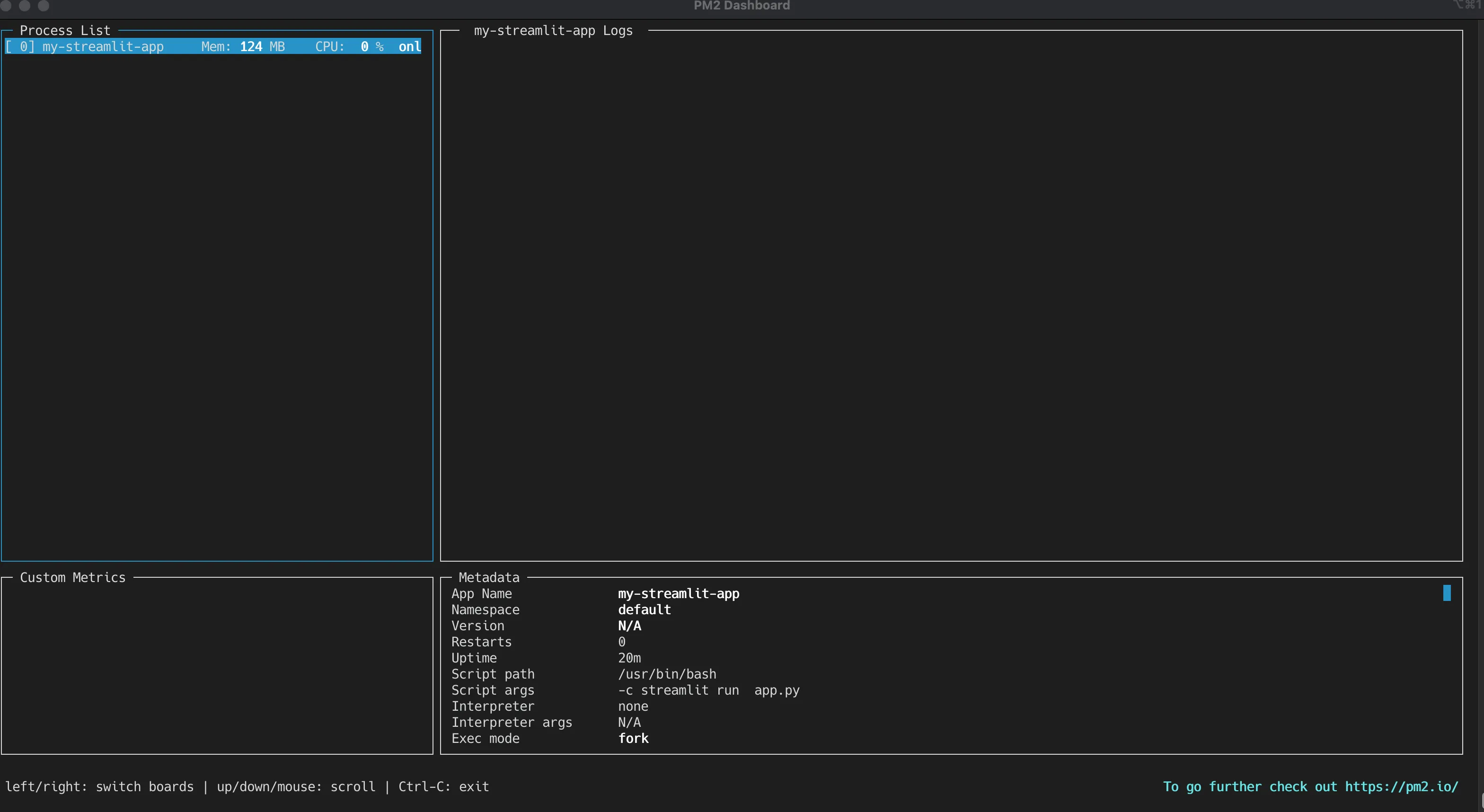
For broader monitoring beyond PM2 (system-level CPU, memory, disk, Docker containers), see monitoring server and Docker resources. PM2’s built-in monitoring is process-level only — it won’t tell you about disk space, Docker containers, or system-level issues.
PM2 production deployment: auto-restarts and startup
Restart strategies
PM2 offers several ways to keep your apps alive. Understanding these is important for production reliability. A misconfigured restart strategy can either leave your app down or create a restart loop that hammers your database.
Basic restart fields (in config or CLI):
autorestart— Enable/disable automatic restarts. Default:true. Set tofalsefor batch scripts or one-shot tasks that should run once and exit.max_memory_restart— Restart when memory exceeds threshold. Accepts human-readable strings:"300M","1G","512K". A bare number is bytes, not megabytes. Default:0(disabled). This is your main defense against memory leaks.min_uptime— If the app exits before this (ms), it’s considered a crash. Default:1000(1 second). Increase this if your app takes a while to initialize (database connections, cache warming, etc.).max_restarts— Max restart attempts within a time window. Default:15. If your app crashes 15 times in 15 minutes, PM2 stops trying and marks it as errored. This prevents infinite restart loops.
Advanced strategies:
# Exponential backoff — prevents thundering herd on DB outages
pm2 start app.js --exp-backoff-restart-delay 100

# Skip auto-restart for specific exit codes (e.g., clean shutdown)
pm2 start app.js --stop-exit-codes 0

# Cron-based restart (restart every day at midnight)
pm2 start app.js --cron-restart "0 0 * * *"

# Fixed delay between restarts (5 seconds)
pm2 start app.js --restart-delay 5000
Exponential backoff is especially useful when your app depends on a database or external service that might be temporarily unavailable. Instead of hammering it with restarts, PM2 backs off exponentially.
Persisting apps across reboots with pm2 startup
This is what makes PM2 practical for production. Without this, your apps die when the server reboots and you have to manually SSH in and restart everything.
pm2 startup
pm2 save
pm2 startup generates a systemd service that starts PM2 on boot. pm2 save snapshots the current process list to ~/.pm2/dump.pm2 so PM2 knows what to restore when it starts.
For a different user:
sudo env PATH=$PATH:/usr/bin pm2 startup systemd -u your_user --hp /home/your_userApps not surviving reboot?
You must run BOTH pm2 startup AND pm2 save. Missing either one means processes won’t restore. Verify with: systemctl status pm2-<user>.
Upgrading Node.js? Run pm2 unstartup before upgrading, then pm2 startup + pm2 save again after. Otherwise the systemd service will point to the old Node.js binary.
pm2 save --force lets you save an empty process list. Useful for resetting the startup state.
Advanced PM2 features
Multi-app ecosystem config
You can manage multiple apps in a single ecosystem.config.js. This is the real power of ecosystem files. One command to start, stop, or reload everything. The Streamlit example from earlier shows this pattern. Add as many app objects to the apps array as you need:
module.exports = {
  apps: [
    { name: "api", script: "./api.js", instances: "max", exec_mode: "cluster" },
    { name: "worker", script: "./worker.py", interpreter: "python3", instances: 1 },
    { name: "scheduler", script: "./cron.js", cron_restart: "0 * * * *" }
  ]
}
Start all apps: pm2 start ecosystem.config.js
Start only one app by name: pm2 start ecosystem.config.js --only api
Static file serving with pm2 serve
PM2 can serve static files without a separate web server like Nginx or Caddy. This is useful for SPAs, documentation sites, or any static build output:
# Basic static file server
pm2 serve /path/to/build 3000 --name my-spa --spa

# Directory listing (v7.0.0+)
pm2 serve /path/to/files 8080 --ftp
The --spa flag routes all 404s to index.html for single-page applications. The --ftp flag (new in v7.0.0) enables directory listing, similar to Python’s http.server.
This is fine for development or internal tools, but for production traffic you’d typically put Nginx or Caddy in front as a reverse proxy with TLS termination.
PM2 in Docker with pm2-runtime
pm2-runtime is a drop-in replacement for node designed for containers. It handles graceful shutdown (SIGINT forwarding) and proper log formatting:
CMD ["pm2-runtime", "ecosystem.config.js"]You can also pass log format options:
pm2-runtime ecosystem.config.js --json     # JSON log output
pm2-runtime ecosystem.config.js --raw      # Raw output (no timestamps)
Why use PM2 inside Docker? Clustering on multi-core containers, graceful restarts, and consistent log formatting. If you’re running single-process containers with Docker’s restart policies, you probably don’t need PM2 — but for multi-core containers or apps that benefit from PM2’s restart strategies, it’s useful. The main advantage over Docker’s restart: always is that PM2 can do exponential backoff, memory-based restarts, and cluster mode — Docker’s restart policy just blindly restarts.
For more on Python apps in containers, see running Python apps in Docker.
Namespaces for process grouping
Namespaces let you group related processes and view their logs together:
pm2 start app.js --namespace api
pm2 start worker.js --namespace workers
pm2 start scheduler.js --namespace workers
pm2 logs api          # View logs for all "api" processes
pm2 logs workers      # View logs for all "workers" processes
This is cleaner than managing process names individually when you have many apps on the same server.
OpenTelemetry tracing (v7.0+)
PM2 v7 includes @opentelemetry/api and @opentelemetry/sdk-node as direct dependencies. This enables distributed tracing for Node.js apps, though the integration still requires configuration with a collector backend (Jaeger, Grafana Tempo, etc.). The dependency is bundled — you don’t need to install it separately — but you’ll need to set up the collector and configure instrumentation for your specific framework. This is a relatively new feature and the documentation is still evolving.
Troubleshooting common PM2 issues
PM2 daemon won't start
Check your Node.js version — PM2 v7.x requires Node.js >= 18.0.0. Run node --version to verify. If Node.js is fine, try killing the daemon and restarting:
pm2 kill
pm2 start app.js
If you’re using nvm, make sure the correct Node version is active in your current shell session.
Apps not surviving reboot
Verify you ran BOTH commands:
pm2 startup    # Creates the systemd service
pm2 save       # Saves the process list
Check the systemd service:
systemctl status pm2-$(whoami)If the service is missing or pointing to the wrong Node.js binary, run pm2 unstartup then pm2 startup + pm2 save again.
Logs filling disk space
Install the pm2-logrotate module (see Log Management section):
pm2 install pm2-logrotate
pm2 set pm2-logrotate:max_size 10M
pm2 set pm2-logrotate:retain 30
pm2 set pm2-logrotate:compress true
To immediately clear logs: pm2 flush
pm2 ls shows wrong user or stale info
Refresh the daemon:
pm2 updateIf that doesn’t help:
pm2 kill
pm2 resurrect
Upgrading Node.js breaks PM2
The systemd startup script points to a specific Node.js binary. Before upgrading:
pm2 unstartup
# upgrade Node.js here
pm2 startup
pm2 save
Switching between Node.js and Bun
The PM2 daemon retains its runtime. You must kill it first:
pm2 kill
pm2 start app.ts    # Now uses Bun if installed
PM2 vs alternatives: when to use it
PM2 isn’t the only way to manage processes on a Linux server. Here’s an honest assessment of when it makes sense and when you should look at other options.
Use PM2 when
- You run multiple Node.js, Bun, or Python apps on a single VPS
- You need clustering with load balancing on one machine without writing cluster code
- You want a quick monitoring dashboard (
pm2 monit) without setting up Grafana or similar - You’re prototyping or running a small-to-medium production stack on a budget VPS
- You want
pm2 startup+pm2 savefor reboot persistence without writing systemd units - You need easy log rotation, memory-based restarts, and cron-based restarts out of the box
Skip PM2 when
- You’re already using Docker or Kubernetes with restart policies — PM2 adds an unnecessary layer
- You run single-process containers (Docker handles restarts natively with
restart: always) - You prefer systemd for simplicity and don’t need clustering or the monitoring dashboard
- You need process isolation — PM2 processes share the same filesystem and user
- You’re deploying through a self-hosted server panel like Coolify, Dokploy, or CloudPanel that handles process management for you
Systemd is the other common approach for boot persistence and auto-restart on Linux. It’s more verbose (you write a .service file for each app) but it’s built into every Linux distro and has no runtime dependency. If you only have one app and don’t need clustering, systemd is simpler and more predictable. PM2 earns its keep when you have multiple apps, want cluster mode, or need the monitoring dashboard.
For those deploying Node.js through a panel, see deploying Node.js apps with CloudPanel and PM2 for a combined approach.
AGPL 3.0 license
PM2 is licensed under AGPL 3.0. This is fine for internal use and running your own apps. If you’re embedding PM2 in a commercial product or distributing it as part of a service, check the license terms.
Conclusion
PM2 is a solid, battle-tested process manager that covers most of what you need to run apps in production on a single VPS: auto-restarts, clustering, log management, monitoring, and boot persistence. Start with pm2 init simple to generate an ecosystem config file, use cluster mode for Node.js apps that benefit from multi-core utilization, and set up pm2-logrotate early — before your disk fills up.
The v7.x release made PM2 relevant for Bun projects too, and the improved CLI layout makes day-to-day use more pleasant. It’s not a replacement for proper container orchestration if you’re running a fleet of services, but for a solo operator managing a handful of apps on a VPS, it does the job well.
Frequently asked questions
What is the PM2 process manager used for?
PM2 runs Node.js, Python, and Bun apps in production as background daemons. It handles auto-restart on crashes, clustering with load balancing, log management, monitoring, and persistence across server reboots. Think of it as a lightweight process supervisor — it keeps your apps running even when things go wrong.
Does PM2 support Bun?
Yes. PM2 v7.x has native Bun support. TypeScript files (.ts, .tsx) auto-detect Bun when installed. For cluster mode with Bun, you need Bun >= 1.1.25 and should launch with bunx --bun pm2 start app.ts -i max. Note that the PM2 daemon retains its runtime — if you switch from Node.js to Bun, you need to run pm2 kill first.
What is the difference between PM2 fork mode and cluster mode?
Fork mode (the default) runs one process per app in an isolated child process. Cluster mode runs multiple instances of your app across all CPU cores with automatic load balancing using Node.js’s built-in cluster module. Cluster mode only works with Node.js and Bun — not Python, due to the Global Interpreter Lock (GIL). For Python apps, use fork mode with multiple instances if you need parallelism.
How do I update PM2?
npm install pm2@latest -g
pm2 update
pm2 update is the important part — it saves the process list, kills the old daemon, and restores everything on the new version. Just running npm install alone leaves a stale daemon running the old code. Always use pm2 update after upgrading.
Does PM2 work in Docker?
Yes. Use pm2-runtime instead of pm2 in your Dockerfile. It’s designed for container environments with proper signal forwarding (SIGINT/SIGTERM) and log formatting:
CMD ["pm2-runtime", "ecosystem.config.js"]pm2-runtime runs in the foreground (doesn’t daemonize), which is what containers expect. You get PM2’s clustering and restart strategies inside the container, plus structured log output that Docker can collect.