Mount an S3 Bucket as a Filesystem on a VPS with ZeroFS & JuiceFS
Turn a Bunny.net S3 bucket into a real POSIX filesystem on your VPS. Step-by-step setup for ZeroFS and JuiceFS, with caching, systemd services, and which one to pick.
 Dragos18 min read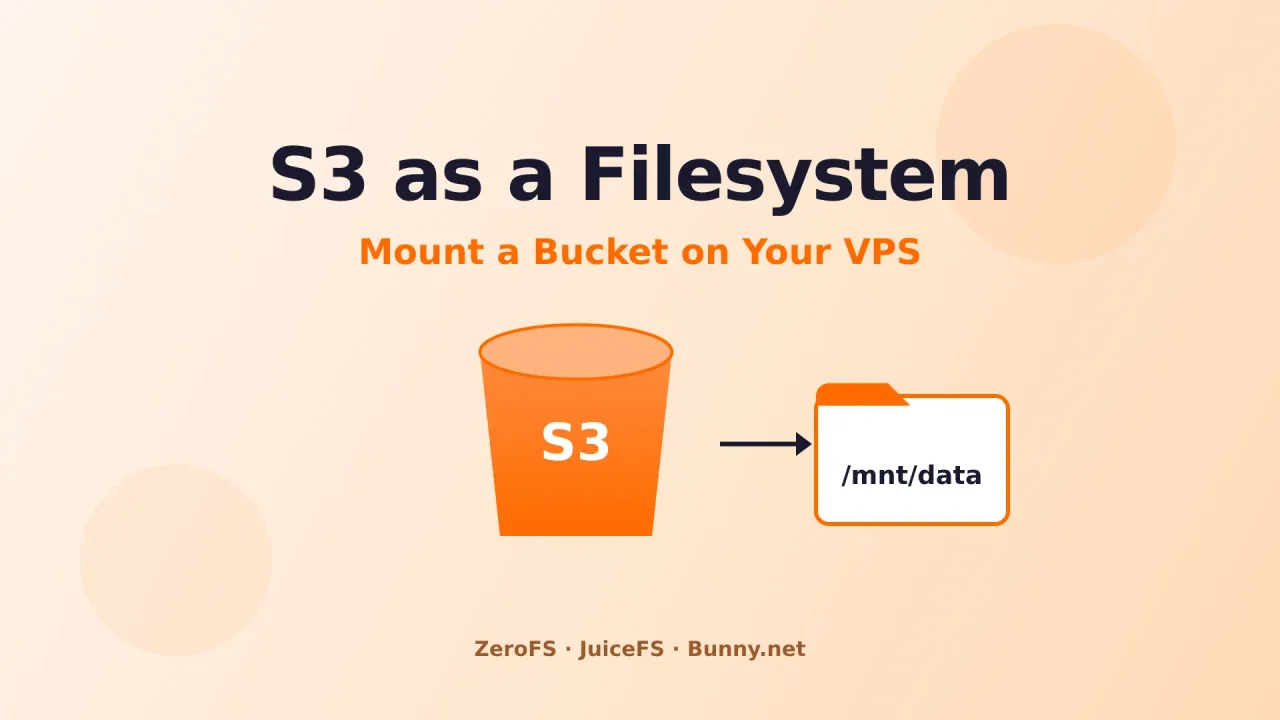
Object storage is cheap. A VPS with a big local disk is not. So the obvious move is to keep your bulk data in an S3 bucket and only pay for the storage you actually use, while your server stays small and fast. The catch is that S3 speaks HTTP, not POSIX, so most apps can’t write to it like a normal folder.
That gap is what filesystem layers solve. They sit between your applications and the bucket, presenting a regular mount point like /mnt/data while shuffling bytes to and from object storage behind the scenes. I’ve been running this setup on a few servers, and Bunny.net adding an S3-compatible API to their storage made it a lot more attractive, mostly because their storage is $0.01/GB with no egress fees through their CDN.
This guide walks through two tools that do the job well: ZeroFS and JuiceFS. Both turn an S3 bucket into a mountable filesystem on a VPS, but they take very different paths to get there. I’ll show you how to set up each one against a Bunny.net bucket, then help you pick.
Try Bunny.net free for 14 days
You’ll need an S3-compatible bucket for this guide. Sign up at Bunny.net with no credit card and get a 14-day trial. My full Bunny.net review covers the rest of the platform.
Why mount S3 as a filesystem
Before the how, here’s the why. Pointing a filesystem at object storage gets you a few things a plain VPS disk can’t:
- Cheap, elastic capacity: Pay per GB instead of resizing a volume every time you run low
- Off-server durability: Files live in replicated object storage, not on one disk that can die
- Shared storage: Multiple servers can read from the same bucket-backed mount
- No app changes: Software writes to a path, not an SDK, so existing tools just work
- Easy backups and media: Great for media libraries, backups, archives, and static assets
It’s not magic, though. S3 round trips take 50-300ms, so without local caching, a naive mount feels painfully slow for small files. Both tools below solve this with a local cache, which is the main reason to use them over something basic like s3fs.
The two approaches compared
ZeroFS and JuiceFS reach the same destination through different architectures. This matters for setup and for which workloads each one handles well.
| ZeroFS | JuiceFS | |
|---|---|---|
| Language | Rust | Go |
| Metadata | Stored in the bucket (LSM tree) | Separate database (Redis, etc.) |
| Extra services | None needed | Needs a metadata engine |
| Protocols | NFS, 9P, NBD | FUSE mount, S3 gateway |
| Encryption | Always on (XChaCha20) | Optional |
| Compression | zstd / LZ4 | LZ4 / zstd |
| Block devices | Yes (NBD, runs ZFS) | No |
| Setup effort | Low (single binary) | Medium (binary + database) |
| Best for | Simple single-node mounts, block storage | Shared/multi-client, large scale |
| License | AGPL-3.0 / commercial | Apache 2.0 |
The short version: ZeroFS is simpler because it stores everything (including metadata) in the bucket, so there’s no database to run. JuiceFS is more battle-tested at scale and lets many clients share one filesystem, but it needs a metadata engine like Redis alongside the object storage.
A note on metadata
JuiceFS keeps file metadata (names, sizes, directory structure) in a separate database for speed and consistency. That database is critical, lose it and you lose the map to your data. ZeroFS sidesteps this by keeping metadata in the bucket itself as a log-structured merge tree.
Step 1: Create a Bunny.net S3 bucket
Both tools need an S3-compatible bucket. Here’s how to set one up on Bunny.net.
S3 compatibility is set at creation
Bunny’s S3 API is still in beta and must be enabled when you create the storage zone. You can’t toggle it on an existing zone, so create a fresh one for this.
- In the Bunny dashboard, go to Storage → Add Storage Zone
- Give it a name (4+ characters, letters, numbers, and dashes only). This name becomes your bucket name and your access key
- Enable the S3 Compatibility option
- Pick a storage tier and a region close to your VPS
- Turn on replication for at least one extra region (recommended for durability)
- Confirm and add the zone
Once it’s created, open the Access tab and grab your credentials. You’ll map them to standard S3 values like this:
| S3 setting | Bunny value |
|---|---|
| Access Key ID | Your storage zone name |
| Secret Access Key | Your storage zone password |
| Endpoint | https://[region]-s3.storage.bunnycdn.com |
| Region | de, ny, sg, uk, se, la, or jh |
S3 compatibility currently works in Frankfurt (de), New York (ny), Singapore (sg), London (uk), Stockholm (se), Los Angeles (la), and Johannesburg (jh). Bunny only supports path-style URLs (endpoint/bucket-name/key), which both tools handle fine.
You can test the credentials with the AWS CLI before going further:
aws s3 ls s3://your-zone-name/ \
  --endpoint-url https://de-s3.storage.bunnycdn.com
If you want a deeper look at how Bunny Storage compares on price, I wrote a Bunny Storage vs S3 vs Backblaze breakdown.
Prerequisites
For either tool you’ll want:
- A Linux VPS (Ubuntu/Debian works well here)
- Root or
sudoaccess - A local SSD with some free space for the cache (10 GB+ is a good start)
- The Bunny S3 credentials from above
If you’re new to running services on a VPS, my Docker on Ubuntu guide and adding a new drive with LVM cover the basics around storage and self-hosting.
Option A: ZeroFS
ZeroFS is a Rust tool that serves an S3 bucket as a POSIX filesystem over NFS and 9P, or as a raw block device over NBD. Everything runs in a single userspace process, and data is always compressed and encrypted before it leaves your server. There’s no separate database, which makes it the simpler of the two to stand up.
Install ZeroFS
The install script grabs the right prebuilt binary for your platform:
curl -sSfL https://sh.zerofs.net | shTo pin a version and install without root:
curl -sSfL https://sh.zerofs.net | VERSION=v1.2.6 INSTALL_DIR=$HOME/.local/bin shCPU requirement
The prebuilt Linux amd64 binary needs a CPU with AVX2 (Intel Haswell 2013+ or AMD Excavator 2015+). On older hardware the binary exits with an illegal-instruction error, and you’ll need to build from source for a baseline x86-64 target.
Configure ZeroFS
Generate a starter config and edit it:
zerofs init # writes zerofs.tomlHere’s a working zerofs.toml for a Bunny.net bucket. Note the conditional_put line, which I’ll explain below:
[cache]
dir = "/var/cache/zerofs"
disk_size_gb = 10.0
memory_size_gb = 1.0

[storage]
url = "s3://your-zone-name/zerofs-data"
encryption_password = "${ZEROFS_PASSWORD}"

[filesystem]
compression = "zstd-3"

[servers.nfs]
addresses = ["127.0.0.1:2049"]

[aws]
access_key_id = "${AWS_ACCESS_KEY_ID}"
secret_access_key = "${AWS_SECRET_ACCESS_KEY}"
endpoint = "https://de-s3.storage.bunnycdn.com"
default_region = "de"
conditional_put = "redis://localhost:6379"
Why the Redis line
ZeroFS needs conditional writes (put-if-not-exists) to fence against corruption. AWS S3 supports this natively, but many S3-compatible stores don’t yet expose it. Setting conditional_put to a Redis URL lets ZeroFS coordinate those writes through Redis instead. Install Redis with sudo apt install redis-server and keep it on localhost. If you confirm your Bunny zone handles conditional puts, you can drop this line.
Bunny.net S3 compatibility issue with ZeroFS
As of mid-2026, Bunny’s S3 API (still in closed preview) does not return an ETag header on PUT responses. ZeroFS requires ETags to verify writes, so startup fails with a MissingEtag error even with conditional_put configured. This is a Bunny-side limitation they’ll likely fix as the API matures. Until then, use JuiceFS (Option B) with Bunny, or pair ZeroFS with a different S3 provider like Cloudflare R2 or AWS S3.
The encryption_password is not optional, ZeroFS has no unencrypted mode. Store it safely, because losing it means losing access to everything in the bucket.
Run ZeroFS
Export your secrets and start the server:
export AWS_ACCESS_KEY_ID="your-zone-name"
export AWS_SECRET_ACCESS_KEY="your-storage-password"
export ZEROFS_PASSWORD="a-long-random-passphrase"

zerofs run -c zerofs.toml
Mount the filesystem
ZeroFS is now serving NFS on 127.0.0.1:2049. Mount it like any NFS share:
sudo mkdir -p /mnt/data
sudo mount -t nfs -o nolock,vers=3 127.0.0.1:/ /mnt/data
That’s it. Anything you write to /mnt/data gets compressed, encrypted, and pushed to your Bunny bucket, with hot reads served from the local cache in microseconds.
Run it as a service
For anything beyond testing, run ZeroFS under systemd so it survives reboots. Create /etc/systemd/system/zerofs.service:
[Unit]
Description=ZeroFS S3-backed filesystem
After=network-online.target redis-server.service
Wants=network-online.target

[Service]
Environment=AWS_ACCESS_KEY_ID=your-zone-name
Environment=AWS_SECRET_ACCESS_KEY=your-storage-password
Environment=ZEROFS_PASSWORD=a-long-random-passphrase
ExecStart=/usr/local/bin/zerofs run -c /etc/zerofs/zerofs.toml
Restart=on-failure

[Install]
WantedBy=multi-user.target
Then enable it:
sudo systemctl daemon-reload
sudo systemctl enable --now zerofs
Keep secrets out of the unit file
Putting credentials directly in a systemd unit is fine for a quick start, but for production move them into an EnvironmentFile= with 600 permissions, or use a secrets manager. Never commit these to git.
ZeroFS can also expose the bucket as a raw block device over NBD, which is what makes the “run ZFS on top of S3” demos possible. That’s beyond a basic mount, but it’s there if you need it.
Option B: JuiceFS
JuiceFS is a mature, widely deployed distributed filesystem built on object storage plus a separate metadata engine. It’s fully POSIX-compatible, supports thousands of concurrent clients, and is used in production for big data and machine learning workloads. The tradeoff is that you run a metadata database alongside it.
Install Redis for metadata
JuiceFS stores file metadata in an engine like Redis, MySQL, or SQLite. For a single VPS, Redis is the easy choice. You can install it straight on the host or run it in Docker, whichever fits how you manage the box.
sudo apt update
sudo apt install redis-server
sudo systemctl enable --now redis-server
If you already run Docker (or just prefer keeping services in containers), a small compose.yaml does the job. This also applies to the ZeroFS conditional_put Redis from Option A, same container works for both.
services:
  redis:
    image: redis:7-alpine
    container_name: juicefs-redis
    restart: unless-stopped
    command: redis-server --appendonly yes
    ports:
      - "127.0.0.1:6379:6379"
    volumes:
      - ./redis-data:/data
Bring it up:
docker compose up -dThe --appendonly yes flag turns on AOF persistence so your metadata survives a container restart, and binding to 127.0.0.1 keeps Redis off the public internet. The volume keeps the data on the host. If you manage stacks through a UI, my Dockge install guide makes deploying this a click or two.
Protect your metadata engine
The Redis database is the index to your entire filesystem. Back it up regularly (enable RDB/AOF persistence) and never expose it to the public internet. If you lose the metadata, the data blocks in your bucket become unusable.
Install JuiceFS
One command pulls the latest client:
curl -sSL https://d.juicefs.com/install | sh -Check it installed:
juicefs versionFormat the filesystem
The format command initializes the filesystem, linking your metadata engine to the Bunny bucket. Run it once:
juicefs format \
  --storage s3 \
  --bucket https://de-s3.storage.bunnycdn.com/your-zone-name \
  --access-key your-zone-name \
  --secret-key your-storage-password \
  redis://localhost:6379/1 \
  myjfs
A few notes on the flags:
--bucketuses the path-style URL Bunny requires, with your zone name as the last path segmentredis://localhost:6379/1is the metadata engine (database 1 on local Redis)myjfsis the volume name, used in later commands
Mount the filesystem
Now mount it, pointing at the same Redis URL:
sudo mkdir -p /mnt/data
juicefs mount redis://localhost:6379/1 /mnt/data --background
JuiceFS keeps a local cache (default under /var/jfsCache) so repeat reads stay fast. You can tune the cache size at mount time:
juicefs mount redis://localhost:6379/1 /mnt/data \
  --cache-size 10240 \
  --background
--cache-size is in MB, so 10240 gives you a 10 GB local cache.
Run it as a service
JuiceFS can generate a systemd-friendly mount, but the simplest durable approach is a unit file at /etc/systemd/system/juicefs.service:
[Unit]
Description=JuiceFS mount
After=network-online.target redis-server.service
Wants=network-online.target

[Service]
Type=simple
ExecStart=/usr/local/bin/juicefs mount redis://localhost:6379/1 /mnt/data --cache-size 10240
ExecStop=/usr/local/bin/juicefs umount /mnt/data
Restart=on-failure

[Install]
WantedBy=multi-user.target
Enable it:
sudo systemctl daemon-reload
sudo systemctl enable --now juicefs
Check the filesystem
JuiceFS ships handy inspection commands:
juicefs status redis://localhost:6379/1   # show volume info
juicefs bench /mnt/data                   # run a quick benchmark
Performance and caching
Neither tool can beat physics, S3 latency is what it is, so the local cache is what makes the experience usable. A few things worth knowing:
- Size the cache for your hot set: Give the cache enough room to hold the files you read often. A 10 GB cache on a small VPS covers most media and web workloads
- Use a fast cache disk: Put the cache on local NVMe, not a network volume, or you defeat the purpose
- Writes are async: Both tools batch and upload in the background, so write throughput feels local until the cache fills
- Pick a nearby region: Match your Bunny region to your VPS location to cut round-trip time
- Mind small-file workloads: Millions of tiny files stress metadata more than bandwidth, where JuiceFS’s dedicated engine has an edge
For workloads that are mostly large sequential reads and writes (media, backups, archives), both tools fly once the cache is warm. For random small-file access, performance depends heavily on cache hit ratio.
Which one should you pick?
After running both, here’s my rule of thumb:
Choose ZeroFS if you want the simplest setup, you’re on a single node, you like that encryption is mandatory, or you need block-device features like running ZFS on top of S3. No extra database to babysit is a real advantage for a small VPS. Pair it with Cloudflare R2 or AWS S3 (Bunny’s S3 API currently doesn’t return ETags, which ZeroFS needs).
Choose JuiceFS if you need multiple servers sharing one filesystem, you’re operating at larger scale, you want the most proven option with the widest community, you already run Redis, or you’re using Bunny.net S3 (JuiceFS works fine with Bunny’s S3 API). The metadata engine is extra work, but it buys you consistency and concurrency that a single-node tool can’t match.
For a home server or a single VPS holding a media library or backups, I lean ZeroFS for the simplicity. For anything shared across machines or headed toward serious scale, JuiceFS is the safer bet.
Troubleshooting
Mount is extremely slow for small files
This is almost always a cold cache or an undersized one. Check that your cache directory is on local NVMe (not a network disk), and bump the cache size so it can hold your frequently accessed files. Also confirm your Bunny region matches your VPS location, a Frankfurt bucket served to a Singapore VPS adds latency to every miss.
ZeroFS errors about conditional puts or fencing
ZeroFS needs put-if-not-exists support, which many S3-compatible stores don’t expose. Set conditional_put = "redis://localhost:6379" in the [aws] section of your zerofs.toml and make sure Redis is running locally. This lets ZeroFS coordinate those writes through Redis instead of the bucket.
JuiceFS mount fails or hangs
Check that Redis is reachable (redis-cli ping should return PONG) and that you’re using the exact same Redis URL you formatted with. A mismatched database number (the /1 at the end) points JuiceFS at an empty metadata store. Also verify the bucket URL is path-style, with your zone name as the last segment.
Permission denied writing to the mount
NFS and FUSE mounts map UIDs/GIDs from the server process. For ZeroFS over NFS, mount with nolock and check ownership of /mnt/data. For JuiceFS, run the mount as the user that needs write access, or adjust the directory permissions after mounting.
Frequently asked questions
Is this faster than just using the disk on my VPS?
No, local disk is always faster for data that fits on it. The point of an S3-backed filesystem is cheap, elastic, off-server capacity for data that doesn’t need disk-speed access: media, backups, archives, and shared storage. The local cache narrows the gap for hot files, but it’s a different tool for a different job.
Can I use this with Docker containers?
Yes. Once the filesystem is mounted at a path like /mnt/data, you can bind-mount that path into containers as a volume. It works well for media servers or backup containers. If you manage stacks with a UI, my Dockge install guide shows how to point compose volumes at any host path.
Does Bunny.net charge for the requests these tools make?
Bunny Storage doesn’t charge per API request, which is a real advantage here since both tools make a lot of small calls. You pay for storage ($0.01/GB single region) and for delivery bandwidth if you serve through the CDN. There are no egress fees when delivering through Bunny CDN. See my Bunny.net review for the full pricing picture.
Will I lose data if the metadata is lost?
For JuiceFS, yes, the Redis metadata engine is the map to your data blocks, so back it up and never run it without persistence. For ZeroFS, metadata lives in the bucket alongside the data, so there’s no separate database to lose, but the encryption password is equally critical: lose it and the data is unrecoverable.
Can I use another S3 provider instead of Bunny?
Absolutely. Both tools work with AWS S3, Cloudflare R2, Backblaze B2, MinIO, and any S3-compatible store. Just swap the endpoint and credentials. I focused on Bunny here because of the flat $0.01/GB pricing and no request fees, which suit the chatty access pattern of a filesystem layer.
Wrapping up
Mounting an S3 bucket as a filesystem used to mean fighting with s3fs and accepting terrible small-file performance. ZeroFS and JuiceFS both fix that with smart local caching, and they make object storage genuinely usable as a working filesystem on a VPS.
Pair either one with Bunny.net’s flat-rate, no-egress storage and you get elastic capacity that costs a fraction of resizing your server’s disk. Start with ZeroFS if you want the least moving parts, reach for JuiceFS when you need shared or large-scale storage.
Try Bunny.net Free for 14 DaysRelated articles
- Bunny.net review - the full platform after a year in production
- Bunny Storage vs S3 vs Backblaze - cloud storage pricing compared
- TanStack Start + Bunny Database + Drizzle - build a type-safe full-stack app on Bunny
- Deploy an Astro site to Bunny.net - static hosting on Bunny storage and CDN
- Bunny Stream guide - video hosting on Bunny
- Add a new drive with LVM - growing local storage on a VPS
- Install Dockge - manage Docker compose stacks with bucket-backed volumes
- Install Docker on Ubuntu - Docker and Compose setup
- Best Docker containers for a home server - what to run with your new storage