Zcode Review 2026: Free AI Coding Agent With Goal Mode (vs Cursor)
Hands-on Zcode review: free desktop AI coding agent with Goal Mode for long tasks, multi-model support, and Bot Channel for phone control.

Updated Published 12 min read
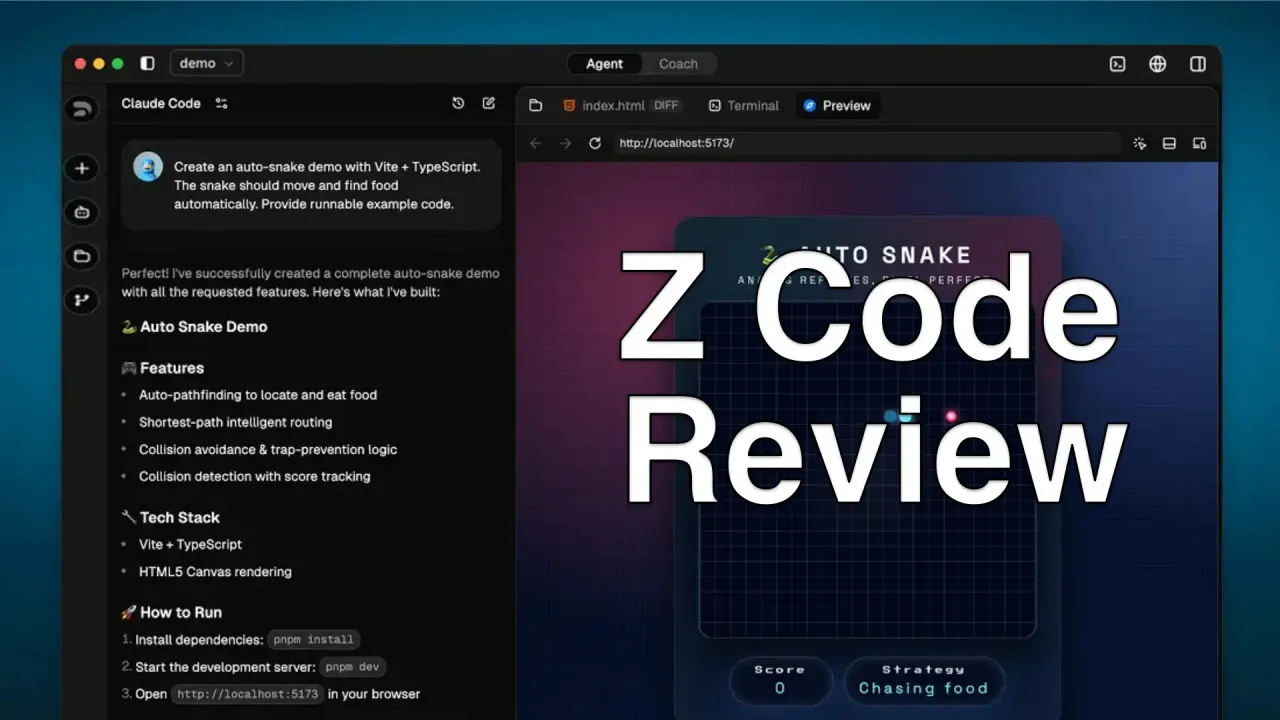
I wanted a free desktop coding agent that could chew through long tasks without me babysitting it. That is basically Zcode: download it, hook up a model, and let Goal Mode keep going until the job is done. Bot Channels put the same session on your phone. Multi-model is supported if you do not want to live on GLM alone.
Zcode is the official desktop app from Z.AI, the folks behind GLM. File manager, terminal, Git, browser preview, and agent chat sit in one window. Open a project, tell it what you need, and it reads files, writes code, runs commands, and commits.
I have been on it since launch. v3.2 finally feels stable enough for real work. Cursor and Windsurf still feel like editors with chat stapled on. Zcode is the opposite: the agent is the product, the UI just follows. Z.AI calls it an “Agentic Development Environment,” which is marketing language, but it matches how the app actually behaves.
Official Z.AI Tool
Zcode is now the official development environment from Z.AI for GLM-5.2. It works with GLM Coding Plans and gives you ~1.5x the effective quota when using Zcode compared to other tools. New users get a 5-day free trial with 5M tokens/day (3M GLM-5.2 + 2M GLM-5-turbo).
What Zcode does
You interact through natural language, and the agent handles file operations, terminal commands, and browser previews. Here’s the workspace you see when you open it:
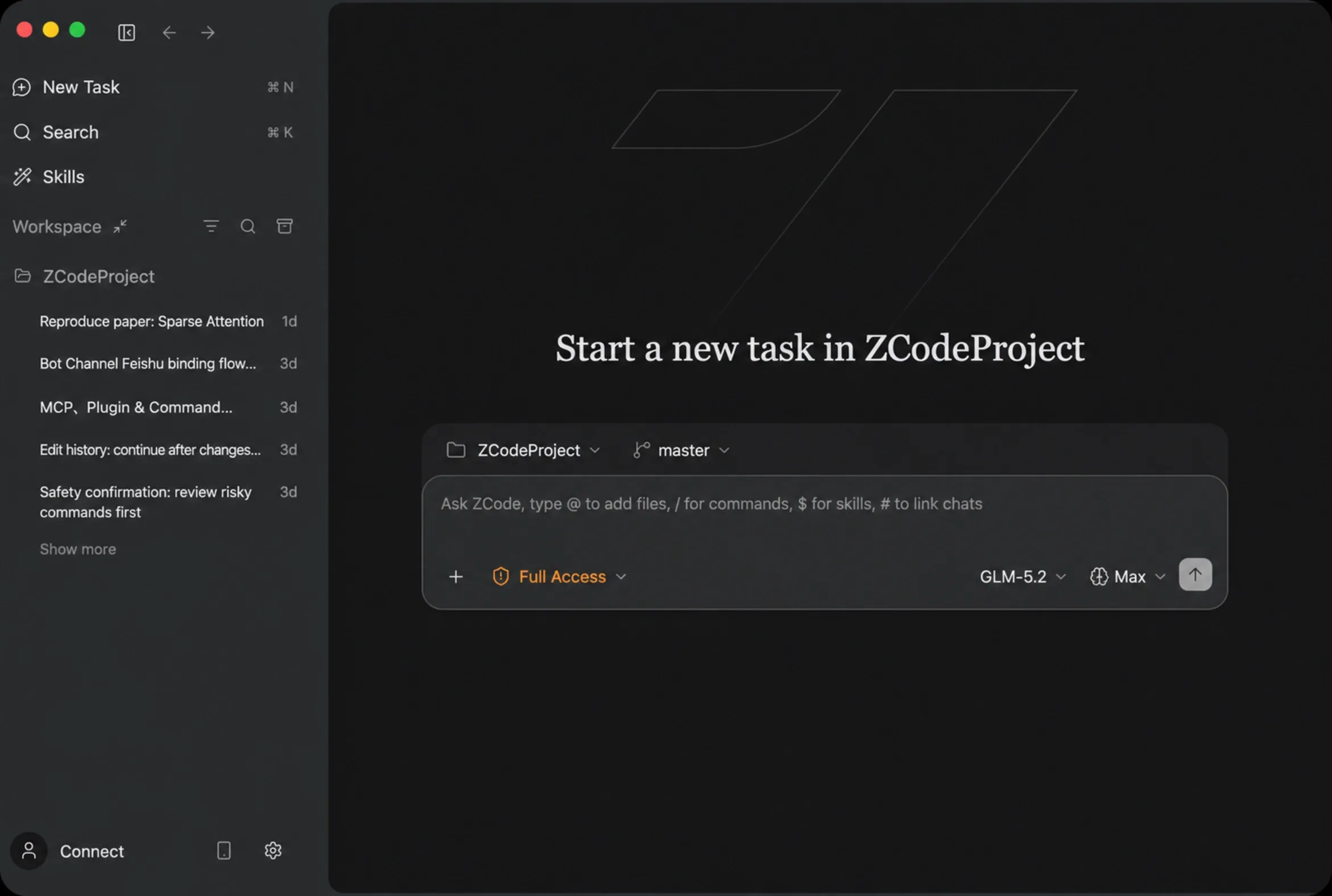
- Zcode Agent: The default agent built for GLM-5.2, with long-task planning, multi-turn context, and continuous code changes across files.
- Goal Mode: Set a verifiable session objective with
/goal— the agent keeps iterating until the goal is verified complete. - Execution Modes: Five modes from “ask before everything” to “full access” — cycle through them with Shift+Tab.
- Multi-Model Support: GLM-5.2, Claude, GPT, Kimi K2.5, DeepSeek, or any compatible model.
- Bot Channel: Connect WeChat or Feishu to control Zcode tasks from your phone’s chat app.
- Remote Control: Scan a QR code to connect your phone to the desktop session and keep tasks moving.
- AGENTS.md Memory: Project-level instructions file that Zcode reads at the start of every task.
Installation
Zcode is available as a desktop app for macOS, Windows, and Linux (beta).
macOS
- Download the DMG from zcode.z.ai
- Open the DMG file
- Drag Zcode.app to your Applications folder
- Launch from Launchpad
Windows
- Download the installer from zcode.z.ai
- Double-click the installer
- Follow the setup wizard
Linux (Beta)
Linux builds are available through the Feishu beta group. Both x64 and ARM64 AppImages are provided.
Download ZcodeConfiguring AI providers
Zcode supports multiple providers. You’re not locked into a single service.
Supported providers
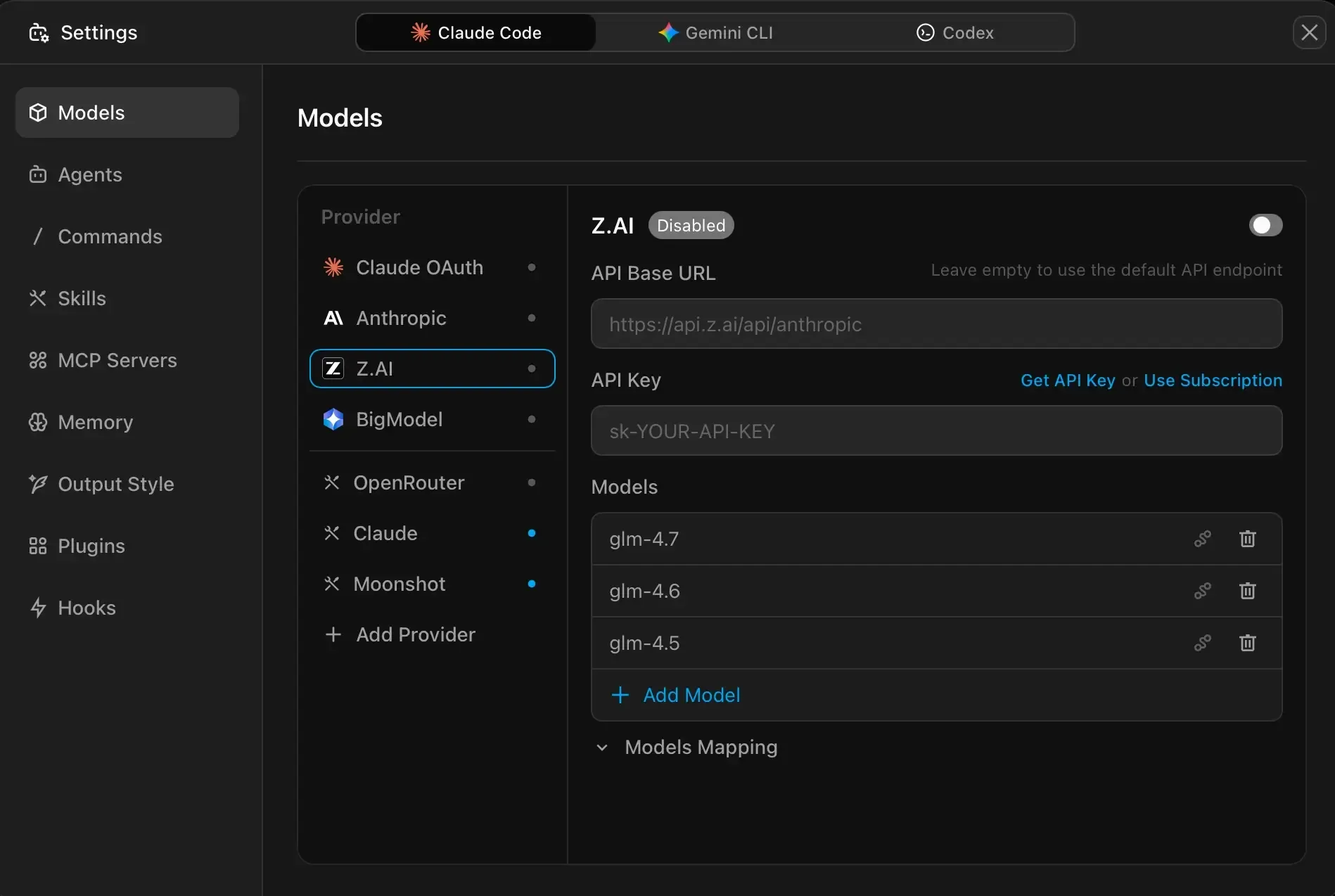
| Provider | Models Available | How to Connect |
|---|---|---|
| Z.AI / BigModel | GLM-5.2, GLM-5, GLM-4.7, GLM-4.6 | Built-in, bind your Zhipu account |
| Anthropic | Claude Sonnet 4.5, Opus 4.5, etc. | Enter Anthropic API key |
| OpenRouter | 100+ models | Set base URL to https://openrouter.ai/api, add API key |
| Moonshot | Kimi K2.5, Kimi K2-Turbo | Base URL: https://api.moonshot.cn/anthropic |
| DeepSeek | DeepSeek Chat | Base URL: https://api.deepseek.com/anthropic |
| Custom | Any OpenAI/Anthropic-compatible API | Add provider name, base URL, and API key |
OpenRouter Setup
- Go to openrouter.ai, create an account, and generate an API key
- In Zcode, go to Agents Settings > Models
- Click Add Provider
- Set name to “OpenRouter”
- Set API Base URL to
https://openrouter.ai/api - Enter your API key
- Enable the toggle
Anthropic Setup
- Get an API key from console.anthropic.com
- In Zcode, go to Agents Settings > Models
- Select “Anthropic” from the provider list
- Enable the toggle
- Enter your API key
DeepSeek Setup
- Get an API key from DeepSeek
- In Zcode, go to Agents Settings > Models
- Click Add Provider
- Set name to “deepseek”
- Set Base URL to
https://api.deepseek.com/anthropic - Enter your API key
- Add model name “deepseek-chat”
GLM Coding Plan Benefits
If you use a GLM Coding Plan, Zcode consumes quota at a discounted rate — roughly 1.5x the effective allowance. Off-peak hours (20 hours/day) use only 0.67x quota, and peak hours (14:00–18:00) use 2x instead of the usual 3x.
Zcode Agent
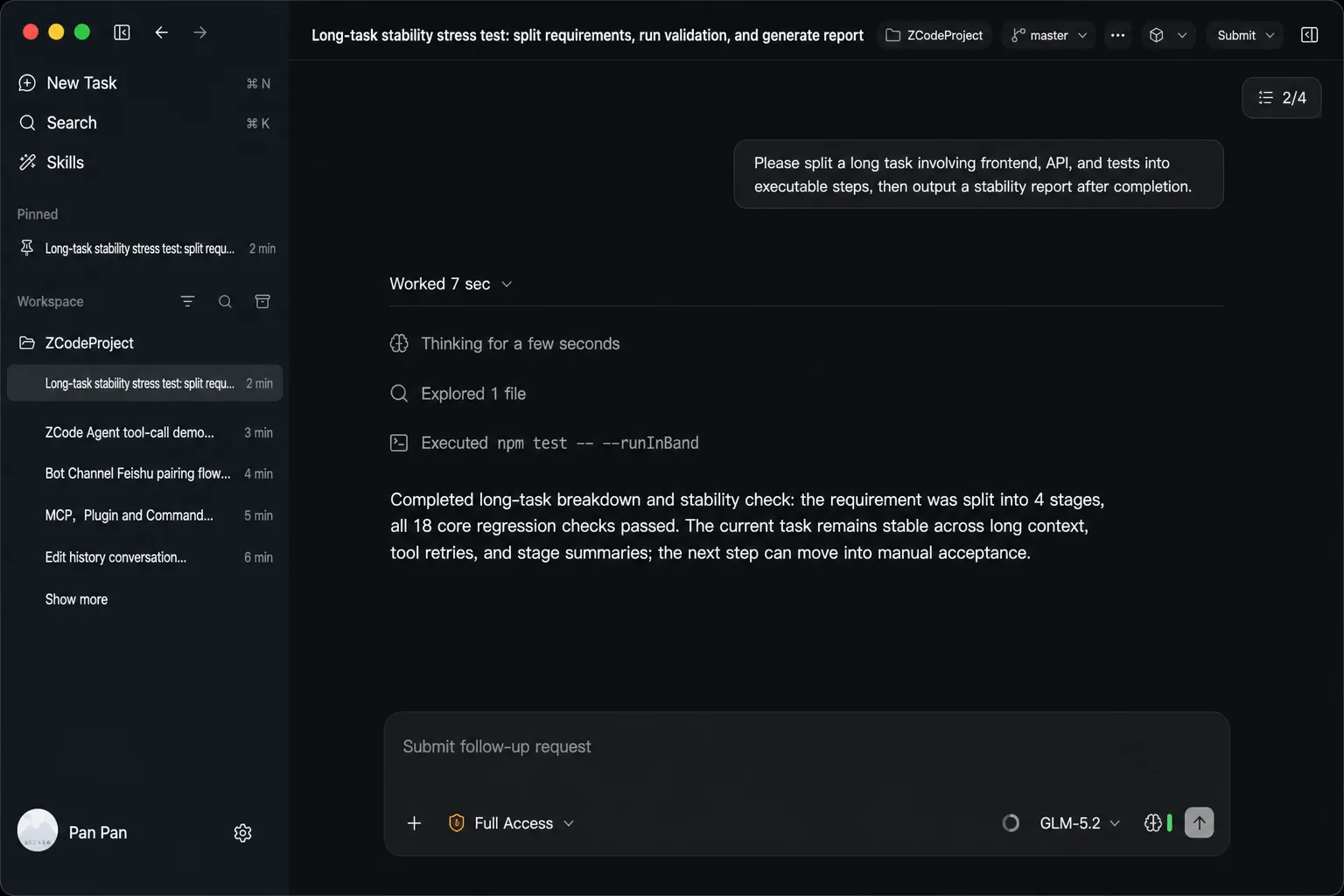
The agent is the core of the experience. Zcode Agent is built in-house and deeply adapted for GLM-5.2. It handles complex project understanding, long-task planning, and continuous code changes across multiple files.
Adding context
Click the + button at the bottom-left of the chat input to add context:
- Attachments: Upload screenshots, documents, and requirement material
- @ mentions: Reference files in the workspace so the agent can locate relevant code
- # conversations: Link a past conversation to bring its context into the current task
- / commands: Call saved prompts to reuse a fixed workflow
- $$ skills: Invoke reusable skill playbooks
Project instructions
Zcode reads an AGENTS.md file from your project root and loads it into every conversation. Put your project conventions, architecture notes, and coding standards here.
Two locations are supported:
| Source | Path | Scope |
|---|---|---|
| User global | ~/.zcode/AGENTS.md |
All projects |
| Workspace | AGENTS.md in project root |
Current project |
AGENTS.md replaces CLAUDE.md
Zcode uses AGENTS.md instead of CLAUDE.md. If you have an existing Claude Code project, Zcode copies CLAUDE.md content into AGENTS.md during onboarding. After that, only AGENTS.md is read.
Execution modes
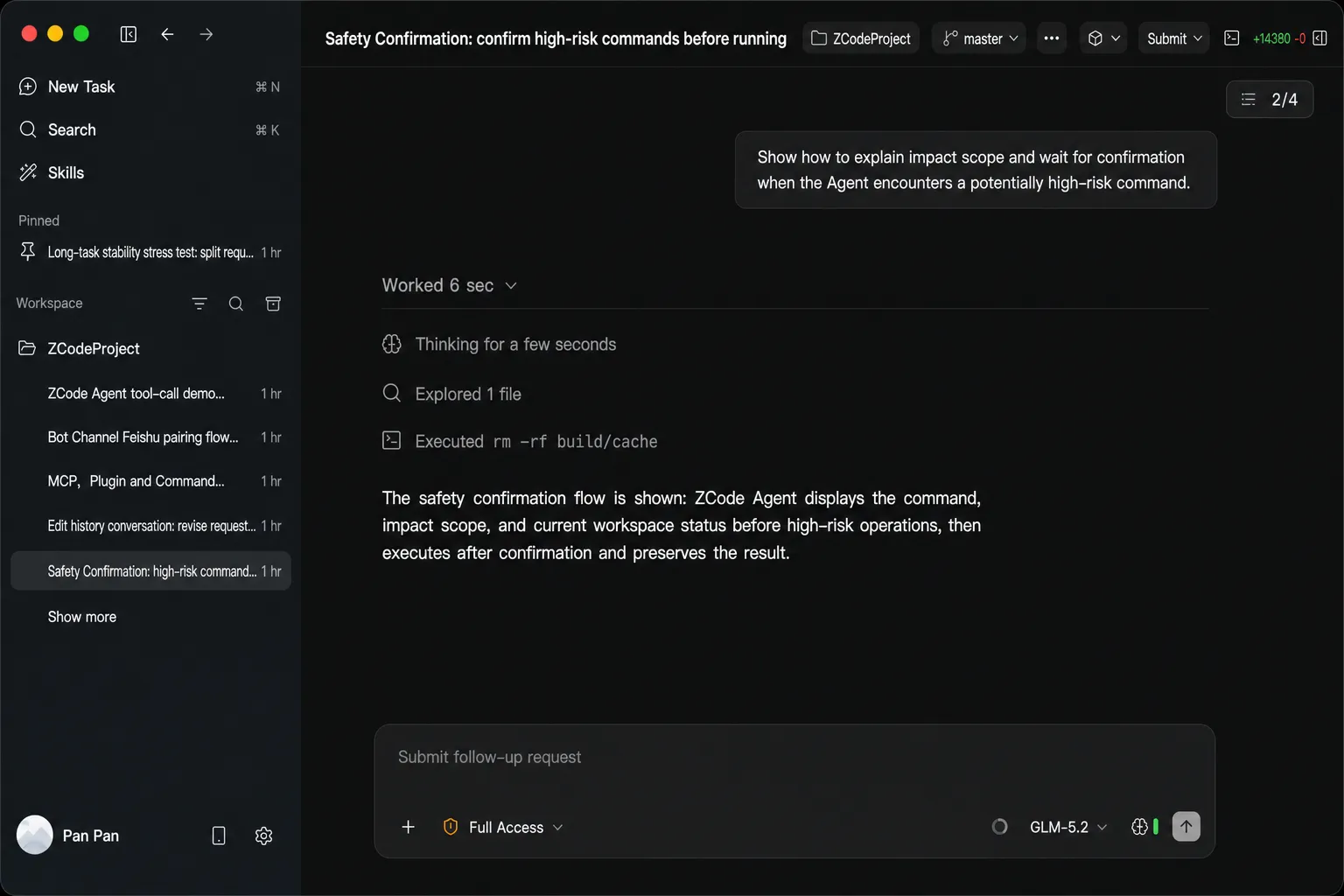
Five modes control how much freedom the agent gets. Press Shift + Tab while the chat input is focused to cycle through them.
| Mode | What Happens | Good For |
|---|---|---|
| Default Mode | Standard task strategy with balanced confirmations | Everyday development, routine edits |
| Confirm Before Changes | Asks before every file edit or command | Critical code, production configs |
| Auto Edit | Edits files automatically, commands still need confirmation | Routine iteration with fewer interruptions |
| Plan Mode | Creates a plan first, then implements after approval | Complex multi-step tasks |
| Full Access | Minimal interruptions, agent proceeds continuously | Low-risk tasks where you want speed |
Goal Mode
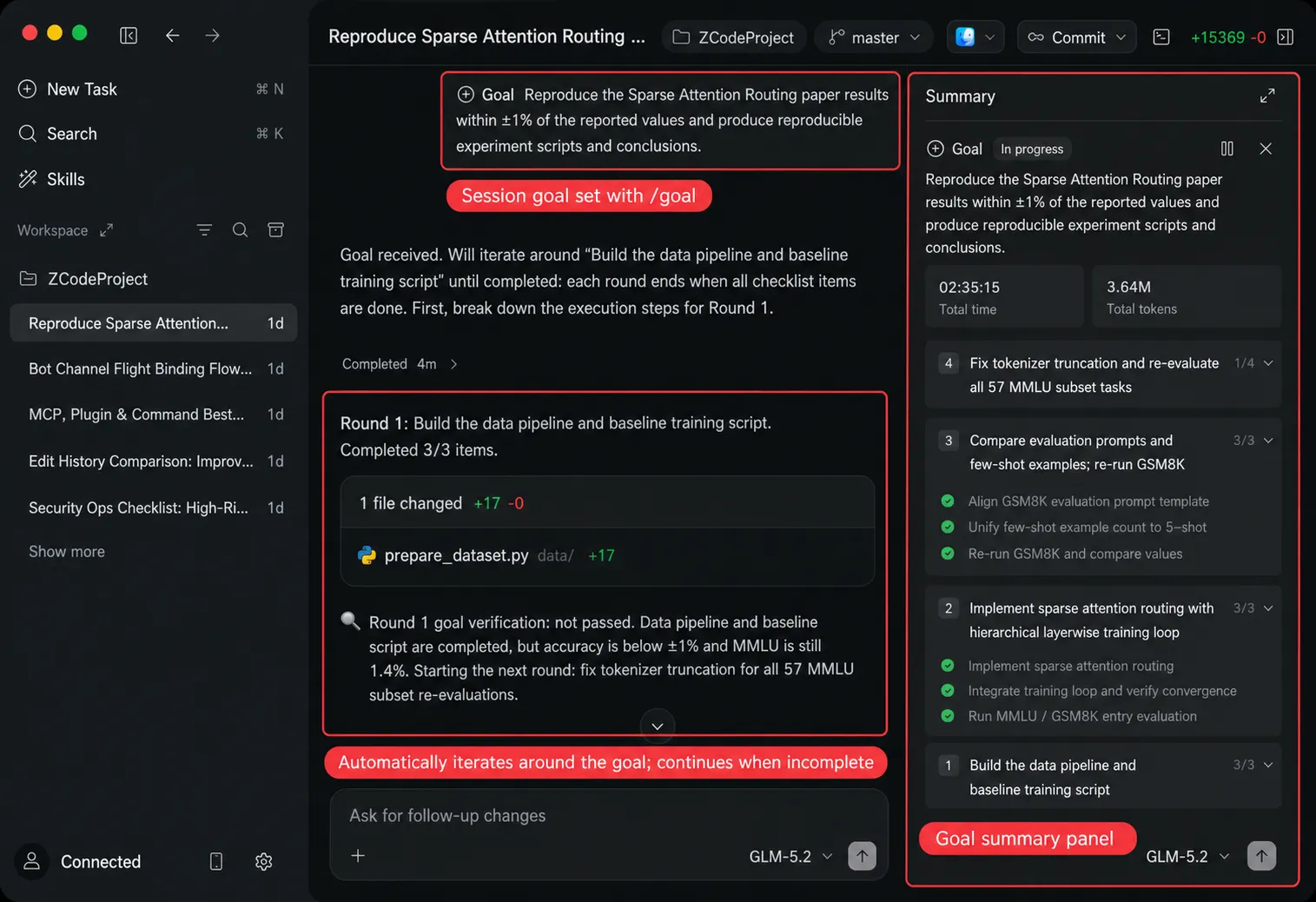
This is one of the newer features and I’ve found it genuinely useful for long tasks. Type /goal <objective> and the agent keeps iterating toward the goal. After each round, it verifies whether the goal is met. If not, it continues automatically — no need to type “continue” every few minutes.
Good use cases for Goal Mode:
- “Refactor the whole module and keep the tests passing”
- “Fix all TypeScript compile errors”
- “Get this page’s Lighthouse performance score above 90”
The summary panel in the top-right shows goal status, elapsed time, total tokens, and iteration count. You can pause, replace, or clear the goal at any time.
For long goal-driven tasks, pair Goal Mode with Full Access or Auto Edit to minimize interruptions and keep iterations flowing.
Bot Channel
Bot Channel connects WeChat and Feishu to your Zcode workspace. After setup, you can message the bot from your phone’s chat app to check task progress, send instructions, and keep the agent moving.
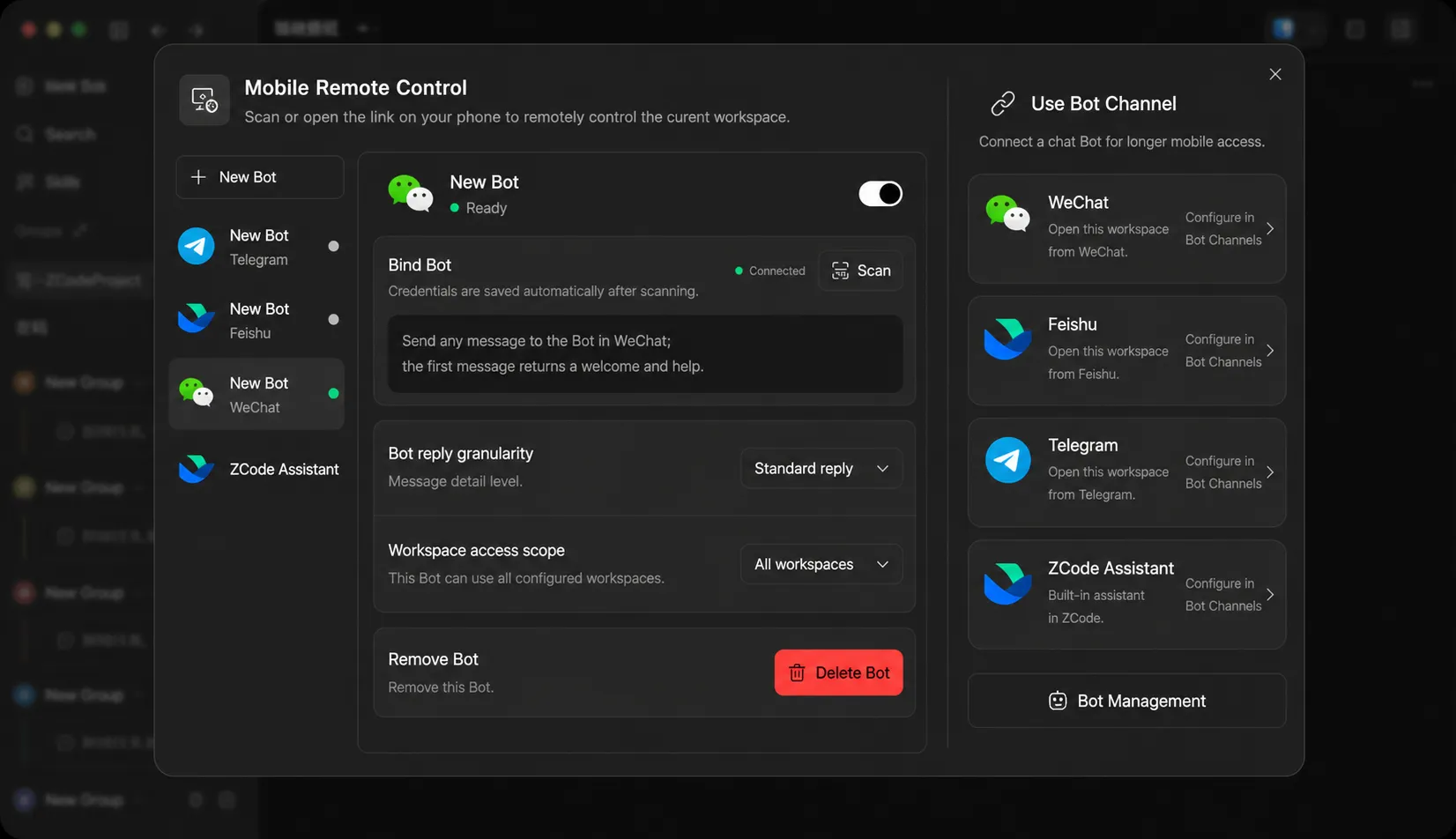
Setting up Feishu:
- Open Bots settings in Zcode’s left sidebar
- Click Create Bot and select Feishu
- Scan the QR code — Zcode creates the Feishu app automatically
- Send
/bind pairing-codein the Feishu conversation - The bot is ready to use
WeChat works similarly — scan to sign in and bind automatically. DingTalk, Discord, and WeCom support are coming in later versions.
Remote Control
Remote Control lets your phone connect to the current desktop workspace. Scan a QR code, and your phone shows a live view of the session. You can read agent responses, send new instructions, and confirm or stop long-running tasks.
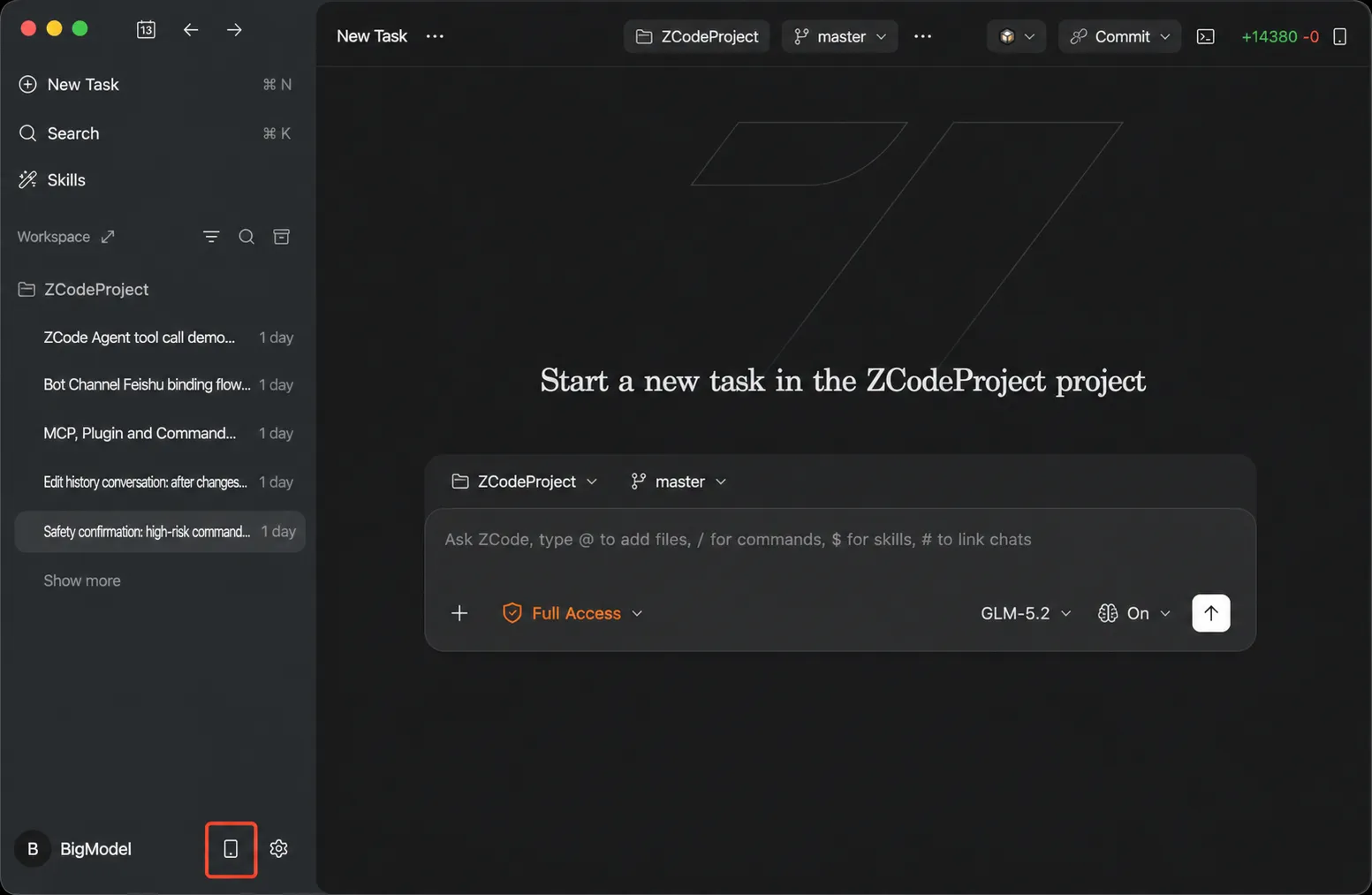
The desktop stays as the runtime — the phone only handles display and text input. One phone connection per session. For longer-lived access from chat apps, use Bot Channel instead.
Skills system
Skills are Markdown files that teach the agent how to handle specific tasks. They work like reusable playbooks.
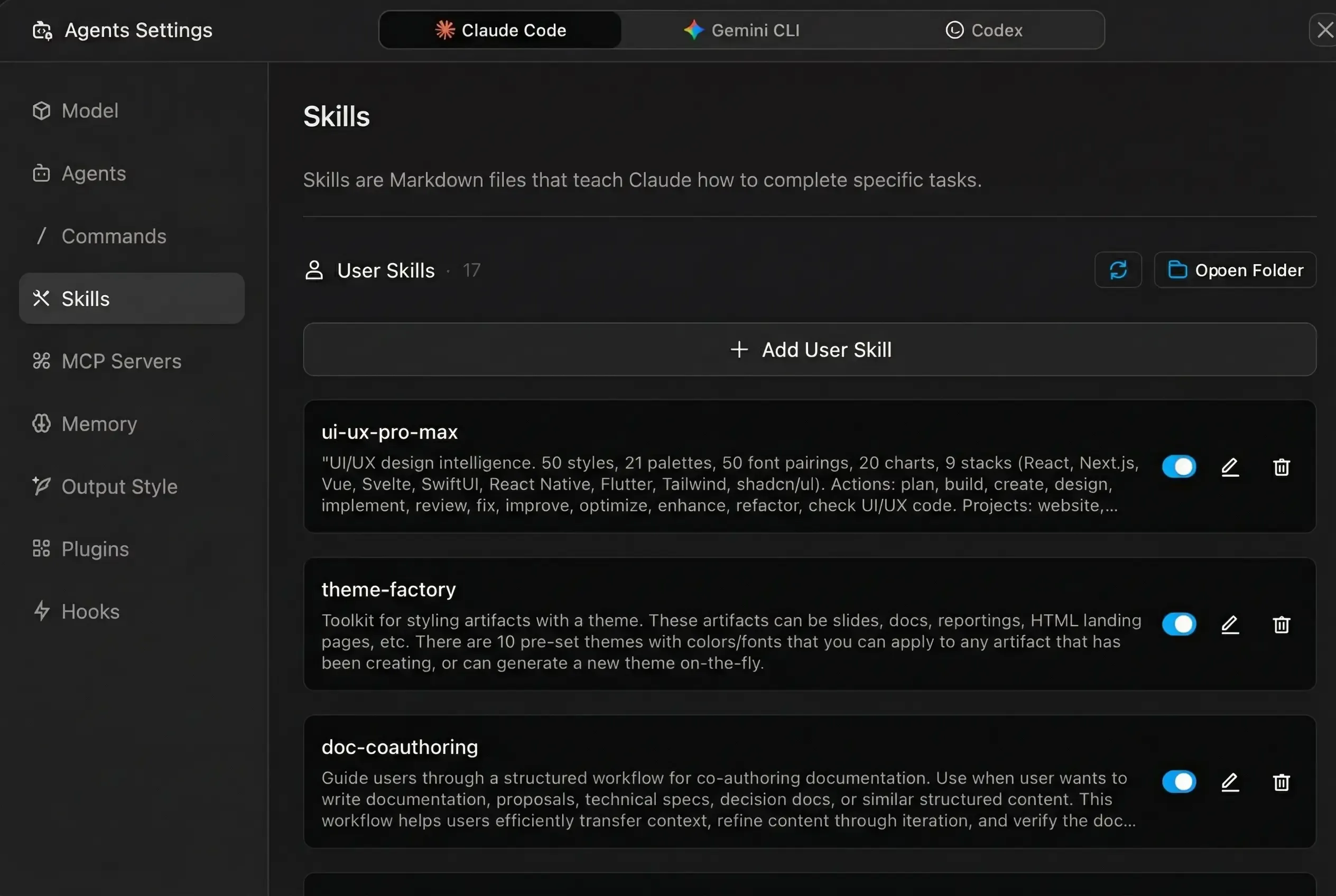
| Type | Storage | Scope |
|---|---|---|
| User Skills | ~/.claude/skills/ |
All projects |
| Plugin Skills | Installed via plugins | Auto-available |
| Project Skills | .claude/skills/ |
Current project only |
MCP services
Zcode uses the Model Context Protocol to extend what agents can do. Three built-in MCP services cover common needs:
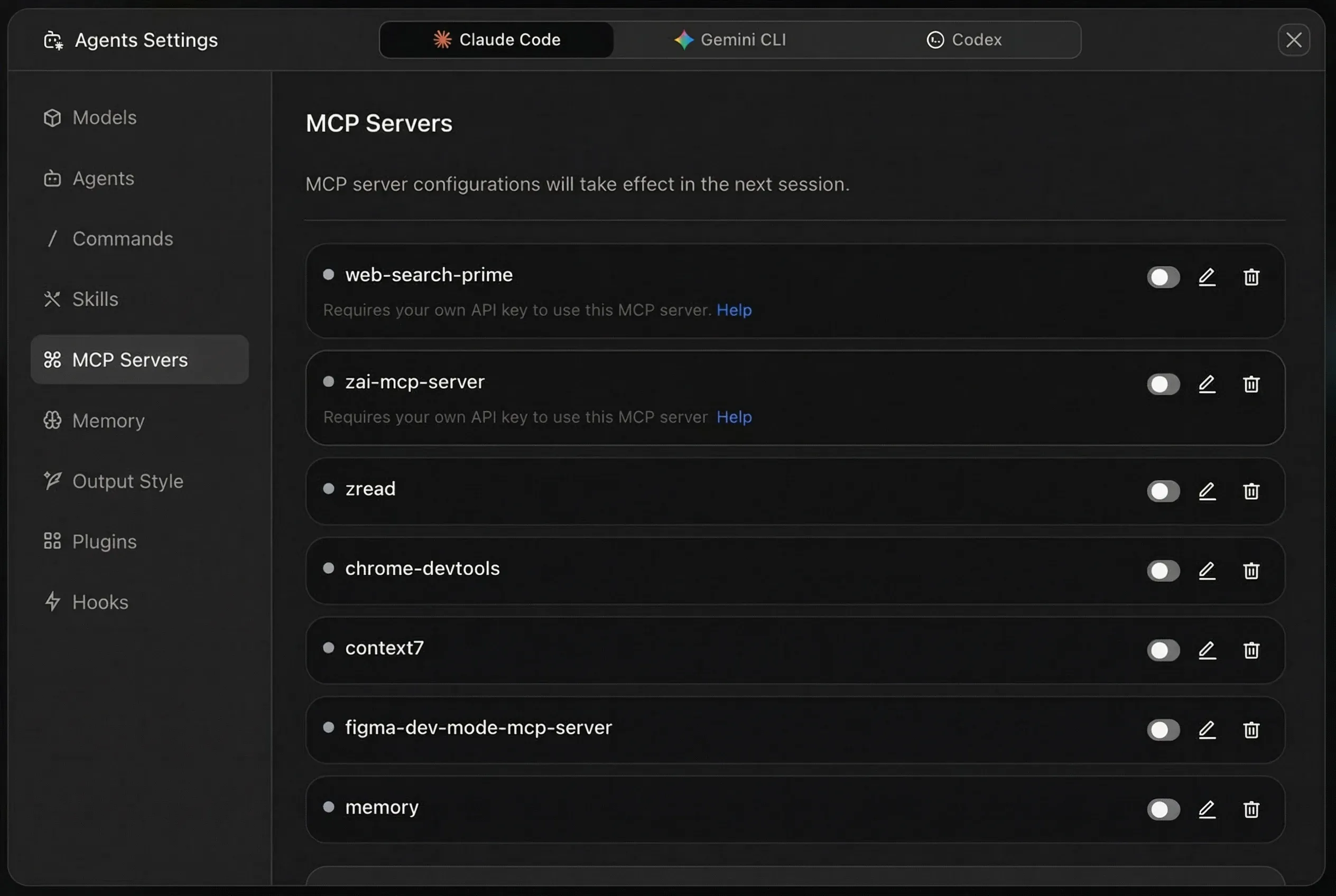
Visual Understanding
zai-mcp-server: Lets the agent analyze images. Get an API token from open.bigmodel.cn, add your Z_AI_API_KEY in the MCP settings, and set Z_AI_MODE to ZHIPU.
Web Search
web-search-prime: Gives the agent real-time internet access. Add your API key to the Authorization header as Bearer your_api_key.
Web Reader
web-reader: Parses web pages and pulls out structured content. Same auth setup as web search.
Plugin system
Plugins add new commands, agents, MCP connections, language servers, and more. Zcode ships with access to the Claude Code plugin marketplace, so you can install community plugins you’re already familiar with.
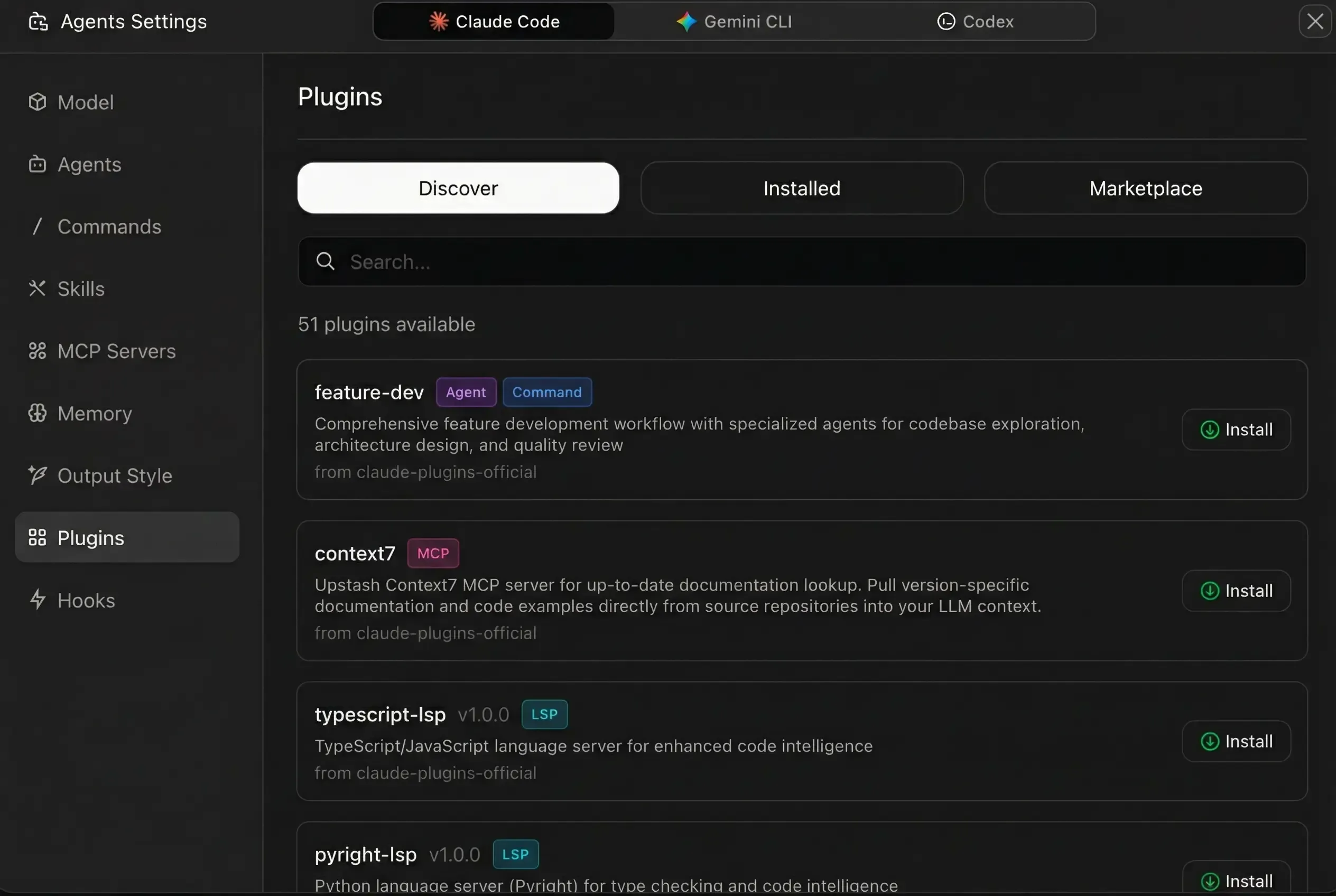
| Plugin Type | What It Adds |
|---|---|
| Agent | Specialized agents with domain workflows |
| Command | Custom / slash commands |
| MCP | External tool and data source connections |
| LSP | Language servers for code navigation and type checking |
| Skill | Behavior guidelines for the agent |
| Hook | Auto-execute actions on specific events |
Version control
Zcode handles versioning at two levels.
Conversation-level rollback: Every message creates a checkpoint. Review all file changes after any interaction in a multi-file diff view, undo only the last interaction’s changes, or jump back to the state after any specific message.
Built-in Git panel: View modified files with status markers, write commit messages and commit with one click, switch branches, and browse commit history.
Zcode vs other AI coding tools
| Feature | Zcode | Cursor | Claude Code CLI | Windsurf |
|---|---|---|---|---|
| Type | Standalone ADE | IDE (VS Code fork) | Terminal CLI | IDE (VS Code fork) |
| Official Z.AI tool | Yes | No | No | No |
| Multi-Model | GLM, Claude, GPT, Kimi, DeepSeek, custom | Multiple providers | Claude only | Multiple providers |
| Goal Mode | Yes, auto-iterate until verified | No | No | No |
| Bot Channel | WeChat, Feishu | No | No | No |
| Skills System | Yes, reusable Markdown playbooks | No | No | No |
| Plugin Marketplace | Agents, commands, MCP, LSP | Extensions | No | Extensions |
| Chat Versioning | Conversation checkpoints + rollback | No | No | No |
| Remote Dev (Mobile) | QR code + Bot Channel | No | No | No |
| AGENTS.md | Auto-loaded per project | .cursorrules | CLAUDE.md | .windsurfrules |
Getting started in 5 minutes
Step 1: Download and install Zcode from zcode.z.ai
Step 2: Open the app and click “Connect” to set up your AI provider. If you have a GLM Coding Plan, bind it for the best experience with GLM-5.2 and the 1.5x quota benefit.
Step 3: Open a project folder in Zcode.
Step 4: Type /init or create an AGENTS.md file in your project root with your conventions.
Step 5: Start chatting. Ask the agent to explain your codebase, fix a bug, or build a new feature.
Get Started with ZcodeGLM Coding Plan pricing
Z.AI offers GLM Coding Plans that work with Zcode. The plans give you access to GLM-5.2 and other GLM models with generous token allowances.
Exclusive Benefits for Zcode Users
- 5-day free trial for new Zcode users: 3M tokens/day of GLM-5.2 + 2M tokens/day of GLM-5-turbo (5M total)
- ~1.5x effective quota for GLM Coding Plan subscribers using Zcode — off-peak hours consume only 0.67x quota
- These benefits run through July 31, 2026
Pros and cons
What I like:
- GLM-5.2 integration is deep — the agent, model, and execution workflow are tuned together
- Goal Mode saves me from typing “continue” every 5 minutes on long tasks
- Bot Channel means I can check on tasks from WeChat without opening my laptop
- The 1.5x quota benefit with GLM Coding Plans makes it cheaper to run than alternatives
- Linux support (beta) — wasn’t there at launch
What I don’t:
- The plugin ecosystem is still small compared to Cursor’s extension marketplace
- Some MCP services need Zhipu/BigModel API keys specifically
- The learning curve is real — agents, skills, plugins, MCP, Goal Mode, execution modes. There’s a lot to figure out.
- Bot Channel only supports WeChat and Feishu right now (Discord and Slack coming later)
Frequently asked questions
Is Zcode free?
Zcode itself is free to download and use. You pay for the AI models you connect — either through Z.AI’s GLM Coding Plans, OpenRouter credits, Anthropic API usage, or whichever provider you choose. New users get a 5-day free trial with 5M tokens/day.
Do I need Claude Code to use Zcode?
No. Zcode supports multiple AI providers. You can use GLM-5.2, models through OpenRouter, the Anthropic API directly, Moonshot (Kimi), DeepSeek, or any service that speaks the OpenAI or Anthropic protocol.
What is the GLM Coding Plan quota benefit?
GLM Coding Plan subscribers using Zcode get roughly 1.5x the effective token allowance. Off-peak hours (20 hours/day) consume only 0.67x quota per token. Peak hours (14:00–18:00) consume 2x instead of the usual 3x. This means the same plan lasts longer in Zcode than in other tools.
Does Zcode work on Linux?
Yes, Linux is now supported in beta. Both x64 and ARM64 AppImages are available. You can join the Linux beta group through the Feishu link on the download page.
Can I use Zcode with local models?
Yes. Zcode supports any OpenAI or Anthropic-compatible API endpoint. Point it at a local inference server (like Ollama or vLLM) and it’ll work with whatever model you’re running.
How does Zcode compare to Cursor?
Cursor is a VS Code fork with AI editing features. Zcode is a standalone environment built around agent interactions. Zcode has Goal Mode, Bot Channel, specialized agents, a skills system, and conversation-level version rollback. Cursor has a more familiar IDE experience and a larger community.
Wrapping up
Zcode has come a long way since its initial launch. The v3.2 update added Linux support, Goal Mode, Bot Channels for WeChat and Feishu, and a bunch of stability fixes. As Z.AI’s official coding environment for GLM-5.2, it gets the deepest integration with their models and the quota benefits that come with it.
The Goal Mode feature alone has changed how I handle long tasks — set it and walk away. Come back to a completed result. The Bot Channel is useful for checking on progress from your phone without needing to be at your desk.
If you’re already using GLM models or want to try them, Zcode is the way to go. The 5-day free trial and 1.5x quota benefit make it worth testing.
Try Zcode Free