
How to Update Docker Compose Stacks in Dokploy (2026)
Learn how to update Docker Compose stacks in Dokploy in 2026: the new pull-latest-images toggle, SSH fallback, CLI automation, and Tugtainer auto-updates.
Updated Published 19 min read
Disclosure: this guide contains referral links. If you buy through them, I may earn a commission at no extra cost to you.
Updating Docker Compose stacks in Dokploy used to mean SSH-ing into the server and running docker compose pull by hand. Not anymore. Current Dokploy v0.30.x releases ship a native “Pull latest images on deploy” toggle, so a Rebuild fetches the newest image for every latest tag in the stack. This guide covers the full update workflow for Dokploy: the native toggle, the SSH fallback, automation with the Dokploy CLI, Schedules, or Tugtainer, plus pinned-version stacks, cleanup, and rollback. If you read the older version of this article: the button that used to be labeled Reload is now Rebuild.
New to Dokploy? Start with the Dokploy installation guide. For deploying your first app, see How To Deploy A Docker Compose App in Dokploy.
Why update your Docker Compose stacks?
Old container images sit on your VPS with known vulnerabilities. Updating a Docker Compose stack in Dokploy on a regular cadence buys you:
- Security patches - CVE fixes for discovered vulnerabilities
- Bug fixes - Issues the maintainers finally resolved
- New features - Capabilities added since your last deployment
- Compatibility - Keeping up with API changes and dependencies
The same logic applies to the panel itself. Dokploy fixed serious issues in v0.29.13 (command-injection and cross-org IDOR fixes, 2026-07-21) and v0.30.0 (compose serviceName command injection, plus a Traefik bump from v3.6.7 to v3.6.25). If your panel is months behind, update tooling is the least of your problems.
Backup before updates
Have backups ready before you start. The Dokploy backups guide shows how to push volume backups to Cloudflare R2. One caveat: Dokploy Volume Backups only cover named volumes. Bind-mounted data is your responsibility.
Prerequisites
Before any of the methods below work, you need:
- A running Dokploy panel on a current v0.30.x release (that is where the pull-latest toggle lives)
- A Linux VPS sized for Docker - I run Dokploy on a Hetzner Cloud CX22 (around €4-5/mo), and a budget Hostinger VPS works fine for a couple of stacks. 2 GB RAM is the practical floor; 4 GB if you run several apps
- SSH access to that VPS (only needed for the fallback method)
- At least one app already deployed as a Docker Compose project in Dokploy
- Backups in place for anything with state (databases, uploads)
No Dokploy yet? Follow the Dokploy installation guide first.
Where compose files live
Dokploy stores compose projects under /etc/dokploy/compose/<app-name>/code. The app name is your cleaned project name plus a 6-character random suffix, for example myapp-a1b2c3. Older articles show 7 characters; the suffix has been 6 for a while now.
Option A: Updating stacks with the latest tag
When your compose file uses mutable tags like image: nginx:latest, you need an explicit pull step to get new images. Plain docker compose up -d does not re-pull an image it already has locally, so a redeploy with no pull will happily keep running last year’s build. There are three ways to get fresh images into a latest-tag stack, and since v0.30.x the first one is the default choice.
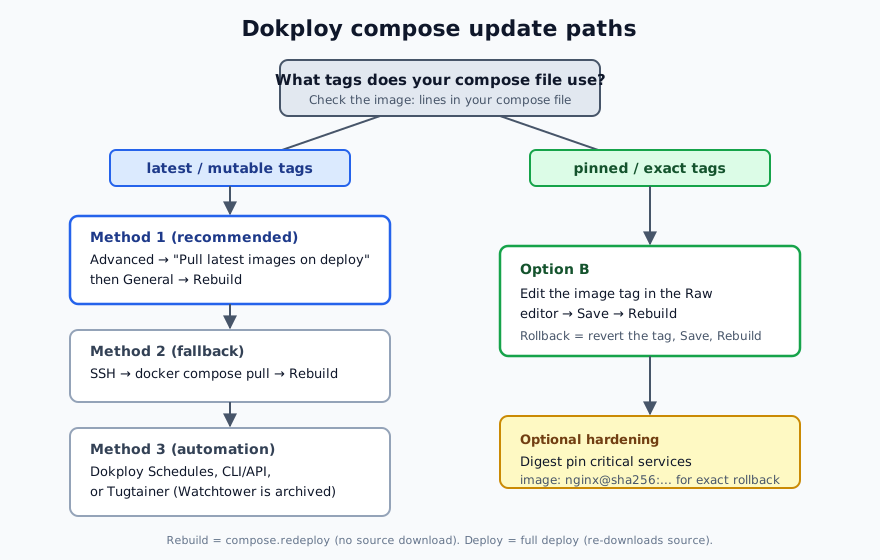
Method 1: Pull latest images on deploy (native, recommended)
Dokploy added a first-class pull option in PR #5410 (merged 2026-09-09, shipped in the v0.30.x series). You enable it once per compose project and every deploy fetches the newest image for each tag.
Step 1: Enable the toggle
- Open your compose project in the Dokploy UI
- Go to the Advanced tab
- Find the Run Command card
- Flip Pull latest images on deploy on
The UI text is worth quoting because it contains the main caveat:
Adds
--pull alwaysto the default command so every deploy fetches the newest image for each tag. Has no effect when a custom command is set.
Step 2: Rebuild (or Deploy)
Go back to the General tab and click Rebuild. That is the button this article used to call Reload.
| Button | What it does | Use it when |
|---|---|---|
| Deploy | Full deployment. Re-downloads the source (git clone or raw write) and runs the compose command | The git repo or raw source changed |
| Rebuild | Calls compose.redeploy. Skips the source download and re-runs the compose command |
Only images need updating (this is the one you want) |
Step 3: What runs
With the toggle on, the effective command looks like this:
docker compose -p <appName> -f <compose-file> up -d --build --remove-orphans --pull alwaysDocker Compose pulls every image first (because of --pull always), then recreates only the services whose image or config changed. Services you did not touch stay up.
Verify it worked:
- The v0.30 Docker dashboard (left sidebar, Docker) has an Events tab that streams pull and start events in real time. Open it while you hit Rebuild and you should see
pullevents for each updated service - Or check the service Logs in Dokploy and look for the new version string at startup
- Or over SSH:
cd /etc/dokploy/compose/myapp-a1b2c3/code && docker compose images
If nothing changed, the tag probably never moved upstream, or the toggle is being ignored (next point).
Custom command? The toggle is ignored
If you set a custom Run Command for the project, “Pull latest images on deploy” has no effect. The toggle only modifies the default command. Either remove the custom command and use the default, or add --pull always to your own command yourself.
Also note that the default command includes --build. If any service in your compose file has a build: section, every Rebuild rebuilds that image from source. That is behavior, not a bug, but it can surprise you on slower VPSs.
Rollback note: with latest tags there is no previous tag to revert to. Before a risky major upgrade of a critical service, either digest-pin it (image: nginx@sha256:...) or switch it to a pinned version (Option B) so you have something to roll back to.
Method 2: SSH and docker compose pull (fallback)
Sometimes you want a one-off pull, or you run a custom command and the toggle is not available to you. Then do it by hand.
Step 1: SSH into your server
ssh user@your-vps-ipStep 2: Find the compose project directory
cd /etc/dokploy/compose/myapp-a1b2c3/codeStep 3: Pull and recreate
docker compose -p myapp-a1b2c3 pull
docker compose -p myapp-a1b2c3 up -d --remove-orphans
Or just hit Rebuild in the Dokploy UI after the pull; it runs the same recreate against the images now sitting in the local Docker cache.
Match the project name with -p
Dokploy generates a COMPOSE_PROJECT_NAME in the project’s .env file. Passing -p myapp-a1b2c3 keeps your manual commands pointed at the same project Dokploy manages. Running plain docker compose pull from inside the code directory also works, because compose derives the project name from the folder and .env.
Why is the explicit pull needed at all? docker compose up -d only pulls images that are missing locally. Everything already cached stays cached. That is the whole reason Method 1 exists: --pull always forces the pull that up -d skips.
Verify it worked:
docker compose -p myapp-a1b2c3 images
docker compose -p myapp-a1b2c3 ps
The image IDs should differ from before the pull, and ps should show the containers healthy. The service Logs in the Dokploy UI should print the new version string at startup.
Private registry images? Manual pulls may 401
Dokploy injects registry credentials at deploy time through a temporary Docker config, so a bare SSH shell may not have the same auth context. If docker compose pull fails with 401 unauthorized on a private image, either enable the Method 1 toggle and let Dokploy pull, or run docker login on the host first. This behavior is inferred from Dokploy’s deploy source rather than live-tested, so verify it on your setup before relying on it.
Method 3: Automate Docker Compose updates
Manual updates do not scale past a handful of stacks. Before picking an auto-updater, one reality check:
Watchtower is archived
containrrr/watchtower is archived and the README says “This project is no longer maintained” (24.6k stars, last push Dec 2025). Do not start new deployments on it. If you only need update notifications, Diun is active and does exactly that. For actual auto-updates, use one of the options below.
There are three sane automation paths inside or alongside Dokploy, and the right one depends on where you want the trigger to run. If you want broader container management beyond updates, compare Arcane and Dockhand.
Dokploy Schedules (server job)
Dokploy has a built-in cron system: Schedules. Create a Server Job (runs bash directly on the host) with a schedule like 0 4 * * *:
#!/bin/bash
cd /etc/dokploy/compose/myapp-a1b2c3/code
docker compose pull && docker compose up -d --remove-orphans
docker image prune -af
That updates the stack nightly at 04:00 and reclaims the old images in the same run. Zero extra tools, and the job lives in the same panel as everything else.
Server Job vs Compose Job
Schedules offers several job types. Server Jobs run on the host and can do pulls and updates. Compose Jobs run inside a service container via docker exec - that is the wrong tool for image pulls. Pick Server Job for anything that touches docker compose or docker image.
Dokploy CLI / API
Dokploy v0.29.0 (2026-04-17) shipped a CLI auto-generated from the OpenAPI spec, with 449 commands (npm package @dokploy/cli). It is the clean way to script updates without SSH keys on the VPS.
npm install -g @dokploy/cli

# auth once, or use DOKPLOY_URL / DOKPLOY_API_KEY env vars
dokploy auth -u https://panel.example.com -t YOUR_API_KEY

# trigger an update from anywhere
dokploy compose redeploy --composeId abc123
The compose API also exposes compose.deploy, compose.stop, and compose.start, so a cron job on your laptop or in CI can drive the whole lifecycle. Pair dokploy compose redeploy with the pull-latest toggle from Method 1, otherwise redeploy will not fetch new images.
API keys live in the Dokploy UI (Settings, API). Treat them like root credentials: full panel access, so keep them in a secrets manager or env file and rotate on leak. If you want to go further and have an AI assistant deploy Docker apps for you, the CLI is the surface to script against.
Tugtainer (cross-host, notifications, Swarm)
Tugtainer is the self-hosted Watchtower alternative I recommend: a web UI that watches containers and runs the updates. As of v1.44.1 (2026-10-05) it goes well beyond simple image bumps.
What Tugtainer gives you:
- Web interface - Manage updates from a browser instead of SSH sessions
- Scheduled checks - Polls registries for new images on your cadence
- Smart ordering - Updates containers in dependency order
- Notifications - Discord, Telegram, Slack, or email when updates land or fail
- Multi-server - One interface across multiple hosts
- Healthcheck monitoring - Auto-restarts and alerts when a container goes unhealthy
- Image pruning - Automatic or manual cleanup of old images
- Docker Swarm support - Auto-detects managers and does rolling updates (README-sourced; test before trusting it in a real swarm)
- Per-container control - Check-only mode or full auto-update, plus hooks and custom labels
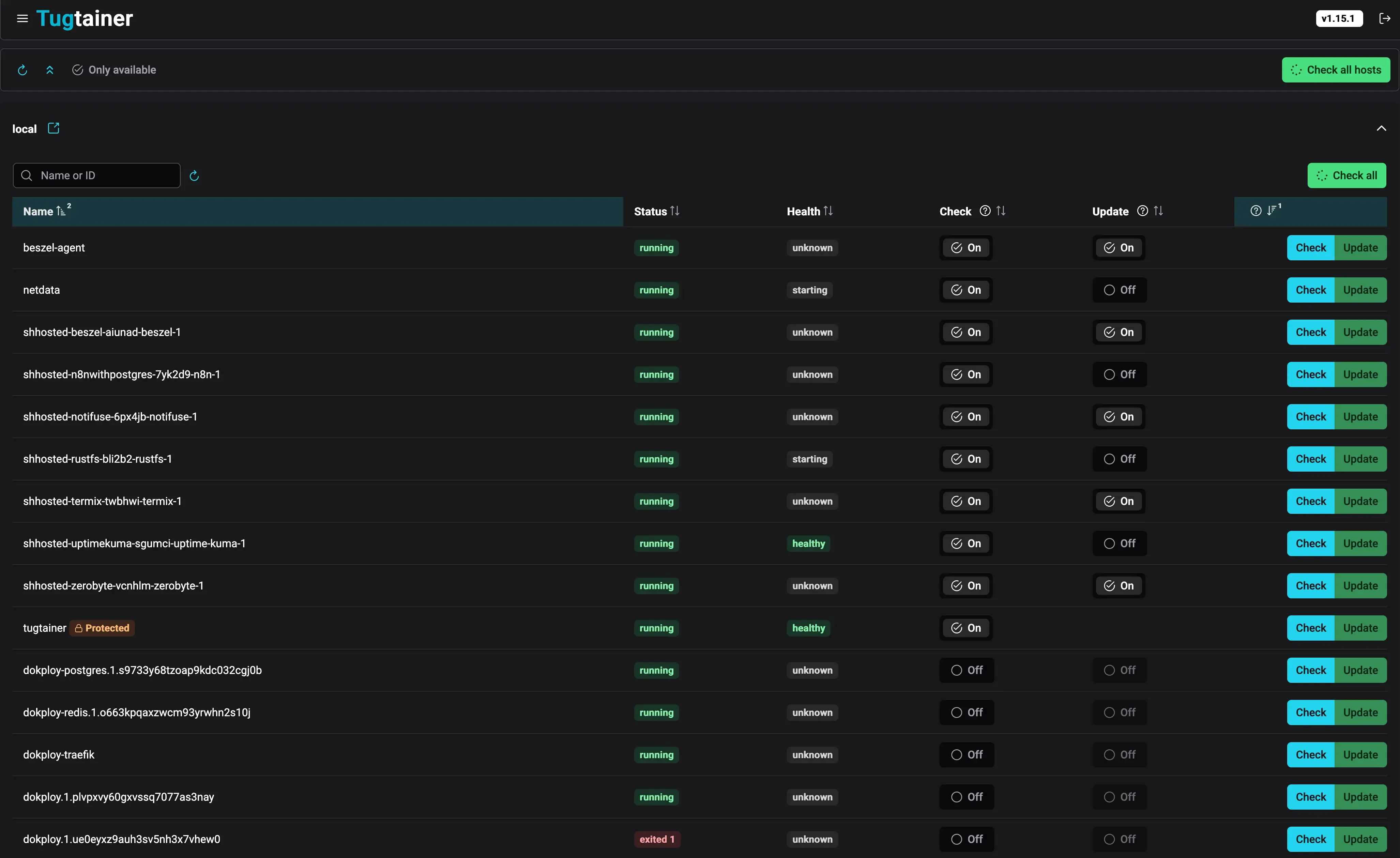
Set it up once and it handles the rest. It beats SSH-ing in every time an update drops.
Compared with the native toggle: the toggle is free and per-stack, and it only pulls at deploy time. Tugtainer is fleet-wide, runs on a schedule, and tells you what it did. Use the toggle for a handful of stacks; use Tugtainer when you want a control panel for updates across hosts.
Tugtainer setup guideOption B: Updating stacks with pinned versions
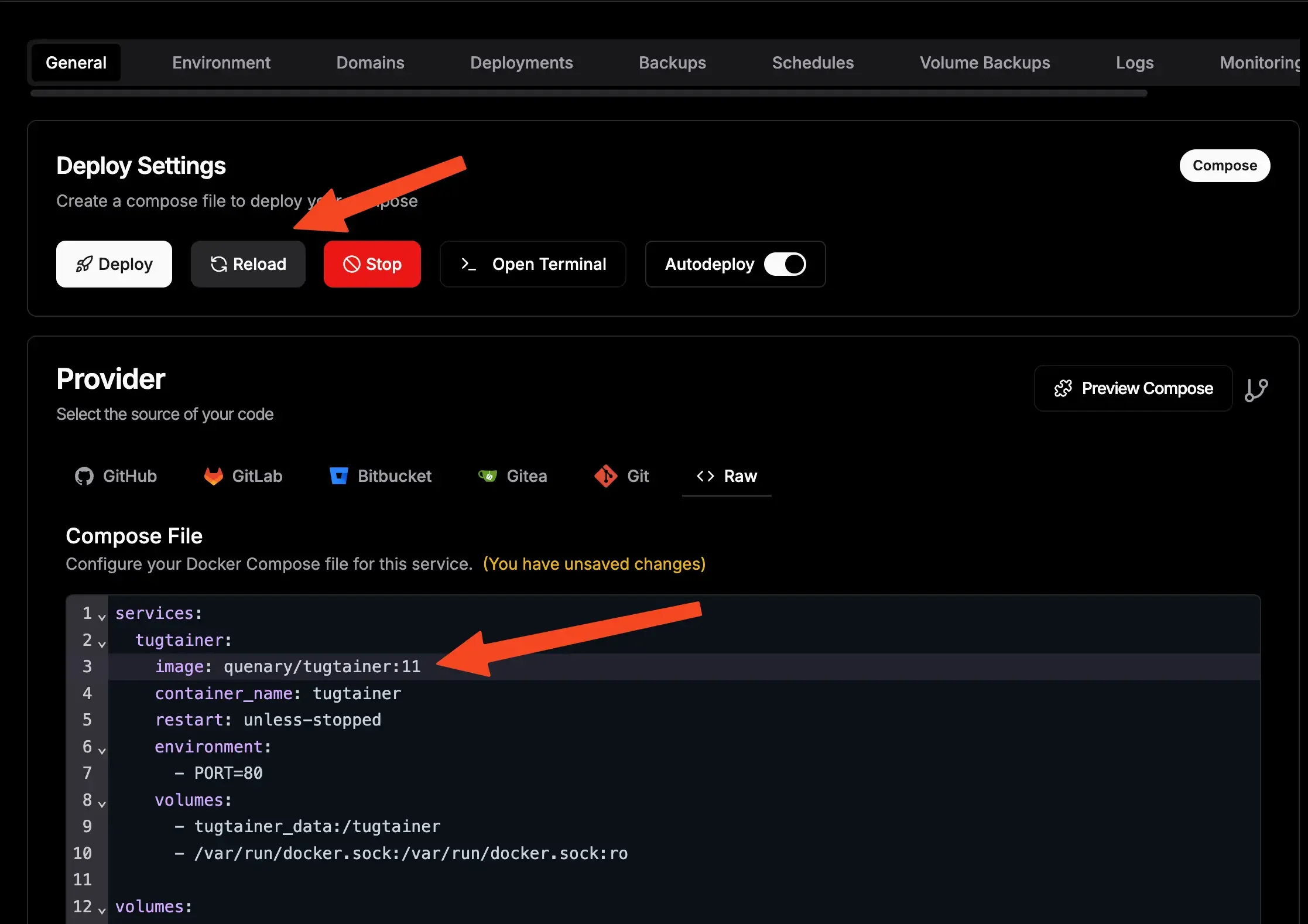
If you pin exact versions (image: postgres:16-alpine instead of latest), the workflow is different. There is nothing newer to pull until you change the tag yourself. That is the point.
Step 1: Edit the image tag in Dokploy
- Open the project in the Dokploy UI
- Click the General tab
- Find the Raw section with the compose file
- Change the version tag
For example, change:
image: flowiseai/flowise:1.0.0to:
image: flowiseai/flowise:1.1.0Step 2: Save, then Step 3: Rebuild (or Deploy). Dokploy pulls the new tag and recreates the container.
Verify it worked: the service Logs should print the new version at startup, and docker compose images over SSH should show the new tag’s image ID. The Raw editor should display the version you just saved.
Rollback: revert the tag in the Raw editor, Save, Rebuild. Keep the previous tag one line away - a git commit, or just a comment line above the image. For tighter control, digest-pin instead of tag-pin:
image: nginx@sha256:3f1b2c4d5e6f7a8b9c0d1e2f3a4b5c6d7e8f9a0b1c2d3e4f5a6b7c8d9e0f1a2bA digest never moves under you, so “roll back” means pointing at the previous digest you saved.
Why pin versions?
Pinned versions decide exactly what runs in production. You choose when to upgrade and you know what changed between deploys. latest tags can surprise you with breaking changes on a random Tuesday. For anything with data, I default to pinned tags and reserve latest for throwaway services. Digest pinning goes one step further: the tag cannot be mutated upstream behind your back.
The pull-latest toggle is irrelevant for immutable pinned tags (there is nothing newer to pull) but harmless if you leave it on. The --build part of the default command still applies: compose files with build: sections get rebuilt on every Rebuild either way.
Absolute bind paths get cleaned on deploy
Named volumes and relative binds like ../files survive container recreates. Absolute host bind paths are a different story: per the official Dokploy docs, they get cleaned during deployments. If you bind-mount something like /var/lib/mydata, verify the path still holds your data after a Rebuild before you trust the workflow. This is exactly why backups come first.
After the update: verify and clean up
An update is not done when the Rebuild button finishes. Two things left: confirm the new version is serving, and get rid of the old images.
Verify checklist:
- The image ID changed (
docker compose imagesor the Docker dashboard) - The Docker dashboard Events stream shows the pull for each updated service
- Containers are healthy (
docker compose ps, or the service status in Dokploy) - The app itself serves the new version - hit a version endpoint or the UI and check
Then clean up. Every update leaves dangling old images behind, and on a small VPS that fills the disk within months. A 40 GB disk with weekly updates and no pruning is a time bomb, not a plan.
Disk fills silently on small VPSs
Docker will happily eat a disk with orphaned images and build cache. You will not get a warning until writes start failing. Prune on a schedule or enable the built-in cleanup.
Docker Cleanup setting
The zero-effort option. In Settings / Server, enable Docker Cleanup. Dokploy then removes unused images automatically on its own schedule. Best when you want it handled and do not want to think about pruning.
Docker dashboard
v0.30.0 added a Docker dashboard at /dashboard/docker with three tabs: Images (size and age per image, spots what is prunable), Disk Usage (reclaimable space broken down by images, volumes, and build cache), and Events (live pull/start/stop stream - handy for verifying the update landed). Use this when you want to see what is eating the disk before deleting anything.
Manual prune
For cron or a Dokploy Schedules Server Job:
docker image prune -afThat removes all dangling and unused images. If you need to go deeper (volumes, build cache), see how to reclaim disk space from old Docker images before running anything irreversible. docker image prune -af does not touch volumes, but docker system prune -a --volumes absolutely does.
Updates also change what your server is running, which is exactly when you want monitoring. Monitor your Dokploy server with Beszel and Uptime Kuma so a bad update wakes you up instead of your users.
Best practices for updating stacks
Test before production
Never push updates straight to production without checking them first:
- Use a staging environment - Mirror your production setup somewhere safe
- Read the changelogs - Know what you are getting into, especially for major versions
- Verify compatibility - Make sure your config and env vars still work with the new image
When to update
- Security patches - Apply as soon as you have tested them. Do not sit on CVEs
- Feature updates - Schedule them in your maintenance window
- Major versions - Plan these carefully. Read the migration notes, take a backup, and have the rollback tag ready before you start
Rolling back
When an update breaks something:
- Revert the change - For pinned versions, put the previous tag or digest back in the Raw editor. For
lateststacks, re-pull the old image by digest if you saved one, or restore from backup - Click Rebuild in Dokploy to recreate the containers on the old image
- Check the Logs to see what went wrong before you try again
One caveat: Dokploy’s one-click Rollback feature is for applications only. There is no compose.rollback endpoint. Compose rollbacks are manual, which is another reason pinned tags (or digests) beat latest for anything you care about. If the update corrupted data rather than just the container, restore from the Dokploy backups with Cloudflare R2 you took beforehand.
Keep Dokploy itself updated
Your update tooling is only as safe as the panel running it. v0.29.13 and v0.29.14 backported dozens of security fixes (command injection, IDOR), and v0.30.0 fixed a compose serviceName injection and moved Traefik from v3.6.7 to v3.6.25. Update the panel on the same cadence as your stacks.
Isolated Deployments is deprecated
v0.30.0 deprecated the Isolated Deployments setting (still present in compose advanced settings). The replacement is per-service network attach: services join dokploy-network by default and you attach or detach networks per service, applied on the next deploy. If you enabled isolation from the open-source templates, it still works today, but plan the migration.
Frequently asked questions
Does Rebuild pull new images without the toggle?
No. Rebuild runs up -d --build --remove-orphans against whatever images are already in the local Docker cache, and up -d does not re-pull tags it already has. Without the “Pull latest images on deploy” toggle (or a manual docker compose pull first), you will keep running the old image. That is the whole reason the toggle exists.
What's the difference between Deploy and Rebuild in Dokploy?
Deploy is a full deployment: it re-downloads the source (git clone or raw file write) and then runs the compose command. Rebuild calls compose.redeploy and skips the source download, re-running only the compose command. For image-only updates, Rebuild is faster and sufficient. For source changes, use Deploy.
Can I auto-update Docker Compose services in Dokploy?
Yes. Three options: Dokploy Schedules with a Server Job running a pull-and-up script on a cron; the Dokploy CLI (dokploy compose redeploy) from a cron on your laptop or CI; or Tugtainer for fleet-wide updates with notifications and a web UI. The pull-latest toggle alone only pulls at deploy time - it is not a scheduler.
Is Watchtower still maintained in 2026?
No. containrrr/watchtower is archived and its README states the project is no longer maintained. Do not deploy it for new setups. Tugtainer is the closest self-hosted replacement for auto-updates; Diun is the active option if you only need notifications when new images appear.
How do I roll back a Docker Compose stack in Dokploy?
Revert the image tag or digest in the Raw editor and hit Rebuild. There is no one-click rollback for compose projects - that feature is application-only. Keep the previous tag in git or a comment, and take volume backups before risky updates in case data is affected, not just the container.
Final thoughts
Updating Docker Compose stacks in Dokploy in 2026 comes down to one decision per stack:
latesttags: flip on “Pull latest images on deploy” once and Rebuild when you want fresh images. That is the whole workflow- SSH +
docker compose pull: keep it in your back pocket for one-offs and custom commands - Automation: Dokploy Schedules for a single host with no extra tools, the Dokploy CLI for cron from a laptop or CI, Tugtainer when you want notifications and multi-host control. Never Watchtower
- Pinned versions: when stability matters, edit the tag (or digest) yourself and roll back by reverting one line
Dokploy shipped a lot in 2026: the pull toggle, the CLI, and the Docker dashboard all landed in the v0.29/v0.30 line. This article is current as of 2026-10-24 against Dokploy v0.30.10. Keep backups in front of every update, prune the images you are no longer using, and watch the server after a deploy. If you are still choosing a panel, see how Dokploy compares in our best self-hosted server panels guide, or compare Coolify, Dokploy, and Kamal if the shortlist is still open.
Related guides
Dokploy installation Deploy Docker Compose apps Configure backups Tugtainer auto-updaterRelated Posts
Did this guide work for you?

Written by Dragos
Dragos is the author of Bitdoze — practical DevOps, programming, and self-hosting guides.
More guides from Dragos →Need help with Astro, VPS, or a self-hosted app? View services →