
My AI Assistant Deploys Docker Apps With a Single Message
Teach your AI assistant to deploy Docker apps on your VPS with a docker-deploy skill: Docker Compose, Caddy HTTPS, and guardrails from one chat message.
Updated Published 19 min read
Disclosure: this guide contains referral links. If you buy through them, I may earn a commission at no extra cost to you.
I got tired of SSH-ing into my VPS every time I wanted to try a new Docker app. Install this, write a compose file, add the Caddy config, restart, check if it works. The same steps every single time.
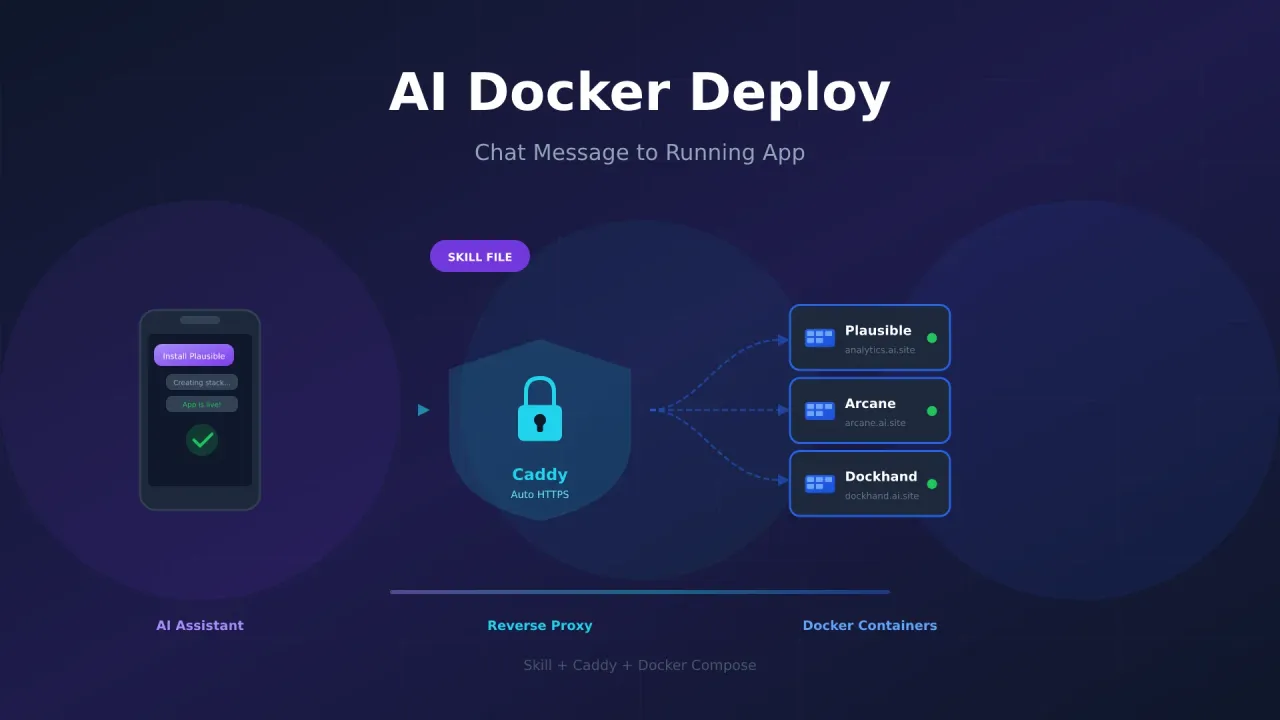
So I built a docker-deploy skill that lets my AI assistant deploy Docker apps on my VPS from one message. I open Telegram (or Discord, or Slack), type something like “install Plausible Analytics on my server,” and the assistant creates the folder, writes the compose file, updates Caddy for HTTPS, starts everything, and checks if the app responds. I don’t touch the terminal at all.
This article walks through the setup that makes this work and gives you the skill file you can drop into your own AI assistant. It covers the VPS, Docker, Caddy, wildcard DNS, the directory convention, the skill itself, and the guardrails that keep a chat-operated agent from wrecking the server.
What you need before starting
This setup has five pieces that need to be in place before the skill does anything useful:
- A VPS (I use a Hetzner CX23 at €5.49/month plus €0.50 for the IPv4 address, prices as of October 2026)
- Docker and Docker Compose installed on the VPS
- Caddy running as a Docker container for reverse proxy and automatic HTTPS
- A wildcard DNS record pointing
*.yourdomain.comto your server IP - A directory structure for your Docker stacks (like
/home/user/docker-apps)
VPS prices jumped across the board in 2026. If you’re rethinking a rented box, see what changed and when a mini PC wins. All-in, the box this guide assumes costs about €6/month with the IPv4 surcharge.
If you already have all five, skip ahead to the skill file. If not, I’ll cover each one.
Hetzner VPS Hostinger VPS DigitalOcean $100 Free Vultr $100 FreeThe VPS
Any Linux VPS works. I’ve been using Hetzner for years because it’s cheap and the network is solid. The old CX22 is gone. The current cost-optimized line is the Hetzner CX23 (2 vCPU, 4GB RAM) at €5.49/month plus €0.50/month for the IPv4 address, or the CAX11 (ARM, 2 vCPU, 4GB) at €5.99 plus the same IPv4 fee. Those numbers are from October 2026; the current Hetzner CX23 and CAX11 pricing has the tables as Hetzner publishes them.
Prices and availability move fast
Hetzner raised cloud prices twice in 2026 (April and June), with the cost-optimized line going up roughly 80% on the popular plans. Servers ordered before June 15, 2026 kept the old prices. Availability is the other problem: on checks through September and October 2026 the CX and CAX plans were often unorderable. Date-stamp whatever you see on the order page and don’t trust older posts (including this one) for current pricing.
A CX23-class box handles Caddy plus a dozen Docker apps without issues. Ubuntu 24.04 is my go-to OS. If you want the wider market view before you buy, the DigitalOcean vs Vultr vs Hetzner comparison covers the alternatives.
If you’re new to VPS hosting, the Hetzner cloud review covers what you get and how to set one up. Or use a mini PC as home server if you’d rather keep everything local.
Install Docker
If Docker isn’t on your server yet:
curl -fsSL https://get.docker.com -o get-docker.sh
sh get-docker.sh
Full walkthrough: Install Docker & Docker-compose for Ubuntu.
Commands in this guide work with Docker Engine 29.x and Docker Compose v5.x (checked October 2026). Before moving on:
docker compose version   # prints a v5.x version
sudo docker ps           # lists running containers, empty list is fine
If docker compose version errors out, the install didn’t finish. If sudo docker ps complains about the daemon, run sudo systemctl enable --now docker.
Set up Caddy as your reverse proxy
Caddy handles HTTPS automatically. No certbot, no renewal crons, no nginx config files. It gets certificates from Let’s Encrypt on its own and renews them before they expire.
I run Caddy as a Docker container inside the same directory structure where all my apps live. The caddy:2-alpine tag is still the right one (the 2.11.x line; 2.11.7 was current as of October 2026). Nothing in the config below changed across those releases.
Create the directory structure
mkdir -p /home/$USER/docker-apps/caddy
cd /home/$USER/docker-apps/caddy
Docker Compose for Caddy
Create a docker-compose.yml in the caddy directory:
services:
  caddy:
    image: caddy:2-alpine
    container_name: caddy
    restart: unless-stopped
    ports:
      - "80:80"
      - "443:443"
      - "443:443/udp"
    volumes:
      - ./Caddyfile:/etc/caddy/Caddyfile
      - ./data:/data
      - ./config:/config
    networks:
      - caddy

networks:
  caddy:
    external: true
Create the Docker network
All your apps will connect to this shared network so Caddy can reach them:
sudo docker network create caddyCreate the Caddyfile
Create a Caddyfile in the same folder. Start with a placeholder:
# Apps will be added here by the AI assistant or manuallyStart Caddy
cd /home/$USER/docker-apps/caddy
sudo docker compose up -d
Verify before you touch DNS:
sudo docker compose ps           # caddy should show running
sudo docker logs caddy --tail 20
If the container restarts in a loop, the Caddyfile is the usual suspect. Fix the file and run sudo docker compose up -d again. Any app you add later just needs an entry in this Caddyfile and a connection to the caddy network.
Validate before every reload
Run sudo docker exec caddy caddy validate --config /etc/caddy/Caddyfile before reloading Caddy. A syntax error in that file takes down every site you host, not just the new app. This rule also lives in the skill file below.
Set up wildcard DNS
You need a DNS record that sends all subdomains to your server. In your domain registrar or DNS provider (Cloudflare, etc.), add an A record:
| Type | Name | Value | TTL |
|---|---|---|---|
| A | * |
YOUR_SERVER_IP |
Auto |
If your domain is example.com, this means anything.example.com will resolve to your VPS. Caddy then handles routing each subdomain to the right container.
Check it before you rely on it:
dig +short anything.yourdomain.com
# must print your VPS IP
If certificate issuance fails later, this record is the first thing to check. DNS that has not propagated is the most common reason Let’s Encrypt gives up on a new subdomain.
Cloudflare users
If you use Cloudflare, you can proxy the wildcard record (orange cloud) but you’ll need to configure Caddy to work with Cloudflare’s SSL mode. The simplest setup is to use “DNS only” (grey cloud) and let Caddy handle certificates directly.
The directory convention
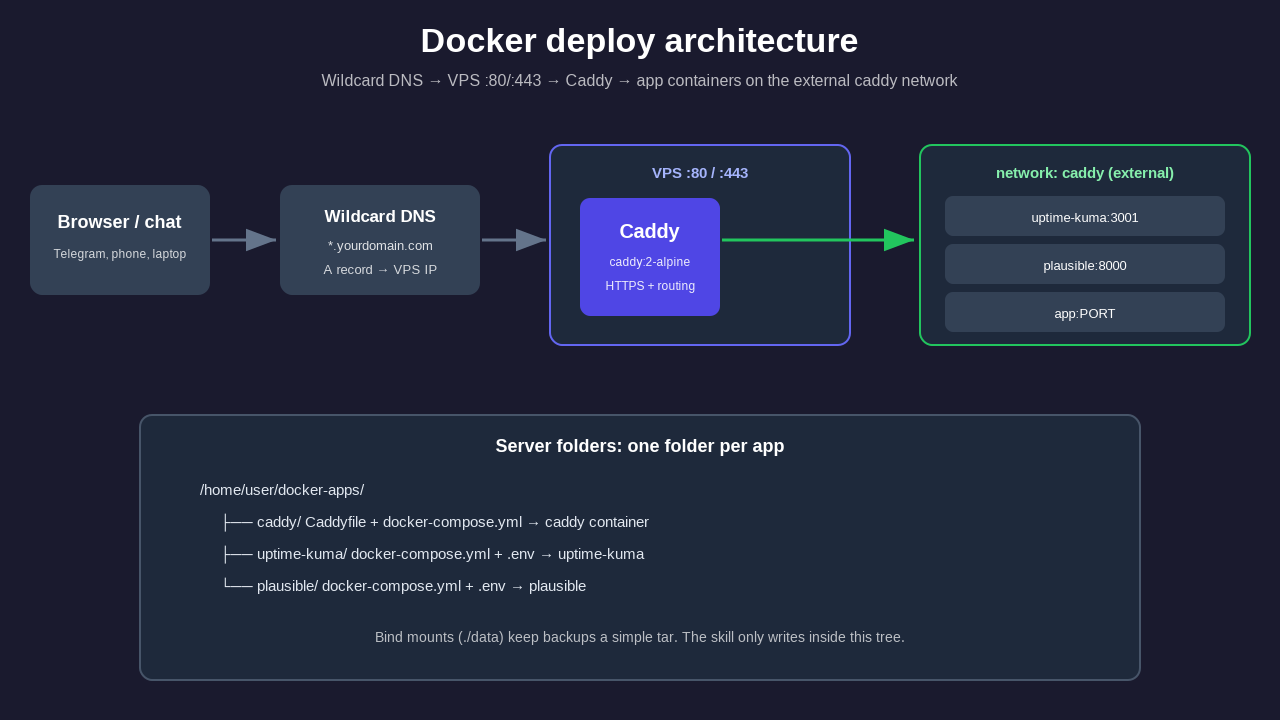
Every app gets its own folder under /home/$USER/docker-apps/. The structure looks like this after a few apps:
/home/user/docker-apps/
  caddy/
    docker-compose.yml
    Caddyfile
    data/
    config/
  plausible/
    docker-compose.yml
    .env
  arcane/
    docker-compose.yml
    .env
  dockhand/
    docker-compose.yml
    .env
This keeps everything predictable. The AI assistant knows where to put files, and you know where to find them when you need to look at something manually. That predictability is what lets the skill file stay short and strict: one path to know, one network to join, one place for secrets.
What the AI assistant does with all this
With the infrastructure in place, you can tell your AI assistant to deploy apps. I’ve installed Arcane and Dockhand this way. For context on those, I wrote a comparison of the two.
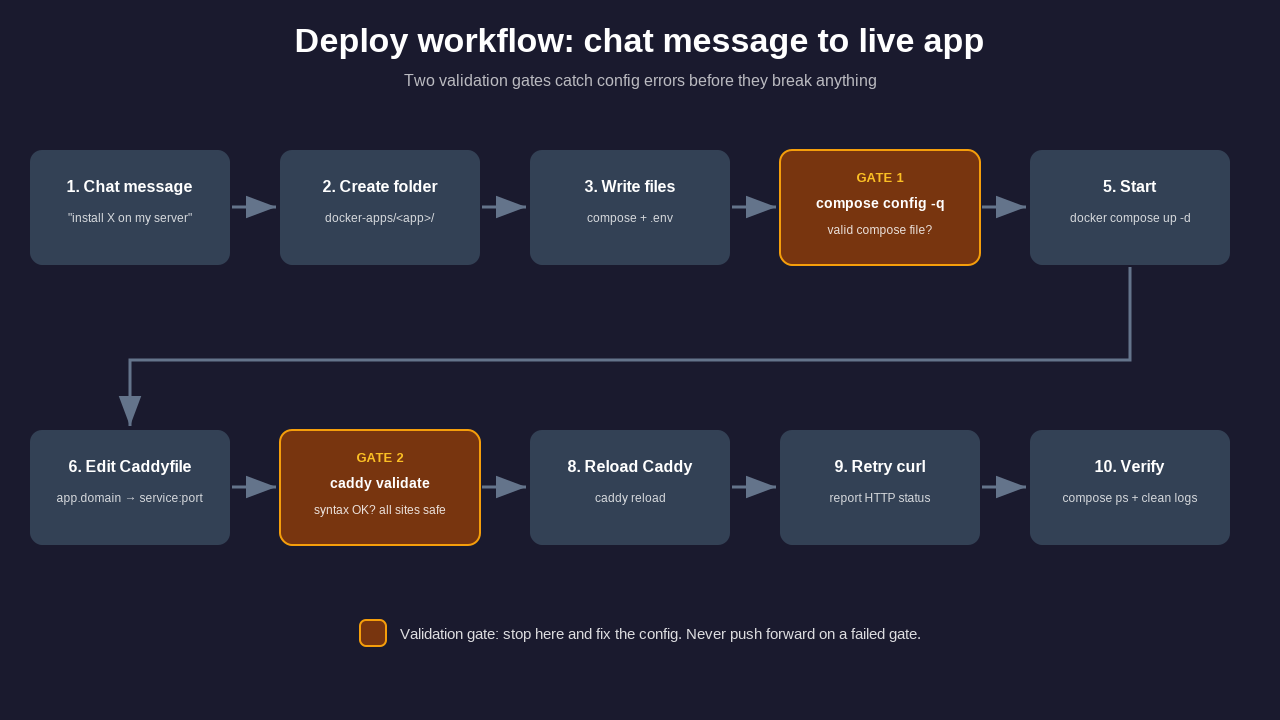
The assistant follows the same workflow every time:
- Creates a new folder under
/home/user/docker-apps/app-name/ - Writes a
docker-compose.ymlwith local./volume paths (no named volumes) - Puts passwords and API keys in a
.envfile, not hardcoded in the compose file - Validates the compose file with
docker compose config -qbefore starting anything - Starts the containers with
sudo docker compose up -d - Updates the Caddyfile in
/home/user/docker-apps/caddy/with a new subdomain block - Validates the Caddyfile with
caddy validatebefore reloading Caddy - Reloads Caddy to pick up the new config
- Runs a retrying curl against the subdomain and reports the HTTP status
- Confirms the stack with
docker compose psinstead of trusting the exit code ofup -d
It works because there’s a skill file that tells the assistant exactly how this server is set up and what rules to follow. Without the skill, the assistant would guess at paths, might use named volumes, might skip the reverse proxy, or put secrets directly in the compose file.
The skill file
This is the file that teaches your AI assistant how your server works. You need to change two things in it before using it:
- Replace
/home/dragos/docker-appswith your actual path. - Replace
*.ai.bitdoze.comwith your wildcard domain.
Change the path and domain
The skill below uses my setup as an example. You need to replace /home/dragos/docker-apps with your own path (like /home/youruser/docker-apps) and *.ai.bitdoze.com with your actual wildcard domain.
This SKILL.md format is not a Claude Code quirk anymore. Anthropic published it as an open spec, and the same file now works across assistants. The skill file itself:
Skill file
---
name: docker-deploy
description: >-
  Use this skill when deploying or modifying Dockerized apps on this server.
  It enforces server-specific constraints: Docker is installed with Caddy,
  commands that change system/runtime state should be run with sudo, app
  stacks live in /home/dragos/docker-apps, Caddy lives in
  /home/dragos/docker-apps/caddy, wildcard DNS *.ai.bitdoze.com points to this
  server for subdomain routing, and Docker Compose files should use local ./
  paths instead of named volumes.
---

# Docker + Caddy Server Rules

Apply these rules for all deployment, operations, and setup tasks on this server.

## Environment facts
- Docker is installed and available.
- Caddy is installed and managed from `/home/dragos/docker-apps/caddy`.
- Docker app projects must be placed under `/home/dragos/docker-apps`.
- Wildcard DNS `*.ai.bitdoze.com` points to this server and should be used for app subdomains.

## Permission model
- Use `sudo` for commands that manage Docker runtime/services, networking, filesystem locations requiring elevation, or system-level setup.
- Prefer explicit commands that can be audited and repeated.

## Compose placement and style
- Prefer Docker Compose-based deployments.
- Place each app in its own folder under `/home/dragos/docker-apps/<app-name>`.
- Keep compose and related app files together in the app folder.
- Do not use named volumes for app data/config in compose files.
- Use local relative paths (`./...`) in the location where the compose file is created.
- Pin image tags. Never deploy `latest` unless asked.

## Caddy integration
- Route apps through Caddy using subdomains under `*.ai.bitdoze.com`.
- Keep Caddy config changes under `/home/dragos/docker-apps/caddy`.
- When adding a new app, include the target hostname and upstream container/service mapping.

## Expected workflow
1. Create app directory in `/home/dragos/docker-apps/<app-name>`.
2. Add `docker-compose.yml` with services and `./...` path mappings.
3. Place sensitive data into a `.env` file, not in compose directly (passwords, hashes, API keys).
4. Run `docker compose config -q` in the app folder and fix any errors before `up -d`.
5. Run required Docker/Caddy commands with `sudo`.
6. Add/update Caddy config in `/home/dragos/docker-apps/caddy` for `<app>.ai.bitdoze.com`.
7. Run `sudo docker exec caddy caddy validate --config /etc/caddy/Caddyfile` before any reload. If validation fails, fix the Caddyfile before continuing.
8. Reload Caddy, then validate service health and public routing.
9. Run a retrying curl against the subdomain (up to 10 tries, 5 seconds apart) and report the HTTP status, not just the exit code.
10. Confirm the stack with `docker compose ps` before reporting success.

## Validation
- Run `docker compose config -q` in the app folder before `up -d`.
- Run `sudo docker exec caddy caddy validate --config /etc/caddy/Caddyfile` before any Caddy reload.
- Verify with a retrying curl against the subdomain; report HTTP status, not just exit code.
- Pin image tags; never deploy `latest` unless asked.

## Safety rules
- Never modify files outside `/home/dragos/docker-apps`.
- Never run `curl | bash` from non-official URLs; no firewall, SSH, or systemd changes.
- Ask before touching the `caddy` stack itself; a broken Caddyfile takes down every site.

## Guardrails
- Reject plans that place apps outside `/home/dragos/docker-apps`.
- Reject plans that use named Docker volumes for persistent files.
- Reject plans that bypass Caddy when public HTTP(S) access is required.
- Place sensitive data into `.env` file not in compose directly like passwords and hashes.
What to change
Replace these values with your own:
| Placeholder | Your value |
|---|---|
/home/dragos/docker-apps |
Your apps directory path |
*.ai.bitdoze.com |
Your wildcard domain |
dragos |
Your username |
For example, if your user is john and your domain is apps.johndoe.com:
/home/dragos/docker-appsbecomes/home/john/docker-apps*.ai.bitdoze.combecomes*.apps.johndoe.com
Where to put the skill file
The location depends on which AI assistant you use. Get this wrong and the assistant simply never sees the skill:
| Assistant | Path | Notes |
|---|---|---|
| OpenClaw | ~/.openclaw/workspace/skills/docker-deploy/SKILL.md |
Discovered anywhere under the workspace (up to 6 levels deep); managed installs land in ~/.openclaw/skills. Or install from ClawHub with openclaw skills install @owner/docker-deploy. |
| Claude Code | ~/.claude/skills/docker-deploy/SKILL.md (personal) or .claude/skills/docker-deploy/SKILL.md (project) |
Not .agents/skills/ (that’s an OpenCode convention). Invoke it explicitly with /docker-deploy. |
| OpenCode | .opencode/skills/docker-deploy/SKILL.md |
Also discovers .agents/skills/ and .claude/skills/. I use the OpenCode coding agent for this route. |
| Custom Agno bot | workspace/skills/docker-deploy/SKILL.md |
Unchanged. See the Agno bot guide. |
Two Claude Code details worth knowing. Commands and skills are the same thing now: .claude/commands/deploy.md and .claude/skills/deploy/SKILL.md both create a /deploy command. And if you don’t want the deploy skill auto-triggered whenever the model thinks it is relevant, add disable-model-invocation: true to the frontmatter. Then it only runs when you type /docker-deploy. For a deploy skill that runs sudo, that’s the setting I’d use.
The OpenClaw setup guide covers the chat-bot route end to end.
Skills are now an ecosystem
The SKILL.md format is an open standard (the spec lives at agentskills.io), not one vendor’s file format. Distribution channels followed. ClawHub is the public registry for OpenClaw skills: openclaw skills install @owner/<slug>, plus git: and local-dir installs. skills.sh distributes the same files across tools with npx skills.
Once you generalize the path and domain placeholders, this docker-deploy skill is publishable to any of them. Until then, keep it local. It describes your server, not a generic one.
How the skill works in practice
Once the skill file is in place, the assistant reads it whenever you ask about deploying something. Here’s what a real conversation looks like:
Me: “Install Uptime Kuma on my server”
The assistant then:
# 1. Creates the directory
sudo mkdir -p /home/dragos/docker-apps/uptime-kuma

# 2. Writes the .env file (passwords go here, not in compose)
# Creates /home/dragos/docker-apps/uptime-kuma/.env

# 3. Writes docker-compose.yml with local paths
# Creates /home/dragos/docker-apps/uptime-kuma/docker-compose.yml

# 4. Validates the compose file before starting anything
cd /home/dragos/docker-apps/uptime-kuma
sudo docker compose config -q
The compose file looks something like:
services:
  uptime-kuma:
    image: louislam/uptime-kuma:2
    container_name: uptime-kuma
    restart: unless-stopped
    volumes:
      - ./data:/app/data
    networks:
      - caddy

networks:
  caddy:
    external: true
Notice ./data instead of a named volume. That’s what the skill enforces. The :2 tag matters too: Uptime Kuma 2.0.0 went stable in October 2025 and the upstream README recommends :2 now.
Deployed :1 earlier in 2026?
Switching from louislam/uptime-kuma:1 to :2 is a major upgrade. Read the 2.x migration notes before you change the tag, and take a backup of ./data first. If you want to understand the pieces by hand first, the manual Uptime Kuma install walkthrough covers it.
Then it updates the Caddyfile:
uptime-kuma.ai.bitdoze.com {
    reverse_proxy uptime-kuma:3001
}
And starts everything:
cd /home/dragos/docker-apps/uptime-kuma
sudo docker compose up -d

cd /home/dragos/docker-apps/caddy
sudo docker exec caddy caddy validate --config /etc/caddy/Caddyfile
sudo docker compose exec caddy caddy reload --config /etc/caddy/Caddyfile

# first cert issuance takes a few seconds; retry instead of assuming failure
for i in {1..10}; do
  code=$(curl -s -o /dev/null -w "%{http_code}" https://uptime-kuma.ai.bitdoze.com)
  echo "try $i: HTTP $code"
  [ "$code" = "200" ] && break
  sleep 5
done
The whole thing takes maybe 30 seconds. I just watch the messages roll in.
Verify the deployment and fix common failures
A deploy is not done when up -d returns. It is done when the app answers on its subdomain. Check three things:
sudo docker compose psin the app folder shows the service running (and healthy if it has a healthcheck).- The retrying curl returns 200 and you read the status code yourself.
sudo docker logs caddy --tail 20is clean: certificate issued, no upstream errors.
When something fails, it is usually one of these:
| Symptom | Cause | Fix |
|---|---|---|
| Cert issuance fails, Caddy keeps retrying | DNS not propagated | dig +short app.yourdomain.com must return the VPS IP before you deploy |
| Caddy 502 or 504 | Container on the wrong network | The compose file needs networks: caddy: external: true and the service must join the caddy network |
| Port already allocated on start | 80/443 taken by another proxy or host service | ss -tlnp | grep -E ':80|:443' and stop the other listener |
| Every site down after a deploy | Caddyfile syntax error | sudo docker exec caddy caddy validate --config /etc/caddy/Caddyfile before every reload |
429 or “too many certificates” |
Let’s Encrypt rate limit from repeated test deploys | Use the LE staging CA while experimenting, switch back for anything real |
A broken Caddyfile takes down every site
The Caddyfile is shared. One syntax error and every app behind Caddy goes dark, not just the new one. caddy validate before every reload is the rule that prevents this.
Rollback is the reverse of the deploy:
cd /home/$USER/docker-apps/uptime-kuma
sudo docker compose down

cd /home/$USER/docker-apps/caddy
# remove the app block from the Caddyfile, then:
sudo docker exec caddy caddy validate --config /etc/caddy/Caddyfile
sudo docker compose exec caddy caddy reload --config /etc/caddy/Caddyfile

cd /home/$USER/docker-apps
# tar the folder if the data matters, then:
rm -rf uptime-kuma
And remember that Docker published ports bypass UFW if you also run a host firewall. That matters more, not less, when an AI is the one publishing ports.
Why the guardrails matter
Without the skill, AI assistants make reasonable but inconsistent choices. They might:
- Put app data in
/opt/or/var/or wherever they feel like - Use Docker named volumes, which makes backups harder (you have to dig around in
/var/lib/docker/volumes/) - Skip the reverse proxy and expose ports directly
- Hardcode passwords in the compose file where they show up in
docker inspect - Forget to check if the app actually started
The guardrails in the skill prevent all of this. If the assistant tries to create a compose file with a named volume, the skill tells it not to. If it tries to expose a port directly without going through Caddy, the skill says no.
Most of the time the difference is consistency. An assistant without the skill can deploy apps. An assistant with the skill deploys them the way you want, every time.
Security: giving an AI sudo
This is root-equivalent access
Docker access is root access. A chat-operated assistant that can run sudo docker can start privileged containers, mount any host path, and read every secret in every .env on the box. Treat it like handing out root.
Let me say the uncomfortable part plainly. This setup gives an AI assistant passwordless sudo over Docker, and you drive it from Telegram. If someone else can message that bot, they own the server.
If the assistant is OpenClaw, the defaults are not bad. The gateway binds to loopback, unknown DM senders get a pairing code instead of command execution, and group access sits behind an allowlist plus a mention gate. Check your actual config against those defaults:
openclaw security auditThe full OpenClaw security guide covers the DM policy, allowlists, and hardened baselines. Beyond the platform defaults, the skill itself carries the safety rules from the ## Safety rules block above: nothing outside /home/user/docker-apps, no curl | bash from random URLs, no firewall, SSH, or systemd edits, and ask before touching the caddy stack.
If you want heavier isolation than well-written rules for a language model, the real options are:
- Run the agent in a container or sandbox instead of on the host.
- Put a Docker socket proxy (Tecnativa) between the agent and the daemon so it can only touch labeled containers. The Arcane install already uses that pattern.
- Scope the agent to a single app folder instead of the whole
docker-appstree.
Before you let an agent loose on a server you care about:
- Run
openclaw security audit(or your platform’s equivalent) and fix what it flags - Confirm pairing codes and DM allowlists are on, so only you can talk to the bot
- Pin the skill’s safety rules in the skill file, not in a chat message
- Take a backup before the first AI-driven deploy, and keep taking them
This is not the only layer. Host hardening still matters: see how I secured my Docker server after the BSI report, why Docker published ports bypass UFW, and how to secure a VPS with CrowdSec. The skill reduces the blast radius of a normal deploy. It does not make a compromised bot harmless.
Managing deployed apps
After a few deployments, you’ll want to check on things. Some useful commands:
# See all running containers
sudo docker ps

# Check logs for a specific app
sudo docker logs uptime-kuma --tail 50

# Restart an app
cd /home/$USER/docker-apps/uptime-kuma
sudo docker compose restart

# Update an app to latest image
cd /home/$USER/docker-apps/uptime-kuma
sudo docker compose pull
sudo docker compose up -d

# Remove an app completely
cd /home/$USER/docker-apps/uptime-kuma
sudo docker compose down
cd ..
rm -rf uptime-kuma
# Also remove the Caddyfile entry
Backup before destroy
Before any down plus rm -rf, tar the app folder including the .env: tar czpf /root/backups/uptime-kuma-$(date +%F).tar.gz uptime-kuma/. Push it to S3-compatible storage if the data matters. The skill should make the assistant do this automatically. Until it does, do it yourself.
For managing containers through a web UI instead of terminal, check out Arcane or Dockhand. I wrote about which one to choose if you’re deciding between them. If you just want a simple compose file manager, the Dockge compose manager is a lighter option. You can even ask your AI assistant to install either one using this same skill.
If you want automatic container updates, Tugtainer handles that without needing to rebuild compose stacks.
Which AI assistant to use
Any AI assistant that supports skills or system prompts can use this file. Three routes work:
- OpenClaw running on the same VPS, chatting through Telegram. It has direct shell access to the server, so it runs the Docker commands itself. Install with
curl -fsSL https://openclaw.ai/install.sh | bash; releases are date-versioned (v2026.10.x as of October 2026). - A custom Agno bot on Discord with shell tools enabled. Same idea, different chat platform. The guide covers installation, Discord integration, memory, and team agents.
- Claude Code or OpenCode connected over SSH. The coding-agent route. Claude Code reads the skill from
~/.claude/skills/and you invoke it with/docker-deploy; OpenCode discovers it from.opencode/skills/.
The OpenClaw setup is the most hands-off. You message it on Telegram from your phone, and it does everything on the server without you opening a terminal. The setup guide covers installation. If you want the assistant on hardware at home instead of a rented VPS, the best Mac mini for OpenClaw covers the local route.
Extending the skill
The skill file is just markdown. You can add rules as your setup grows. Some things I’ve added to mine over time:
- A backup section that tells the assistant to create a
backup.shscript in each app folder. The concrete rule: beforedownorrm -rf, tar the app folder plus the.env(same rule as in “Managing deployed apps”). - Database defaults (use PostgreSQL over MySQL when the app supports both)
- Resource limits for containers (
deploy.resources.limitsin compose) - A monitoring rule that adds all new apps to my Uptime Kuma instance automatically
If your skill file does not pin image tags yet, add that line. latest is how surprise upgrades happen.
You can also ask the assistant to update the skill itself. “Add a rule that all new apps should include a healthcheck in the compose file” works fine. It reads the skill, adds the rule, and follows it from then on.
The bigger picture
This setup turns a VPS into something you manage through conversation. The server still runs Docker and Caddy like any normal setup. The difference is that your AI assistant knows the rules and follows them consistently.
I’ve deployed dozens of apps this way in the months since I set it up. Some I kept, some I tried for an hour and removed. The speed of trying things is what changed. When installing an app takes 30 seconds of typing a message instead of 10 minutes of writing compose files, you try more things.
The prerequisites take maybe an hour to set up if you’re starting from zero. After that, every deployment is a chat message.
The skill file here is the same SKILL.md format coding agents use. For skills that improve what your agent builds, not only where it deploys, I compared the best AI skills for web design.
Frequently asked questions
Does the assistant need root access?
It needs to run Docker commands with sudo. If your user is in the docker group, you can modify the skill to drop the sudo requirement, but I prefer keeping it explicit. Note that docker group membership is itself root-equivalent, so the group does not reduce the risk. It only removes four letters from the commands.
Is it safe to give an AI assistant sudo?
Not automatically. It is root-equivalent access, so treat it like handing out root. Keep the safety rules in the skill file, use your platform’s access controls (OpenClaw’s pairing codes, DM allowlists, and openclaw security audit), consider a Docker socket proxy or a sandboxed agent, and keep backups. The “Security: giving an AI sudo” section above goes through the details.
Can I use Nginx or Traefik instead of Caddy?
Yes, but you’d need to rewrite the Caddy-specific parts of the skill. Caddy is the simplest option because it handles certificates automatically without extra configuration. If you already run Traefik, adapt the skill to use labels instead of Caddyfile entries.
What if the assistant messes something up?
Every app is isolated in its own folder. If something goes wrong, docker compose down in that folder stops it, and removing the folder cleans it up. The worst case is a broken Caddyfile entry, which you fix by editing one file. The “Verify the deployment and fix common failures” section has the full rollback.
Can multiple assistants share the same skill?
Yes. The skill describes server conventions, not assistant-specific behavior. Put the same file in each assistant’s skill directory and they’ll all follow the same rules.
Does this work on ARM servers (Raspberry Pi)?
The skill itself is architecture-agnostic. Whether the Docker images you deploy have ARM builds is a separate question. Most popular self-hosted apps publish multi-arch images now. The CAX11 (ARM) from Hetzner runs this stack fine.
Did this guide work for you?
Related Posts

Written by Dragos
DevOps engineer with 10+ years in IT. I write these guides while doing the installs in my Proxmox home lab and on real VPSes.
Need help with Astro, VPS, or a self-hosted app? View services →