
Python Text-to-Speech with uv: Create Audio from Text
Learn how to build a Python text-to-speech script with uv. Covers edge-tts, py3-tts, macOS say, Kokoro & Piper neural voices, MP3 export, and voice selection.

Updated Published 46 min read
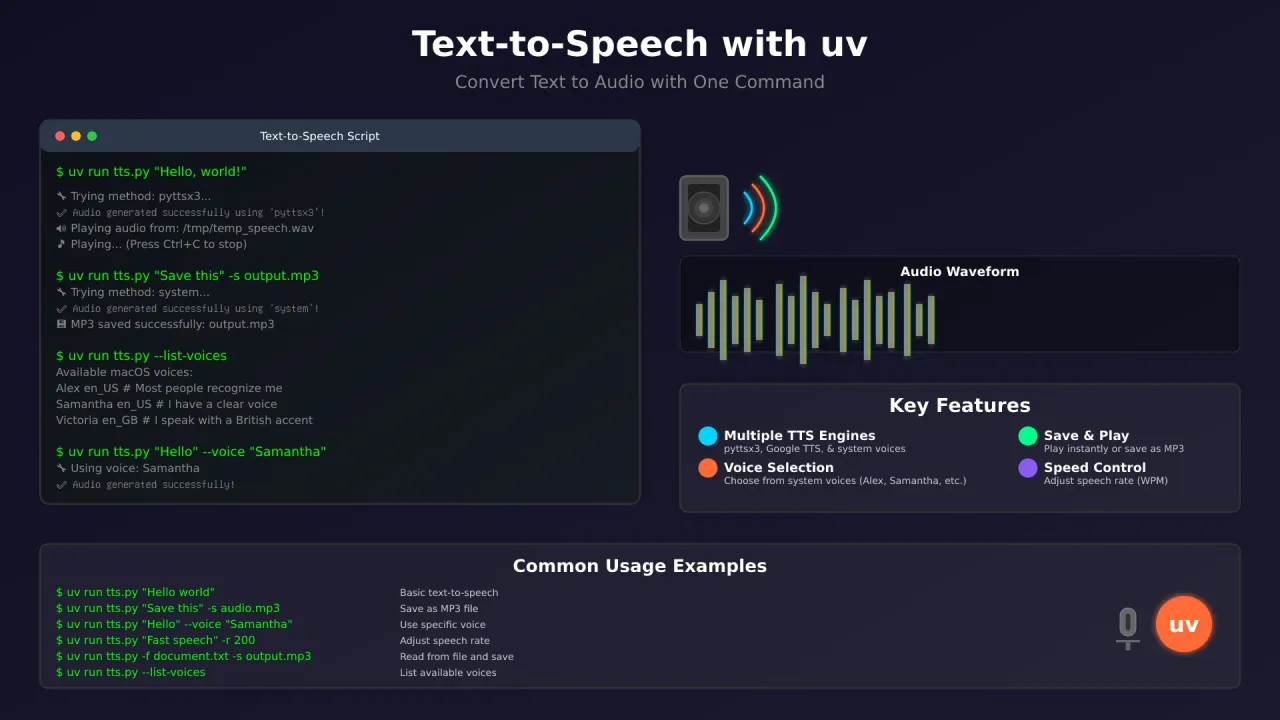
Build a Python text-to-speech script with uv that works on macOS, Windows, and Linux. It picks the best available TTS engine — native say on macOS, py3-tts offline, or edge-tts for 300+ free neural voices — supports voice selection, and saves audio to MP3. No virtual environment setup needed. One uv run command and you’re speaking.
New to uv?
Check out Getting Started with uv: Python Project Setup first.
Features
- Multiple TTS engines — py3-tts (maintained pyttsx3 fork), edge-tts (free online neural voices), macOS
say - Smart selection — picks the best engine for your platform automatically
- Voice selection — macOS voices (Alex, Samantha, Siri), edge-tts 300+ neural voices
- Speech rate — adjust from 50 to 300 words per minute
- MP3 export — save audio for later (requires ffmpeg)
- SRT subtitles — edge-tts generates subtitle files alongside audio
- Interactive mode — type and hear text instantly
- Cross-platform — macOS, Windows, Linux
- Offline neural upgrade — optional Kokoro or Piper for natural-sounding local voices
The Complete Text-to-Speech Script
Save this as tts.py. The script uses py3-tts (the actively maintained fork of pyttsx3 — same import, better macOS support), edge-tts for free online neural voices, and pygame for playback.
#!/usr/bin/env -S uv run --script
# /// script
# requires-python = ">=3.12"
# dependencies = [
#     "py3-tts",
#     "pygame",
#     "edge-tts",
# ]
# ///

import pyttsx3
import pygame
import tempfile
import os
import argparse
import sys
import platform
import subprocess
import warnings
import asyncio
from pathlib import Path
import edge_tts

def text_to_speech(text, output_file=None, play=True, save_mp3=None, method="auto", voice=None, rate=175):
    """
    Convert text to speech with options to play and/or save as MP3.

    Args:
        text (str): The text to convert to speech.
        output_file (str): Temporary WAV file path (optional).
        play (bool): Whether to play the audio.
        save_mp3 (str): Path to save the final MP3 file (optional).
        method (str): TTS method to use ("auto", "py3-tts", "edge-tts", "system").
        voice (str): Voice to use (for system method on macOS, or edge-tts voice name).
        rate (int): Speech rate in words per minute.
    """
    temp_dir = tempfile.gettempdir()
    temp_wav_file = os.path.join(temp_dir, "temp_speech.wav")
    temp_mp3_file = os.path.join(temp_dir, "temp_speech.mp3")

    success = False
    used_method = ""

    # --- Smart Method Selection ---
    if method == "auto":
        method_preference = []
        if platform.system() == "Darwin":
            method_preference.extend(["system", "py3-tts", "edge-tts"])
        else:
            method_preference.extend(["py3-tts", "edge-tts", "system"])
    else:
        method_preference = [method]

    # --- Attempt TTS Conversion ---
    for m in method_preference:
        print(f"🔧 Trying method: {m}...")
        if m == "py3-tts":
            success = try_py3_tts(text, temp_wav_file, rate)
        elif m == "edge-tts":
            success = try_edge_tts(text, temp_mp3_file, temp_wav_file, voice, rate)
        elif m == "system":
            if platform.system() == "Darwin":
                success = try_system_say(text, temp_wav_file, voice, rate)

        if success:
            used_method = m
            print(f"✅ Audio generated successfully using '{used_method}'!")
            break
        else:
            print(f"⚠️  Method '{m}' failed.")

    if not success:
        print("❌ All TTS methods failed! Unable to generate audio.")
        return False

    # --- Post-Processing: Play and Save ---
    try:
        if play:
            play_audio(temp_wav_file)

        if save_mp3:
            if os.path.exists(temp_wav_file):
                convert_to_mp3(temp_wav_file, save_mp3)
            elif os.path.exists(temp_mp3_file):
                # edge-tts already wrote MP3; copy it
                import shutil
                shutil.copy2(temp_mp3_file, save_mp3)
                print(f"💾 MP3 saved successfully: {save_mp3}")
            else:
                print(f"❌ Cannot save MP3. No audio file found.")

    except Exception as e:
        print(f"❌ Error during post-processing (play/save): {e}")
        return False
    finally:
        for f in [temp_wav_file, temp_mp3_file]:
            if os.path.exists(f):
                try:
                    os.remove(f)
                except OSError as e:
                    print(f"⚠️  Could not remove temporary file: {e}")

    return True

def try_py3_tts(text, output_file, rate=175):
    """Try to use py3-tts (maintained pyttsx3 fork) for TTS."""
    try:
        driver = None
        if platform.system() == 'Darwin':
            driver = 'nsss'
        elif platform.system() == 'Windows':
            driver = 'sapi5'
        # Linux: default espeak
        engine = pyttsx3.init(driverName=driver)

        engine.setProperty('rate', rate)
        engine.setProperty('volume', 0.9)

        engine.save_to_file(text, output_file)
        engine.runAndWait()

        if not os.path.exists(output_file) or os.path.getsize(output_file) == 0:
            raise RuntimeError("py3-tts completed but created an empty file.")

        return True
    except Exception as e:
        print(f"⚠️  py3-tts error: {e}")
        return False

def try_edge_tts(text, out_mp3, out_wav, voice=None, rate=175):
    """
    Use edge-tts (Microsoft Edge neural voices, free, no API key).
    Writes MP3 directly. Converts to WAV for playback if needed.
    """
    try:
        edge_voice = voice or "en-US-AvaNeural"
        # Convert WPM to edge-tts rate string (175 WPM ≈ +0%)
        rate_pct = int((rate - 175) / 175 * 100)
        rate_str = f"+{rate_pct}%" if rate_pct >= 0 else f"{rate_pct}%"

        async def _generate():
            communicate = edge_tts.Communicate(text, voice=edge_voice, rate=rate_str)
            await communicate.save(out_mp3)

        asyncio.run(_generate())

        if not os.path.exists(out_mp3) or os.path.getsize(out_mp3) == 0:
            raise RuntimeError("edge-tts completed but created an empty file.")

        # Convert MP3 to WAV for pygame playback
        convert_mp3_to_wav(out_mp3, out_wav)
        return True
    except Exception as e:
        print(f"⚠️  edge-tts error: {e}")
        return False

def try_system_say(text, output_file, voice=None, rate=175):
    """Use the native 'say' command on macOS to generate a WAV file."""
    if platform.system() != "Darwin":
        return False

    try:
        cmd = ['say']
        if voice:
            cmd.extend(['-v', voice])
        cmd.extend(['-r', str(rate)])
        cmd.append(text)
        cmd.extend(['-o', output_file, '--file-format=WAVE', '--data-format=LEI16@22050'])

        subprocess.run(cmd, check=True, capture_output=True, text=True)
        return True
    except FileNotFoundError:
        print("⚠️  'say' command not found on this system.")
        return False
    except subprocess.CalledProcessError as e:
        print(f"⚠️  System 'say' command failed: {e.stderr}")
        return False

def convert_mp3_to_wav(mp3_file, wav_file):
    """Convert MP3 to WAV using ffmpeg."""
    try:
        cmd = [
            'ffmpeg', '-i', mp3_file,
            '-acodec', 'pcm_s16le', '-ac', '1', '-ar', '22050',
            '-y', wav_file
        ]
        subprocess.run(cmd, check=True, capture_output=True, text=True)
    except FileNotFoundError:
        print("❌ 'ffmpeg' not found. Install it for MP3/WAV conversion.")
        print("💡 macOS: brew install ffmpeg | Linux: sudo apt install ffmpeg")
        raise
    except subprocess.CalledProcessError as e:
        print(f"❌ ffmpeg failed to convert MP3 to WAV: {e.stderr}")
        raise

def convert_to_mp3(wav_file, mp3_file):
    """Convert WAV file to MP3 using ffmpeg."""
    try:
        cmd = [
            'ffmpeg', '-i', wav_file,
            '-acodec', 'libmp3lame', '-q:a', '2',
            '-y', mp3_file
        ]
        subprocess.run(cmd, check=True, capture_output=True, text=True)
        print(f"💾 MP3 saved successfully: {mp3_file}")
    except FileNotFoundError:
        print("❌ 'ffmpeg' not found. Install it for MP3 export.")
        print("💡 macOS: brew install ffmpeg | Linux: sudo apt install ffmpeg")
        raise
    except subprocess.CalledProcessError as e:
        print(f"❌ ffmpeg failed to convert WAV to MP3: {e.stderr}")
        raise

def play_audio(file_path):
    """Play an audio file using pygame, with a system fallback."""
    print(f"🔊 Playing audio from: {file_path}")
    try:
        pygame.mixer.pre_init(frequency=22050, size=-16, channels=1, buffer=512)
        pygame.mixer.init()
        pygame.mixer.music.load(file_path)
        pygame.mixer.music.play()

        print("🎵 Playing... (Press Ctrl+C to stop)")
        while pygame.mixer.music.get_busy():
            pygame.time.wait(100)
        print("✅ Playback finished!")

    except pygame.error as e:
        print(f"⚠️  Pygame playback error: {e}")
        print("🔧 Falling back to system audio player...")
        try_system_playback(file_path)
    except KeyboardInterrupt:
        pygame.mixer.music.stop()
        print("\n⏹️  Playback stopped by user.")
    finally:
        pygame.mixer.quit()

def try_system_playback(file_path):
    """Fallback audio playback using system commands."""
    try:
        system = platform.system()
        if system == "Darwin":
            subprocess.run(['afplay', file_path], check=True)
        elif system == "Linux":
            for player in ['paplay', 'aplay', 'mpg123', 'mplayer']:
                if subprocess.run(['which', player], capture_output=True).returncode == 0:
                    subprocess.run([player, file_path], check=True,
                                   stdout=subprocess.DEVNULL, stderr=subprocess.DEVNULL)
                    return
            print("⚠️  No suitable command-line audio player found on Linux.")
        elif system == "Windows":
            os.startfile(file_path)
        else:
            print(f"⚠️  System playback not supported on platform: {system}")
    except Exception as e:
        print(f"⚠️  System playback failed: {e}")
        print(f"💡 You can play the file manually: {file_path}")

def list_voices():
    """List available voices for the current platform."""
    system = platform.system()

    if system == "Darwin":
        try:
            result = subprocess.run(['say', '-v', '?'], capture_output=True, text=True, check=True)
            print("Available macOS voices (say command):")
            print("-" * 50)
            print(result.stdout)
        except Exception as e:
            print(f"❌ Error listing macOS voices: {e}")

    # List py3-tts engine voices
    try:
        driver = None
        if system == 'Darwin':
            driver = 'nsss'
        elif system == 'Windows':
            driver = 'sapi5'
        engine = pyttsx3.init(driverName=driver)
        voices = engine.getProperty('voices')
        if voices:
            print(f"\nAvailable py3-tts voices ({system}):")
            print("-" * 50)
            for v in voices:
                print(f"  {v.id}  —  {v.name}")
    except Exception as e:
        print(f"⚠️  Could not list py3-tts voices: {e}")

    # List edge-tts voices
    print("\nTo list edge-tts voices (300+ online neural voices), run:")
    print("  edge-tts --list-voices")

def main():
    parser = argparse.ArgumentParser(description="Python text-to-speech with uv")
    parser.add_argument("text", nargs="?", help="Text to convert to speech. Omit for interactive mode.")
    parser.add_argument("-f", "--file", help="Read text from a file.")
    parser.add_argument("-s", "--save", help="Save output as an MP3 file.")
    parser.add_argument("-n", "--no-play", action="store_true", help="Do not play the audio.")
    parser.add_argument("-r", "--rate", type=int, default=175, help="Speech rate in WPM (default: 175).")
    parser.add_argument("-m", "--method", choices=["auto", "py3-tts", "edge-tts", "system"],
                        default="auto", help="TTS engine to use.")
    parser.add_argument("--voice", help="Voice name (macOS: Alex, Samantha; edge-tts: en-US-AvaNeural).")
    parser.add_argument("--list-voices", action="store_true", help="List available voices and exit.")

    args = parser.parse_args()

    if args.list_voices:
        list_voices()
        return 0

    text_to_process = ""
    if args.file:
        try:
            with open(args.file, 'r', encoding='utf-8') as f:
                text_to_process = f.read().strip()
        except FileNotFoundError:
            print(f"❌ Error: File not found at '{args.file}'")
            return 1
    elif args.text:
        text_to_process = args.text
    else:
        try:
            print("🎙️  Entering interactive TTS mode. Type text and press Enter.")
            print("   (Type 'quit' or 'exit' to close)")
            while True:
                line = input("> ")
                if line.lower() in ['quit', 'exit', 'q']:
                    break
                if line:
                    text_to_speech(
                        text=line,
                        play=not args.no_play,
                        save_mp3=None,
                        method=args.method,
                        voice=args.voice,
                        rate=args.rate
                    )
            return 0
        except (EOFError, KeyboardInterrupt):
            print("\nExiting interactive mode.")
            return 0

    if not text_to_process:
        print("❌ Error: No text provided. Use a command-line argument, a file, or run in interactive mode.")
        return 1

    print(f"\n📝 Text: {text_to_process[:80]}{'...' if len(text_to_process) > 80 else ''}")
    print(f"⚙️  Rate: {args.rate} WPM, Method: {args.method}, Play: {not args.no_play}")

    success = text_to_speech(
        text=text_to_process,
        play=not args.no_play,
        save_mp3=args.save,
        method=args.method,
        voice=args.voice,
        rate=args.rate
    )

    return 0 if success else 1

if __name__ == "__main__":
    if "-n" not in sys.argv and "--no-play" not in sys.argv:
        try:
            os.environ['PYGAME_HIDE_SUPPORT_PROMPT'] = "1"
            import pygame
            pygame.init()
            pygame.quit()
        except ImportError:
            print("⚠️ Pygame not found, playback will rely on system commands.")

    sys.exit(main())
Running the Script
Prerequisites
macOS
# Install uv (if not already installed)
curl -LsSf https://astral.sh/uv/install.sh | sh

# ffmpeg for MP3 export
brew install ffmpeg

# Verify
uv --version
ffmpeg -version
say -v '?'
If py3-tts init fails on macOS, install the Objective-C bindings:
pip install pyobjc>=9.0.1Linux
# Install uv
curl -LsSf https://astral.sh/uv/install.sh | sh

# espeak-ng (required for py3-tts on Linux) + ffmpeg
sudo apt install espeak-ng libespeak1 ffmpeg

# Verify
uv --version
ffmpeg -version
espeak-ng --version
Windows
# Install uv
powershell -ExecutionPolicy ByPass -c "irm https://astral.sh/uv/install.ps1 | iex"

# ffmpeg: download from https://ffmpeg.org/ and add to PATH

# Verify
uv --version
ffmpeg -version
Headless servers
On a VPS or headless Linux server there’s no audio device. pygame mixer init will fail without ALSA/PulseAudio. Use the -n (no-play) flag to generate files without playback: uv run tts.py "Hello" -s output.mp3 -n
Basic Usage
# Simple text-to-speech
uv run tts.py "Hello, world!"

# Read from a file
uv run tts.py -f document.txt

# Save as MP3 without playing (headless-friendly)
uv run tts.py "Save this text" -s output.mp3 -n

# Interactive mode
uv run tts.py
Verify it works: After saving an MP3, check the file exists and is non-empty:
uv run tts.py "test" -s test.mp3 -n && ls -la test.mp3A successful run produces a file larger than 0 bytes. If you get FileNotFoundError, ffmpeg is missing.
Advanced Voice Features
# List all available voices (macOS say + py3-tts + edge-tts hint)
uv run tts.py --list-voices

# Use a specific macOS voice
uv run tts.py "Hello world" --voice "Samantha"

# Use an edge-tts neural voice
uv run tts.py "Hello world" -m edge-tts --voice "en-GB-SoniaNeural"

# Adjust speech rate
uv run tts.py "Hello world" -r 100   # slower
uv run tts.py "Hello world" -r 250   # faster

# Force a specific engine
uv run tts.py "Hello world" -m system --voice "Samantha" -r 160
uv run tts.py "Hello world" -m edge-tts --voice "en-US-AvaNeural"
Edge-TTS: Free Online Text-to-Speech
Edge-tts is the recommended free online engine. It uses Microsoft Edge’s neural voices — no API key, no Edge browser required, no Windows required. It writes MP3 and SRT subtitle files directly.
# CLI usage (install separately or let uv handle it)
edge-tts --text "Hello from edge-tts" --write-media hello.mp3 --write-subtitles hello.srt

# List 300+ available neural voices
edge-tts --list-voices

# Pick a specific voice and rate
edge-tts --text "Good morning" --voice "en-GB-SoniaNeural" --rate "+10%" --write-media morning.mp3
In the script, edge-tts is used as a fallback when macOS say and py3-tts aren’t available (or when you force it with -m edge-tts). It writes MP3 directly — ffmpeg is only needed if you also want playback via pygame (the script handles the conversion automatically).
Edge-tts caveat
Edge-tts uses an unofficial Microsoft endpoint. It’s far more actively maintained than gTTS was (11.6k stars, regular releases as of 2026), but the endpoint could change without notice. For production or commercial use, consider paid APIs (see the cost section below).
Offline Neural Text-to-Speech with Kokoro & Piper
The default offline engine (py3-tts/espeak) sounds robotic. For natural-sounding voices without an internet connection, two open-source options stand out.
Optional upgrades
These are optional. The main script works without them. They’re worth installing if you want offline voices that don’t sound like a 1990s GPS.
Kokoro
Kokoro is an 82M-parameter Apache-2.0 model with ~54 voices across 8 languages. Runs on CPU (near-real-time on Apple Silicon). ~300MB full, ~80MB quantized.
# Add to the script's dependencies
uv add --script tts.py kokoro-onnx soundfile

# Download model files (one-time)
# Get kokoro-v1.0.onnx and voices-v1.0.bin from the kokoro-onnx releasesfrom kokoro_onnx import Kokoro
import soundfile as sf
kokoro = Kokoro("kokoro-v1.0.onnx", "voices-v1.0.bin")
samples, sample_rate = kokoro.create("Hello world!", voice="af_sarah", speed=1.0, lang="en-us")
sf.write("hello.wav", samples, sample_rate)More voices, newer model, good language coverage. Best for desktop/laptop use.
Piper
Piper is a C++ neural TTS engine (11.3k stars, MIT). Optimized for Raspberry Pi-class hardware. Python via piper-tts.
# Install
pip install piper-tts

# Download a voice model (one-time)
piper --download-dir voices en_US-lessac-medium

# Generate speech
echo "Hello from Piper" | piper --model voices/en_US-lessac-medium.onnx --output_file hello.wav
Lighter, battle-tested on edge hardware. Best for VPS, Raspberry Pi, or when you want minimal resource usage (~50MB per voice model).
If you’re already running local AI on your Mac (like generating AI images locally), adding Kokoro or Piper for voice is a natural next step.
Popular macOS Voices
Classic voices that ship with macOS:
- Samantha — clear, natural female voice
- Alex — default male voice, very clear
- Victoria — British female voice
- Daniel — British male voice
- Fiona — Scottish female voice
- Karen — Australian female voice
- Jorge — Spanish male voice
- Paulina — Spanish female voice
On modern macOS (Sonoma/Sequoia and later), Siri voices are also available:
- Siri Voice 1 — less robotic than the classic voices
- Siri Voice 2 — alternative Siri voice
Run say -v '?' (quote the ?) to see all voices on your system. Available names depend on your OS version and which voices you’ve downloaded.
On Linux, py3-tts voices are listed via engine.getProperty('voices') (the script’s --list-voices flag handles this). On Windows, SAPI5 voices are used.
Advanced Usage Examples
Create audio books
# Convert an entire document to MP3
uv run tts.py -f book.txt -s audiobook.mp3 --voice "Samantha" -r 160 -n

# Multiple chapters
uv run tts.py -f chapter1.txt -s chapter1.mp3 --voice "Alex" -r 150 -n
uv run tts.py -f chapter2.txt -s chapter2.mp3 --voice "Alex" -r 150 -n
Voice comparison
# Compare voices for the same text
uv run tts.py "The quick brown fox jumps over the lazy dog" --voice "Alex" -s alex.mp3 -n
uv run tts.py "The quick brown fox jumps over the lazy dog" --voice "Samantha" -s samantha.mp3 -n
uv run tts.py "The quick brown fox jumps over the lazy dog" -m edge-tts --voice "en-US-AvaNeural" -s ava.mp3 -n
Interactive learning
uv run tts.py --voice "Samantha" -r 140🎙️ Entering interactive TTS mode. Type text and press Enter.
(Type 'quit' or 'exit' to close)
> Hello, how are you today?
🔧 Trying method: system...
✅ Audio generated successfully using 'system'!
🔊 Playing audio...
> quitUnderstanding the Script Architecture
Smart engine selection
The script picks the best engine for your platform:
- macOS:
system(say) →py3-tts→edge-tts - Windows/Linux:
py3-tts→edge-tts→system
You can override with -m to force a specific engine.
Engine comparison
| Engine | Quality | Offline | Voices | Platform | Notes |
|---|---|---|---|---|---|
| system (say) | Highest | Yes | ~100+ | macOS only | Native, best free quality |
| py3-tts | Good | Yes | ~10-20 | Cross-platform | Maintained pyttsx3 fork, fast |
| edge-tts | Neural | No | 300+ | Cross-platform | Free, no API key, writes MP3+SRT |
| Kokoro | Neural | Yes | ~54 | Cross-platform | Optional, 82M params, CPU-friendly |
| Piper | Neural | Yes | ~100+ | Cross-platform | Optional, lightweight, RPi-class |
Error handling
The script handles failures gracefully:
- Network failures: falls back to offline engines
- Missing dependencies: provides installation hints
- File errors: clear error messages
- Audio playback issues: multiple fallback methods (pygame → system player)
Customization Options
Adding new engines
def try_custom_engine(text, output_file, rate=175):
    """Add your custom TTS engine here."""
    try:
        # Your custom implementation
        return True
    except Exception as e:
        print(f"⚠️  Custom engine failed: {e}")
        return False

# Add to the method_preference list in text_to_speech()
Multi-language support with edge-tts
Edge-tts has better language coverage than the old gTTS approach:
def try_edge_tts_multilang(text, out_mp3, out_wav, lang='en', voice=None, rate=175):
    """Edge-tts with explicit language selection."""
    import edge_tts
    import asyncio

    # Pick a voice for the target language
    voice_map = {
        'en': 'en-US-AvaNeural',
        'fr': 'fr-FR-DeniseNeural',
        'de': 'de-DE-KatjaNeural',
        'es': 'es-ES-ElviraNeural',
        'ja': 'ja-JP-NanamiNeural',
        'zh': 'zh-CN-XiaoxiaoNeural',
    }
    edge_voice = voice or voice_map.get(lang, 'en-US-AvaNeural')

    async def _generate():
        communicate = edge_tts.Communicate(text, voice=edge_voice)
        await communicate.save(out_mp3)

    asyncio.run(_generate())
    # Convert to WAV for playback if needed
    convert_mp3_to_wav(out_mp3, out_wav)
Common Use Cases
Content creation
# Podcast intros
uv run tts.py "Welcome to our podcast" --voice "Alex" -s intro.mp3 -n

# Voice-overs
uv run tts.py -f script.txt -s voiceover.mp3 --voice "Samantha" -r 160 -n
Accessibility
# Read web content aloud
uv run tts.py "$(curl -s https://example.com | grep -o '<p>[^<]*' | sed 's/<p>//')" --voice "Alex"

# Convert emails to speech
uv run tts.py -f email.txt --voice "Samantha" -r 140
Language learning
# Practice pronunciation
uv run tts.py "Hello, my name is John" --voice "Alex" -r 120
uv run tts.py "Bonjour, je m'appelle Jean" -m edge-tts --voice "fr-FR-DeniseNeural"
AI agent voice output
If you’re building AI agents (like with Mastra), you can pipe LLM text responses to this script for voice output:
import subprocess

def speak_agent_response(text):
    subprocess.run(["uv", "run", "tts.py", text, "-m", "edge-tts",
                    "--voice", "en-US-AvaNeural", "-s", "response.mp3", "-n"])
Self-hosted notifications
# VPS cron job alerts (headless, file-only)
uv run tts.py "Backup completed successfully" -s /var/log/alerts/backup.mp3 -n
If you’re running a Python project on a VPS, you can deploy a Python uv project and integrate TTS into your automation pipeline.
System Requirements
macOS
- Built-in
saycommand (included) - ffmpeg for MP3 export:
brew install ffmpeg - pyobjc for py3-tts:
pip install pyobjc>=9.0.1(if init fails)
Windows
- Windows Speech API (usually included)
- ffmpeg for MP3 export: download from https://ffmpeg.org/ and add to PATH
Linux
espeak-ngandlibespeak1for py3-tts:sudo apt install espeak-ng libespeak1- ffmpeg for MP3 export:
sudo apt install ffmpeg
Headless servers
- Use
-nflag for file-only output (no audio device needed) - ffmpeg still required for MP3/WAV conversion
Neural engines (optional)
- Kokoro: ~300MB disk, CPU is fine (GPU optional)
- Piper: ~50MB per voice model, runs on Raspberry Pi
Troubleshooting
Verify your setup
Run these checks first
Run these commands before your first conversion to catch missing dependencies early.
# 1. Confirm uv is installed
uv --version
# Expected: uv 0.12.x or newer

# 2. Confirm ffmpeg for MP3 export
ffmpeg -version
# Expected: version info printed

# 3. macOS: confirm voices available
say -v '?'
# Expected: list of voices (quote the ?)

# 4. Linux: confirm espeak-ng
espeak-ng --version
# Expected: version info printed

# 5. Quick smoke test
uv run tts.py "test" -s test.mp3 -n && ls -la test.mp3
# Expected: non-empty MP3 file
Common issues
“‘ffmpeg’ command not found” Required for MP3 export and WAV conversion.
# macOS
brew install ffmpeg
# Ubuntu/Debian
sudo apt install ffmpeg
# Windows: download from https://ffmpeg.org/ and add to PATH
“pygame not found” The script falls back to system audio players. Audio playback should still work on macOS and most Linux desktops.
“No internet connection”
Edge-tts requires internet. Use -m py3-tts or -m system for offline operation. Kokoro and Piper also work offline.
“Voice not found”
Run uv run tts.py --list-voices to see available voices. For edge-tts voices, run edge-tts --list-voices. Check spelling and capitalization.
gTTS HTTP 429 / rate limiting
If you’re using the legacy gTTS path, Google may rate-limit after moderate use. Switch to edge-tts with -m edge-tts.
py3-tts init error on macOS Missing pyobjc bindings. Fix:
pip install pyobjc>=9.0.1nsss driver deprecated on macOS
macOS NSSpeechSynthesizer is deprecated by Apple. The script defaults to say on macOS anyway, which bypasses this. If you force -m py3-tts, the nsss driver still works for now but may be removed in a future macOS release.
Headless server / no audio device
pygame mixer init fails without ALSA/PulseAudio. Use -n for file-only output:
uv run tts.py "Hello" -s output.mp3 -n“ffmpeg failed to convert”
Ensure ffmpeg is in your PATH. Run ffmpeg -version to verify.
Advanced Features
Batch processing
# batch_tts.py
import subprocess

texts = [
    "Hello world",
    "This is a test",
    "Goodbye world"
]

for i, text in enumerate(texts, 1):
    subprocess.run([
        "uv", "run", "tts.py", text,
        "-s", f"output_{i}.mp3",
        "--voice", "Samantha",
        "-r", "150",
        "-n"
    ])
Integration with other scripts
# integration_example.py
import subprocess

def speak_text(text, voice="Alex", rate=175):
    """Wrapper function for the TTS script."""
    subprocess.run([
        "uv", "run", "tts.py", text,
        "--voice", voice,
        "-r", str(rate)
    ])

speak_text("Hello from my application!")
Reproducible dependency locks
Pin your script’s dependencies for reproducible builds:
# Lock dependencies (creates tts.py.lock)
uv lock --script tts.py

# Now uv run will use the locked versions
uv run tts.py "Hello"
If you’re building other uv-based tools, check out this bulk URL checker with uv for another practical script example.
Why Use uv for TTS Scripts?
Our Python text-to-speech script demonstrates why uv is the right tool for standalone scripts:
- Zero setup — no virtual environment management.
uv run tts.pyhandles everything. --scriptshebang —#!/usr/bin/env -S uv run --scriptmakes the script directly executable.uv add --script— manage dependencies without hand-editing the metadata block:bash uv add --script tts.py 'py3-tts' 'pygame' 'edge-tts'uv lock --script— reproducible lockfile per script.exclude-newer— pin to package versions from a specific date for reproducibility.- Dependency isolation — each script gets its own environment, no conflicts.
- Fast execution — dependencies are cached and reused across runs.
- Cross-platform — works identically on macOS, Windows, and Linux.
Learn more about uv scripts
For deeper coverage of script execution patterns, see running Python scripts with uv. If you’re new to uv entirely, start with Getting Started with uv: Python Project Setup.
uv is at version 0.12.x (as of August 2026) with ~88.8k GitHub stars. It’s become the standard tool for Python script and project management. For more on the Python ecosystem, see our comparison of Python web frameworks.
Cost: When Free Engines Aren’t Enough
The free engines in this script (macOS say, py3-tts, edge-tts, Kokoro, Piper) cover most personal and development use cases. When you need commercial licensing, specific voice cloning, or guaranteed uptime, here’s what the paid options cost:
| Service | Pricing | Notes |
|---|---|---|
| edge-tts / say / espeak | Free | Unofficial endpoints (edge-tts) or built-in (say) |
| Kokoro / Piper | Free, open-source | Run locally, no API calls |
| OpenAI TTS | tts-1: $15/1M chars; tts-1-hd: $30/1M chars |
gpt-4o-mini-tts: ~$0.015/min audio |
| ElevenLabs | $0.10/1K chars (v2/v3); $0.05/1K chars (Flash/Turbo) | Creator plan: $22/mo |
| Fish Audio | Studio-grade TTS with voice cloning | 2M+ voices, emotion control, 8 languages |
Pricing note
Prices as of August 2026. Check provider sites for current rates.
My recommendation: start with the free stack (edge-tts for online, macOS say for local, Kokoro/Piper for offline neural). Upgrade to paid only if you need commercial licensing, specific voice cloning, or API reliability guarantees.
For a deeper look at commercial TTS options, see Fish Audio voice cloning, Fish Audio vs ElevenLabs, or how to use voice cloning TTS in Mastra.
Conclusion
This Python text-to-speech script with uv gives you a multi-engine fallback system that works across platforms with a single command. Here’s what you get:
- Multi-engine fallback — system
say→ py3-tts → edge-tts, automatic selection - Free neural voices via edge-tts — 300+ voices, no API key, writes MP3 + SRT
- Offline natural voices via Kokoro or Piper — open-source, CPU-friendly
- Single
uv runcommand — no venv setup, no dependency management - Cross-platform — macOS, Windows, Linux, headless servers
- Extensible — add custom engines, languages, or integrate into automation
Save the script, run uv run tts.py "Hello world", and start experimenting with different voices and engines.