
How to Safely Update CloudPanel: Snapshot First (2026)
Safely update CloudPanel: snapshot first, wait 1-2 weeks after release, run clp-update, verify services and PHP extensions, and roll back if an update breaks.
Updated Published 12 min read
CloudPanel updates have been safe in my experience. I haven’t had one break anything. But updates can always go wrong, and a VPS snapshot takes 2 minutes. Do the snapshot. This guide covers how to safely update CloudPanel: take a consistent snapshot first, then run clp-update, then verify every service came back up. If you’re running a production site with orders or live traffic, the snapshot is the thing between you and a bad day. New to CloudPanel? Install CloudPanel and host Node.js apps first.
As of this update, the current stable release is v2.5.4 (July 2026). CloudPanel v3 is expected Q1 2027, so 2.5.x patches are the boring kind of update.
Disclosure: this guide contains referral links. If you buy through them, I may earn a commission at no extra cost to you.
Hetzner VPS Hostinger VPS DigitalOcean $100 Free Vultr $100 FreeVPS prices jumped across the board in 2026. If you’re rethinking a rented box, see what changed and when a mini PC wins or compare Hetzner, DigitalOcean, and Vultr.
Check if an update is available
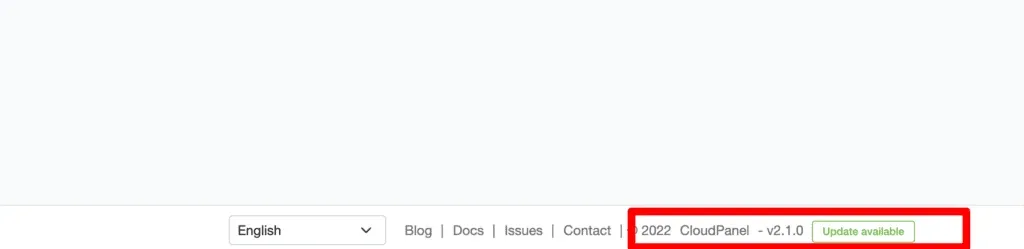
Log into CloudPanel admin and look at the footer. If a new version is out, you’ll see the current version and an “Update Available” notice:
You can also check from the command line:
clpctl --versionThe CLI version and the deb package version are different numbers. clpctl --version prints something like CloudPanel CLI 6.0.8 (env: prod, debug: false), while the package version looks like cloudpanel 2.5.4-3+clp-noble. Record both before updating so you can tell what changed after.
Review what changed at the CloudPanel changelog.
Wait 1-2 weeks before updating
Unless a bug is actively hurting you, wait 1-2 weeks after a release before updating production servers. That advice is backed by what happened with v2.5.4:
clp-updatewas broken on Ubuntu 26.04 for about 5 weeks after release. It printedERROR: Only Ubuntu 22.04 LTS and Ubuntu 24.04 LTS are supported.even though v2.5.4 advertised 26.04 support. See issue #791.- dpkg post-install failures appeared within days of release (issue #780).
A stable release is not day-one safe
A release being marked stable does not mean it is safe for your OS on day one. Check GitHub issues for your target version and your exact OS before updating. The official support page sends bug reports to GitHub. Community chat runs on Discord (see the CloudPanel support page).
CloudPanel v3 is expected Q1 2027 (per the maintainer in issue #727). That is the release worth evaluating carefully. 2.5.x patches are routine.
Pre-update checklist
Before touching anything, walk through this:
- Note your current version:
clpctl –versionplus the admin footer. You need a “before” to compare against. - Scan GitHub issues for your target version and your exact OS. If people on your OS are reporting update failures, wait.
- Check disk space with
df -h. apt upgrades need room on the root partition. - If you run scheduled remote backups, verify the last remote backup succeeded. Backups can silently produce empty files (issue #821).
- Know that the snapshot you are about to take is your rollback point.
Step 1: Take a consistent snapshot
Stop your services first so the snapshot captures a clean state:
sudo service nginx stop
sudo service mysql stop
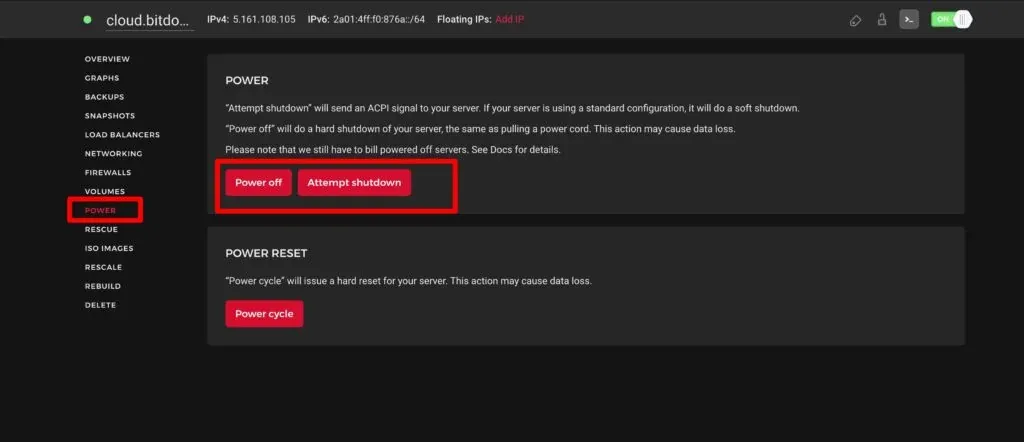
Power off the VPS from the Hetzner console:
Go to Snapshots → Take snapshot:
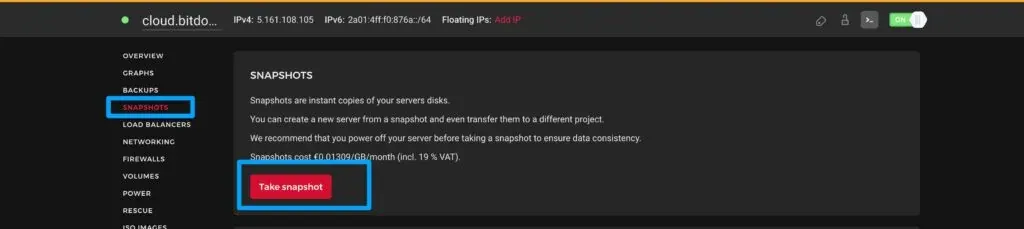
Power the server back on. You now have a restore point.
This flow is specific to a Hetzner Cloud VPS. If you are on another provider, the console will have an equivalent snapshot or image feature. I cover the provider differences in my Hetzner Cloud review.
Snapshot cost
Hetzner bills snapshots per GB per month, pro-rated, and only for the compressed size stored. For a maintenance window that is pocket change. But stale snapshots keep billing. Delete the snapshot after a clean verify, or keep it for a few days as your rollback window and then delete. More on Hetzner snapshot costs.
Live snapshot vs powered-off snapshot
Both approaches work. The tradeoff is consistency vs downtime:
Powered-off (recommended)
Stop nginx and MySQL, power off the VPS, take the snapshot, power on. The snapshot is truly consistent: every byte on disk matches a clean shutdown. This is what I do for production boxes running MySQL. It costs 2 minutes of downtime.
Live snapshot
Take the snapshot without stopping anything. The result is crash-consistent: InnoDB recovers via redo logs on restore, and modern file systems handle this fine. CloudPanel’s own Hetzner docs accept live snapshots. Acceptable for dev/staging or when downtime is worse than the risk.
Optional: CloudPanel’s Hetzner snapshot integration
CloudPanel can take Hetzner snapshots directly if you enter a Hetzner API token (Read & Write) under Hetzner → Settings. You get automatic snapshots on a schedule (for example 4 per day, deleted after 7 days) and a Create Snapshot button in the Hetzner → Snapshots tab.
This feature had bugs. Snapshot creation failed until v2.5.2 (issue #662). If you use it, make sure you are on v2.5.2 or later and verify the snapshot appears in the Hetzner console before you trust it. The console snapshot remains the canonical safe path.
Verify: the snapshot appears in the Hetzner console Snapshots list before you proceed.
Step 2: Run the clp-update command
SSH into the server and run:
clp-updateThat is the one official update command. It updates the CloudPanel deb package and its dependencies. If you are already on the latest version, it prints:
Nothing to do; you are up to date. Version: 2.5.4Run clpctl --version afterward to confirm the version changed (or to record the “after” state).
Ordering matters
sudo apt upgrade also pulls the cloudpanel package. The dpkg failure in issue #780 happened via apt-get update && apt-get upgrade, not clp-update. Run clp-update deliberately right after the snapshot, not as a side effect of a bulk apt upgrade. Blast radius: clp-update touches the panel and its repo packages. apt upgrade touches everything including PHP and MySQL (see the OS section at the end).
Never use the test channel on production
CloudPanel has a test release channel for early features: clpctl cloudpanel:set:release-channel –channel=‘test’ followed by clp-update. Some features are experimental. Do not run this on a production server.
If clp-update fails mid-way, skip to the troubleshooting section.
Step 3: Reboot the server
sudo service nginx stop
sudo service mysql stop
reboot
Official docs do not require a reboot. I do it anyway. It is cheap insurance that every systemd unit comes back clean.
Step 4: Verify everything came back up
After the reboot, walk through these in order:
- CloudPanel admin → Instance tab: all services show as running.
systemctl status clp-agent nginx mysql(ormariadb) for a quick CLI sanity check.- Load a site over HTTPS in a browser. Cert renewals and vhosts should have survived.
- Log into CloudPanel admin. Session and auth bugs have been a post-update issue class before.
- Check PHP extensions (see below) if you rely on redis, imagick, or memcached.
- Confirm one cron job fired and one database-backed page loads.
- Glance at the site error logs in CloudPanel.
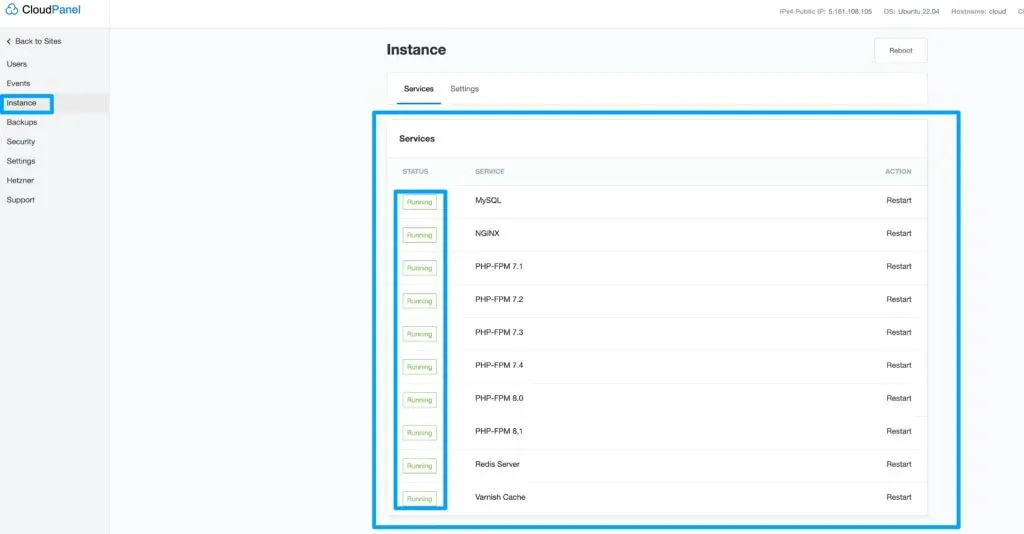
Check services and load a site
The Instance tab shows nginx, MySQL/MariaDB, PHP-FPM, and (since v2.5.4) clp-agent, a Go binary that CloudPanel manages via systemd. clp-agent has a known issue where it exits on SQLite database is locked contention and gets restarted by systemd (issue #815). So check it explicitly:
systemctl status clp-agent nginx mysqlAll three should show active (running). Then load a site over HTTPS and log into the admin panel. If you run CloudPanel’s Varnish cache for WordPress or Docker apps behind CloudPanel as a reverse proxy, test those too. Caches and vhosts need to survive the update.
Verify PHP extensions after updating
An apt upgrade can drop PHP extensions without warning. After a php8.3-fpm upgrade on Ubuntu 24.04, imagick, memcached, and redis stopped shipping in the packages (issue #825). WordPress silently losing Redis object cache is the classic symptom.
For each PHP version you run:
php -m | grep -Ei 'redis|imagick|memcached'If an extension you rely on is missing, reinstall the matching phpX.Y-* package.
If the update goes wrong: troubleshooting
Don't re-run blindly
If clp-update or apt upgrade dies mid-way, do not panic and do not blindly re-run. The system is in a mid-package state. Read the error, check the matching GitHub issue, and remember the snapshot is your floor.
dpkg post-install script failure (chattr -i fix)
This is the most common clp-update failure pattern (issue #780):
rm: cannot remove '/home/clp/htdocs/app_bak/files/public/phpmyadmin/examples/openid-script.php': Operation not permitted
dpkg: error processing package cloudpanel (--configure)
Root cause: an immutable attribute left on a file. Fix:
lsattr /home/clp/htdocs/app_bak/files/public/phpmyadmin/examples/openid-script.php
chattr -i /home/clp/htdocs/app_bak/files/public/phpmyadmin/examples/openid-script.php
apt-get install --fix-broken
Then re-run clp-update. A variant of this failure is cp: cannot stat '/tmp/cloudpanel/data/clp/services/nginx/systemd/clp-nginx.service'. That one is a transient temp-dir issue and a retry usually works.
Verify: apt-get install --fix-broken completes without errors and clpctl --version runs.
“Only Ubuntu 22.04/24.04 supported” error on 26.04
clp-update
ERROR: Only Ubuntu 22.04 LTS and Ubuntu 24.04 LTS are supported.
This happened to Ubuntu 26.04 users for about 5 weeks after v2.5.4 released, even though the release notes advertised 26.04 support (issue #791). The fix came, but the lesson stands: this is why you wait 1-2 weeks and check the issues for your exact OS before updating. If you hit this error, stay on your current panel version until the fix ships.
File Manager 403 after an update (provider scanners)
After updating on a Hostinger VPS, the File Manager returned HTTP 403 for all sites (issue #778). Root cause was Hostinger’s malware scanner, not CloudPanel.
Lesson: if something breaks right after an update, check whether your provider injects agents or scanners before blaming the panel. If you are shopping for a box, know this class of issue exists. Compare Hetzner, DigitalOcean, and Vultr to see what each provider layers on top of the OS.
Still broken? Restore the snapshot
If nothing above fixes it, restore the snapshot:
- Hetzner console → Snapshots → your pre-update snapshot → Restore.
- The server returns to its pre-update state.
- Re-apply anything that changed between snapshot and restore (new site content, orders). That is why the update window should be minutes, not days.
- Re-run the Step 4 verify checklist.
Rollback window
Your rollback window is the snapshot’s lifetime. Once you are satisfied with the update, delete the snapshot (they bill per GB/month) or keep it for a defined number of days and then delete.
Once things are stable, take the opportunity to harden your CloudPanel install after updating.
Also update the OS (and its caveats)
While you are doing maintenance, update Ubuntu packages too, but do this after clp-update, not before:
sudo apt update && sudo apt upgrade -yapt upgrade can silently update CloudPanel
apt upgrade pulls the cloudpanel package along with everything else. Run clp-update deliberately right after the snapshot, then do the bulk OS upgrade separately. That way you control when the panel update happens.
CloudPanel supports Ubuntu 26.04, 24.04, 22.04, and Debian 13, 12 on x86 and ARM64. Minimum specs: 1 core, 2 GB RAM, 10 GB disk. Debian 11 is dropped.
For new installs, Ubuntu 24.04 is the boring pick. Ubuntu 26.04 has been supported since v2.5.4 but had a rocky start: the 5-week clp-update breakage (issue #791) and open MySQL 8.4 custom-datadir upgrade failures (issue #835).
PHP security patches lag behind php.net
CloudPanel ships its own PHP packages. apt upgrade only gets PHP security patches once CloudPanel publishes them, sometimes days after php.net. A critical PHP security release in October 2026 (CVE-2026-109618 / CVE-2026-109619) was still pending in CloudPanel’s repo at the time of writing (issue #823, #826). For critical CVE windows: watch php.net and the GitHub issues, and check php -v after upgrading.
One more footgun: if you moved your MySQL datadir (for example to /home/mysql), the MySQL 8.4 upgrade on Ubuntu 26.04 can fail (issue #835). Read the MySQL upgrade notes before running apt upgrade in that case.
Never run do-release-upgrade
Do not run do-release-upgrade to switch Ubuntu versions on a live CloudPanel server. CloudPanel only supports specific point releases. If you need a newer OS, set up a fresh server and migrate your sites. You can secure the VPS itself with CrowdSec once it is up.
Verify: php -v, mysql --version, and that your sites still load after the OS package upgrades.
FAQ
Do I need to stop services before taking a snapshot?
No, but I recommend it for production MySQL servers. A powered-off snapshot is truly consistent. A live snapshot is crash-consistent: InnoDB recovers via redo logs, and it is fine for dev/staging. The extra 2 minutes of downtime buys you a cleaner restore point.
Is clp-update the same as apt upgrade?
No. clp-update updates the CloudPanel deb package and its dependencies. apt upgrade updates everything on the system, including the cloudpanel package, PHP, and MySQL. Run clp-update deliberately right after the snapshot. Do the bulk OS upgrade separately.
How long does a CloudPanel update take?
The clp-update command itself takes a few minutes. The full safe process (snapshot, update, reboot, verify) takes about 30 to 45 minutes. Most of that is the snapshot and the verification, not the update.
Can I update CloudPanel without a snapshot?
You can, and on a dev box that is fine. On a production server, the snapshot is the only thing standing between you and restoring from scratch. It takes 2 minutes. Do the snapshot.
When is CloudPanel v3 coming?
Q1 2027, per the maintainer in issue #727. The 2.5.x update line stays boring in the meantime. v3 is the release to evaluate carefully when it lands.
The update process is boring on purpose. Snapshot first, update deliberately, verify everything, and know your rollback path before you need it. Once the panel is current, take 10 minutes to harden your CloudPanel install. Updates and security are the same maintenance window. If you are still deciding on a panel, see how CloudPanel compares to other server panels.
Related Posts
Did this guide work for you?

Written by Dragos
Dragos is the author of Bitdoze — practical DevOps, programming, and self-hosting guides.
More guides from Dragos →Need help with Astro, VPS, or a self-hosted app? View services →