Deploy Slash Link Shortener with Docker and Dockge
Deploy Slash link shortener with Docker Compose and Dockge. Self-host bookmarks with custom short URLs, collections, analytics, and Cloudflare Tunnel access.

Updated Published 6 min read
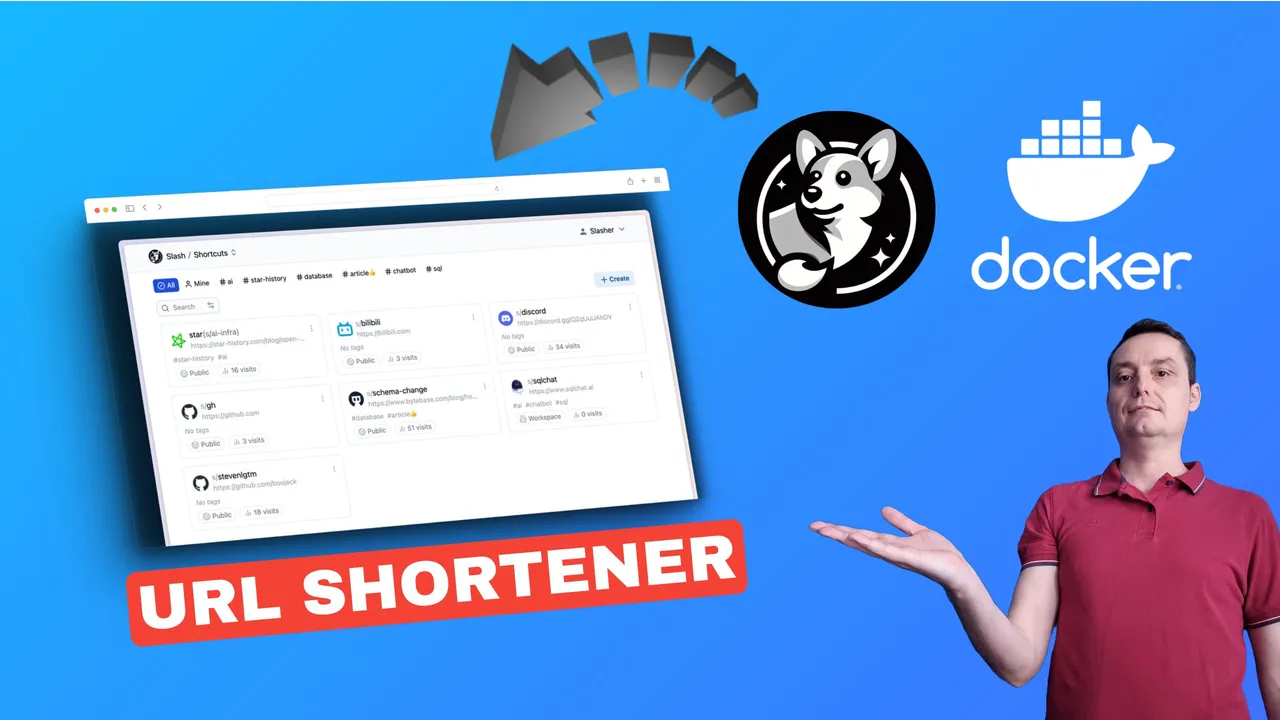
Slash is a self-hosted link shortener and bookmark manager you can deploy with Docker and Dockge in under 15 minutes. Since its initial release, the project has grown to over 3,200 GitHub stars and 100K+ Docker Hub pulls. It gives you full control over your short links. No third-party tracking, no monthly fees, and no rate limits.
Link shortening has real benefits for anyone managing links regularly:
- Makes URLs user-friendly and memorable
- Saves space in social media posts, emails, and messages
- Lets you redirect users based on device, location, or time
- Tracks clicks, conversions, and engagement with built-in analytics
- Keeps your original URLs and parameters hidden from the public
If you’re comparing options, also check out Sink, another self-hosted link shortener that takes a different approach.
What is Slash (A Self-Hosted Bookmark & Link Manager)
Slash is an open source, self-hosted bookmarks and link sharing platform. It’s built with Go on the backend and TypeScript/React on the frontend. The platform lets you organize links with tags, share them with custom shortened URLs, and track performance through analytics.
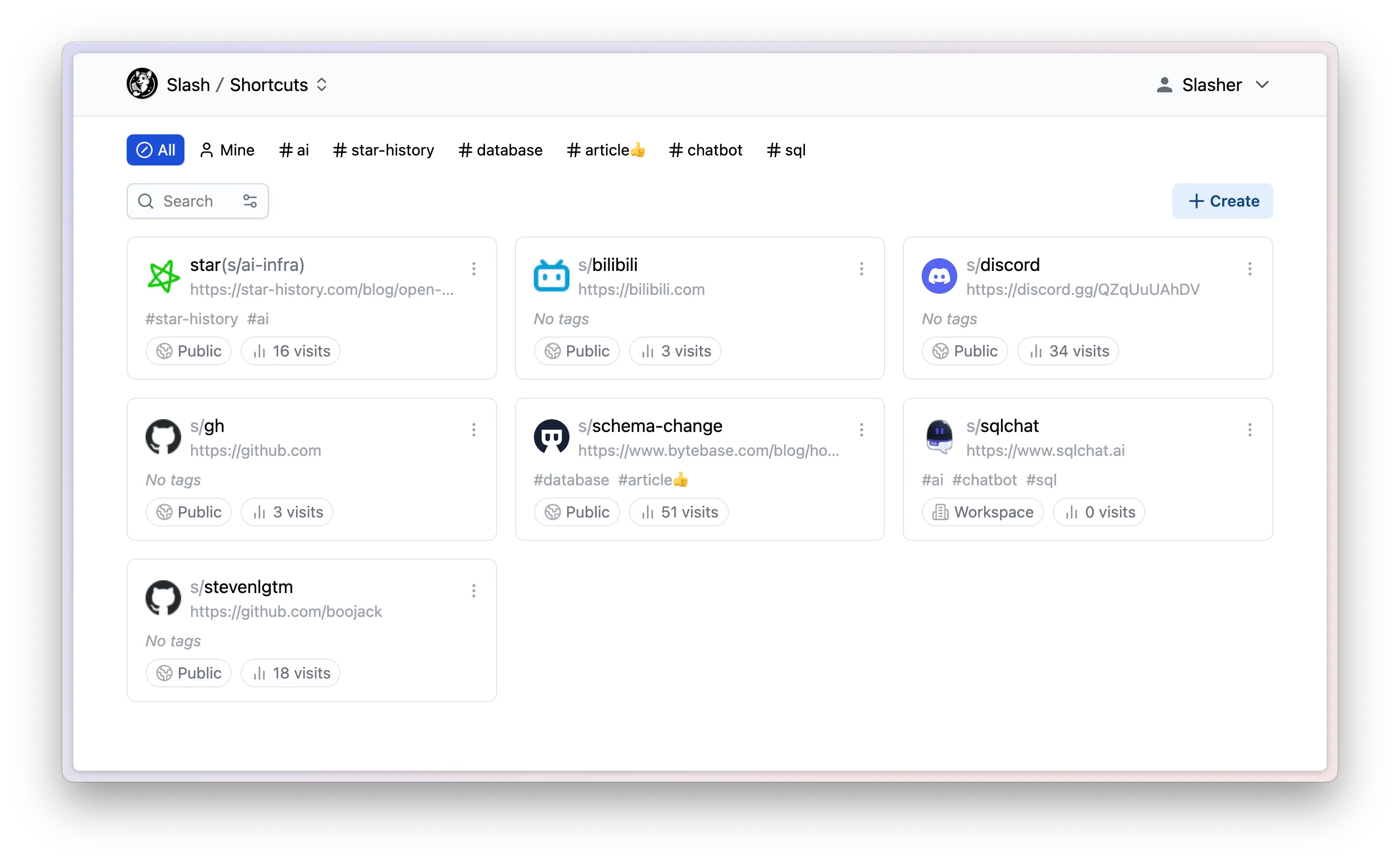
- Custom short URLs: personalize links with your own paths (
s/link-url) - Collections: group related shortcuts into virtual folders (
c/collection-name) - Analytics: view referrers, browsers, operating systems, and click data
- Dark mode: toggle via Profile -> Preference -> Color Theme
- Team sharing: share link libraries with teammates
- API access tokens: programmatic access to all Slash features
- PostgreSQL support: alternative to the default SQLite for larger deployments
- Browser extensions: Chrome and Firefox for saving links directly from your browser
License
Slash is licensed under AGPL-3.0. You can self-host and modify it freely, but changes to the source code must be shared under the same license.
The Collections feature (added in v0.5.0) deserves a closer look. Collections are virtual folders that group related shortcuts. They have their own URL scheme (c/collection-name), visibility controls, and can be shared publicly or with teammates. This was the biggest improvement over the flat link list the original version offered.
Slash also supports internationalization (i18n) with Chinese translation as of v0.4.5, and API access tokens for programmatic access since v0.4.1.
Browser extensions
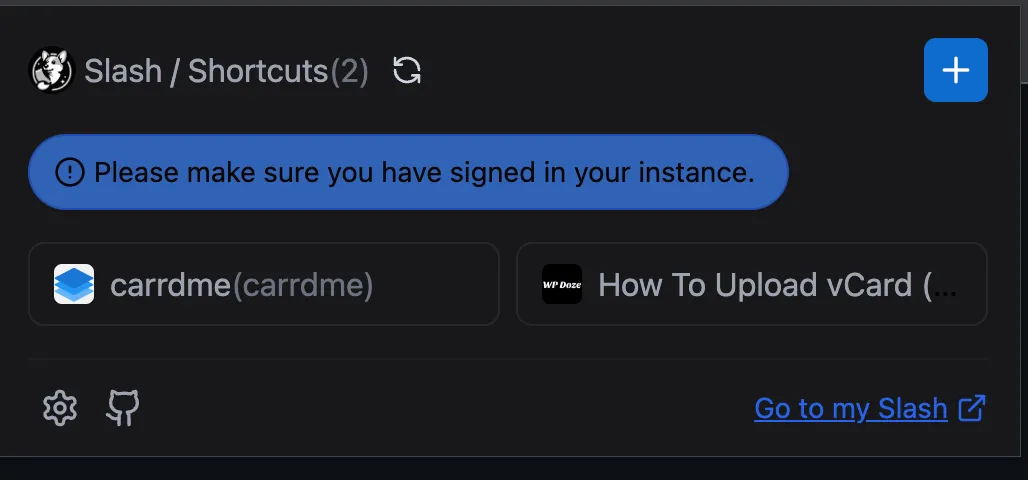
Slash offers extensions for both Chrome and Firefox:
Both extensions let you save and shorten links directly from your browser, customize short URLs, and access Slash’s bookmark management without leaving the page.
If you are interested in more free, open source, self-hosted apps, check toolhunt.net self hosted section.
Deploy Slash with Docker Compose and Dockge
This guide uses Docker Compose for containerization, Dockge for GUI-based stack management, and Cloudflare Tunnels for secure remote access. The modern Docker CLI uses docker compose (with a space). The old docker-compose (hyphen) was fully removed in April 2025.
1. Prerequisites
Before you begin, make sure you have the following in place:
- A VPS where you can host Slash. You can use Hetzner, Hostinger, or use a GMKtec M5 Ultra mini PC as a home server
- Dockge installed on your server for Docker Compose management
- Cloudflare Tunnels configured for your VPS (details are covered in the Dockge install article)
VPS prices jumped across the board in 2026 — if you’re rethinking a rented box, see what changed and when a mini PC wins.
Docker Compose v1 is gone
Docker Compose v1 (docker-compose with hyphen) was removed in April 2025. Use docker compose (space) instead. The version: field in compose files is also obsolete and should be removed.
You can also use Traefik as a reverse proxy for your apps instead of Cloudflare Tunnels. I have a full tutorial with Dockge install that covers the setup.
2. Add the Docker Compose file in Dockge
Below is the Docker Compose file for Slash. Note there’s no version: line. That field is obsolete in modern Docker Compose.
Basic (SQLite)
services:
  slash:
    image: yourselfhosted/slash:latest
    container_name: slash
    ports:
      - 5006:5231
    volumes:
      - ./slash:/var/opt/slash
    restart: unless-stopped
This pulls the latest Slash image and creates a volume in the local path where the Dockge stack is located. You can change port 5006 to whatever you prefer.
With PostgreSQL
services:
  slash:
    image: yourselfhosted/slash:latest
    container_name: slash
    ports:
      - 5006:5231
    volumes:
      - ./slash:/var/opt/slash
    environment:
      - SLASH_DRIVER=postgres
      - SLASH_DSN=postgresql://user:password@db:5432/slash
    restart: unless-stopped
  db:
    image: postgres:16
    container_name: slash-db
    environment:
      - POSTGRES_USER=user
      - POSTGRES_PASSWORD=password
      - POSTGRES_DB=slash
    volumes:
      - ./pgdata:/var/lib/postgresql/data
    restart: unless-stopped
PostgreSQL support was added in Slash v0.5.1. It’s useful for larger deployments or if you’re already running PostgreSQL. You can also configure these options via CLI flags: --driver postgres --dsn 'postgresql://...'. See our guide on how to configure environment variables in Docker for more details.
Slash also maintains an official docker-compose.yml in the repository if you want a reference.
In Dockge, hit compose and save. After that, you can choose the Dockge-default external network:
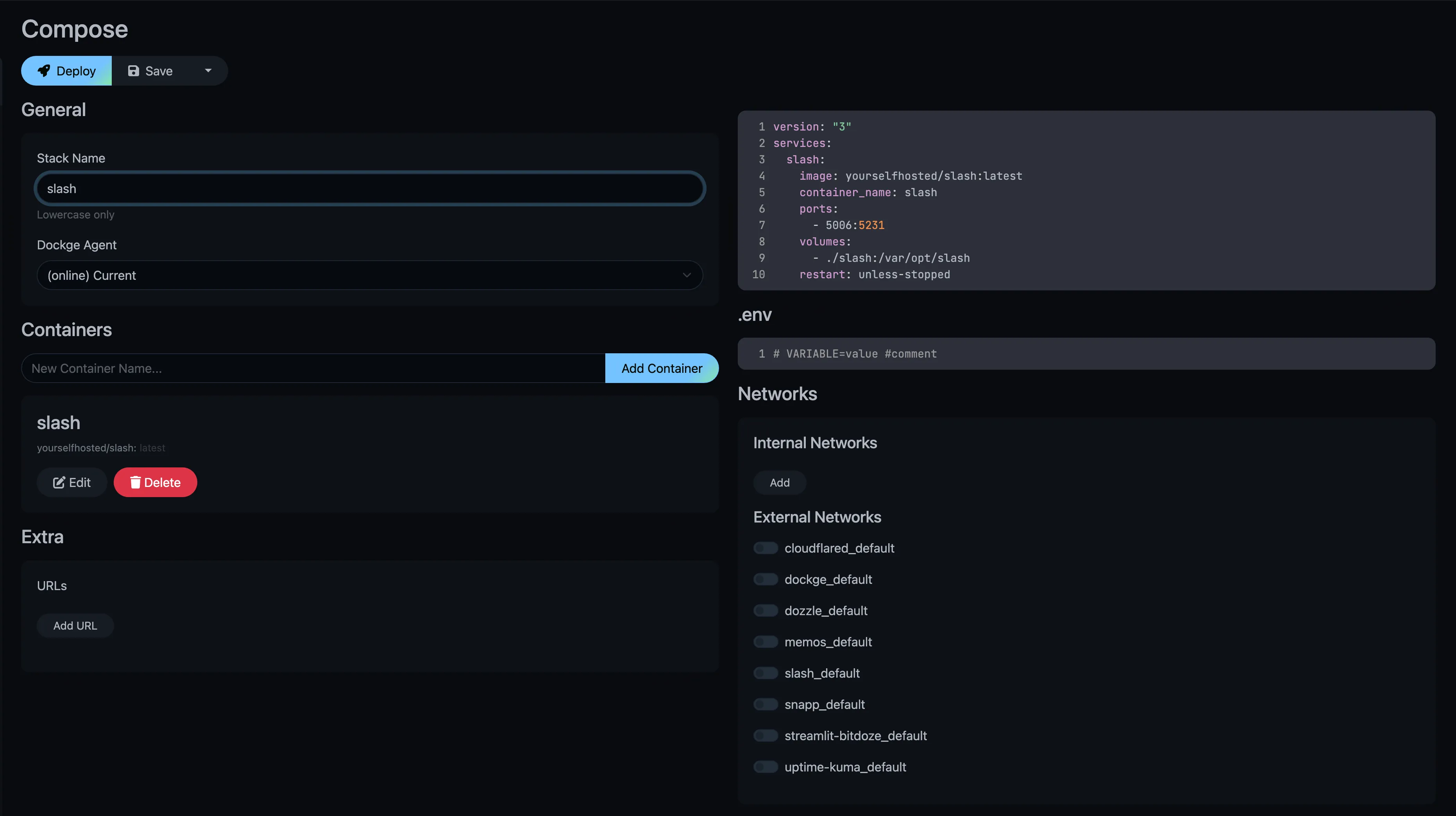
Hit save and start the container. It should start running without issues.
3. Configure Cloudflare Tunnels for secure access
You need to tell Cloudflare Tunnel which port Slash is using. Go to your Cloudflare Zero Trust dashboard and configure the tunnel:
Updated navigation
Cloudflare Zero Trust dashboard navigation was restructured. The new path is: Zero Trust -> Networks -> Connectors -> Cloudflare Tunnels (the old “Access -> Tunnels” path no longer exists).
Add a public hostname that maps a domain or subdomain to your Slash container’s port (5006 in our example):
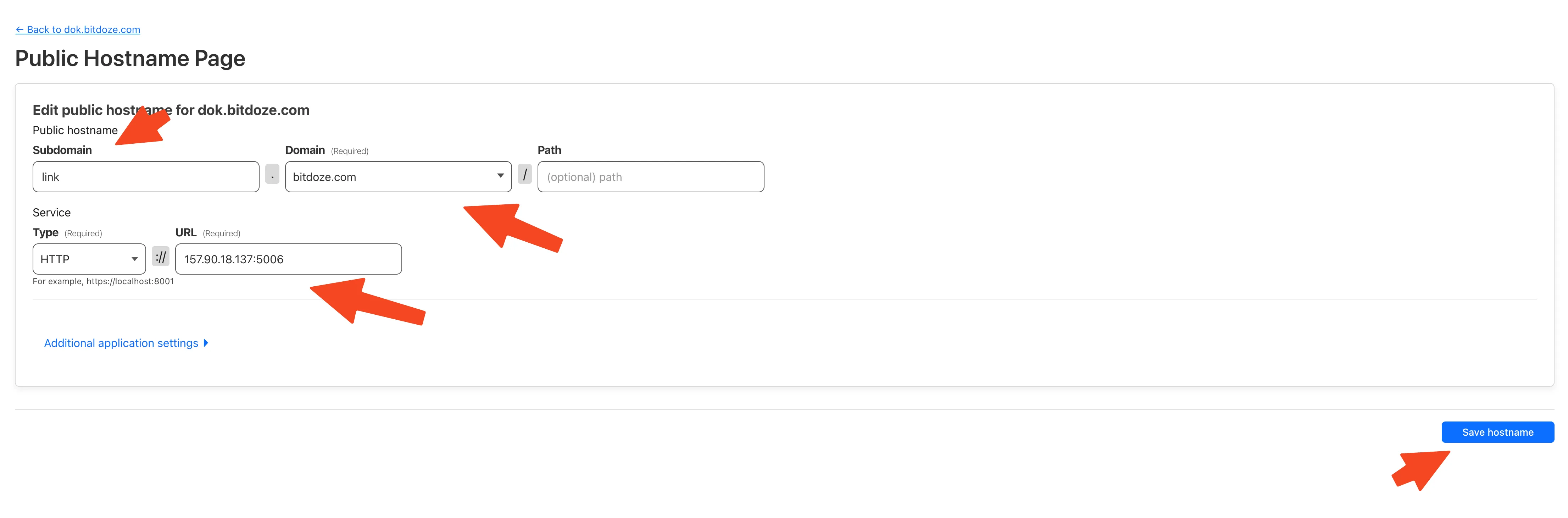
Enter your server IP and the port you chose in the compose file.
You can also check CloudPanel as a reverse proxy or use Traefik as a reverse proxy as alternatives to Cloudflare Tunnels. See also our Cloudreve Docker guide for a similar Cloudflare Tunnel setup with another self-hosted app.
4. Access Slash and organize links with collections
Access Slash using the domain you configured in Cloudflare. On first visit, you’ll be asked to create an admin account.
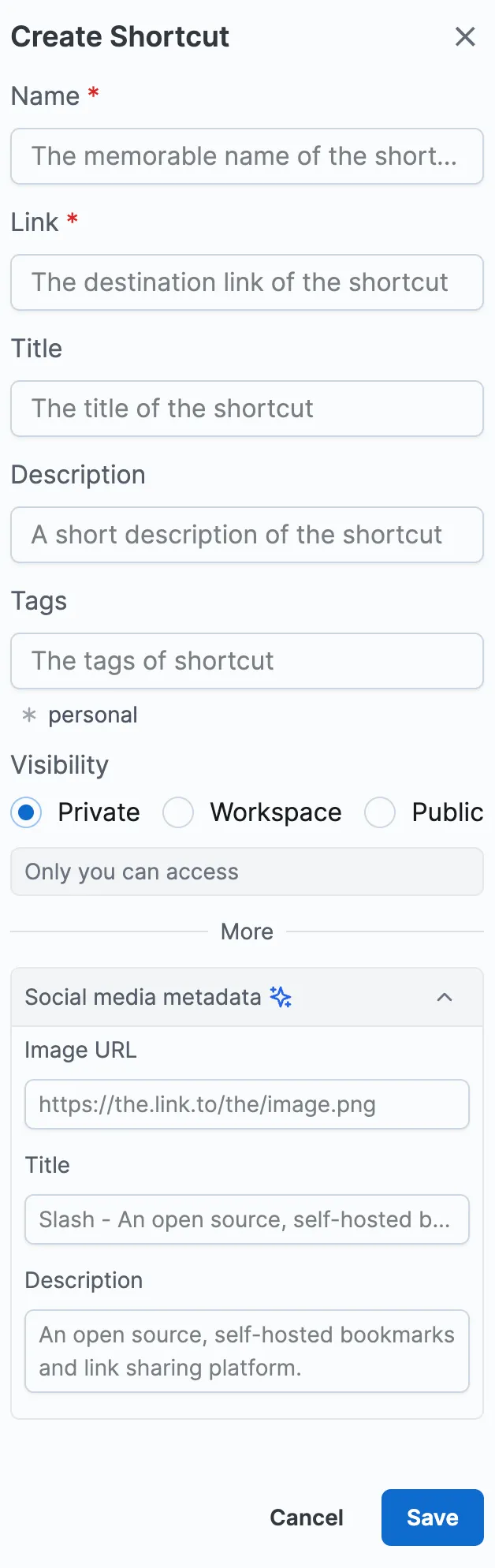
- Create your admin account on first login
- Add your first shortcut with
s/shortcut-name - Create a collection with
c/collection-nameto group related links - Install the Chrome or Firefox browser extension
- Toggle dark mode in Profile -> Preference -> Color Theme
Collections are the standout feature since the original version of this article. You can create collections like c/dev-tools or c/social to organize links into logical groups. Each collection has its own URL, can be set to public or private, and can be shared with teammates.
Conclusion
Slash has matured since its early releases. With 3,200+ GitHub stars, PostgreSQL support, collections, API access tokens, and an active Discord community, it’s a solid choice for anyone who wants a self-hosted link shortener with full control over their data.
The deployment is straightforward: Docker Compose handles the container, Dockge gives you a clean web UI to manage it, and Cloudflare Tunnels expose it securely without opening ports on your firewall. Slash is also available as a one-click deploy on Coolify if you prefer that workflow.
Explore More Docker Containers